Why QR Codes on Employee Badges?
The traditional employee ID badge has two jobs: prove who you are and let you through the right doors. For decades, magnetic stripes and proximity (RFID) cards dominated both functions. They work well — but they require dedicated, expensive reader hardware at every checkpoint and offer no flexibility beyond what the card hardware supports.
QR codes change the economics completely. Any camera-equipped device can read a QR code, including the smartphone already in every employee's pocket, cheap USB webcam kiosks, and tablet-based visitor management terminals. Hardware costs drop dramatically. Workflows that were previously impossible — remote check-in, self-service equipment requests, mobile door access — become straightforward.
For a broad survey of workplace and enterprise QR applications, see our pillar guide on QR code use cases across industries. This article focuses specifically on the employee badge context.
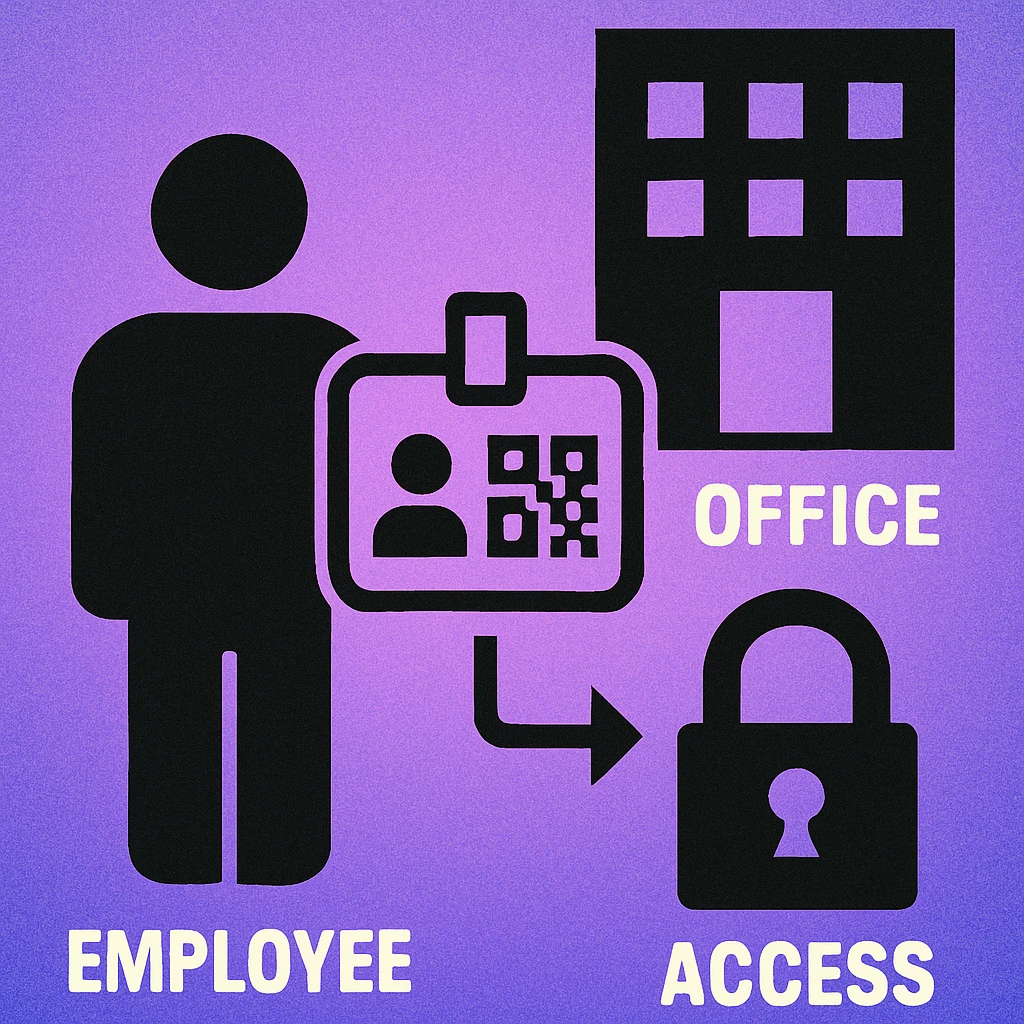
The QR code on a badge should encode only a unique identifier token — never personal data. The back-end system performs the lookup. This protects privacy, enables instant permission updates without reprinting, and keeps the badge credential simple and portable across systems.
Four Core Use Cases
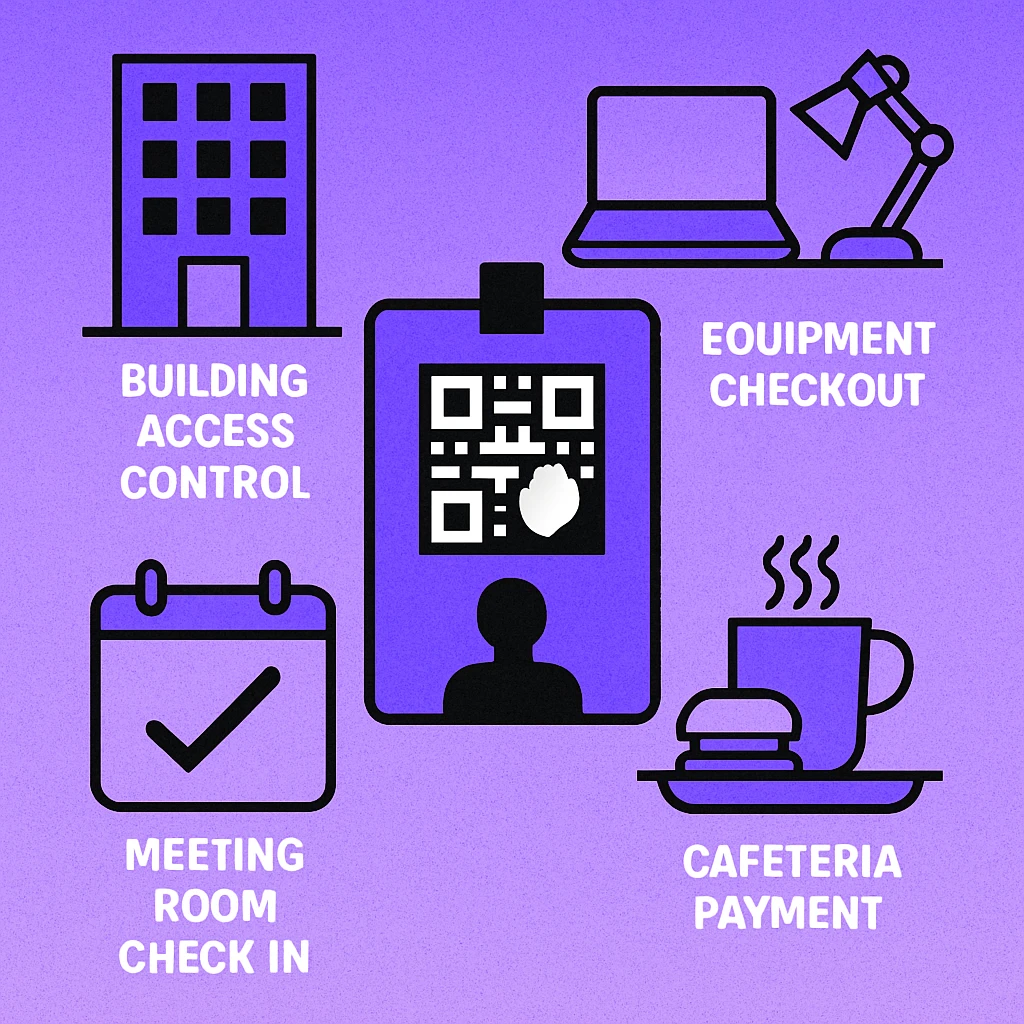
1. Building & Zone Access Control
The most common use case. A QR code scanner mounted beside a door or turnstile reads the employee's badge, validates the identifier against an access control database, and triggers the door relay if the permission level matches. Compared to RFID, QR scanning is slightly slower per interaction but far cheaper to deploy across a large facility. It also integrates naturally with time-and-attendance logging — every badge scan creates a timestamped entry/exit record without any additional hardware or manual process.
For high-throughput entrances (main lobby, car park barriers), a dedicated QR scanner with a fast read rate is appropriate. For low-traffic internal zones (server rooms, storage areas), a tablet running a scanning app is often sufficient.
2. Equipment Checkout & Asset Tracking
IT departments and facilities teams spend significant time tracking who has which laptop, projector, key fob, or tool. A QR-enabled badge system eliminates the paper sign-out sheet. The employee scans their badge at an equipment kiosk or presents it to a staff member with a scanning app; the system records the checkout against their employee ID. Return is logged the same way. Combined with QR codes on each asset itself, you get a full two-sided audit trail with zero manual data entry.
3. Meeting Room Check-In
Ghost meetings — rooms booked but never used — are a persistent problem in large offices. A QR code panel outside each meeting room lets the organiser confirm their booking by scanning their badge when they arrive. If nobody checks in within a set window (typically 10–15 minutes after the booking start), the room is automatically released back to the booking system. Occupancy data accumulates over time, giving facilities managers real evidence for space utilisation decisions.
4. Cafeteria & Vending Payment
Cashless cafeteria systems linked to employee accounts are increasingly common in mid-size and enterprise organisations. The employee's badge QR code links to a prepaid wallet or cost-centre account. Scanning at the till deducts the meal cost without cash or a separate payment card. Integration with payroll deduction is straightforward when the identifier is already the employee record key. This also simplifies expense reporting for meals taken during business travel or late working.
If all four systems share the same employee identifier back-end (HRIS or Active Directory), a single QR code handles all four use cases. Deprovisioning on departure is then a single action: deactivate the employee record and access across every integrated system is revoked simultaneously.
Badge Design & Layouts
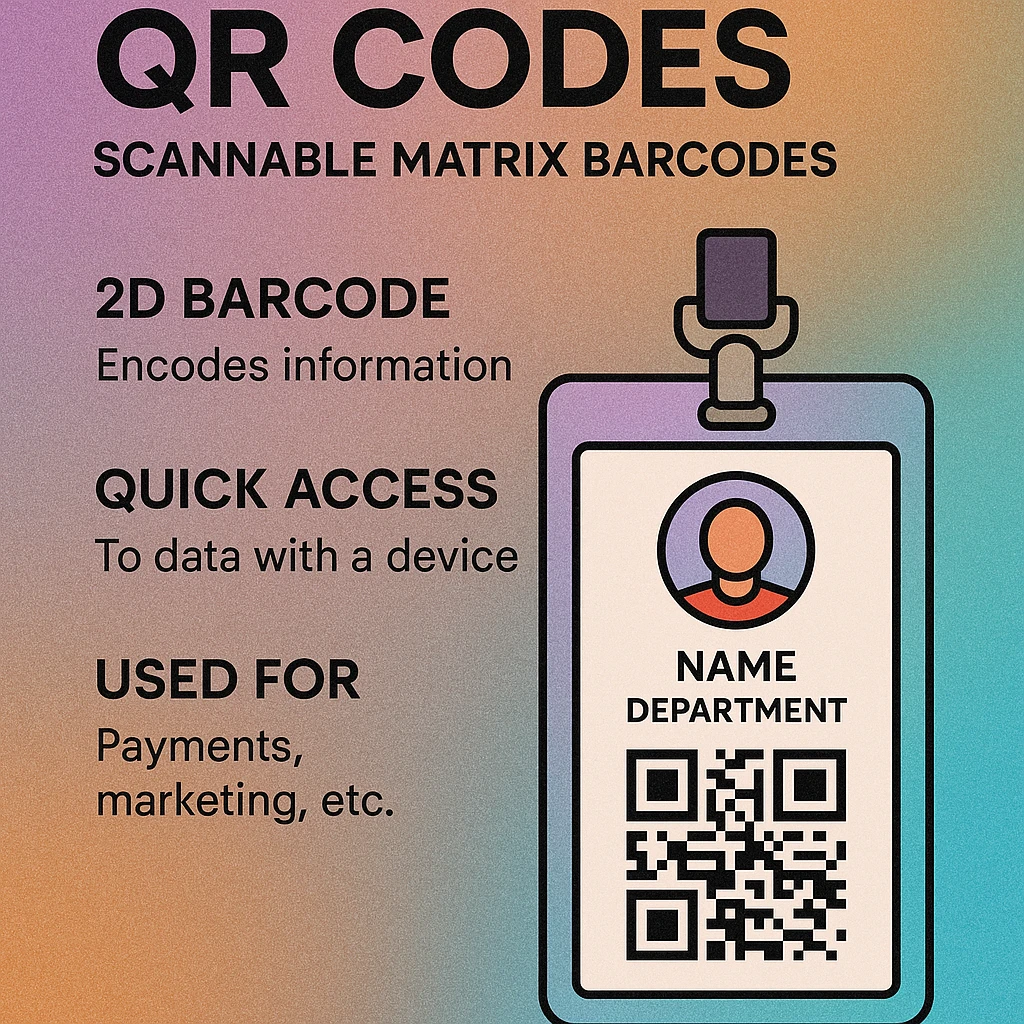
Badge design involves balancing visual communication (name, photo, department colour) with the practical requirements of QR scanning. The following layout principles apply across card formats.
| Layout | QR Position | Best For | Scanning Ease |
|---|---|---|---|
| Front-bottom | Lower third of front face, below photo and name | General staff badges | Easy |
| Reverse-only | Full back of the card | Visitor & contractor passes | Easy |
| Front-top corner | Upper right or left corner of front | Compact horizontal cards | Good |
| Lanyard-punch zone | Top strip, QR in remaining space | Slot-punched lanyards | Good |
Size & Quiet Zone
On a standard CR80 card (85.6 × 54 mm), a QR code of 20–25 mm × 20–25 mm works well for most scanner distances (5–30 cm). Never place the QR code closer than 3 mm to the card edge — maintain the full quiet zone on all four sides. Laminate surfaces can introduce glare; a matte or anti-glare laminate significantly improves scan reliability in overhead-lit environments.
Error Correction Level
Employee badges receive daily handling, get scratched, and pick up wallet wear over months. Use error correction level Q (25% restoration) as a minimum. If the badge design includes a company logo or initials overlaid on the QR code, upgrade to level H (30%). For the specific considerations around adding logos to QR codes, see our guide on vCard QR codes where logo overlay and contact data coexist on a single scan target — the same principles apply here.
Colour & Contrast
Dark modules on a white or light background are the most reliable combination. If the badge uses a coloured background, ensure at least a 4:1 contrast ratio between the QR module colour and the background. Avoid printing QR codes on photographic or gradient backgrounds without a clean white inset panel.
QR Code Apps for Mac & Safari
Prefer generating codes without opening a browser tab? These two native Apple apps cover both habits — a full generator on the desktop, and a one-click share button inside Safari.


Security Considerations
QR codes on physical credentials introduce specific security considerations that differ from purely digital QR applications.
- Static codes can be photographed. A standard printed QR code can be captured with any camera and replayed. For lower-security applications (cafeteria payment, meeting room check-in), this risk is generally acceptable. For building access, mitigate it with time-window validation: the system only accepts each scan once within a defined time window, making replays useless.
- Dynamic codes for sensitive areas. Some advanced systems generate a rotating QR code displayed on the employee's phone app that changes every 30 seconds (similar to TOTP authentication). The physical badge then serves as a fallback for phone-dead or no-phone scenarios. See how this pattern is used in the event context in our article on QR codes on conference badges.
- Revocation must be instant. When an employee leaves the organisation, their identifier must be deactivated centrally before — not after — their last working day. QR-based systems that depend on a live database lookup (the recommended architecture) support instant revocation. Systems that bake permissions into the QR payload itself cannot revoke without a badge replacement.
- Physical security still matters. A QR-based access system is only as strong as badge issuance controls. Badge printing should be restricted, and lost badge reports should trigger immediate deactivation.
Generate Unique Employee QR Codes
Create individual QR codes for each employee record. Download as high-resolution PNG or SVG, ready for badge printing. No account required.
Implementation Steps
Deploying QR Codes on Employee Badges
Choose your identifier scheme. Decide whether to use an existing employee ID from your HRIS, generate a new UUID for each employee, or issue tokens from a dedicated access control system. UUIDs are preferred because they carry no human-readable information and are non-sequential, making them harder to guess or forge.
Generate one QR code per employee. Use a QR generator that accepts batch input or API calls to produce a unique code per identifier. Set error correction to Q or H, use a minimum module size of 3 pixels, and export as vector (SVG) or high-resolution PNG (≥300 DPI) for print quality.
Design the badge template. Place the QR code in a position with a clean white background and adequate quiet zone. Test a print proof under fluorescent lighting before committing to a full print run. Scan with multiple devices: iPhone Camera app, Android Google Lens, and a dedicated handheld scanner if available.
Integrate scanners with your back-end. Each scanning point (door reader, kiosk, tablet app) should POST the scanned identifier to your validation API and receive a permission response. The API connects to your employee directory or access control database. This architecture centralises permissions and enables instant revocation.
Establish a badge lifecycle process. Define procedures for new hire issuance, lost badge replacement, role-change permission updates, and departure deactivation. Document the SLA for each — departure deactivation should be same-day or sooner for any role with privileged access.
QR-enabled employee badges are most effective when a single identifier token powers multiple workplace systems through a shared directory back-end. Use error correction Q or H, maintain a clean quiet zone, test across multiple scan devices, and design revocation as an instant, centralised action rather than a badge-by-badge process.
Frequently Asked Questions
QR codes can be used securely for access control when combined with appropriate system design. Static QR codes are easily copied or photographed, so high-security environments should use dynamic QR codes that expire after a single scan or rotate on a time interval. For sensitive areas, pair QR code scanning with a secondary factor such as a PIN, biometric check, or time-window validation. Always store credential data server-side and treat the QR code as a token, not as the credential itself.
The best practice is to encode only a unique employee identifier or token — not personal data like names, job titles, or email addresses. The back-end system looks up the identifier to retrieve permissions and details. This keeps the badge data minimal, protects employee privacy if a code is photographed, and allows permissions to be updated centrally without reprinting the badge.
Yes. If all systems share a common employee identifier back-end, a single QR code encoding that identifier can authenticate against multiple systems — access control, cafeteria POS, equipment checkout, and meeting room booking — provided each system is integrated with the central directory. This reduces badge complexity and makes deprovisioning straightforward: deactivate the employee record and all systems are updated simultaneously.
NFC and RFID cards are tapped against dedicated readers and work even when a phone is not available, making them slightly faster for high-throughput entry points. QR code badges are scanned optically and work with any camera-equipped device, including standard smartphones and webcams, which drastically reduces hardware costs. QR codes also enable remote or self-service workflows impossible with RFID — for example, a contractor scanning their badge into a web form to request temporary access, or an employee scanning their badge at a cafeteria kiosk.
Level Q (25% restoration) is a practical default for employee badges. It provides strong resilience against scratches and minor damage that accumulates with daily wear, without making the QR code so dense that it becomes hard to scan quickly. If the badge includes a logo overlay on the QR code, upgrade to Level H (30% restoration). Avoid Level L for physical credentials — it offers minimal damage tolerance.