Why QR Badges Work
The paper business card has dominated professional networking for decades, but it comes with real friction: cards get lost, data entry is manual, and there's no way to know who picked up whose card or when. Conference badge QR codes solve all three problems at once.
When an attendee's badge carries a QR code, any exhibitor, speaker, or fellow delegate can scan it with a smartphone and instantly capture that person's contact details — no typing, no lost cards, no transcription errors. For a broader look at how QR codes are transforming the events industry, see our pillar guide on QR code use cases. This article focuses specifically on the conference badge context.
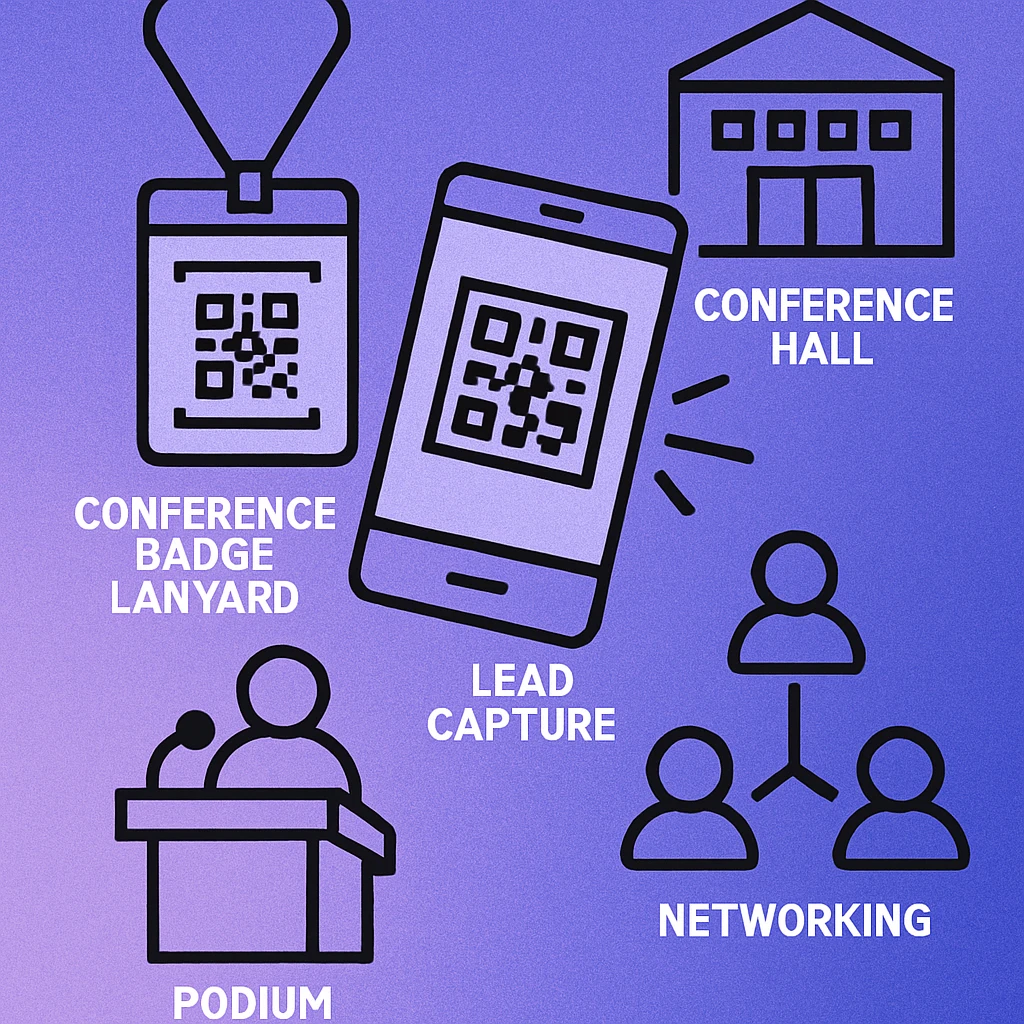
Event organisers who switch from paper badges to QR-enabled badges report that exhibitors capture on average 3–5× more qualified leads per day, simply because the friction of manual data exchange is removed entirely.
QR codes on badges also give organisers richer data: which sessions were attended, which exhibitor stands were visited, and which speakers drew the most post-session interest. This intelligence feeds directly into post-event reporting and sponsor ROI calculations.
The Lead Capture Flow
Understanding the mechanics behind badge scanning helps you choose the right implementation and avoid common bottlenecks. The flow has four stages: badge creation, scanning, data capture, and follow-up.
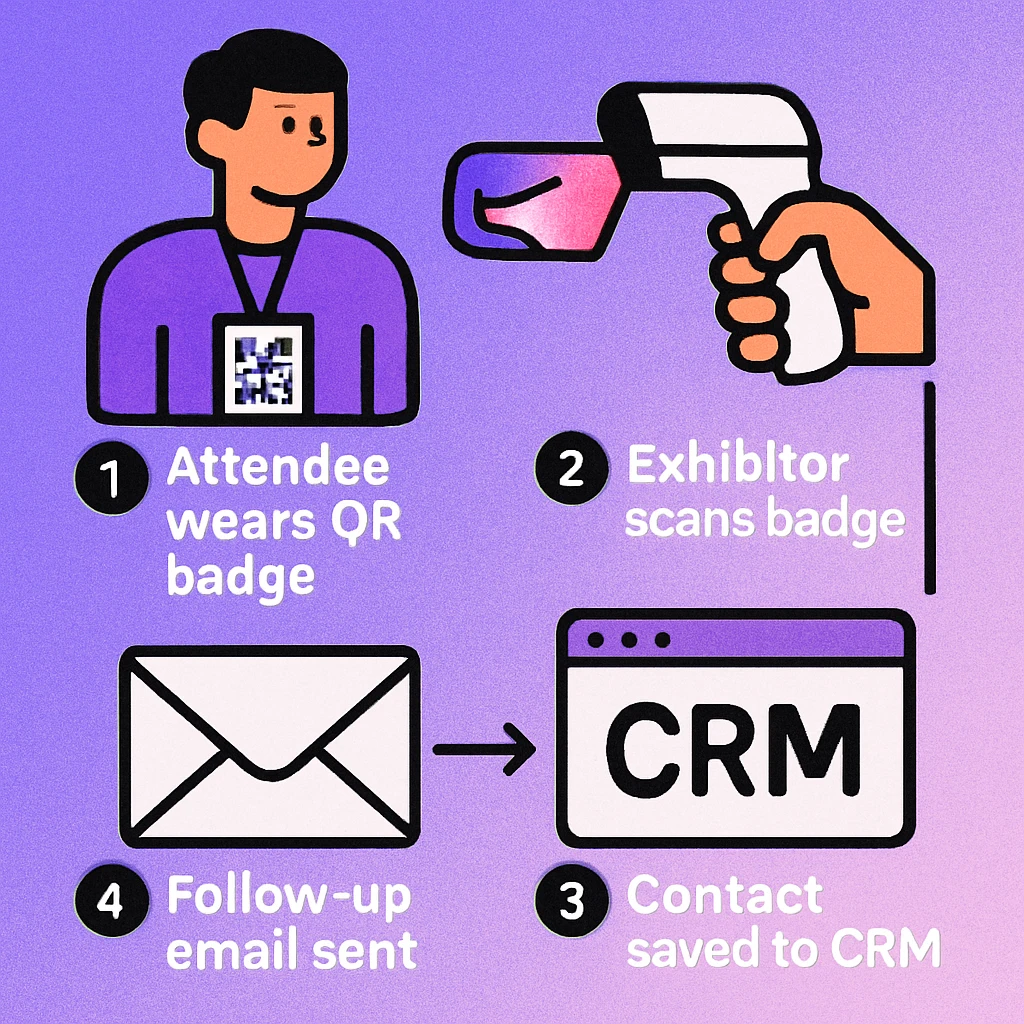
Four Stages of Badge QR Lead Capture
Badge generation. During registration, each attendee's profile data is encoded into a unique QR code. This can be a vCard payload (name, title, company, email, phone) for direct contact saving, or a URL pointing to a profile in the event platform. The QR is printed on the badge before or during check-in. For vCard-format QR codes, see our guide on vCard QR codes.
On-site scanning. Exhibitors and sponsors use a lead-retrieval app or generic QR scanner to scan attendee badges during the event. Some organisers supply branded scanning apps; others allow exhibitors to use their own CRM's native scanner. Standard smartphone cameras work for vCard-encoded badges with no additional software.
Real-time data capture. The scan instantly populates the exhibitor's lead list with contact data. Many apps allow the scanner to add notes, interest ratings (hot / warm / cold), or product interest tags at the moment of capture — a level of context impossible with a physical card.
Post-event follow-up. Captured leads sync to a CRM (Salesforce, HubSpot, Pipedrive, or similar) automatically or via CSV export. Personalised follow-up emails can be triggered within hours of the event, while conversations are still fresh in both parties' minds.
Badge Types Compared
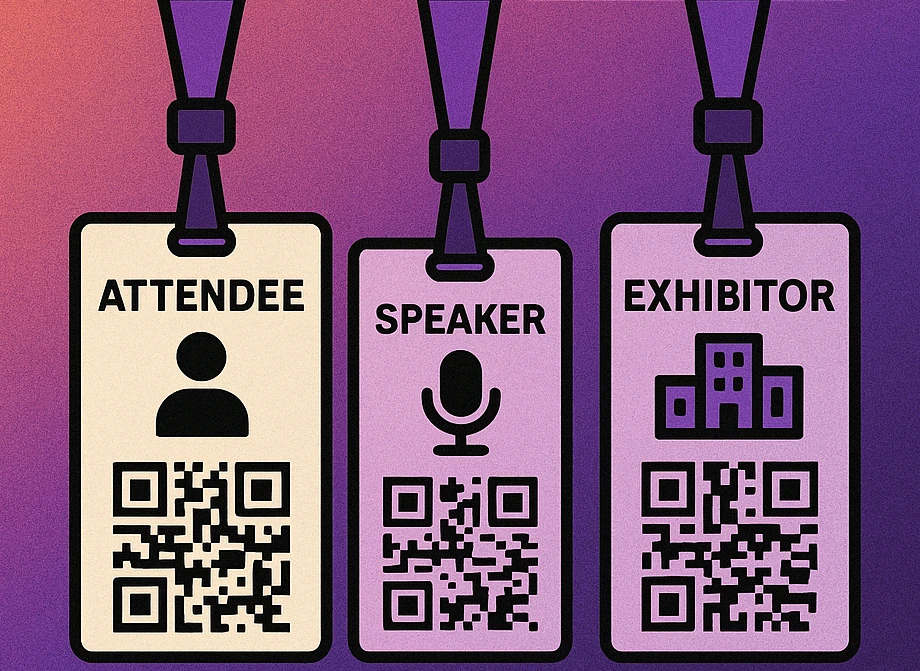
Not every badge at a conference serves the same purpose. Attendees, speakers, and exhibitors each have distinct networking needs, and the QR code payload should reflect those differences.
| Badge Type | QR Payload | Primary Use | Lead Capture | Networking |
|---|---|---|---|---|
| Attendee | vCard or attendee profile URL | Contact exchange, session check-in | Scanned by exhibitors | Peer-to-peer |
| Speaker | Speaker bio URL + social links | Profile discovery, post-talk engagement | Optional | High value |
| Exhibitor / Staff | Company landing page or product URL | Lead generation, product info delivery | Active scanner | Secondary |
| VIP / Press | Private profile URL with access gating | Priority access, relationship management | Restricted | Curated |
| Sponsor | Sponsor landing page or offer URL | Brand visibility, lead capture at stand | Primary goal | Secondary |
For events where speakers and attendees want to exchange contact details on equal footing — such as meetups and unconferences — a unified vCard payload works well for all badge types. If you want attendees to share contact details the way a digital business card would work, see our guide on QR code business cards.
CRM Integration
The value of a badge scan multiplies when it connects directly to your sales or marketing stack. A lead captured on paper requires manual entry, deduplication, and enrichment before it's useful. A badge QR scan, by contrast, can trigger a fully automated workflow in seconds.
Approaches by Maturity Level
Basic (CSV export): The event platform exports scanned leads as a CSV at the end of each day or after the event. Sales teams upload this manually to their CRM. Simple, but introduces a lag of hours to days before follow-up begins.
Intermediate (webhook integration): The lead-retrieval app sends a webhook to your CRM endpoint every time a badge is scanned. Contact records are created or updated in real time. HubSpot, Salesforce, and Zoho all support inbound webhooks natively. Your sales team sees the lead appear in their pipeline while the conversation is still happening on the show floor.
Advanced (bi-directional sync): The scanning app checks whether a scanned contact already exists in your CRM before creating a new record. If the lead is already known, it updates the existing record with event context (date, stand, notes). This prevents duplicate records and gives account managers a complete picture of every touchpoint with a contact, including event history.
Set up an automated "same-day follow-up" email sequence triggered by a badge scan. Leads contacted within 24 hours of an event interaction convert at significantly higher rates than those chased days later. Tag each lead with the event name so your team can personalise outreach with accurate context.
Ready to Build Your Badge QR Codes?
Generate vCard or URL QR codes for conference badges. Free, high-res export, no account required.
QR Code Apps for Mac & Safari
Prefer generating codes without opening a browser tab? These two native Apple apps cover both habits — a full generator on the desktop, and a one-click share button inside Safari.


Attendee Networking
Lead capture is the exhibitor's priority, but attendee-to-attendee networking is equally important — and badge QR codes serve that purpose too. The key is designing the badge payload to support a frictionless peer exchange, not just a one-way data grab by exhibitors.
When a badge QR code encodes a vCard, any attendee can scan another's badge with their native camera app and save the contact to their phone in one tap — no app download required. This mirrors the simplicity of tapping two phones together with NFC, but works on every device and badge material without any extra hardware.
For events with a dedicated networking app (Brella, Grip, Swapcard, Hopin), the badge QR can deep-link into the app's contact profile, enabling mutual connection requests, in-app messaging, and meeting scheduling — all triggered by a single scan at a coffee stand. This approach is particularly powerful at multi-day conferences where spontaneous hallway conversations drive more deals than scheduled booth meetings.
Badge QR codes used for networking are functionally very close to digital vCard QR codes shared between individuals — the conference context simply provides a structured setting where both parties expect to exchange contact details. For an even closer parallel, see how professionals use QR code business cards to replace the physical card entirely.
Setup Checklist
Whether you're organising the event or preparing as an exhibitor, the following steps will ensure your badge QR workflow runs smoothly from print to follow-up.
Pre-Event Setup
Choose your payload format. Decide between vCard (works with any camera), attendee profile URL (requires internet on-site), or a hybrid QR pointing to a landing page that also offers vCard download. For large events with reliable wifi, a profile URL gives the richest experience. For smaller or outdoor events, vCard is the safer choice.
Generate QR codes at print resolution. Export SVG or PNG at minimum 600 dpi at final print size. Badge QR codes should be at least 2.5 cm × 2.5 cm. Use error correction level H to handle badge wear and creasing over a multi-day event.
Test scan before printing in bulk. Print a sample badge and test with at least three devices (iPhone native camera, Android camera, dedicated QR app). Test in the venue lighting conditions if possible — lanyard badges at chest height can be tricky in dimly lit exhibition halls.
Brief your exhibitor team. Ensure stand staff know which app to use, how to add notes to a lead at the point of scan, and what the data export process is. A five-minute briefing on the morning of day one eliminates most on-site confusion.
Set up your CRM integration and follow-up sequence. Test the webhook or export pipeline before the event opens. Create the follow-up email template and trigger condition. On event day, you should be doing nothing more than scanning badges — the automation handles the rest.
For a broader look at how QR codes support events beyond the badge — including ticketing, check-in, and session feedback — see our guide on QR codes for events and ticketing.
Badge QR codes work best when the payload matches the role: vCard for attendees, profile URL for speakers, lead-capture URL for exhibitors. Combine with a CRM webhook for real-time lead sync, test at print resolution before the event, and brief your team on the scanning workflow. The result is faster lead capture, richer data, and measurably better follow-up conversion.
Frequently Asked Questions
A conference badge QR code typically encodes the attendee's name, job title, company, email address, and a unique attendee ID tied to the event registration system. For exhibitors and sponsors, it may also include a lead-capture URL or a vCard payload so contacts can be saved directly to a phone. Speakers often have an enhanced payload linking to their bio page or session schedule.
Exhibitors use a dedicated lead-retrieval app provided by the event organiser, or a generic QR scanner connected to a CRM via webhook. When they scan an attendee's badge QR code, the contact data is captured instantly — no business cards exchanged, no manual data entry. Many platforms allow exhibitors to add notes, ratings, or follow-up tags at the moment of scan, which are synced to their CRM in real time.
Yes. When a badge QR code encodes a vCard or a URL to a digital contact profile, any attendee with a standard smartphone camera can scan it and save the contact. This works without any specialist app. For a richer experience — mutual connection, in-app messaging, follow-up scheduling — event networking apps like Brella, Grip, or Swapcard add a layer on top of the basic badge scan.
For badge printing, generate QR codes as SVG or high-resolution PNG (at least 600 dpi at final print size). The code should be at minimum 2.5 cm × 2.5 cm on the printed badge — larger if the badge uses a lanyard holder that may obscure edges. Use error correction level H so the code remains scannable if the badge surface gets scratched or creased during the event.