Why Add a QR Code to Your Business Card
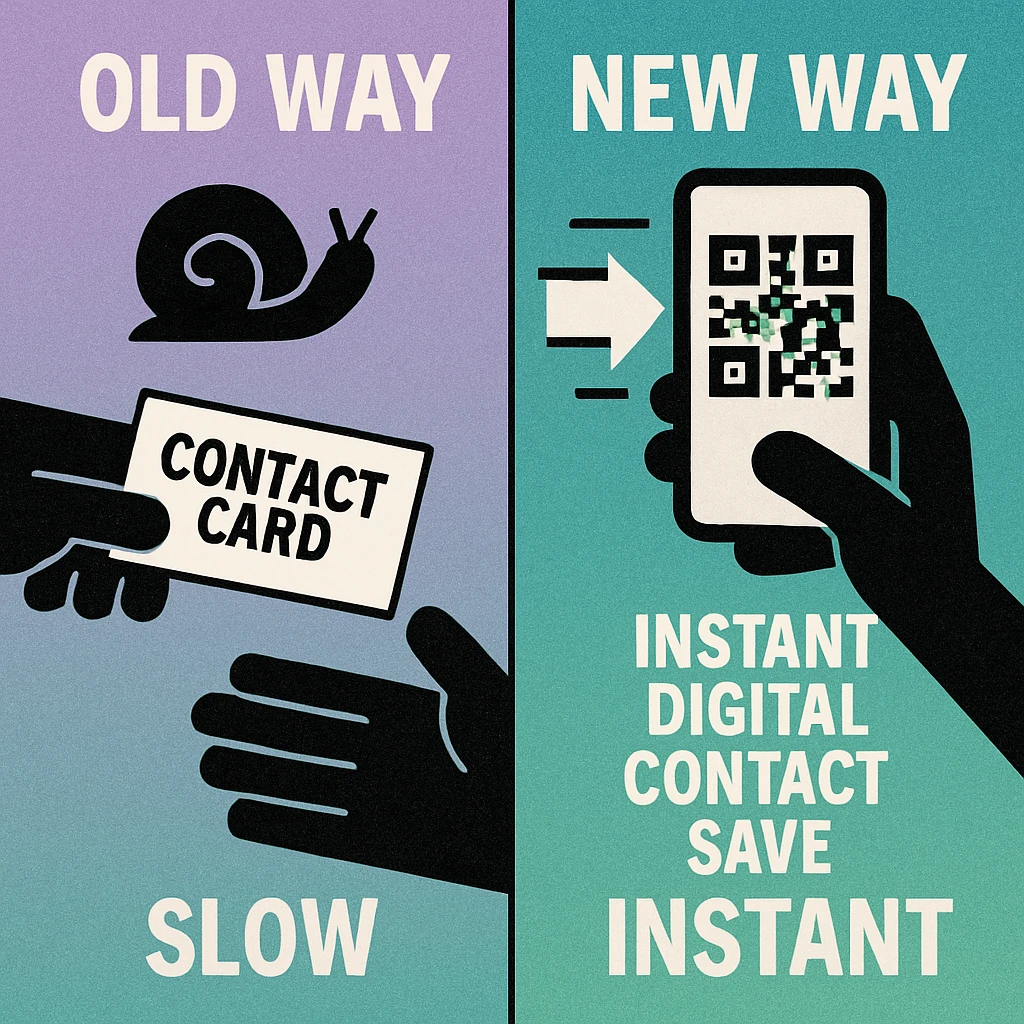
You hand someone a business card at a conference. They pocket it, and by the time they get home, the card is buried under receipts and boarding passes. Even if they find it, typing your name, phone number, email address, and company into their phone takes effort — effort most people skip. This is the fundamental problem with traditional business cards: the contact information they carry rarely makes it into the recipient's phone.
A QR code on a business card solves this in seconds. The recipient points their phone camera at the code, taps the notification, and your full contact details are saved to their address book automatically. No typing, no misspelled email addresses, no lost cards. The conversion rate from "received a card" to "saved the contact" jumps dramatically.
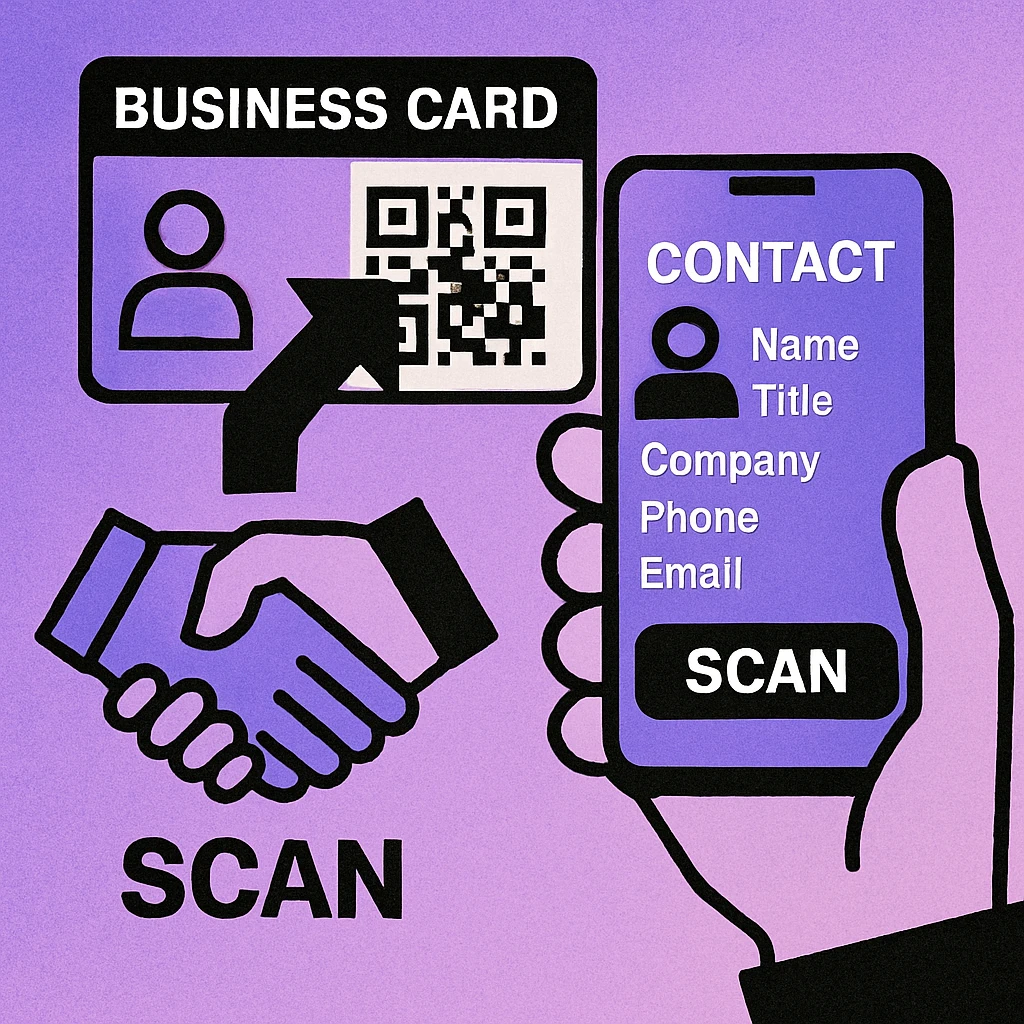
Beyond contact saving, a qr code business card signals that you're tech-savvy and considerate of other people's time. It's a small touch that leaves a strong impression — especially in industries like tech, consulting, real estate, and creative services where first impressions matter. For a broader overview of how QR codes are used across industries, see our complete guide to QR code use cases.
Most business cards end up in a drawer. A QR code ensures your contact information actually reaches the recipient's phone — instantly, accurately, and without manual typing.
What to Encode in Your Business Card QR Code
The data you encode determines what happens when someone scans your card. There's no single correct answer — the best choice depends on your profession and what action you want the scanner to take. Here are the four most common options:
vCard (Contact File)
A vCard QR code encodes your contact details directly inside the code itself: full name, phone number, email, company, job title, address, and even a website URL. When scanned, the phone prompts the user to save a new contact with all fields pre-filled. This is the most direct approach for networking because it works offline and requires zero follow-up. For a deep dive into this format, read our vCard QR code guide.
LinkedIn Profile URL
If your networking strategy revolves around LinkedIn, encoding your profile URL is a clean option. When scanned, the recipient's browser opens your LinkedIn page where they can connect with you, see your experience, and read your posts. The downside is that it requires an internet connection and adds a step before the contact is saved.
Portfolio or Personal Website
For designers, developers, photographers, and other creatives, a QR code linking to your portfolio shows your work immediately. This approach works well when your business card is designed to spark curiosity and drive people to see what you do, rather than just save a phone number. You can learn more about this approach in our article on QR codes on resumes.
Multi-Link Landing Page
If you want to offer multiple options — save my contact, visit my LinkedIn, check my portfolio, book a meeting — you can encode a URL that points to a landing page with all those links. This is the most flexible option, but it requires internet access and depends on keeping the landing page live.
How to Create a Business Card QR Code
Creating a QR code for your business card takes less than five minutes. Follow these steps to get a print-ready code:
Step-by-Step: Generate Your Business Card QR Code
Choose what to encode. Decide between a vCard with your full contact details, a URL to your LinkedIn profile or portfolio, or a link to a multi-link landing page. If you're unsure, start with a vCard — it's the most universally useful format for business cards.
Open a QR code generator. Go to generateonlineqr.com and select the appropriate content type. For a vCard, choose the vCard option. For a website or LinkedIn, choose URL. Our complete QR code guide covers additional content types.
Enter your information. Paste your URL or fill in the vCard fields: name, phone number, email address, company name, and job title. Double-check every field — a typo in your phone number will be permanently encoded once the cards are printed.
Set error correction to High. For printed materials, select error correction level H (High, 30% recovery). This ensures the code remains scannable even with slight print imperfections, scuffs, or if a small part is covered by a finger during scanning.
Download and test. Download the QR code as a high-resolution PNG (at least 300 DPI) or SVG for vector scalability. Test it with at least three different phones — iPhone, Android, and an older device — before sending your card to print.
Add it to your card design. Place the QR code in your business card layout, ensuring it meets the minimum size and quiet zone requirements (see the Design & Placement section below). Send to your printer and request a proof copy for a final scan test.
Create Your Business Card QR Code Now
Generate a free QR code for your business card. Download in PNG or SVG, ready for print.
Design and Placement on Your Card
Where and how you place the QR code matters as much as what it encodes. A poorly placed or undersized code will frustrate anyone trying to scan it. Here are the practical guidelines:
Back vs. Front Placement
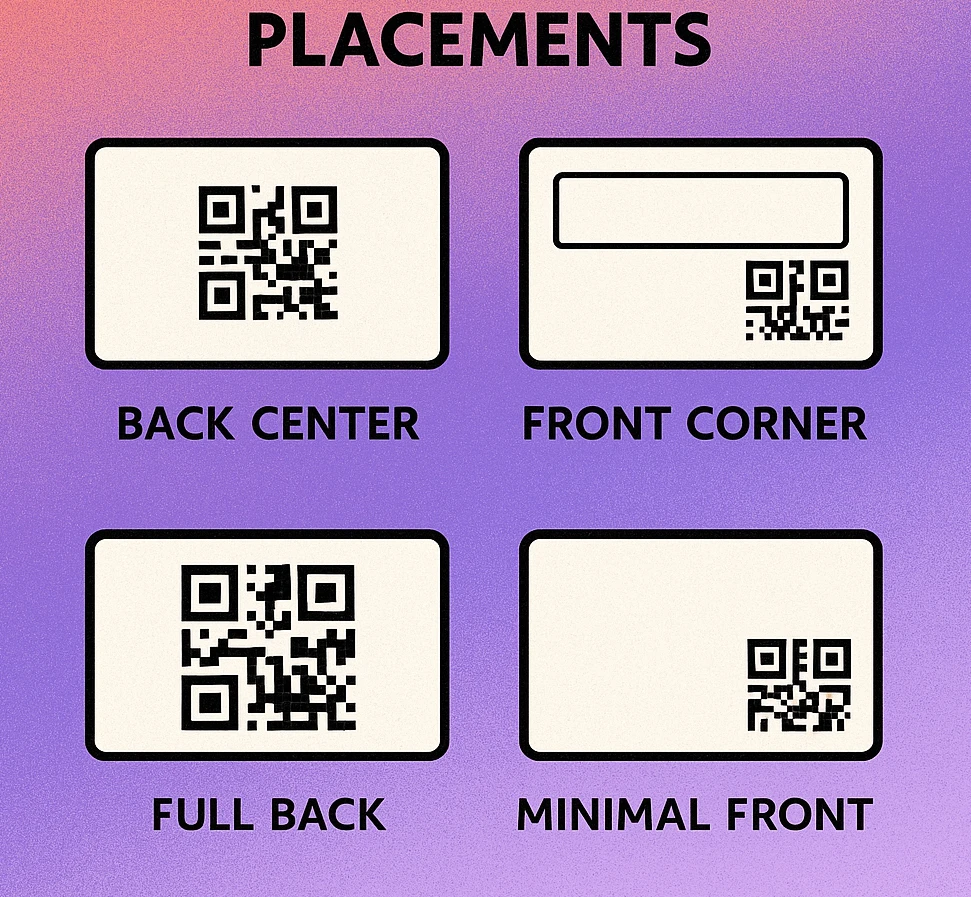
The back of the card is the most popular spot for a QR code. It keeps the front clean for your name, title, and branding, while giving the code plenty of space. The back is often underused on traditional cards anyway, so a QR code with a simple call-to-action like "Scan to save my contact" makes excellent use of the real estate.
Front placement works if your card design is minimal. A small QR code in the bottom-right corner can coexist with your name and title without feeling cluttered. The advantage is visibility — the recipient sees it immediately without flipping the card.
Size on a Standard Card
A standard business card is 89 x 51 mm (3.5 x 2 inches). The minimum recommended QR code size is 20 x 20 mm (about 0.8 x 0.8 inches). For comfortable scanning, 25 x 25 mm is better. Going larger than 30 x 30 mm on a standard card starts to dominate the design. For detailed guidance on sizing for different materials, see our QR code size guide.
Quiet Zone
The quiet zone is the blank space surrounding the QR code. It must be at least 4 modules wide — in practice, a minimum of 3 mm on a business card. Without this margin, scanners may fail to detect where the code ends and the card design begins. Never let text, borders, or decorative elements intrude into this zone.
Color and Contrast
Dark modules on a light background is the universal rule. Black on white is the safest choice. If you want to match your brand colors, ensure the contrast ratio between the modules and background stays high. Avoid light-colored modules on a dark background — many phone cameras struggle with inverted QR codes. For more on styling, read our custom QR code design guide.
Minimum 20 x 20 mm, minimum 3 mm quiet zone, dark modules on a light background. Test with a printed proof before committing to a full run.
QR Code Apps for Mac & Safari
Prefer generating codes without opening a browser tab? These two native Apple apps cover both habits — a full generator on the desktop, and a one-click share button inside Safari.


vCard vs URL: Which Format Is Better?
This is the most common decision professionals face when adding a QR code to their business card. Both formats work well, but they serve different purposes. Here's a direct comparison:
| Feature | vCard QR Code | URL QR Code |
|---|---|---|
| Scan action | Saves contact to phone | Opens a webpage |
| Internet needed | No | Yes |
| Updatable | No (static) | Yes (change page content) |
| Code density | Higher (more data encoded) | Lower (short URL) |
| Multiple links | No | Yes (landing page) |
| Photo support | Limited | Full (via webpage) |
| Best for | Quick contact exchange | Portfolios, multi-link pages |
If your primary goal is making sure new contacts save your phone number and email, go with a vCard. It works offline, requires no follow-up, and the contact is saved in one tap. The tradeoff is that vCards encode more data, producing a denser QR code that needs slightly more space to remain scannable.
If you want flexibility — the ability to update your information, include multiple links, show a portfolio, or track scan analytics — use a URL. Point it at a digital business card page or a link-in-bio style landing page. The code is simpler and smaller because a URL is much shorter than a full vCard. Just make sure the destination page stays live for the life of your printed cards.
Many professionals take a hybrid approach: they encode a URL that points to a digital business card page which includes a "Save Contact" button (downloading a .vcf file) alongside links to LinkedIn, their portfolio, and a booking page. This gives the scanner every option in one place.
Best Practices for QR Codes on Business Cards
Getting the QR code onto your card is only half the job. These best practices ensure it actually works reliably in the real world:
- Test before bulk printing. Always print a single proof card and scan it under real conditions — in different lighting, at arm's length, with multiple phones. A code that works on screen can fail on certain paper textures or finishes.
- Use High error correction (Level H). Business cards get handled, bent, and scuffed. Level H recovers up to 30% damage, giving your code the best chance of scanning after weeks in someone's wallet.
- Maintain dark-on-light contrast. Black modules on a white or very light background is the safest combination. If you use brand colors, test thoroughly — subtle hues and gradients can reduce scanner accuracy.
- Keep the data minimal. The more data you encode, the denser the code becomes. For vCards, include essential fields only (name, phone, email, company). Skip the mailing address unless it's critical. Shorter data means a simpler code that scans faster.
- Add a call-to-action. Don't assume people know what the QR code does. A line of text like "Scan to save my contact" or "Scan for my portfolio" next to the code dramatically increases scan rates.
- Avoid glossy or laminated finishes over the code. High-gloss coatings can create glare that interferes with phone cameras. If your card uses a glossy finish, consider a matte spot over the QR code area, or print the code on the matte side.
- Don't resize after export. Download the QR code at the size you need, or use SVG format for lossless scaling. Resizing a raster PNG in your design software can blur module edges and reduce scannability.
For event-specific advice on using QR codes for networking, see our guide on QR codes on conference badges.
Printing 500 business cards without testing the QR code on a proof first. Always scan a printed sample under real-world conditions before committing to a full print run.
Frequently Asked Questions
The most common options are a vCard (which saves your contact details directly to the scanner's phone), your LinkedIn profile, a personal portfolio website, or a multi-link landing page that combines all of these. A vCard is ideal for networking events where instant contact saving is the priority.
The minimum recommended size is 20 x 20 mm (about 0.8 x 0.8 inches). Going smaller risks scan failures, especially on cards with textured finishes or in low-light conditions. Always maintain a quiet zone of at least 3 mm around the code.
The back of the card is the most popular placement. It gives the QR code more space and keeps the front clean for your name, title, and branding. However, if your card design is minimal, placing a small QR code on the front corner can work well and ensures the recipient notices it immediately.
It depends on your goal. A vCard saves contact info directly to the phone without needing internet — great for instant networking. A URL is better if you want to share a portfolio, multi-link page, or content that changes over time. Many professionals use a URL that points to a digital business card page combining both approaches.
Static QR codes never expire — the data is encoded directly in the pattern and will work forever as long as the code is readable. If your QR code links to a URL, the code itself won't expire, but the webpage it points to must remain live. Dynamic QR codes from third-party services may expire if you cancel your subscription.