Why Add a QR Code to Your Resume?
A resume is a constrained document. You have a single page — sometimes two — to present your entire professional identity to someone who will spend an average of six seconds on first glance. Long URLs to your portfolio or LinkedIn eat into that space and look messy. They're also unclickable on a printed page.
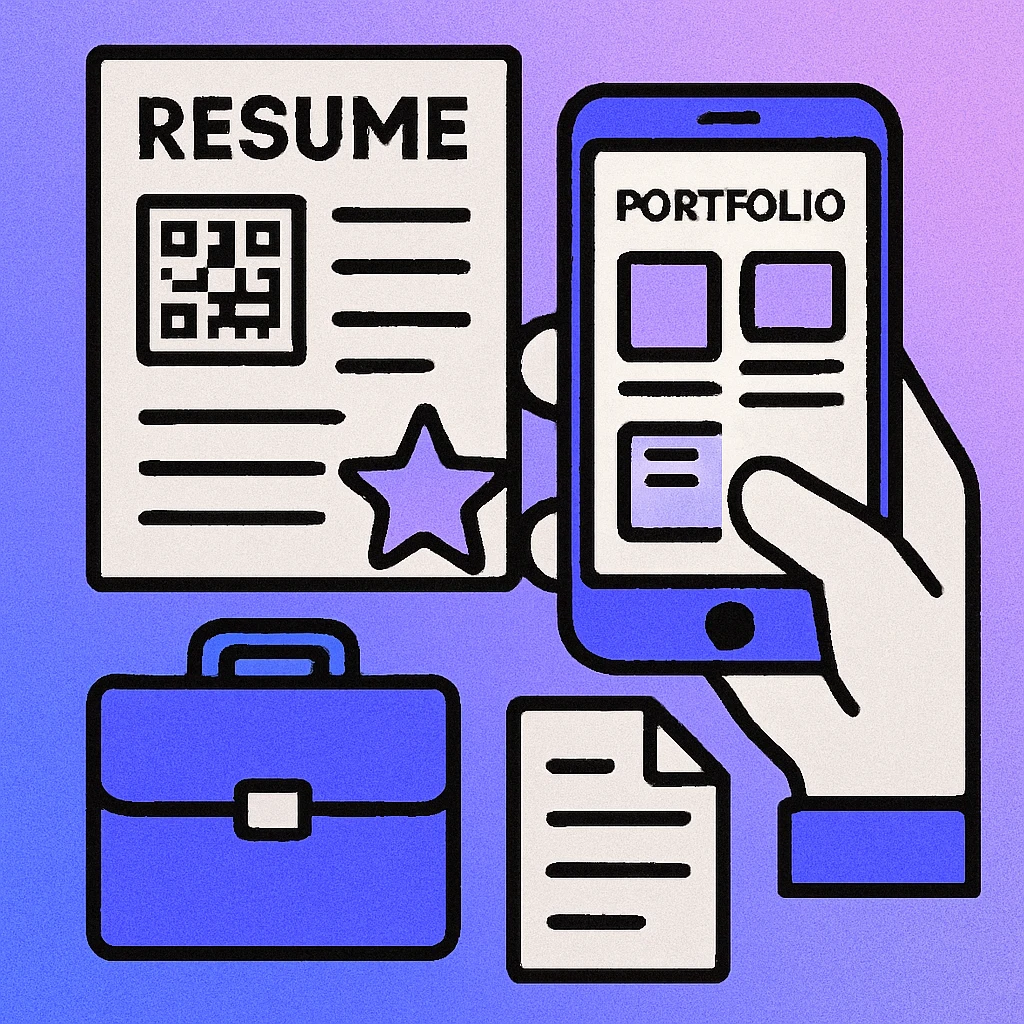
A QR code solves both problems. It takes up roughly the same footprint as a postage stamp, requires no explanation, and gives a recruiter or hiring manager one-tap access to richer content the moment they pick up your CV. For roles in design, development, marketing, media, or any field where a body of work matters, this is a genuine competitive advantage.
For a broader look at how QR codes are being used across professional and business contexts, see our pillar guide: QR Code Use Cases: The Complete Industry Guide.
QR codes on resumes work equally well in two scenarios: a recruiter scanning a printed copy handed over at a career fair, and a hiring manager clicking a linked PDF on-screen. In the digital case, you can make the QR code itself a hyperlink to the same destination for maximum accessibility.
What to Link From Your Resume QR Code
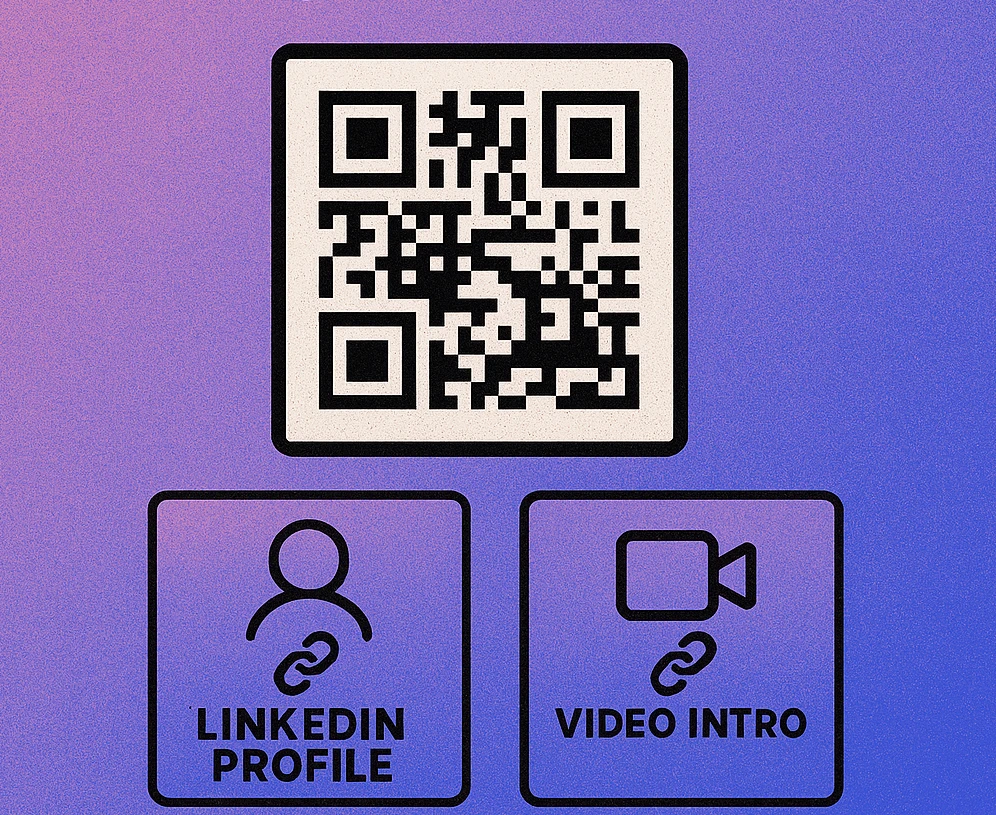
The most effective destination depends on your industry and the role you're applying for. The goal is always the same: give the hiring manager something they can't get from the resume text alone.
| Destination | Best For | Impact |
|---|---|---|
| Online Portfolio | Designers, writers, photographers, UX/UI | Very High |
| LinkedIn Profile | Sales, marketing, management, all roles | High |
| GitHub Profile | Developers, data scientists, engineers | Very High |
| Video Introduction | Communications, media, sales, customer-facing roles | High |
| Personal Website / Bio | Freelancers, consultants, executives | Medium–High |
| Link-in-Bio Page | Anyone wanting to offer multiple destinations | Medium |
Portfolio Website
For creative and technical roles, a portfolio is the single most persuasive piece of evidence you can offer. Your resume describes what you've done; your portfolio shows it. A direct link to case studies, live projects, or design work is typically the highest-value destination you can encode. Use our URL QR code generator to create a clean, scannable link to your portfolio homepage or a specific project.
LinkedIn Profile
LinkedIn is the universal professional reference point. A hiring manager who wants to verify your career history, check mutual connections, or read recommendations can do so in under a minute from a LinkedIn QR code. It's the right choice for almost any corporate or professional role. You can generate a dedicated social media QR code pointing directly to your LinkedIn URL for a cleaner result.
GitHub Profile
For developers and data professionals, GitHub is more revealing than a resume bullet point. A recruiter can immediately see your commit history, open-source contributions, and project quality. Link directly to your GitHub profile or to a pinned repository that best represents your abilities.
Video Introduction
A 60–90 second video introduction is a compelling differentiator, particularly for roles that involve communication, presentation, or client contact. Host it on YouTube (unlisted) or Loom, then encode the URL into a QR code. Seeing and hearing a candidate before an interview is a genuinely memorable experience for most hiring managers.
vCard / Contact Information
If you'd rather give hiring managers a frictionless way to save your contact details directly to their phone, a vCard QR code lets them do exactly that — name, phone, email, and LinkedIn all in a single tap. This works especially well on physical business cards handed out alongside a printed resume.
Placement Options on Your Resume
Where you put the QR code matters almost as much as what it links to. The code needs to be scannable from a printed page, legible at small sizes, and positioned so it doesn't disrupt the document's reading flow.
Header Contact Block (Recommended)
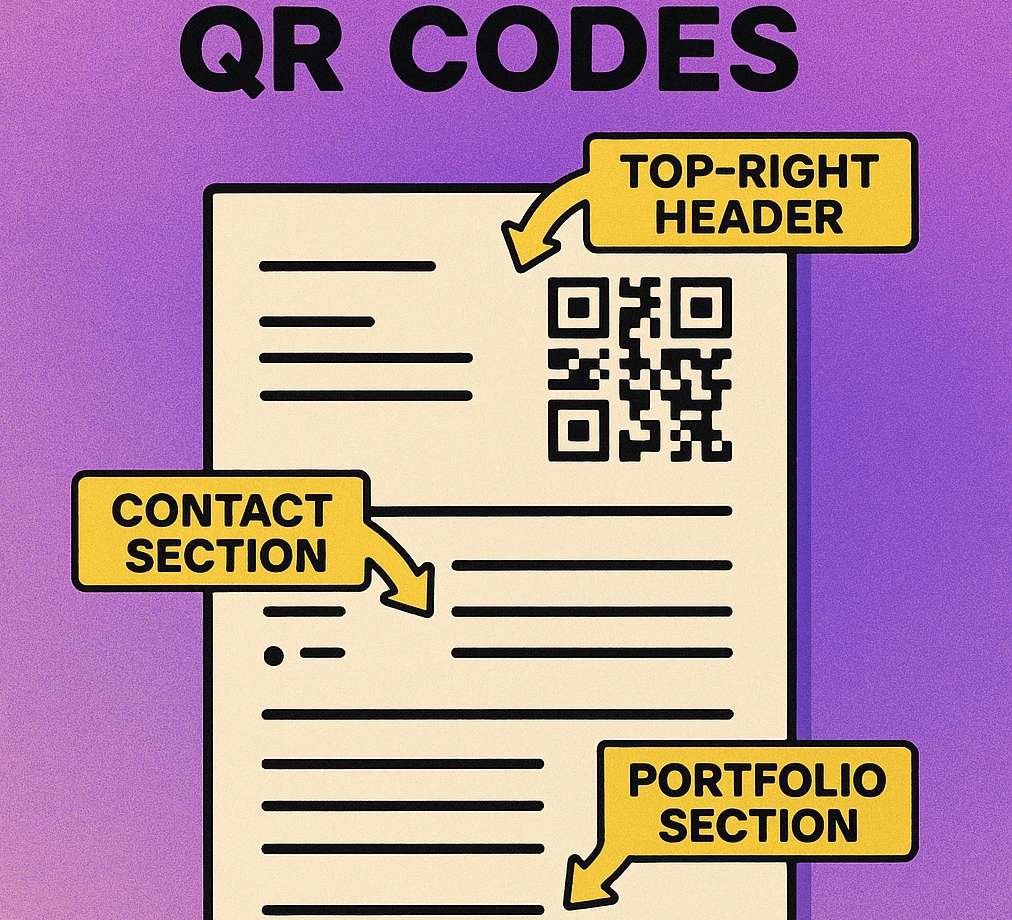
Placing the QR code alongside your name, email, phone number, and LinkedIn URL groups all access points in one place. It's seen immediately — before the recruiter reads a single bullet point — and signals that you're digitally fluent. Keep the code to approximately 2 cm × 2 cm and add a one-line label such as "Portfolio →" or "Scan for portfolio" beneath it.
Right-Column Sidebar (Two-Column Layouts)
Many modern resume templates use a narrow left or right column for skills, languages, and contact details. A QR code fits naturally here, either at the top of the sidebar or just below your contact information block. This keeps the main content column clean and uninterrupted.
Footer
A footer QR code works if your resume is a single page and the footer is clearly visible. On two-page CVs, avoid the footer of page one because it may get missed as the reader moves to page two. The footer of the final page is acceptable for supplementary context, such as a link to a full publication list.
Applicant Tracking Systems (ATS) parse text and ignore images. Your QR code will not be read by ATS software — but it also won't hurt your ranking. Always include the full URL as plain text alongside the QR code so both ATS systems and human readers can access your link.
QR Code Apps for Mac & Safari
Prefer generating codes without opening a browser tab? These two native Apple apps cover both habits — a full generator on the desktop, and a one-click share button inside Safari.


How to Create Your Resume QR Code
Five Steps to a Resume QR Code
Choose and prepare your destination URL. Decide what you're linking to — portfolio, LinkedIn, GitHub, or video — and make sure the destination is public, professional, and up to date. Use a clean URL with HTTPS. If the URL is very long, consider shortening it with a URL shortener or a custom domain redirect for a tidier result.
Generate the QR code. Use our URL QR code generator to encode your link. Select error correction level H (30% redundancy) to ensure the code scans reliably even on slightly creased or printed paper. Download as PNG at a minimum of 300×300 px for print quality.
Keep it small and clean. Resize the QR code to approximately 2–2.5 cm in your resume template. This is large enough to scan comfortably but small enough not to dominate the layout. Maintain a quiet zone (white border) of at least 4 module widths around the code — do not let text or lines crowd the edges.
Add a short label. A one-line label such as "Portfolio" or "Scan to view work" helps recruiters who may not recognise the QR code format at a glance, and sets expectations for what they'll find. Use the same font and weight as your body text to keep the layout cohesive.
Test on a printed copy. Print your resume on the same printer and paper you'll use for real applications, then scan the code with an iPhone and an Android device. Verify the destination loads correctly and that the page looks professional on mobile. Repeat this check any time you update the destination URL.
Create Your Resume QR Code for Free
Generate a URL QR code linking to your portfolio, LinkedIn, or video intro. Download in PNG or SVG — no signup required.
Best Practices for Resume QR Codes
A QR code is a first impression of your digital presence. These practices ensure it works reliably and reflects well on you.
- Use a stable URL. The link encoded in the QR code is permanent once printed. If you anticipate changing your portfolio URL, use a redirect or a custom short link so you can update the destination without reprinting.
- Match the code to the role. Tailor your destination for each application if you can. A developer applying for a frontend role might link to a specific GitHub repo rather than a general profile.
- Keep the destination mobile-friendly. Hiring managers will open the link on their phone. Your portfolio, LinkedIn, and video must load and look good on a mobile screen. Test this before you apply.
- Don't rely solely on the QR code. Include the URL as plain text — for ATS compatibility, for printing edge cases, and for anyone who prefers to type. Think of the QR code as a convenience, not a replacement.
- Use black on white. For resumes, the classic black QR code on a white background is safest. Coloured or styled codes can look great on marketing materials, but a resume is a professional document where reliability matters more than aesthetics.
- Verify the link before every batch of applications. Check that your portfolio is live, your LinkedIn is public, and your video is accessible. A broken link is worse than no link at all.
Place the QR code in your header contact block at around 2 cm, link to your most compelling destination (portfolio or LinkedIn for most roles), use error correction level H, include the URL as plain text, and test on a printed copy before submitting. Done right, it takes under five minutes and gives your application a tangible edge.
Frequently Asked Questions
Yes, if you work in a field where supplementary material matters — design, development, marketing, media, or any role with a portfolio. A QR code gives hiring managers instant access to work samples, your LinkedIn, or a video introduction without cluttering the resume with long URLs. Keep it small (around 2 cm), place it near your contact details, and make sure the destination URL is professional and up to date.
The best destination depends on your industry. For designers and developers, link to an online portfolio or GitHub profile. For sales, marketing, or leadership roles, link to your LinkedIn profile. For creative or communications roles, a short video introduction can be compelling. You can also use a link-in-bio page to offer hiring managers a choice of destinations from a single scan.
The top of the resume near your name and contact information is the most common and effective placement. It groups all access points in one location and gets seen immediately. Alternatively, place it in the header sidebar column if your resume uses a two-column layout. Avoid placing it at the bottom of the page where it may be missed, especially on multi-page CVs.
Yes. Printed resumes with QR codes work well in face-to-face interviews and career fairs. Print the code at a minimum of 2 cm × 2 cm and use a high error-correction level (H) to ensure it scans reliably even if the paper gets slightly creased. Any modern smartphone camera app can scan it instantly without a separate app.
Yes — ATS software parses text and typically ignores images entirely, including QR codes. This means your QR code will not hurt your ATS ranking, but it also won't help it. Always include the full URL as plain text alongside the QR code so that both ATS systems and human readers can access your link.