What Is a Social Media QR Code?
A social media QR code is a QR code that, when scanned, takes the user directly to a social media profile page. Instead of telling someone to "find me on Instagram" and hoping they spell your username correctly, you give them a code they can scan with their phone camera. One scan, and they land on your profile — ready to follow, connect, or message you.
At a technical level, a social media QR code is simply a URL-based QR code. It encodes the direct web address of your profile. When someone scans it, their phone opens that URL in a browser or, if the app is installed, directly in the social media app. There is nothing special about the QR code format itself — the magic is in using the correct profile URL for each platform.
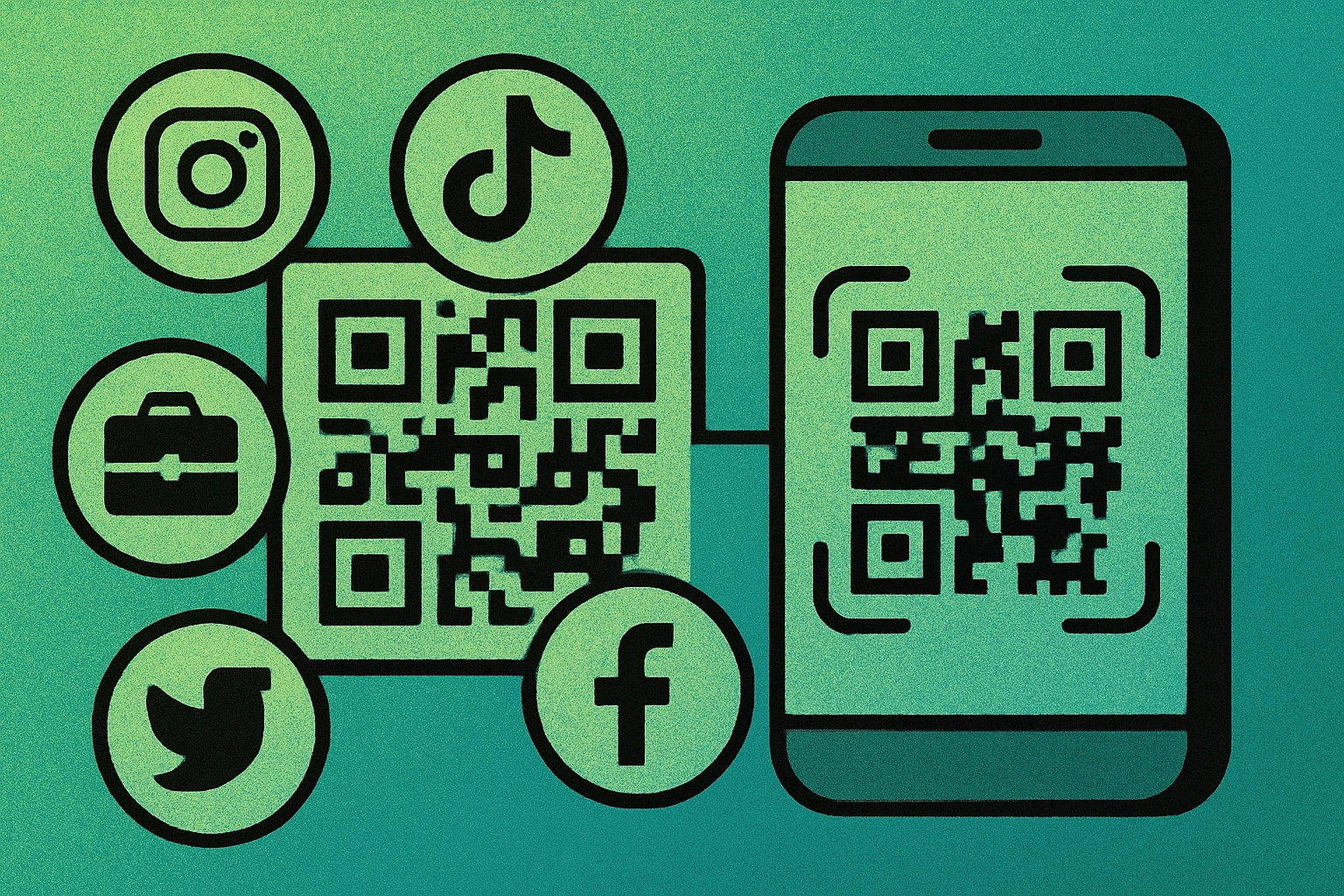
Social media QR codes have become essential for creators, businesses, and professionals who want to grow their following from real-world touchpoints — business cards, product packaging, event booths, storefronts, and print ads. They eliminate the friction of manual searching and typing, which means more people actually follow through. For a broader look at the different kinds of QR codes you can create, see our guide to types of QR codes.
A social media QR code encodes the URL of your profile. Anyone who scans it is taken directly to your page on Instagram, TikTok, LinkedIn, or any other platform — no searching or typing required.
How to Create a Social Media QR Code
Creating a social media QR code takes less than a minute. The process is the same regardless of which platform you want to link to. Here is how to do it step by step:
Step-by-Step: Create Your Social Media QR Code
Copy your profile URL. Open the social media platform in a browser or use the app's "share profile" or "copy link" feature. For example, on Instagram, go to your profile, tap the three-dot menu, and select "Copy Profile URL." On LinkedIn, navigate to your profile and copy the URL from the address bar. The exact URL format varies by platform — see the section below for each one.
Open a QR code generator. Go to a free QR code generator. Make sure the URL input type is selected. You do not need a specialized "social media QR code" tool — any standard URL QR code generator works, because social media profiles are just web pages with URLs.
Paste the profile URL. Paste the full profile URL into the input field. Double-check that it is the link to your profile page, not to a specific post, story, or reel. A common mistake is accidentally encoding a post URL instead of the profile URL.
Customize the design (optional). Most generators let you change colors, add a logo, or modify the module shape. You might add your brand colors or place a small social media icon in the center. Just maintain enough contrast between the dark and light modules so the code scans reliably.
Download and test. Download the QR code as a PNG (for digital use) or SVG (for print). Before using it anywhere, scan the code with your phone camera to confirm it opens the correct profile. Test on both iOS and Android if possible.
That is the entire process. The same workflow applies whether you are creating a QR code for Instagram, TikTok, LinkedIn, YouTube, or any other platform. For video-specific profiles, you might also want to check our guide on QR codes for YouTube.
Platform-Specific Profile URLs
The most important thing to get right is the URL. Each social media platform has its own URL structure for profile pages. Use the wrong format and your QR code will lead to an error page. Here are the correct profile URL formats for the six most popular platforms:
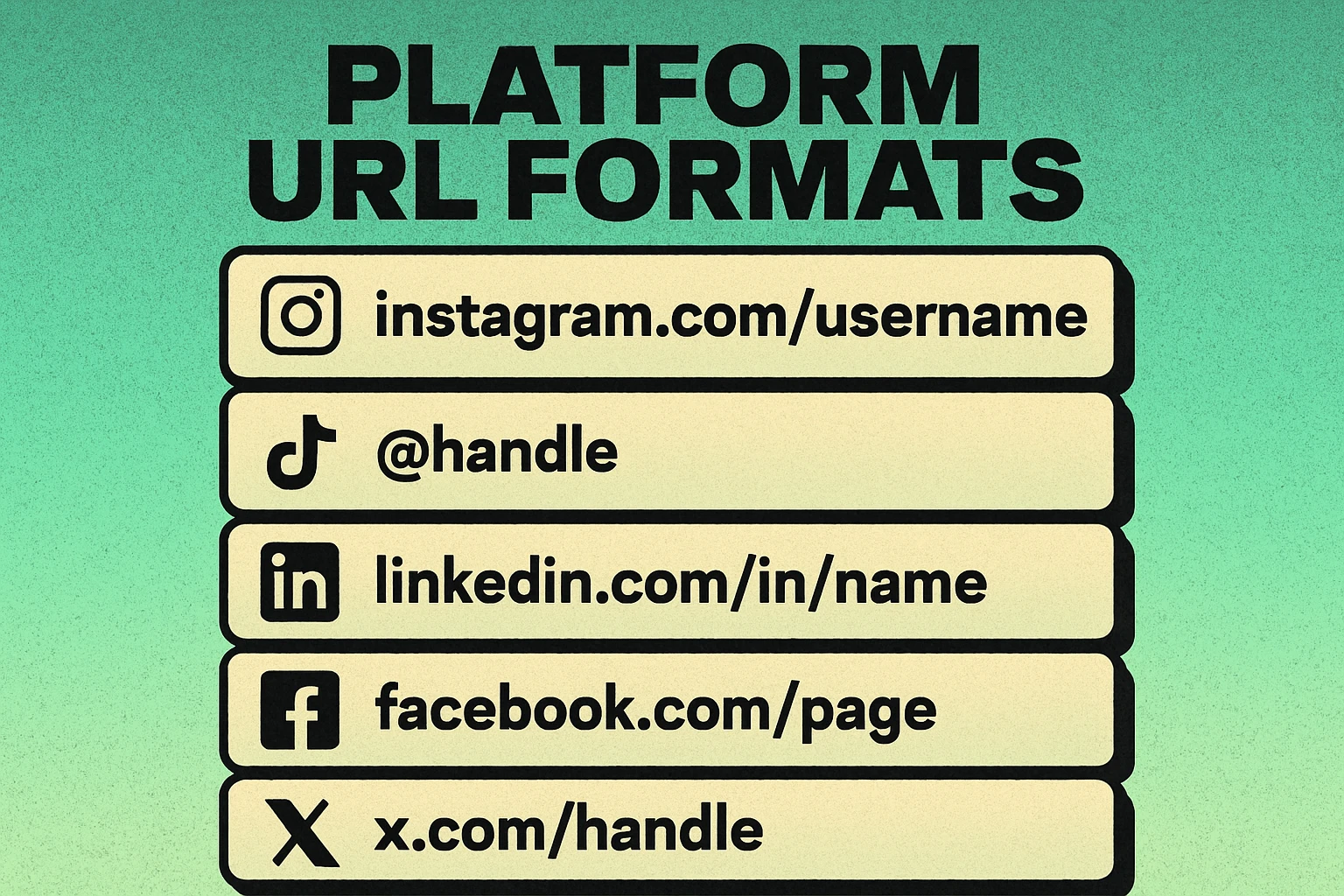
| Platform | Profile URL Format | Example |
|---|---|---|
| https://www.instagram.com/username/ | instagram.com/natgeo/ | |
| TikTok | https://www.tiktok.com/@username | tiktok.com/@washingtonpost |
| https://www.linkedin.com/in/username/ | linkedin.com/in/satyanadella/ | |
| https://www.facebook.com/username | facebook.com/NASA | |
| X / Twitter | https://x.com/username | x.com/elaborateframes |
| Threads | https://www.threads.net/@username | threads.net/@zuck |
Instagram profile URLs follow the format instagram.com/username/. The trailing slash is optional but recommended. You can find your exact URL by opening your profile in a mobile browser or desktop. Avoid using Instagram's built-in Nametag or QR feature for external use — those require the scanner to have the Instagram app open, while a standard URL QR code works with any phone camera.
TikTok
TikTok profile URLs include an @ symbol before the username: tiktok.com/@username. Copy this directly from your browser's address bar when viewing your profile. TikTok's deep linking is reliable — if the scanner has TikTok installed, the URL will open directly in the app.
LinkedIn uses linkedin.com/in/username/ for personal profiles and linkedin.com/company/companyname/ for company pages. Make sure you use your custom URL slug if you have set one. LinkedIn profiles are particularly useful on vCard QR codes and business cards where professional networking is the goal.
Facebook profile URLs use facebook.com/username if you have a custom username, or facebook.com/profile.php?id=NUMBERS if you do not. The custom username version is shorter and creates a simpler QR code. If you have not set a custom Facebook username yet, do that first before generating the QR code.
X / Twitter
The platform formerly known as Twitter now uses x.com/username as the primary URL format. Old twitter.com/username links still redirect, but using the current x.com domain is better for future-proofing your QR code.
Threads
Threads uses the format threads.net/@username. Since Threads is tied to your Instagram account, the username matches your Instagram handle. The platform is still growing, so a Threads QR code is a good way to build your following early.
QR Code Apps for Mac & Safari
Prefer generating codes without opening a browser tab? These two native Apple apps cover both habits — a full generator on the desktop, and a one-click share button inside Safari.


Single Profile vs Link-in-Bio Page
You have two main approaches when creating a social media QR code: link directly to one profile, or link to a landing page that lists all your profiles. The right choice depends on your situation.
When to Use a Single Profile Link
Use a direct profile URL when you have one primary platform and a clear goal. For example, a restaurant might only care about Instagram followers, or a B2B consultant might only want LinkedIn connections. A direct link means fewer taps for the scanner — they scan, they land on your profile, they follow. No extra decisions needed.
When to Use a Link-in-Bio Page
If you are active on multiple platforms and want to give the scanner a choice, create a link-in-bio landing page (using tools like Linktree, Beacons, or a custom page on your own website) and encode that URL in the QR code. This approach works well for:
- Content creators who post different content on different platforms
- Businesses that want to offer Instagram, Facebook, TikTok, and a website link all from one QR code
- Event booths where different visitors may prefer different platforms
- Products where packaging space is limited and you can only print one QR code
The trade-off is an extra step: the scanner has to choose which link to tap on the landing page. But for multi-platform presence, this is usually worth it. If you need a basic link for any website, our URL QR code generator guide walks through the process.
If you use a link-in-bio page, make sure the page loads fast on mobile and has large, tappable buttons. Visitors arriving from a QR code scan expect an instant, mobile-friendly experience.
Create Your Social Media QR Code Now
Paste your profile URL and download a free QR code in seconds. No account required.
Use Cases for Social Media QR Codes
Social media QR codes work anywhere you interact with people offline and want to convert that interaction into an online follow. Here are the most effective placements:
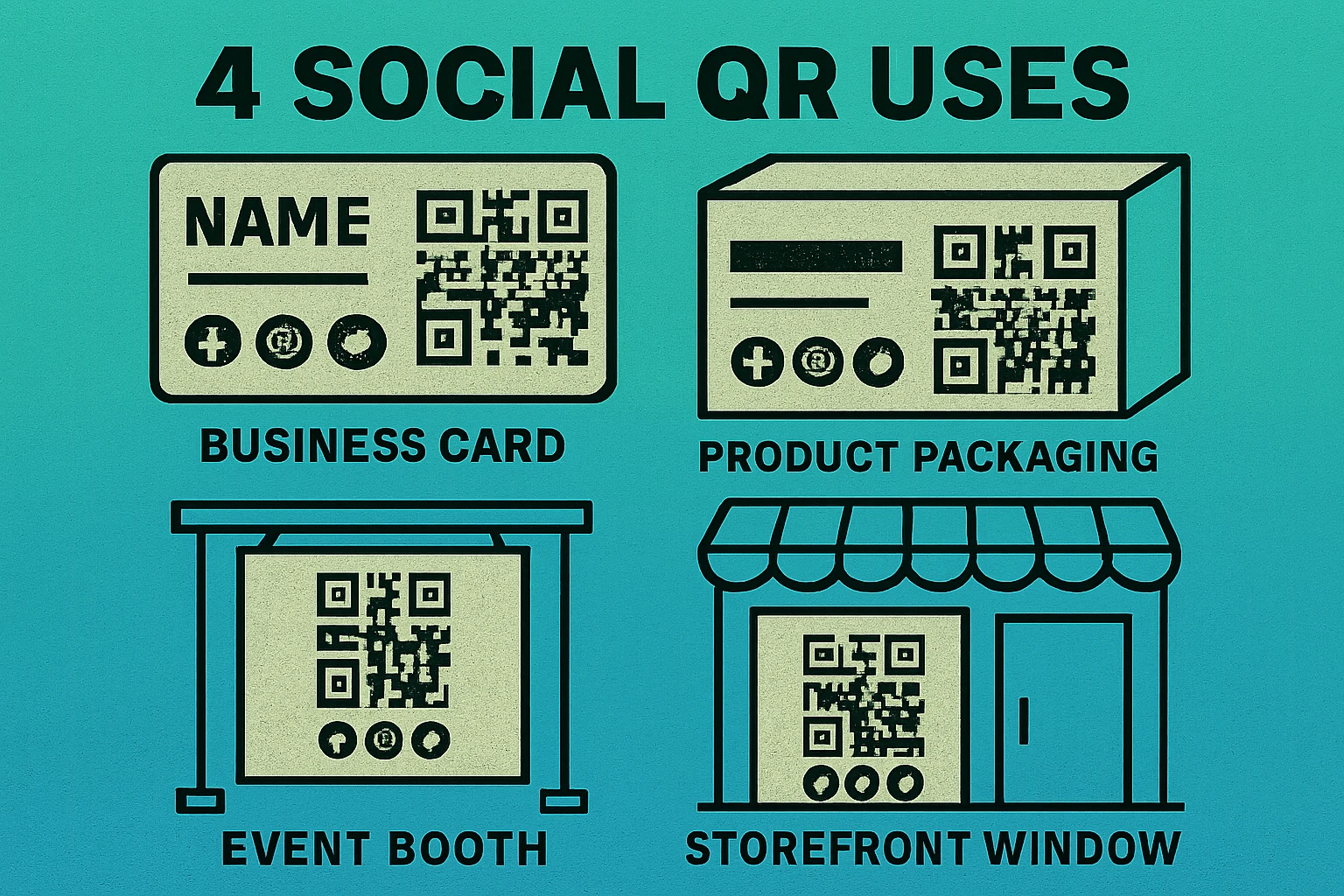
Business Cards
The most natural home for a social media QR code. Print it on the back of your card alongside your LinkedIn or Instagram handle. When someone scans it at a networking event, they can follow or connect instantly instead of filing the card away and forgetting about it. This pairs perfectly with a vCard QR code — some people print both on opposite sides of the card.
Product Packaging
Brands print social media QR codes on packaging to convert buyers into followers. A clothing brand might include an Instagram QR code inside the hang tag. A food company might print a TikTok QR code on the box, linking to recipe videos. The key is giving customers a reason to scan: "Follow us for styling tips" is more compelling than just a QR code with no context.
Event Booths and Trade Shows
At conferences and trade shows, a large QR code on your booth banner lets attendees follow your company page while walking by. No need to stop, exchange cards, or spell out a username. Display it on a retractable banner, table tent, or screen. A link-in-bio approach works well here since attendees may prefer different platforms.
Storefronts and Physical Locations
Restaurants, retail stores, salons, and gyms can display a social media QR code at the point of sale, on receipts, or on window signage. A coffee shop might put an Instagram QR code on the counter with "Follow us for daily specials." The code scans in seconds, and the customer is now a follower who sees your content in their feed.
Print Ads and Flyers
Magazine ads, posters, brochures, and flyers all benefit from social media QR codes. They give print materials an interactive element and let you track engagement in ways traditional print cannot. Instead of hoping someone remembers your Instagram handle from a flyer, you give them a one-scan path to your profile. For more on bridging print and digital, see our complete QR code guide.
Best Practices
Follow these guidelines to make sure your social media QR code works reliably and gets the most scans:
- Use the profile URL, not a post URL. This is the most common mistake. A post URL points to a single piece of content that may become irrelevant. The profile URL always shows your latest content and the follow button.
- Test before printing. Always scan the final QR code on at least two devices (iOS and Android) before sending it to print. Verify it opens the correct profile and not a 404 page or the wrong account.
- Keep the destination updated. If you change your username, the old URL may break. If you are using a dynamic QR code, you can update the destination without reprinting. If you used a static code, you will need to generate a new one. For more on this, see types of QR codes.
- Add a call to action. A bare QR code with no context gets fewer scans than one with a label like "Follow us on Instagram" or "Connect on LinkedIn." Tell people what happens when they scan.
- Maintain minimum size. For print, keep the QR code at least 2 cm x 2 cm (0.8 x 0.8 inches). For posters or banners meant to be scanned from a distance, scale up proportionally — roughly 1 inch per 10 feet of scanning distance.
- Ensure high contrast. Dark modules on a light background scan best. Avoid low-contrast color combinations like light gray on white or yellow on orange. If you customize colors, test the code immediately after.
- Include the quiet zone. Do not crop the white border around the QR code. Scanners need this margin to detect the code boundaries. At least four modules of padding is required.
If you are creating QR codes for an app download rather than a social media profile, the process is similar but uses app store URLs instead. See our guide on App Store QR codes for those specifics.
The three most critical best practices: use the profile URL (not a post), test on multiple devices before printing, and always include a clear call to action near the QR code telling people what to expect.
Frequently Asked Questions
A single QR code can only encode one URL. However, you can link to a link-in-bio landing page that lists all your social profiles in one place. The QR code points to that page, and visitors choose which platform to follow you on.
Static QR codes that encode a direct URL never expire — they work as long as the URL is valid. If you change your username or delete your account, the QR code will lead to a broken link. Dynamic QR codes let you update the destination URL without reprinting the code.
Some platforms like Instagram and Snapchat offer built-in QR or Nametag features, but they often require the scanner to have the same app installed. A standard URL-based QR code works with any phone camera and opens the profile in a browser or the app if installed, making it more universally accessible.
For a business card, the QR code should be at least 2 cm x 2 cm (about 0.8 x 0.8 inches). Smaller sizes may be difficult for phone cameras to scan reliably, especially in low light. Always test the printed card before ordering a full batch.
Yes. Most QR code generators let you change colors, add a logo in the center, and modify the module shape. Just make sure there is enough contrast between the foreground and background colors, and test the code after customizing to confirm it still scans correctly.