What Is an App Store QR Code?
An app store QR code is a QR code that encodes the download URL of a mobile application. When someone scans the code with their smartphone camera, they are taken directly to the app's listing on the Apple App Store, Google Play Store, or another app marketplace — ready to tap "Install" without searching or typing anything.
This is one of the most practical applications of QR code technology. Instead of asking users to open a store, search for your app name, and hope they find the right one among similar results, a single scan puts them on the exact download page. The friction between "I want this app" and "I'm installing it" drops to almost zero.
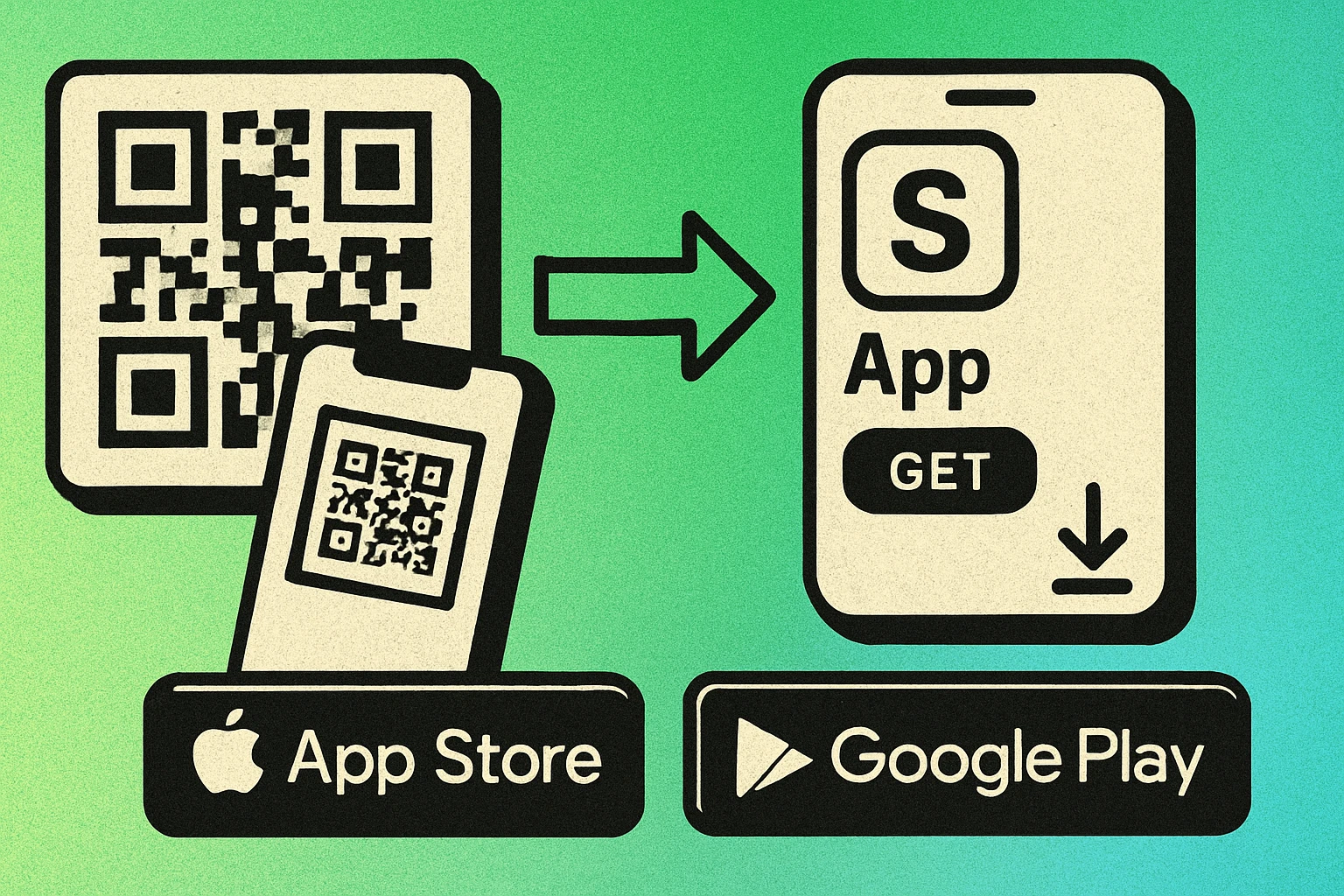
At its core, an app store QR code is simply a URL QR code that happens to point to an app store listing. The same generation process applies: you provide the URL, the generator encodes it into a scannable pattern, and you download the image. The key difference is in choosing the right URL and understanding how to handle users on different platforms.
An app store QR code encodes your app's download link so users can scan and install instantly. It eliminates the search step entirely, reducing drop-off between interest and installation.
How to Create an App Store QR Code
Creating an app store QR code takes just a few minutes. Follow these steps to generate one that works reliably across devices and print formats.
Step-by-Step: Generate Your App Store QR Code
Find your app store URL. Navigate to your app's listing on the Apple App Store (via apps.apple.com) or Google Play Store (via play.google.com). Copy the full URL from your browser's address bar. We cover exactly how to find these URLs in the next section.
Open a QR code generator. Use a free QR code generator that supports URL encoding. Our online generator works directly in your browser with no signup required. For a dedicated desktop tool, try our Mac app.
Paste your app store link. Enter the URL into the generator's input field. If you want to support both iOS and Android users with a single code, use a smart link (see the smart links section below) instead of a direct store URL.
Customize the design. Adjust the QR code size, colors, and error correction level. If you plan to place a small logo in the center of the code, use a higher error correction level (Q or H) to ensure it remains scannable. For sizing guidance, see our QR code size guide.
Download and test. Download the QR code as a PNG (for web) or SVG (for print). Before using it anywhere, test the code on both an iPhone and an Android device to confirm it opens the correct app store listing. This step is critical and should never be skipped.
The entire process takes under two minutes. The most important part is not the generation itself — it is choosing the right URL and testing thoroughly before printing or publishing.
Finding Your App Store URLs
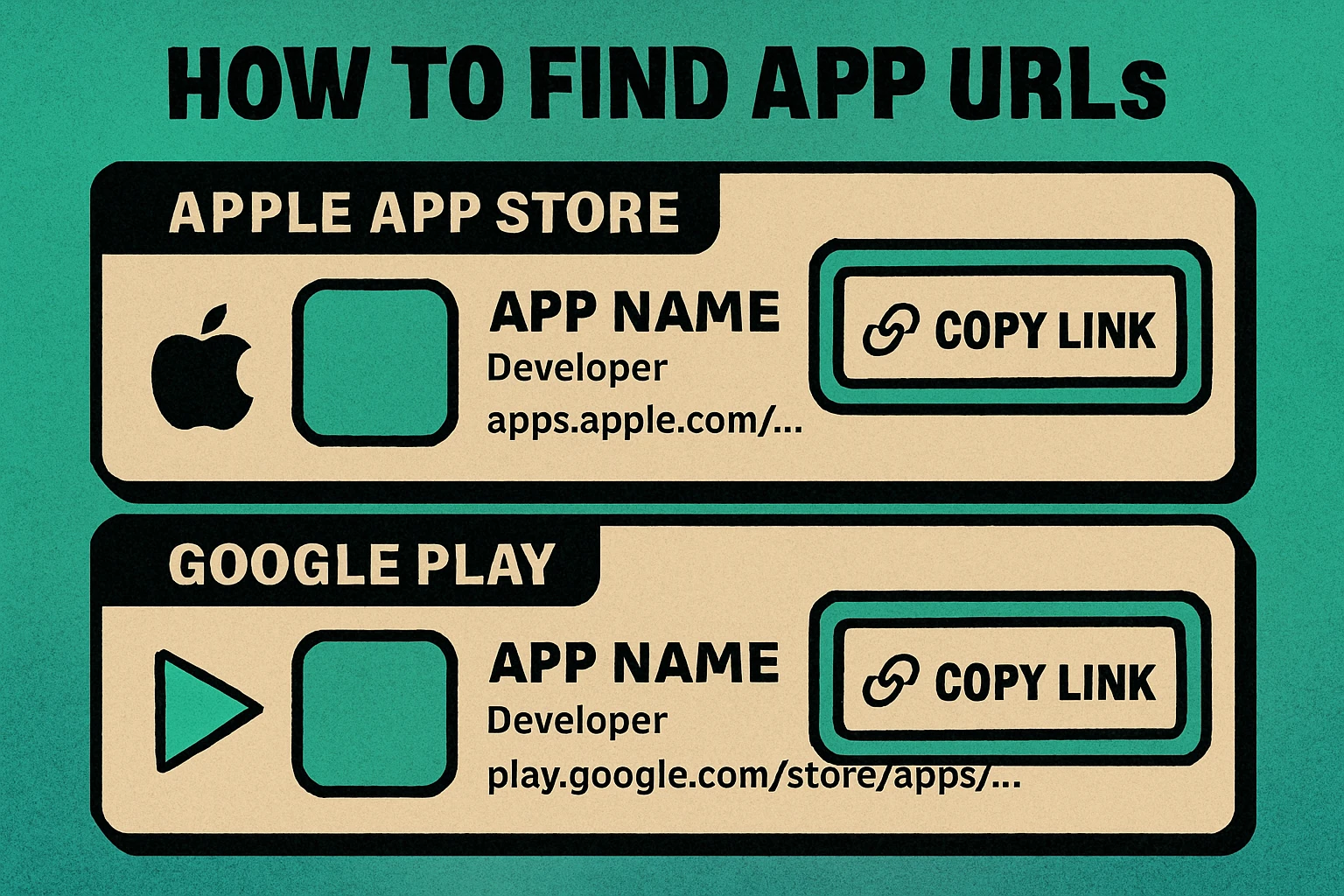
Each app marketplace has its own URL format. Here is how to find the correct download link for the three most common stores.
Apple App Store
The easiest way to get your Apple App Store link is through the web. Go to apps.apple.com and search for your app. Once you are on the app's listing page, copy the URL from your browser. It will follow this format:
https://apps.apple.com/us/app/app-name/id123456789
The /us/ portion represents the country. If you want a region-neutral link, you can often omit the country code or use a marketing tools link from App Store Connect. Inside App Store Connect, navigate to your app, click "App Information," and look for the "View on App Store" link — this is the canonical URL Apple recommends for marketing.
Google Play Store
Visit play.google.com and search for your app. The URL follows this format:
https://play.google.com/store/apps/details?id=com.example.app
The id parameter is your app's package name, which is unique and permanent. You can also find this in the Google Play Console under your app's dashboard. For a cleaner URL, Google also supports short links in the format https://play.google.com/store/apps/details?id=com.example.app — these work identically for QR code purposes.
Mac App Store
Mac App Store URLs follow the same pattern as iOS App Store URLs since they are both served through apps.apple.com:
https://apps.apple.com/us/app/app-name/id123456789
The ?mt=12 parameter specifies that this is a Mac app. Without it, the link may default to the iOS version if one exists with the same name.
| Store | URL Format | Where to Find It |
|---|---|---|
| Apple App Store | apps.apple.com/us/app/name/id... | App Store Connect or web search |
| Google Play | play.google.com/store/apps/details?id=... | Google Play Console or web search |
| Mac App Store | apps.apple.com/us/app/name/id...?mt=12 | App Store Connect (add ?mt=12) |
Smart Links: One QR Code for Both Platforms
The biggest challenge with app store QR codes is that iOS and Android users need different URLs. If you encode an Apple App Store link and an Android user scans it, they will land on a page they cannot use. This is where smart links come in.
A smart link is a URL that detects the user's device and operating system, then automatically redirects them to the correct app store. When an iPhone user scans the QR code, they go to the App Store. When an Android user scans the same code, they go to Google Play. Everyone else can be sent to a fallback webpage.
OneLink by AppsFlyer
OneLink is an industry-standard deep linking platform. You configure your iOS and Android app store URLs, and OneLink generates a single URL that handles the routing. It also provides detailed analytics on scans, installs, and attribution — making it popular with marketing teams. OneLink works seamlessly when encoded into a QR code.
Branch.io
Branch provides similar cross-platform smart links with deep linking capabilities. Beyond simple store redirection, Branch links can open specific screens within your app if it is already installed. This is useful for campaigns that should land users on a particular product page or feature, not just the app's home screen.
Custom Landing Page
If you do not want to use a third-party service, you can build a simple landing page that detects the user agent and redirects accordingly. A basic implementation checks whether the visitor is on iOS or Android and performs a JavaScript redirect. This approach gives you full control but requires hosting and maintenance. For more on linking strategies, see our social media QR code guide, which covers similar multi-platform challenges.
If your app is only available on one platform (e.g., iOS only), skip the smart link and encode the direct App Store URL. Smart links add complexity that is only justified when you genuinely need cross-platform support.
Create Your App Store QR Code Now
Paste your app store URL and generate a high-resolution QR code in seconds. Free, no signup required.
QR Code Apps for Mac & Safari
Prefer generating codes without opening a browser tab? These two native Apple apps cover both habits — a full generator on the desktop, and a one-click share button inside Safari.


Use Cases for App Store QR Codes
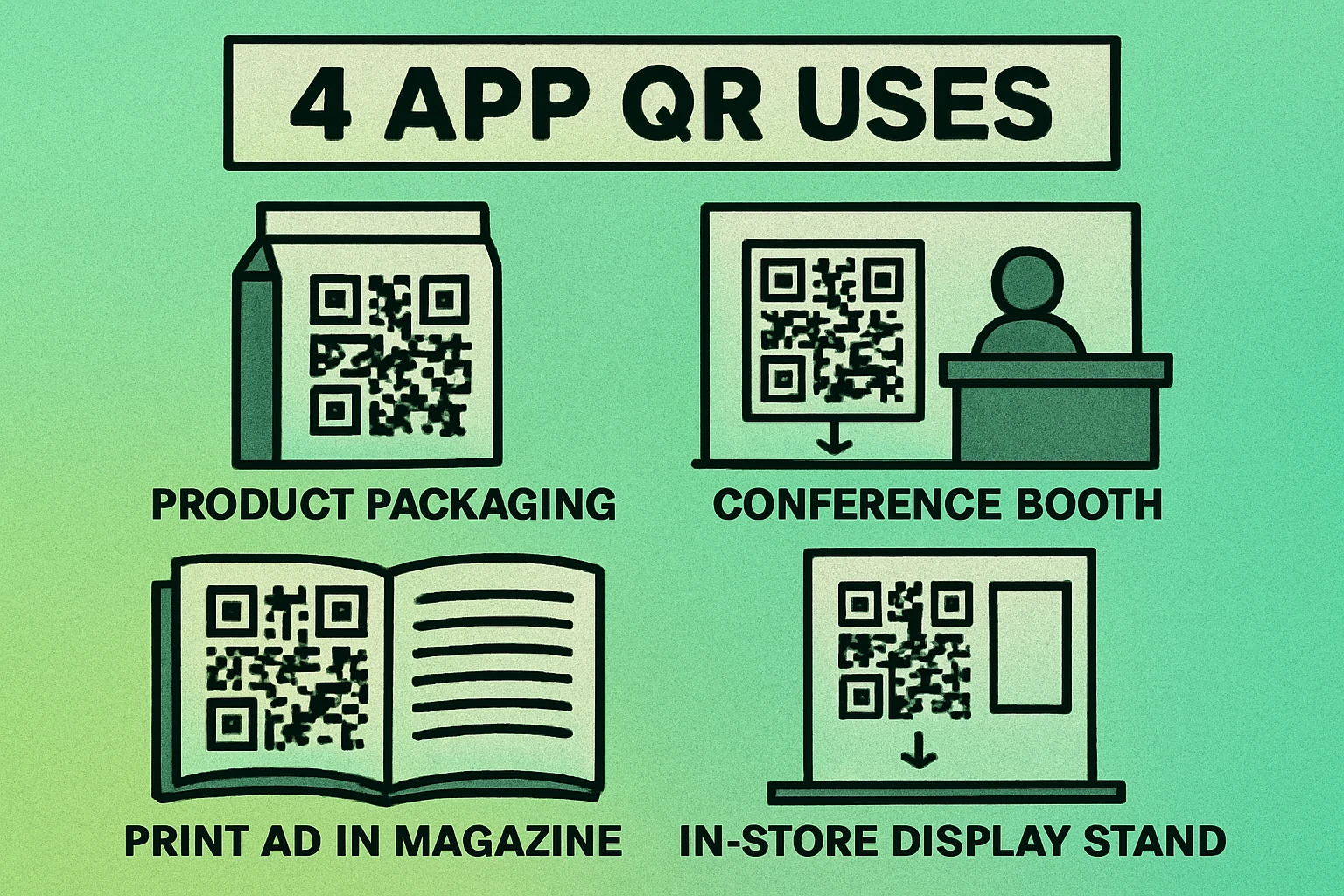
App store QR codes are versatile. Anywhere you can print or display an image, you can place a QR code that drives app downloads. Here are the most effective placements.
App Launch Marketing
When launching a new app, QR codes bridge the gap between your marketing materials and the actual download. Include them in press kits, launch event banners, social media graphics, and email campaigns. A QR code on a launch-day Instagram post or Twitter banner gives followers an instant path to the store without needing a "link in bio" workaround.
Product Packaging
If your physical product has a companion app (smart home devices, fitness equipment, toys with AR features), printing a QR code directly on the packaging is the most effective onboarding tool. Users unbox the product, scan the code, and install the app before they even finish reading the setup instructions. This dramatically improves app adoption rates for hardware products.
Business Cards
Freelancers and agencies who have built their own apps can add a small QR code to their business card. It serves as both a portfolio piece and a direct download link. The code is compact enough to fit in a corner without dominating the card design. For more creative QR code applications on printed materials, check out our complete QR code guide.
In-Store Displays and Signage
Retail stores, restaurants, and service businesses can place app download QR codes at checkout counters, table tents, window decals, and point-of-sale displays. A coffee shop promoting its loyalty app, for example, can place a QR code on every table with the text "Scan to download our app and earn free drinks." The physical context creates a natural moment for the user to act.
Print Advertising
Magazine ads, flyers, brochures, and direct mail pieces all benefit from app store QR codes. They convert a passive reader into an active downloader. Unlike a printed URL that requires typing, a QR code converts in a single scan. Always place the code near the bottom-right of the ad where eyes naturally finish reading.
Best Practices for App Store QR Codes
Creating the QR code is the easy part. Making sure it actually drives downloads requires attention to detail in testing, placement, and messaging.
Test on Both iOS and Android
This is the single most important step. Before printing thousands of flyers or publishing a campaign, scan your QR code on at least one iPhone and one Android phone. Verify that each device is taken to the correct store listing and that the app name, icon, and install button appear correctly. If you used a smart link, confirm that the redirect works on both platforms.
Include a Clear Call-to-Action
A QR code without context is a QR code that does not get scanned. Always include a short CTA near the code that tells people what will happen when they scan it. Effective examples include:
- "Download our app" — simple, direct, universally understood
- "Scan to install the [App Name] app" — specific and reassuring
- "Get the app free" — adds a value incentive
- "Scan for iOS & Android" — clarifies platform availability
Never assume people know what a QR code does. The CTA text is what converts a curious glance into an actual scan.
Size and Placement
Follow the one-tenth rule: the QR code should be at least one-tenth the size of the expected scanning distance. A business card scanned from 15 cm needs a code at least 1.5 cm wide (though 2 cm is safer). A poster viewed from 2 meters needs a code at least 20 cm wide. For detailed sizing recommendations, see our QR code size guide.
Maintain Adequate Contrast
Dark modules on a light background is the gold standard. If you customize the QR code colors to match your brand, ensure there is strong contrast between the foreground and background. Avoid placing QR codes on busy or textured backgrounds that interfere with scanning. A white quiet zone around the code is always recommended.
Use High Error Correction for Logos
If you want to overlay your app icon in the center of the QR code, increase the error correction level to Q (25%) or H (30%). This ensures the code remains scannable even though the logo obscures some modules. Without higher error correction, a logo overlay can make the code unreadable.
Before deploying your app store QR code: (1) test on iOS and Android, (2) add "Download our app" CTA text near the code, (3) verify the quiet zone is intact, (4) confirm the code is large enough for the scanning distance, and (5) check that the destination URL is live and correct.
Frequently Asked Questions
Not directly. A single QR code encodes one URL. However, you can use a smart link service like OneLink, Branch.io, or a custom redirect page that detects the user's device and automatically sends them to the correct app store. This is the recommended approach for cross-platform app marketing.
For the Apple App Store, search for your app on apps.apple.com and copy the URL. It will look like https://apps.apple.com/us/app/app-name/id123456789. For Google Play, find your app on play.google.com and copy the URL, which follows the format https://play.google.com/store/apps/details?id=com.example.app.
The minimum recommended size is 2 x 2 cm (about 0.8 x 0.8 inches) for close-range scanning like business cards. For posters or signage, scale up proportionally — a good rule of thumb is that the QR code should be at least one-tenth of the expected scanning distance. A poster viewed from 3 meters away needs a QR code at least 30 cm wide.
Static QR codes that encode a direct app store URL never expire — the code itself is permanent. However, the destination URL could become invalid if the app is removed from the store. Dynamic QR codes, which use a redirect URL, depend on the service provider remaining active.
For most app download scenarios, a static QR code works perfectly well since app store URLs rarely change. Use a dynamic QR code if you want to track scan analytics, A/B test different landing pages, or have the flexibility to redirect to a different URL later without reprinting the code.