Can You Put a PDF in a QR Code?
This is the most common misconception about QR codes for PDFs: people assume you can somehow embed an entire PDF file inside the QR code pattern itself. You cannot. A QR code stores text data — up to about 4,296 alphanumeric characters at maximum capacity. Even a one-page PDF is typically hundreds of kilobytes, far exceeding what any QR code can hold.
What you actually do is host the PDF at a publicly accessible URL, then encode that URL into a QR code. When someone scans the code, their phone opens the link in a browser, which downloads or displays the PDF. The QR code is the bridge between the physical world and your digital document — it does not contain the document itself.
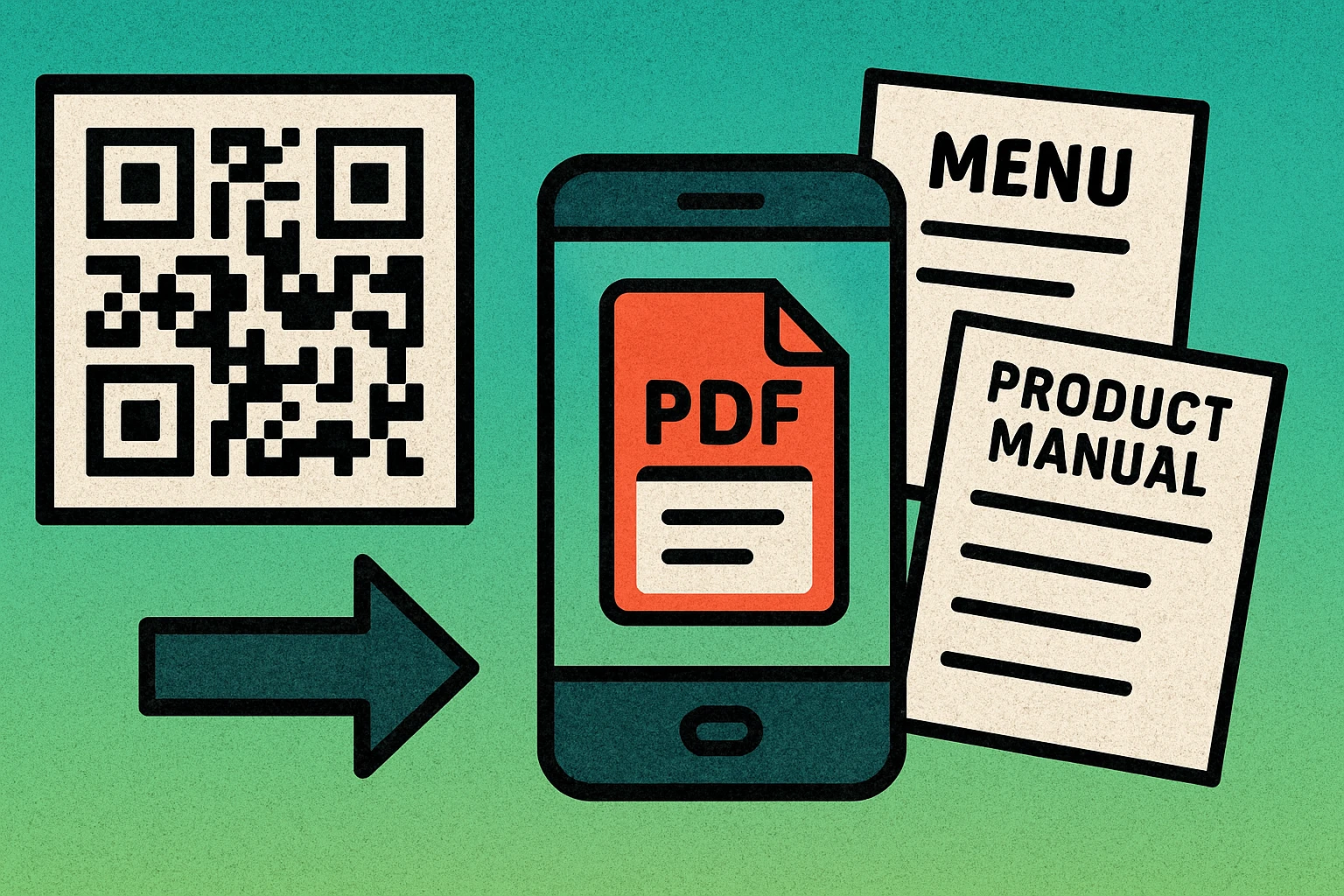
This approach is actually more powerful than embedding would be, even if it were possible. Because the QR code points to a URL, you can update, replace, or move the PDF without changing the printed code (if you use a dynamic QR code). You also avoid bloating the QR code with data, which keeps it simple, small, and easy to scan.
A QR code for a PDF works by linking to a hosted URL where the file lives online. The QR code encodes the link, not the file. This keeps the code scannable and gives you flexibility to update the document later.
How to Create a QR Code for a PDF (Step by Step)
The process is straightforward and takes just a few minutes. Whether you are sharing a restaurant menu, a product manual, or a training document, the steps are the same. Here is exactly how to create a QR code link to PDF content.
Create Your PDF QR Code
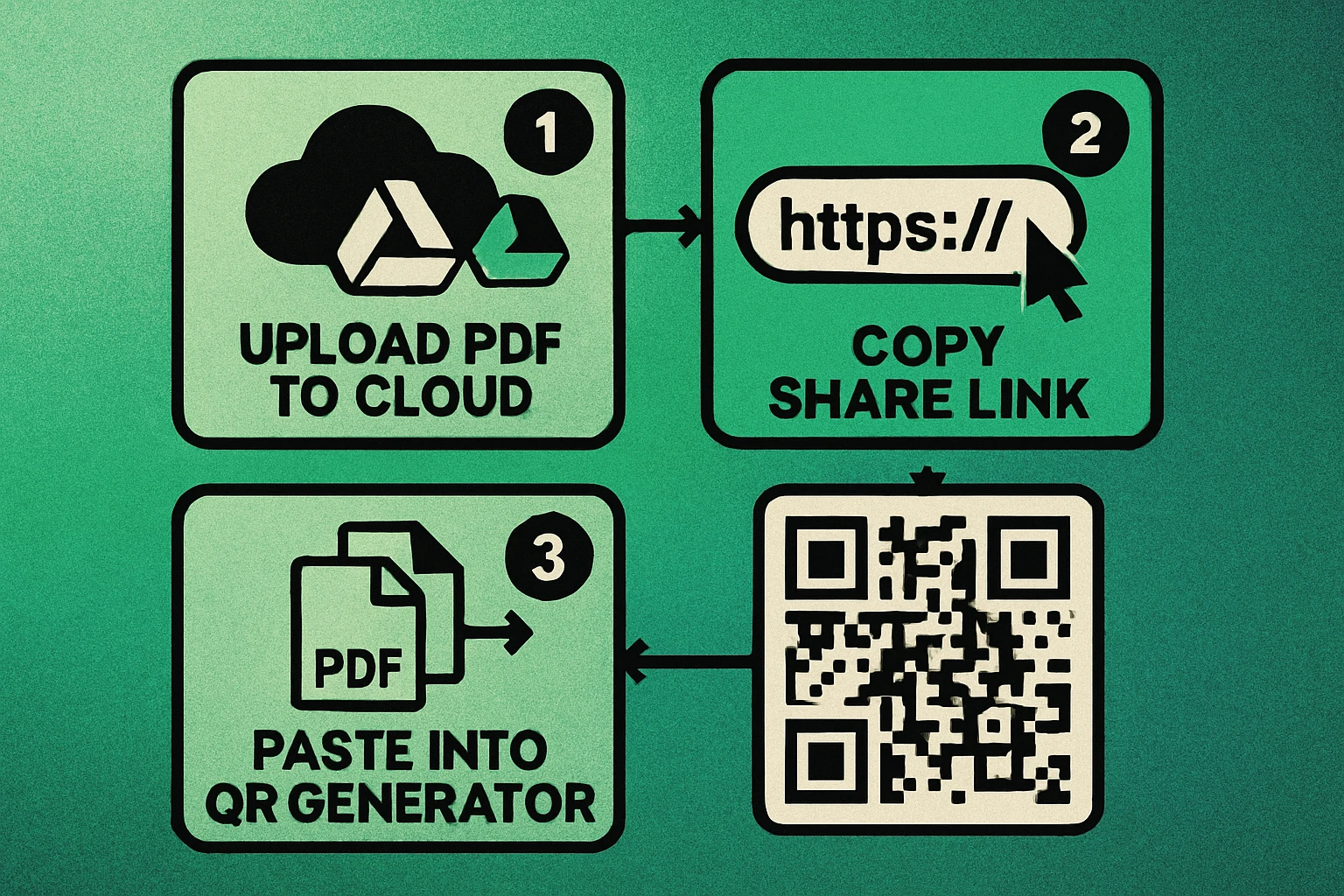
Upload your PDF to a hosting service. Choose a cloud platform like Google Drive, Dropbox, or your own website server. Upload the PDF file and make sure it is set to "anyone with the link can view" (public access). If the file requires login credentials to open, your QR code will not work for most scanners.
Copy the shareable URL. Once your PDF is uploaded and publicly accessible, copy the direct link. For Google Drive, click "Share" and copy the link. For Dropbox, use the "Copy link" option. For your own server, the URL is the file path (e.g., https://yourdomain.com/files/menu.pdf). Test this link in a private/incognito browser window to confirm it opens without a login prompt.
Generate the QR code. Open a free QR code generator, paste your PDF URL into the input field, and create the code. Download it as a PNG for digital use or SVG for print. For more on choosing the right file format, see our QR code file formats guide.
Test before printing or distributing. Scan the QR code with at least two different smartphones (one iPhone, one Android if possible). Confirm the PDF loads quickly, displays correctly on mobile, and does not require a sign-in. Check the scan from different distances and angles to make sure the code is readable at the size you plan to print it. Our QR code size guide can help you determine the minimum dimensions.
That is the entire process. The most important step is the first one — making sure your PDF is hosted at a reliable, publicly accessible URL. Everything else flows from there. For a deeper look at URL-based codes, see our guide on how to generate a URL QR code.
Where to Host Your PDF
The hosting platform you choose affects link reliability, loading speed, and how long your QR code for PDF remains functional. Here are the most popular options:
Google Drive
Best for: individuals and small teams. Upload your PDF to Google Drive, right-click the file, select "Share," and set access to "Anyone with the link." Copy the sharing URL and use it in your QR code. Google Drive is free (up to 15 GB), reliable, and the viewer is mobile-friendly. The downside is that the URL is long and Google-branded, and if you ever delete the file or change sharing settings, the link breaks.
Dropbox
Best for: teams already using Dropbox. Upload the PDF, click "Share," and copy the link. Dropbox links open a preview page with a download option. The free tier gives you 2 GB of storage. Like Google Drive, the link depends on your account and file settings remaining unchanged.
Your Own Website or Server
Best for: businesses and anyone who needs full control. Upload the PDF to your web server via FTP or your CMS file manager. The URL will be clean (e.g., yourdomain.com/docs/menu.pdf), you control the uptime, and you can track downloads through your server logs or analytics. This is the most reliable long-term option for professional use.
Cloud Storage and CDN Services
Best for: high-traffic documents. Services like Amazon S3, Cloudflare R2, or Firebase Storage are designed to serve files at scale. They offer fast download speeds globally, high uptime guarantees, and affordable pricing. These are ideal if your QR code will be scanned thousands of times — for example, on product packaging distributed nationally.
Whichever hosting option you choose, always test the link in a private browser window before generating the QR code. If the link asks for a login or shows a permissions error in incognito mode, it will fail for anyone who scans your code.
Static vs Dynamic PDF QR Codes
When you create a QR code link to PDF content, you have two fundamental options: static or dynamic. The choice affects whether you can update the linked document later. For a comprehensive comparison, read our full article on static vs dynamic QR codes.
| Feature | Static QR Code | Dynamic QR Code |
|---|---|---|
| URL encoded | Direct PDF link | Short redirect URL |
| Change PDF later | No — must reprint | Yes — update anytime |
| Scan tracking | Not available | Scan count, location, time |
| Code density | Higher (longer URL) | Lower (short URL) |
| Cost | Free | Free or paid tier |
| Best for | Permanent documents | Updatable documents |
Use a static QR code when the PDF will never change — for example, a certificate, a one-time event program, or a reference document. Static codes are simpler and have no dependency on a third-party redirect service.
Use a dynamic QR code when you may need to swap the PDF later without reprinting materials. Restaurant menus are the classic example: the printed QR code on every table stays the same, but you can update the menu PDF seasonally. Dynamic codes also let you track scan analytics, which is valuable for measuring engagement.
Create Your PDF QR Code in Seconds
Paste your hosted PDF link, generate a QR code, and download it for free. No account needed.
QR Code Apps for Mac & Safari
Prefer generating codes without opening a browser tab? These two native Apple apps cover both habits — a full generator on the desktop, and a one-click share button inside Safari.


Use Cases for PDF QR Codes
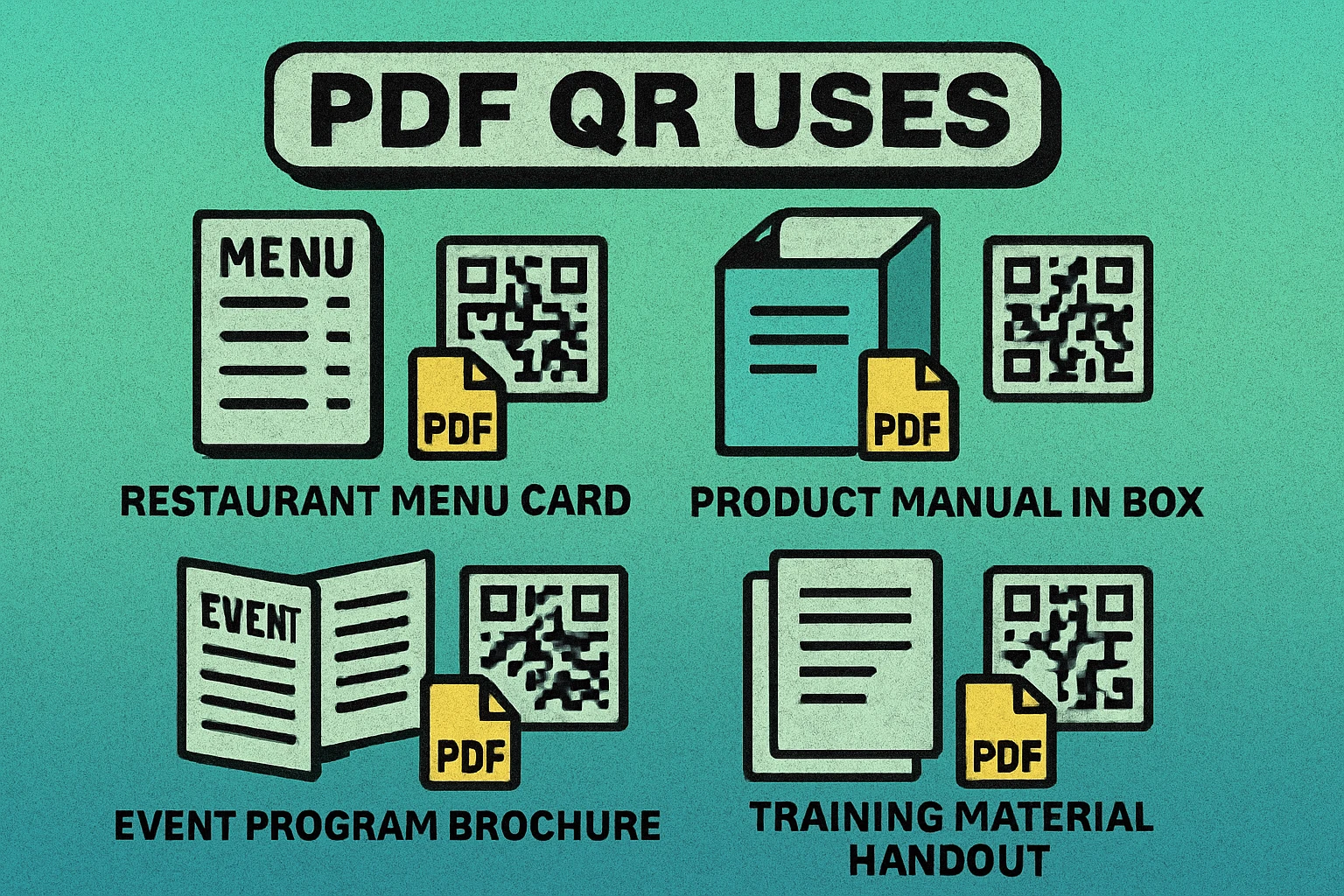
The ability to share a PDF with a QR code is useful in virtually any scenario where someone needs quick access to a document without searching for it online or receiving it via email. Here are the most common applications:
Restaurant Menus
This became ubiquitous during the pandemic and has remained popular. A QR code on the table links to a PDF menu. Restaurants save on printing costs and can update prices, add seasonal dishes, or remove sold-out items instantly by swapping the hosted PDF. Use a dynamic code so the printed table tent never needs to change.
Product Manuals and Spec Sheets
Printed manuals add weight and cost to product packaging. A QR code on the box or label links to a detailed PDF manual, assembly guide, or specification sheet. Customers scan and get the full document on their phone or tablet. This approach also lets manufacturers update manuals after the product has shipped — correcting errors or adding new information.
Event Programs and Agendas
Conferences, weddings, concerts, and trade shows can provide a QR code that links to the full event schedule as a PDF. Attendees scan once and have the document saved on their device. This eliminates the need to print hundreds of physical programs and lets organizers push last-minute schedule changes.
Training and Educational Materials
Corporate trainers, professors, and workshop leaders can place QR codes on slides, handouts, or posters that link to supplementary PDFs — reading materials, exercises, reference guides, or certification documents. Students and trainees scan the code during or after the session to download everything they need.
Resumes and Portfolios
Job seekers can add a QR code to their printed resume or business card that links to a full PDF portfolio, expanded CV, or a project showcase. Recruiters scan the code to access a richer set of materials than what fits on a single page. For sharing contact details alongside, consider combining it with a vCard QR code.
For a complete overview of every QR code type and how they are used, see our pillar article on every type of QR code explained.
Tips and Best Practices
Creating the QR code is the easy part. Making sure it works reliably for every person who scans it requires attention to a few details:
- Keep your PDF under 10 MB. Large files take too long to download on mobile data connections. Compress images, reduce resolution to 150 DPI for screen viewing, and strip unnecessary embedded fonts. Tools like Adobe Acrobat, Smallpdf, or iLovePDF can reduce file size significantly.
- Design the PDF for mobile screens. Most people will view your PDF on a phone. Use single-column layouts, large readable fonts (14px minimum for body text), and avoid wide tables that require horizontal scrolling. If the PDF was originally designed for A4 printing, consider creating a mobile-optimized version.
- Ensure link longevity. If you host on Google Drive or Dropbox, the link breaks if you delete the file, lose access to your account, or change sharing permissions. For mission-critical documents, host on your own domain or use a dynamic QR code that lets you redirect to a new URL without reprinting.
- Add a clear call-to-action near the QR code. Do not just print a QR code by itself. Add text like "Scan for menu," "Scan for full manual," or "Scan to download PDF." People scan faster when they know what they will get.
- Print at a scannable size. The minimum recommended size is 2 cm × 2 cm (about 0.8 inches) for close-range scanning. For posters or signage viewed from a distance, scale up accordingly. Refer to our QR code size guide for distance-to-size calculations.
- Test on multiple devices. Always scan your QR code with at least two different phones before distributing. Check that the PDF renders correctly in both iOS Safari and Android Chrome. Test on cellular data, not just Wi-Fi, to gauge real-world loading times.
For more general guidance on QR code creation, design, and deployment, our complete QR code guide covers everything from choosing error correction levels to print placement.
The three most important factors for a successful PDF QR code are: a reliable, publicly accessible hosting URL; a compressed, mobile-friendly PDF file; and a QR code printed at a scannable size with a clear call-to-action label.
Frequently Asked Questions
No. QR codes store text data, not files. A PDF file is far too large to fit inside a QR code. Instead, you host the PDF online and encode the URL that points to the file. When someone scans the QR code, their device opens the link and downloads or displays the PDF.
Yes. You can host your PDF for free on Google Drive or Dropbox, then use a free QR code generator to create the code. The QR code itself is just a URL-based code, which most generators offer at no cost.
If you delete or move the PDF file, the QR code will still scan but the link will lead to a 404 error or a file-not-found page. The QR code itself does not change — it always points to the original URL. This is why using a dynamic QR code is recommended for important documents, since you can redirect the URL to a new file location without reprinting the code.
Use a static QR code if the PDF will never change and you do not need scan analytics. Use a dynamic QR code if you may need to update the PDF later, change the destination URL, or track how many people scan the code. Dynamic codes are especially useful for documents that are revised periodically, like menus or product manuals.
Keep your PDF under 10 MB for the best user experience. Large files take longer to download on mobile networks, which can frustrate users. Compress images within the PDF, remove unnecessary fonts, and use tools like Adobe Acrobat's file size reducer or free online compressors to shrink the file before hosting it.