What Is a Wi-Fi QR Code?
A Wi-Fi QR code is a scannable code that stores your wireless network name (SSID), password, and encryption type in a standardized format. When someone scans it with their smartphone camera, their device automatically reads the credentials and connects to the network — no manual typing required.
Behind every wifi qr code is a simple text string that follows the WIFI: protocol. This protocol was designed specifically for encoding wireless network credentials in a machine-readable format. A typical Wi-Fi QR code contains a string that looks like this:
WIFI:T:WPA;S:MyNetwork;P:MyPassword;;
When your phone's camera decodes this string, it recognizes the WIFI: prefix and knows to treat the contents as network credentials rather than a URL or plain text. The device then extracts the network name, password, and encryption type, and prompts you to join the network with a single tap.
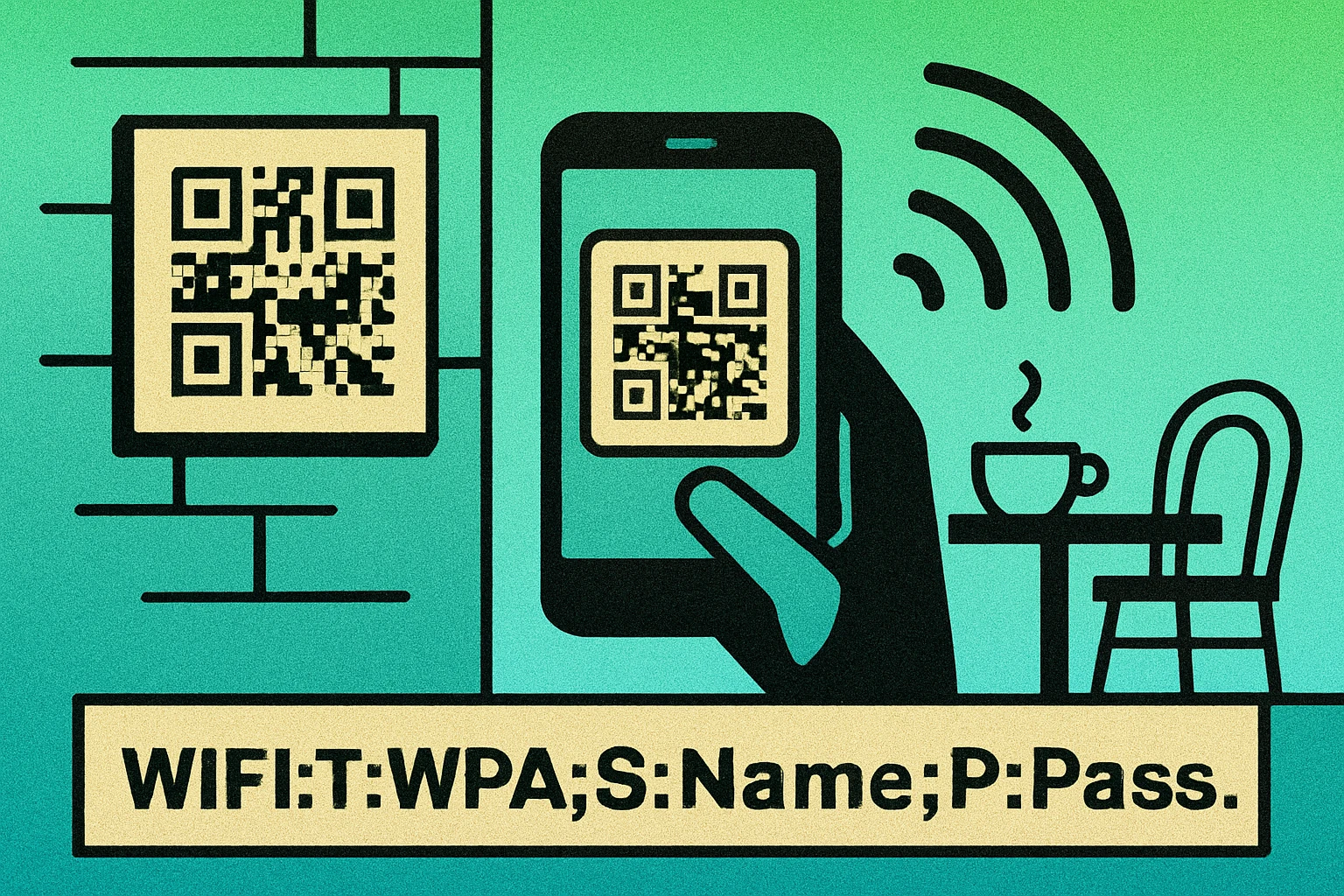
This works on iPhones running iOS 11+ and Android devices running Android 10+ using just the built-in camera app. No third-party scanner is needed on modern devices. The entire process takes about two seconds from scan to connection.
Wi-Fi QR codes are a specific type of QR code — they use the same visual format as any other QR code, but the encoded data follows a special protocol that triggers wireless network connections. For a broader overview of QR code technology, see our complete QR code guide.
A Wi-Fi QR code encodes your network name, password, and encryption type using the standard WIFI: protocol. Scanning it lets any modern smartphone connect to your network automatically without typing a single character.
How to Create a Wi-Fi QR Code (Step by Step)
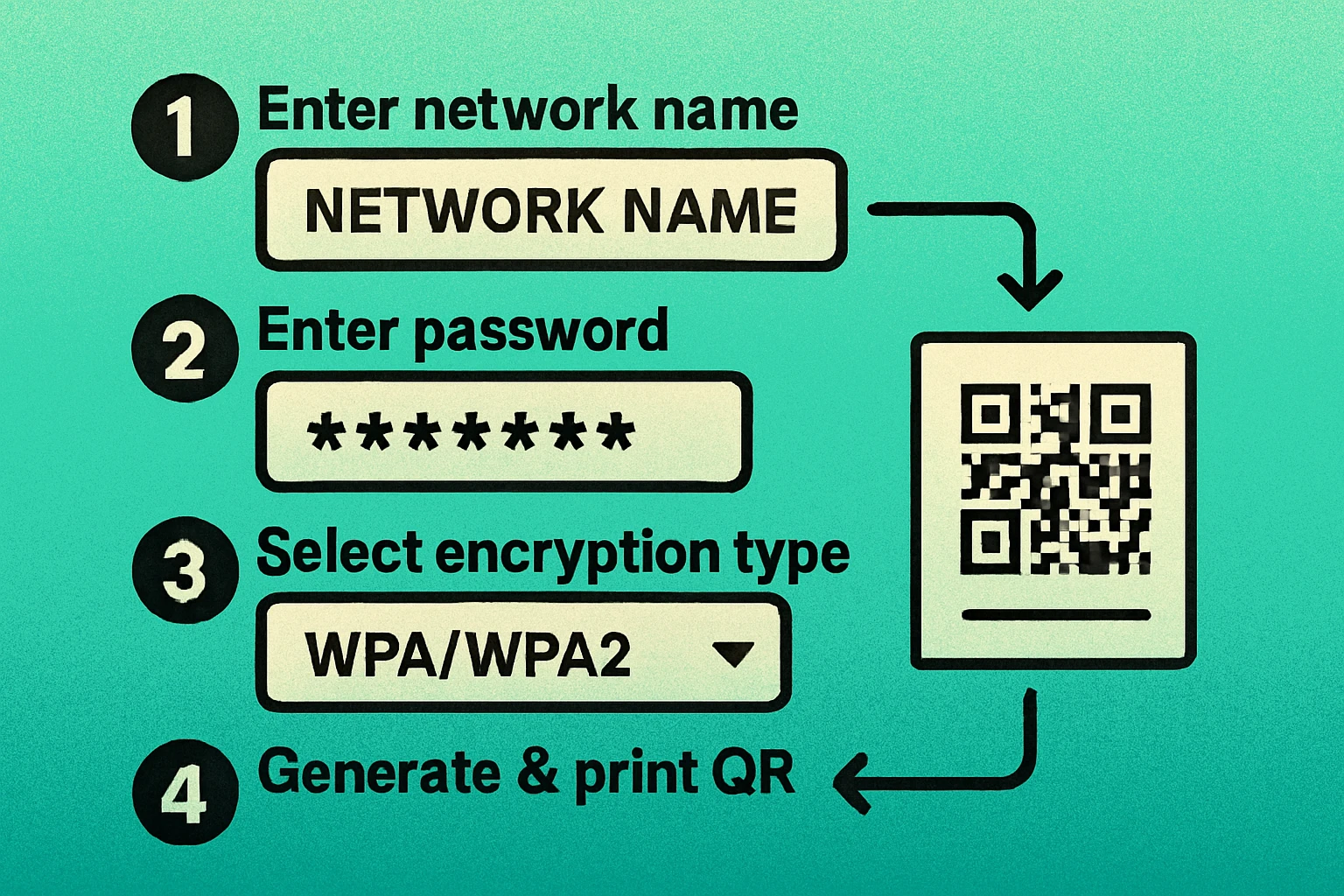
Creating a wifi qr code is straightforward and takes under two minutes. You only need three pieces of information: your network name, your password, and your encryption type. Here is the process using a wifi qr code generator:
Create Your Wi-Fi QR Code
Open a Wi-Fi QR code generator. Go to Generate Online QR and select the Wi-Fi option from the QR code type menu. A dedicated wifi qr code generator will present fields specifically designed for network credentials.
Enter your network name (SSID). Type your Wi-Fi network name exactly as it appears on your router or in your device's Wi-Fi settings. This field is case-sensitive — "HomeNetwork" and "homenetwork" are treated as different networks. If you are unsure of the exact name, check your phone's Wi-Fi settings or look at the sticker on your router.
Enter your Wi-Fi password. Type your network password. Special characters, spaces, and mixed case are all supported. If your network is open (no password), leave this field blank. Double-check for typos — a single wrong character means the QR code will fail to connect.
Select your encryption type. Choose the security protocol your router uses. The options are typically WPA/WPA2 (the most common modern standard), WPA3 (newer routers), WEP (older and less secure), or None (open network). If you are not sure, check your router's admin panel — most home routers manufactured after 2010 use WPA2.
Generate and download. Click Generate to create your wifi password qr code. Download it as a high-resolution PNG for printing or SVG for scalable use. Test the code with your own phone before printing to confirm it connects successfully.
That's it. The entire process takes less than two minutes, and you now have a QR code that anyone can scan to share wifi password qr code access instantly. Print it, frame it, or display it on a screen — wherever guests need to connect.
Create Your Wi-Fi QR Code Now — Free
Enter your network name and password. Download your QR code in seconds. No account needed.
Wi-Fi QR Code Format Explained
If you want to understand exactly what data your wifi qr code contains, here is a technical breakdown of the encoding string. The WIFI: protocol follows a simple key-value structure:
// Full format:
WIFI:T:<encryption>;S:<SSID>;P:<password>;H:<hidden>;;
| Parameter | Description | Example | Required |
|---|---|---|---|
| T: | Encryption type (WPA, WEP, or nopass) | T:WPA | Yes |
| S: | Network name (SSID), case-sensitive | S:MyNetwork | Yes |
| P: | Password (leave empty for open networks) | P:s3cur3Pass! | Conditional |
| H: | Hidden network flag (true or false) | H:true | No |
A few important formatting rules to keep in mind:
- Special characters in the SSID or password (like
;,,,:, and\) must be escaped with a backslash. For example, a password ofpass;wordbecomesP:pass\;word. - The string must end with
;;(double semicolon). This signals the end of the credential data. - WPA covers WPA2 and WPA3. In the encoding string, you use
T:WPAfor WPA, WPA2, and WPA3 networks. There is no separate value for WPA2 or WPA3. - Open networks use
T:nopassand omit theP:parameter entirely.
Here are some real-world examples:
// WPA2 home network:
WIFI:T:WPA;S:SmithFamily_5G;P:welcome2024!;;

// Open cafe network:
WIFI:T:nopass;S:CoffeeShop_Free;;

// Hidden WPA network:
WIFI:T:WPA;S:OfficeSecure;P:C0rp#Access;H:true;;
Most wifi qr code generator tools handle all of this formatting automatically — you just fill in the fields and the tool constructs the correct string. But understanding the format is useful if you ever need to debug a code that is not working or if you want to create one programmatically. For more on how QR codes encode different data types, see our guide on static vs dynamic QR codes.
QR Code Apps for Mac & Safari
Prefer generating codes without opening a browser tab? These two native Apple apps cover both habits — a full generator on the desktop, and a one-click share button inside Safari.


Where to Use Wi-Fi QR Codes
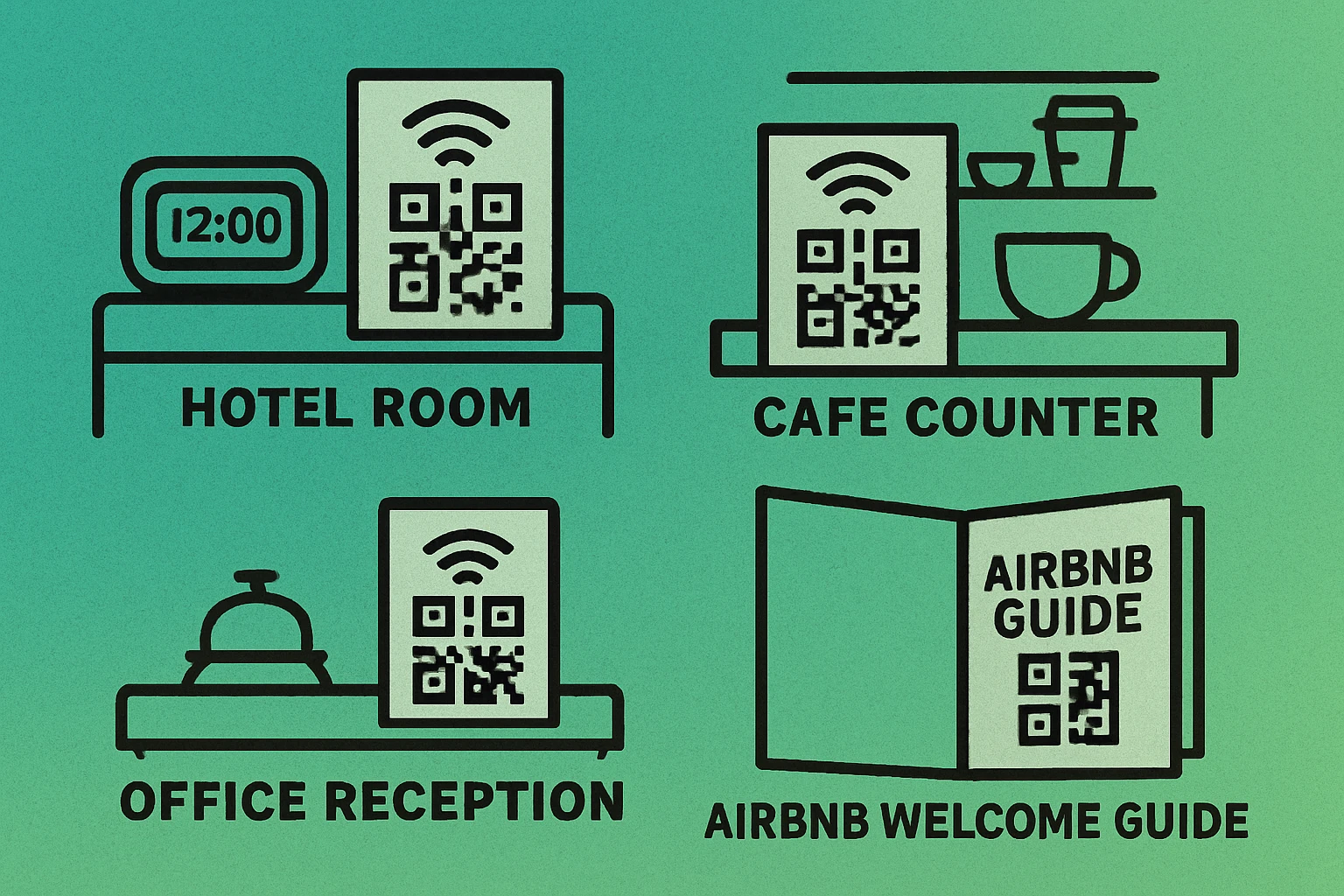
A wifi password qr code is useful anywhere people need to connect to your network quickly without asking for credentials. Here are the most common and effective placements:
Offices and Co-Working Spaces
Place a Wi-Fi QR code in the lobby, meeting rooms, and common areas. This eliminates the most common IT support request — "What's the Wi-Fi password?" — and lets visitors get connected the moment they arrive. Many offices maintain a separate guest network specifically for this purpose, keeping the internal network secure while giving visitors easy access.
Cafes, Restaurants, and Bars
Print the QR code on table tents, menus, or wall signage near the entrance. Customers no longer need to ask staff for the password, which saves time during busy periods. Some restaurants include the QR code directly on receipts or alongside the URL QR code for their online menu.
Hotels and Vacation Rentals
Include a Wi-Fi QR code in the welcome packet, on the nightstand card, or framed near the entrance of each room. For Airbnb hosts, adding a framed QR code near the front door is one of the most appreciated amenities — it eliminates the frustrating process of trying to type a complex password from a printed sheet. Consider pairing it with a vCard QR code containing your contact information for check-in support.
Events and Conferences
Display a large Wi-Fi QR code on screens, banners, or printed handouts at registration desks. When hundreds of attendees need to connect simultaneously, a QR code prevents long queues and repeated questions. Event organizers often project the code on stage slides during opening remarks.
Retail Stores and Showrooms
Offering guest Wi-Fi via QR code encourages customers to spend more time in your store, browse your online catalog, or check product reviews while shopping. Place the code near the entrance or fitting rooms.
Your Own Home
Frame a small Wi-Fi QR code in your guest bedroom, living room, or near the front entrance. When friends and family visit, they scan once and connect immediately — no more dictating your 20-character password. This is especially helpful if your password contains mixed case, numbers, and special characters that are easy to mistype.
Always use a guest network for your Wi-Fi QR code rather than sharing your primary network credentials. Guest networks isolate visitors from your private devices and files while still providing internet access. Most modern routers support creating a guest network through the admin panel.
Tips for Wi-Fi QR Code Best Practices
Creating the QR code is the easy part. Making sure it works reliably for everyone who scans it requires attention to a few details. Follow these best practices to get the most out of your wifi qr code:
Size and Print Quality
Print your QR code at a minimum of 2 x 2 cm (about 0.8 x 0.8 inches) for close-range scanning like table tents and welcome cards. For wall signage that people will scan from a distance, increase the size proportionally — a code on a poster should be at least 10 x 10 cm. Always maintain high contrast (black on white works best) and avoid printing on glossy surfaces that cause glare. For detailed sizing guidelines, read our QR code size guide.
Placement and Visibility
Position the QR code at a height where people naturally hold their phones — roughly chest to eye level. Add a clear label above or below the code such as "Scan to Connect to Wi-Fi" so people understand what it does before scanning. Avoid placing codes behind glass or in direct sunlight, as reflections can interfere with scanning.
Security Considerations
Never use your primary network's QR code in a public-facing location. Instead, create a dedicated guest network with its own password and share that via QR code. This way, visitors get internet access but cannot see your personal devices, shared drives, or smart home equipment. Change the guest password periodically and reprint the QR code. For more on QR code safety, see our QR code security guide.
Test Before You Print
Always scan the QR code with at least two different devices (one iPhone, one Android) before printing or distributing it. Verify that the network name, password, and encryption type are all correct. A single typo in the SSID or password renders the entire code useless, and the person scanning it will simply see a "connection failed" message with no helpful details.
Include Fallback Information
Not everyone will know how to scan a QR code, and some older devices do not support automatic Wi-Fi connection from QR codes. Print the network name and password in small text below the QR code as a fallback. This ensures everyone can connect regardless of their device or technical comfort level.
Update When Passwords Change
Wi-Fi QR codes are static — the credentials are encoded directly in the image. If you change your Wi-Fi password, the old QR code will stop working immediately. Keep the source file for your QR code so you can quickly regenerate and reprint it when needed. If you change passwords frequently, consider using a dynamic QR code that redirects to a page with the current credentials.
Frequently Asked Questions
Yes, it is generally safe. The QR code stores your network credentials locally in the image — it does not transmit them over the internet. However, anyone who can see or photograph the QR code can extract the password. For best security, use a dedicated guest network with a separate password so your primary network remains private.
Yes. iPhones running iOS 11 or later and Android devices running Android 10 or later can scan Wi-Fi QR codes using their built-in camera app and connect automatically. Older devices may need a third-party QR code scanner app.
The QR code will stop working because it stores the old password. You will need to generate a new QR code with the updated password and replace the printed version. This is one advantage of keeping your guest network password relatively stable.
Yes. The WIFI: protocol supports a hidden network flag (H:true). When this flag is included, the scanning device will attempt to connect to the specified SSID even if it is not broadcasting. Most Wi-Fi QR code generators include a "Hidden network" checkbox for this purpose.
No. The QR code is decoded entirely on your device. Since the purpose of the code is to connect you to Wi-Fi in the first place, it is designed to work without any existing internet connection. Your phone reads the network credentials from the code and uses them to join the network.