How to Make a QR Code for a Google Form
To make a QR code for a Google Form you copy the form's share link, paste it into a QR code generator, download the image, and scan it once to check it. That is the whole job, and it takes about two minutes. The only part people reliably get wrong is which link they copy — the section straight after these steps explains why.
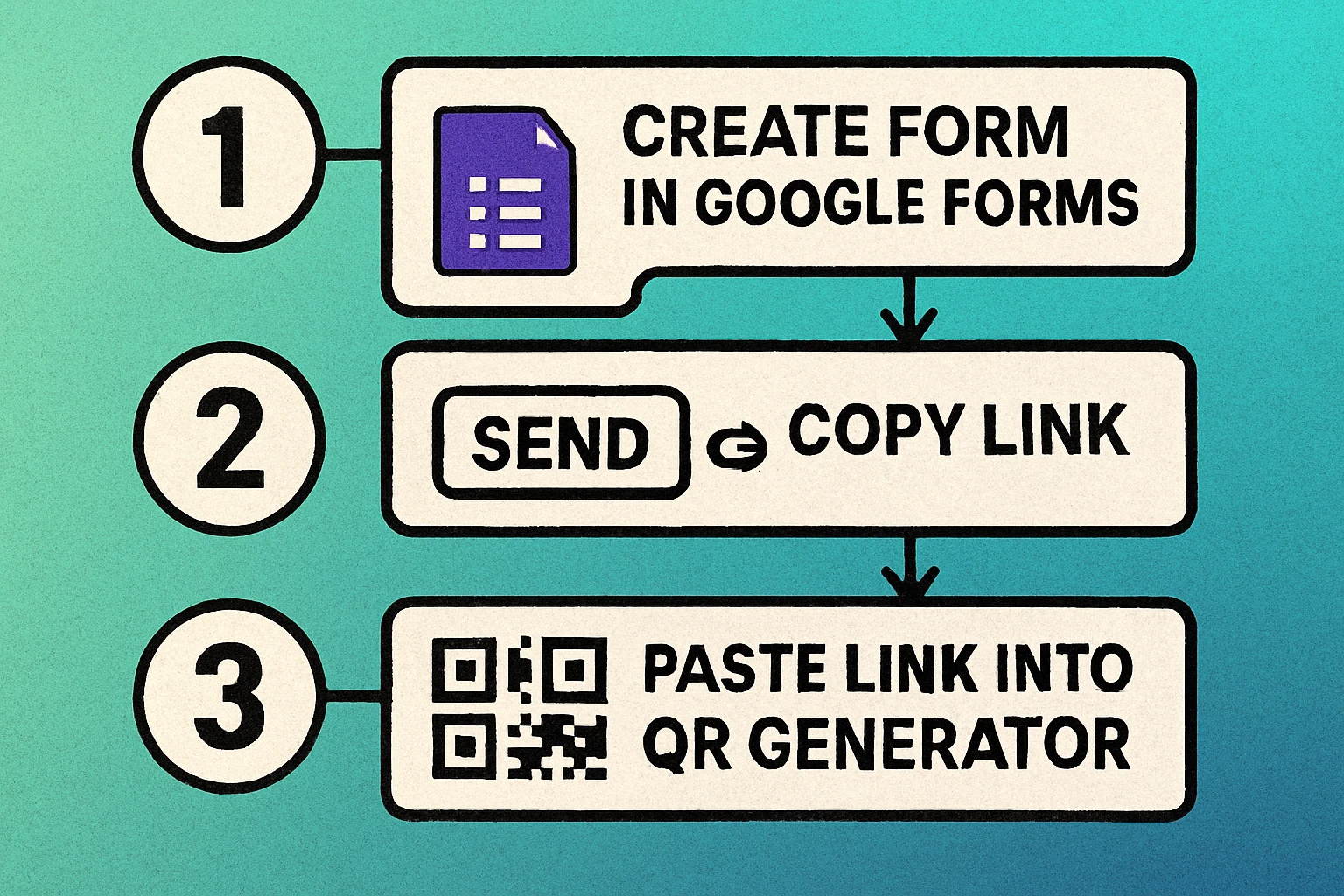
From Google Form to QR Code in Four Steps
Open your form and click Send. In the Google Forms editor, the Send button sits at the top right. In the panel that opens, switch to the link option — the chain-link icon — rather than the email or embed tab. What you are looking at now is the respondent link: the address you would give to somebody filling the form in.
Copy the link, shortened if the option is there. Google offers a checkbox to shorten the address, usually labelled Shorten URL, which swaps the long docs.google.com/forms/d/e/…/viewform address for a tidy forms.gle/… one. Tick it, then hit Copy. If your version of the interface does not show the checkbox, the full link works perfectly well — it just makes a denser code. Shorter data means fewer modules, which means the code stays readable when printed small; our QR code size guide has the exact numbers.
Generate the QR code. Paste the copied link into our QR code generator and the code appears immediately. Adjust colours, add a frame, or leave it plain black on white — plain is the most reliable for print.
Download, then actually scan it. Take a PNG for screens and slides or an SVG for anything going to print at size. Then scan the downloaded file with a phone camera before it goes anywhere. Two minutes of testing catches the wrong link, a closed form, and a code printed too small. If a scan fails, our guide to QR codes that will not scan works through the usual causes.
The /viewform vs /edit Mistake
This is the single most common reason a Google Form QR code fails in the field, and it fails silently: the code scans fine, so it looks correct until a stranger tries it.
While you are building a form, the address in your browser's bar ends in /edit. That is the editor link. Anyone who scans a QR code built from it lands on a request-access screen — or, if your form is shared widely, gets the power to edit your questions. The link you want ends in /viewform, or looks like forms.gle/abc123, and it only appears in the Send panel. Copy from the Send panel, never from the address bar.
Two related addresses are worth recognising so you never encode them by accident. Anything containing /edit#responses is your responses view. Anything ending in /viewanalytics is the summary of answers. Both are for you, not for respondents. A quick sanity check before you generate: paste the link you copied into a private or incognito browser window. If it opens straight into a blank, fillable form with no sign-in wall and no editing toolbar, it is the right one.
The code you make from that link is static — the URL is encoded directly into the pattern rather than routed through a redirect service. There is no subscription behind it and nothing to renew; the pattern will decode to the same address in ten years. What can change is the destination, which is why QR codes do not really expire but the pages behind them sometimes do. If you expect the destination itself to move, read up on static vs dynamic QR codes before printing a large run.
Make Your Google Form QR Code Now
Paste your form link into the free online generator, generate the code, and download it in seconds. No signup, no expiry.
Why Use a QR Code for Google Forms?
Google Forms is one of the most widely used tools for collecting responses — from customer feedback and event RSVPs to classroom quizzes and job applications. It is free, requires no software installation, and feeds straight into Google Sheets for real-time analysis. But there is one persistent friction point: getting people to actually open the form.
Sharing a link by email or chat works fine on a screen. In physical settings — at a conference, on a printed feedback card, inside a restaurant, on a classroom whiteboard — asking someone to type a URL is a guaranteed way to lose responses. Google Form addresses are long and unmemorable, often looking like https://docs.google.com/forms/d/e/1FAIpQLSe…/viewform. Nobody is typing that from a poster.
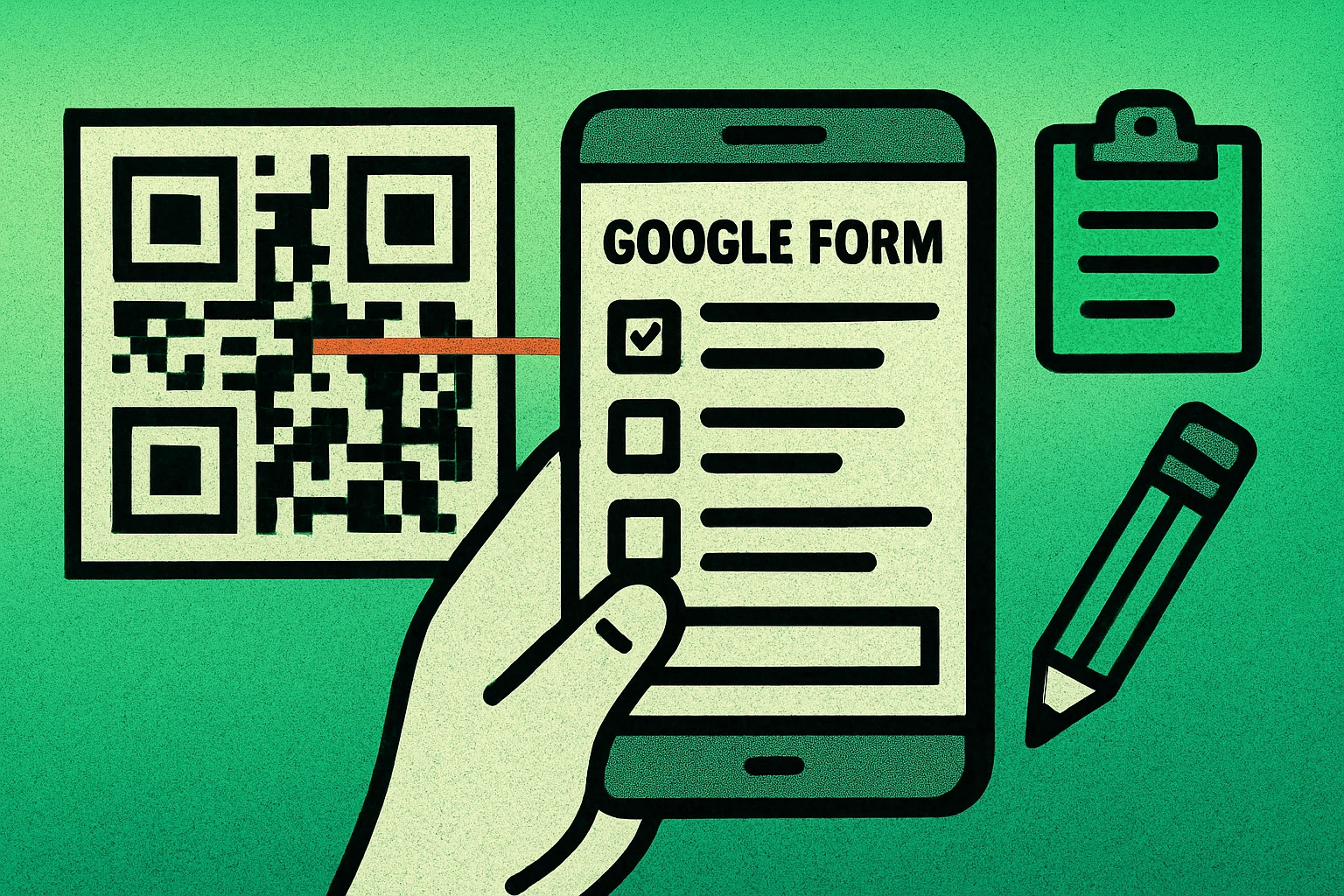
A QR code closes that gap. Instead of dictating a URL or hoping someone clicks a link later, you give people a square they can scan in under two seconds. The form opens on their own phone, ready to fill in, at the exact moment they are standing in front of whatever you want feedback about. That timing is most of the value: a feedback survey QR code collected at the table beats the same questions emailed out three days later.
Scanning itself happens locally on the device — the camera decodes the pattern and hands the URL to the browser — so the only thing your respondent needs is a working connection to load the form. For a broader look at how URL-based codes work, see our guide to URL QR code generators, and our overview of the types of QR codes if you are deciding between formats.
A QR code bridges a physical environment and a digital form. It removes the biggest barrier to collecting responses in person: asking people to type a URL.
Google Forms vs Other Survey Tools
While this guide focuses on Google Forms, the QR code technique works identically with any survey or form tool that provides a shareable URL. Here is how the major platforms compare:
| Platform | Free Tier | Shareable URL | QR Code Compatible | Best For |
|---|---|---|---|---|
| Google Forms | Yes | Yes | Yes | General purpose, education |
| Typeform | Limited | Yes | Yes | Conversational forms, design |
| SurveyMonkey | Limited | Yes | Yes | Market research, analytics |
| Microsoft Forms | Yes | Yes | Yes | Microsoft 365 ecosystem |
| JotForm | Limited | Yes | Yes | Advanced logic, payments |
| Tally | Yes | Yes | Yes | Simple, unlimited forms |
The takeaway is straightforward: if a tool gives you a URL, you can make a QR code for it. Google Forms is the most popular choice because it is completely free, has no response limits, and integrates natively with Google Sheets. But the QR code creation process is identical regardless of which platform you use. Simply copy the form URL and paste it into the QR code generator.
QR Code Apps for Mac & Safari
Prefer generating codes without opening a browser tab? These two native Apple apps cover both habits — a full generator on the desktop, and a one-click share button inside Safari.


Pre-Filling Google Form Fields via URL
One of Google Forms' most useful (and underused) features is the ability to pre-fill answers through the URL. This means you can create a QR code that not only opens the form but also fills in certain fields automatically — saving the respondent time and reducing errors.
How to Create a Pre-Filled Link
In the Google Forms editor, open the three-dot menu at the top right and choose the option for getting a pre-filled link. A preview of the form opens; type the default answers into the fields you want filled in advance, then use the button at the bottom to produce the link. Google returns a URL with your values encoded as query parameters — that URL is what you paste into the QR code generator.
Because each pre-filled link is a distinct URL, you can print several codes for the same form and still tell them apart in your responses. That is the poor man's scan tracking, and for most classroom and event uses it is enough. If you need real scan counts rather than tagged responses, see how to track QR code scans.
For example, you could pre-fill an event name, a location, or a department so that different QR codes at different locations automatically tag where the response came from. This is extremely useful for:
- Location tracking: Different QR codes at different branches, each pre-filling the "Location" field
- Event identification: A QR code at each conference session that pre-fills the session name
- Department routing: Separate QR codes for each department, pre-filling a hidden category field
- Reducing input errors: Pre-filling known information (like a product name) so users only need to add their feedback
Pre-filled URLs can be very long. Always shorten them before generating a QR code. A shorter URL produces a less dense QR code that is easier and faster to scan, especially from a distance or on small print materials.
Response Settings to Check Before You Print
A QR code is only as good as the form behind it, and once the code is on 200 flyers you cannot change your mind. Spend a minute in the form's Settings tab first. These are the settings that cause almost every "the QR code doesn't work" complaint:
- Is the form still accepting responses? The Responses tab carries a toggle that closes submissions. Switched off, everyone who scans your code is told the form is no longer accepting responses. This is the number one cause of a "broken" code.
- Does the form require a sign-in? Under Settings, the responses options include collecting verified email addresses and limiting people to one response. Both oblige respondents to sign in to a Google account. Sensible for an internal staff survey; fatal for a public event where half the room has no Google account on their phone.
- Is it locked to your organization? Forms created on a work or school account are frequently restricted to people inside that domain by default. Outside guests scanning your code hit a permission wall rather than your questions.
- Should people be able to edit after submitting? Allowing response editing suits sign-up sheets people revisit; leave it off for quizzes and one-shot feedback.
- What does the confirmation screen say? The message shown after submission is the last thing a scanner reads. Use it to say thank you, or to send people somewhere useful next.
Scan your finished code with a phone that is signed out of Google, or open the link in a private browser window. You will see exactly what a stranger sees — sign-in walls, domain restrictions, and closed forms all reveal themselves instantly. Do this before you print, not after.
Use Cases for Google Form QR Codes
The combination of Google Forms and QR codes is remarkably versatile. Here are the most common real-world applications, along with tips for each.
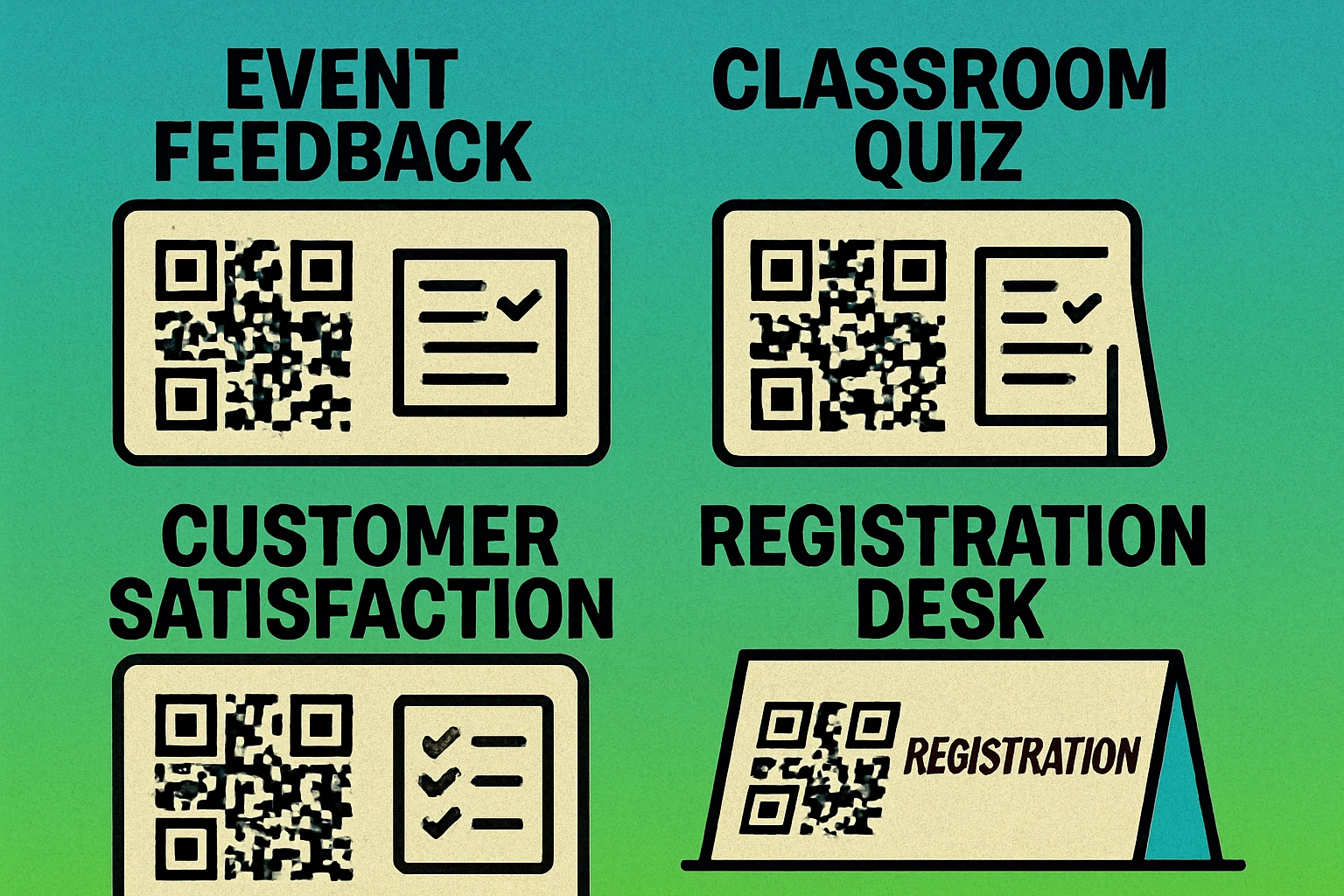
Feedback and Satisfaction Surveys
Place QR codes on receipts, table tents, product packaging, or exit doors. Customers scan to leave feedback while the experience is still fresh. This consistently outperforms emailed surveys because it catches people at the moment of interaction. Restaurants, hotels, and retail stores have seen significant improvements in response rates simply by placing a QR code at the point of experience.
Event Registration and Check-In
Print a QR code on event flyers, posters, or social media graphics. Attendees scan to register via a Google Form that collects their name, email, dietary requirements, or session choices. At the event itself a second code handles check-in, ideally pre-filled with the session name so you can tell the rooms apart. For events that also need calendar integration, pair it with a calendar event QR code, and see our notes on QR codes for events and ticketing for the wider setup.
Classroom Quizzes and Polls
Teachers project a QR code on the classroom screen or print it on a handout. Students scan with their phones to take a quiz, submit an exit ticket, or respond to a poll. This works especially well for formative assessment because responses appear in Google Sheets in real time, letting teachers adjust the lesson while it is still running. Our guide to QR codes in education covers more classroom patterns.
Customer Order Forms
Small businesses use Google Form QR codes on menus, catalogs, or product displays. Customers scan to place an order, request a quote, or schedule a service. This is particularly effective for food trucks, craft fairs, and pop-up shops where a full POS system may not be practical.
Internal Surveys and HR Forms
Companies print QR codes on posters in break rooms, hallways, or meeting rooms to collect employee feedback, incident reports, or equipment requests. The barrier to participation drops dramatically when employees can simply scan and submit from their phone rather than navigating to an intranet page. For collecting contact information alongside forms, you might also explore email QR codes as a complementary tool.
Printing and Placing the Code for Classrooms and Events
Most Google Form QR codes are scanned in a room full of people, in a hurry, in imperfect light. Placement and size matter more than design here.
Size It for the Scanning Distance
The working rule of thumb is ten to one: a code needs to be roughly one tenth as wide as the distance it will be scanned from. In practice that gives you:
- Feedback card, table tent, receipt (scanned at 20–30 cm): 2–3 cm square.
- A4 handout or worksheet (held in the hand): 3–5 cm square.
- A3 poster or door sign (scanned from a metre or two): 8–12 cm square.
- Roll-up banner or projected slide (scanned from across a room): 15 cm or more, and larger again if the back row is 5 metres away.
Add a quiet zone — a clear margin about four modules wide — on all four sides, and never print the code smaller than the generator's own preview suggests. A shortened forms.gle link genuinely helps here: fewer characters means fewer, larger modules at the same physical size.
Classrooms
Projecting a code onto a whiteboard works, but two things spoil it: glare from overhead lighting, and a projector that softens the edges of small squares. Make the projected code far bigger than seems necessary, dim the front lights, and give students a printed backup on the handout for the ones sitting at an angle. Thirty phones hitting the same form at once is not a problem — Google Forms handles concurrent submissions without complaint.
If different classes fill the same form, give each class its own pre-filled link and its own printed code so the responses arrive already labelled.
Events, Stands and Registration Desks
At chest height, on a rigid surface, away from the fold of a banner. Codes printed across a crease or on a curved bottle scan unreliably. Keep them off dark or reflective stock: high contrast, dark on light, is what the camera wants. Laminating a table card is worth it for a multi-day event.
Always print a line of text next to the code saying what happens when it is scanned — "Scan to register", "Scan for the exit ticket", "Scan to leave feedback". People hesitate over unlabelled codes, and rightly so. Our QR code placement guide goes deeper on heights, surfaces and lighting.
Best Practices
Creating the QR code is the easy part. Making sure it works reliably and gets scanned frequently requires attention to a few details.
Make Your Google Form Mobile-Friendly
Since the vast majority of QR code scans happen on smartphones, your form must look and function well on small screens. Google Forms handles responsive layout automatically, but you should still review your form on a phone before distributing the QR code. Avoid overly long questions, keep required fields to a minimum, and use multiple-choice or dropdown fields instead of open text wherever possible.
Always Test the QR Code Before Distributing
Scan the code with at least two different devices (iOS and Android) to confirm it opens the correct form. Check that the form accepts submissions — a common mistake is distributing a QR code for a form that is still in "not accepting responses" mode. If you have used a pre-filled URL, verify that the pre-filled fields populate correctly.
Use Short URLs for Cleaner Codes
Shorter URLs produce QR codes with fewer modules, which means the code can be printed smaller while remaining scannable. Use Google's built-in URL shortener (forms.gle) or a service like Bitly. This matters most for small print placements like business cards, receipts, or product labels. For detailed sizing recommendations, consult our QR code size guide.
Add a Call to Action Near the QR Code
Never print a QR code by itself. Always include a short instruction like "Scan to give feedback," "Scan for the quiz," or "Scan to register." People are far more likely to scan a code when they know what it leads to. This also builds trust — users are understandably cautious about scanning unknown QR codes.
Mind the Contrast and the Surface
Cameras want a dark code on a light background with plenty of contrast. Inverted codes sometimes work and sometimes do not, depending on the phone. Avoid textured, reflective, or dark stock, and check the proof on paper rather than on screen — ink spread on uncoated paper can blur small modules. Our complete QR code guide has more on preparing files for print.
Frequently Asked Questions
Open your form in Google Forms, click Send, switch to the link tab and copy the share link (shorten it if the option is offered). Paste that link into a QR code generator, download the result as a PNG or SVG, and scan it once with your phone to confirm it opens the live form. The whole process takes about two minutes and the code works for as long as the form exists.
Because the link was copied from the browser address bar while the form was open for editing. That address ends in /edit and points at the editor, so people who scan it see a permission request instead of your questions. The respondent link ends in /viewform, or looks like forms.gle/xxxx, and is only shown in the Send panel. Always copy it from there.
No. The QR code encodes the form's address, and that address does not change when you add, remove or reorder questions, change the theme, or adjust settings. The code only stops working if you delete the form, stop it accepting responses, or restrict who is allowed to open it.
A plain static QR code has no built-in analytics, but there are two easy workarounds. Put a pre-filled hidden field in the link so each printed code tags its own location in your responses, or point the code at a tracked short link and read the click count there. Response timestamps in the linked spreadsheet also show you when scanning peaks.
The QR code itself never expires: the pattern is just an encoded URL and it will still decode to the same address years from now. What can expire is what sits at the other end. If the form is deleted, switched to not accepting responses, or locked to a single organization, the code will resolve but the page will not open.
Yes, as long as the form is not set to require sign-in. Options that collect verified email addresses or limit people to one response oblige respondents to sign in to a Google account, and forms created on a work or school account are often restricted to that domain by default. For a public QR code, turn those off and test the scan from a signed-out phone.
Yes. In the form editor, use the three-dot menu option for getting a pre-filled link, type the default answers, and generate the link. Encode that URL in your QR code. Pre-filled URLs are long, so shorten the link first, otherwise the QR code becomes dense and harder to scan from a distance.
As a rule of thumb, make the code about one tenth as wide as the distance people will scan it from. That is roughly 2 to 3 cm on a feedback card or table tent, 5 cm on an A4 handout, and 15 cm or more on a poster read from across a room. Always leave a clear quiet zone around the code and test the actual print, not the screen.
Yes. Any form tool that gives you a shareable URL, including Microsoft Forms, Typeform, SurveyMonkey, JotForm and Tally, works exactly the same way, because the QR code simply encodes that URL.