What Is a Calendar Event QR Code?
A calendar event QR code is a QR code that contains structured event data in the iCalendar format (also called iCal or .ics). When someone scans it with their smartphone, the phone recognizes the event data and offers to add it directly to their calendar app — complete with the event title, date, time, location, and description. No typing required.
The magic behind this is the vEvent standard, defined in RFC 5545. This is the same format used when you export a calendar event as an .ics file or receive a meeting invite via email. By encoding a vEvent block inside a QR code, you turn a simple printed image into a one-scan shortcut that works across every major calendar platform.
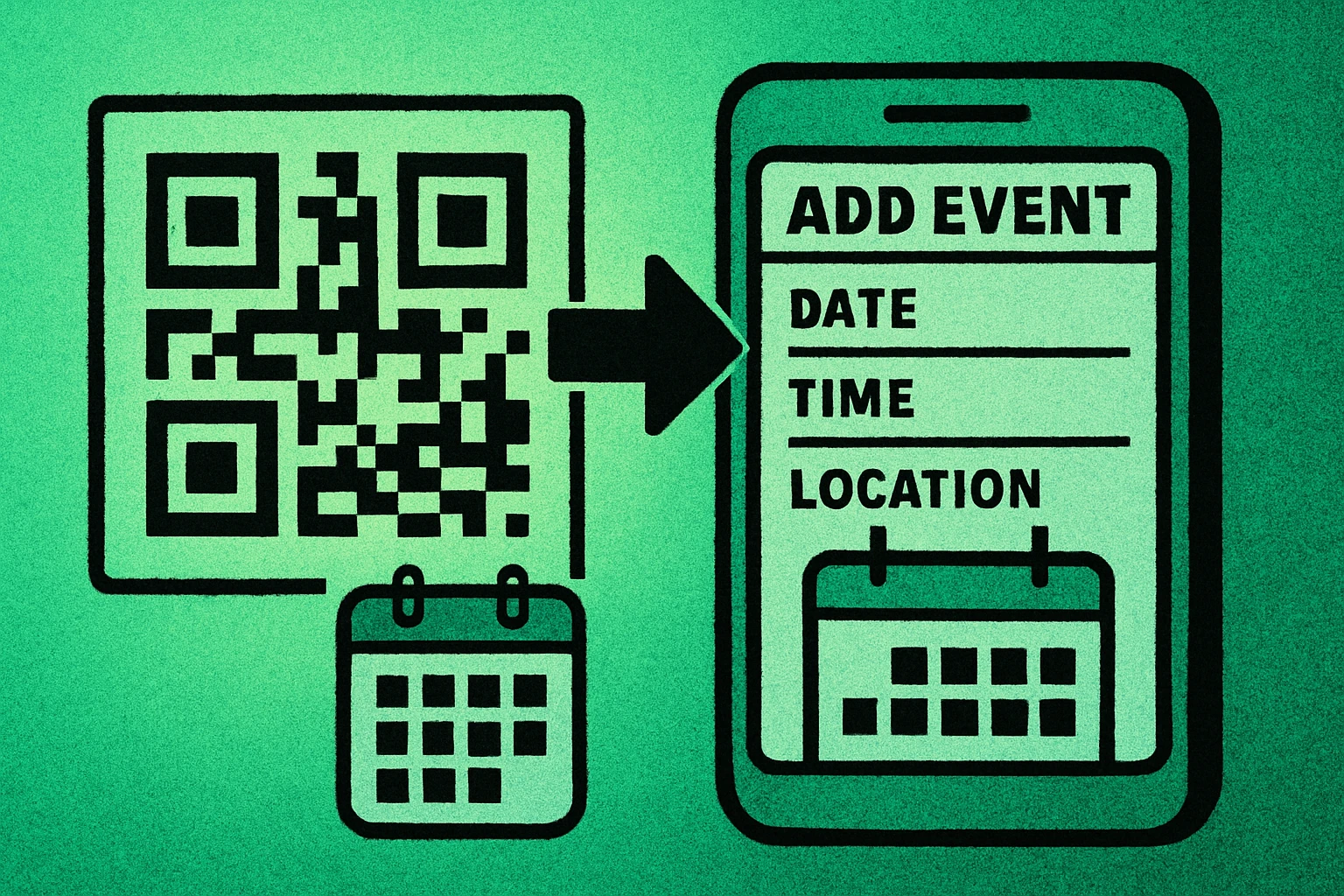
Calendar event QR codes are especially useful in situations where you need many people to save the same event — conferences, weddings, webinars, classes, and community meetups. Instead of hoping attendees will manually enter the details (and get them right), you give them a scannable shortcut that takes two seconds. This is conceptually similar to how a vCard QR code works for contact information, but for calendar events instead.
A calendar event QR code encodes event details (title, date, time, location, description) in the iCalendar vEvent format. When scanned, it adds the event directly to the user's calendar app with all fields pre-filled.
How to Create a Calendar Event QR Code
Creating a calendar event QR code is straightforward once you understand the format. Here is the step-by-step process:
Step-by-Step: Create a Calendar Event QR Code
Open the QR code generator. Navigate to the Generate QR Codes generator and select the text or calendar event input type. You will paste or type your vEvent data directly into the text field.
Gather your event details. Before generating, collect all the information you need: the event title, start date and time, end date and time, location (venue name and address), and a brief description. Decide on the timezone and whether the event is all-day or time-specific.
Format the data as a vEvent. Structure your event using the iCalendar format. The data must begin with BEGIN:VCALENDAR and include a BEGIN:VEVENT block containing your SUMMARY, DTSTART, DTEND, LOCATION, and DESCRIPTION fields. See the vEvent format section below for the exact syntax.
Generate and test the QR code. Paste your formatted vEvent text into the generator and click generate. Then immediately scan the resulting QR code with your own phone to verify the event appears correctly — check the title, dates, times, location, and description.
Download and distribute. Once verified, download the QR code as PNG (for print) or SVG (for scalable use). Add it to your invitations, posters, event badges, slide decks, email signatures, or any material where attendees need to save the event.
The entire process takes less than two minutes once you have your event details ready. The critical step is formatting the vEvent data correctly, which we cover in detail next.
vEvent Format Explained
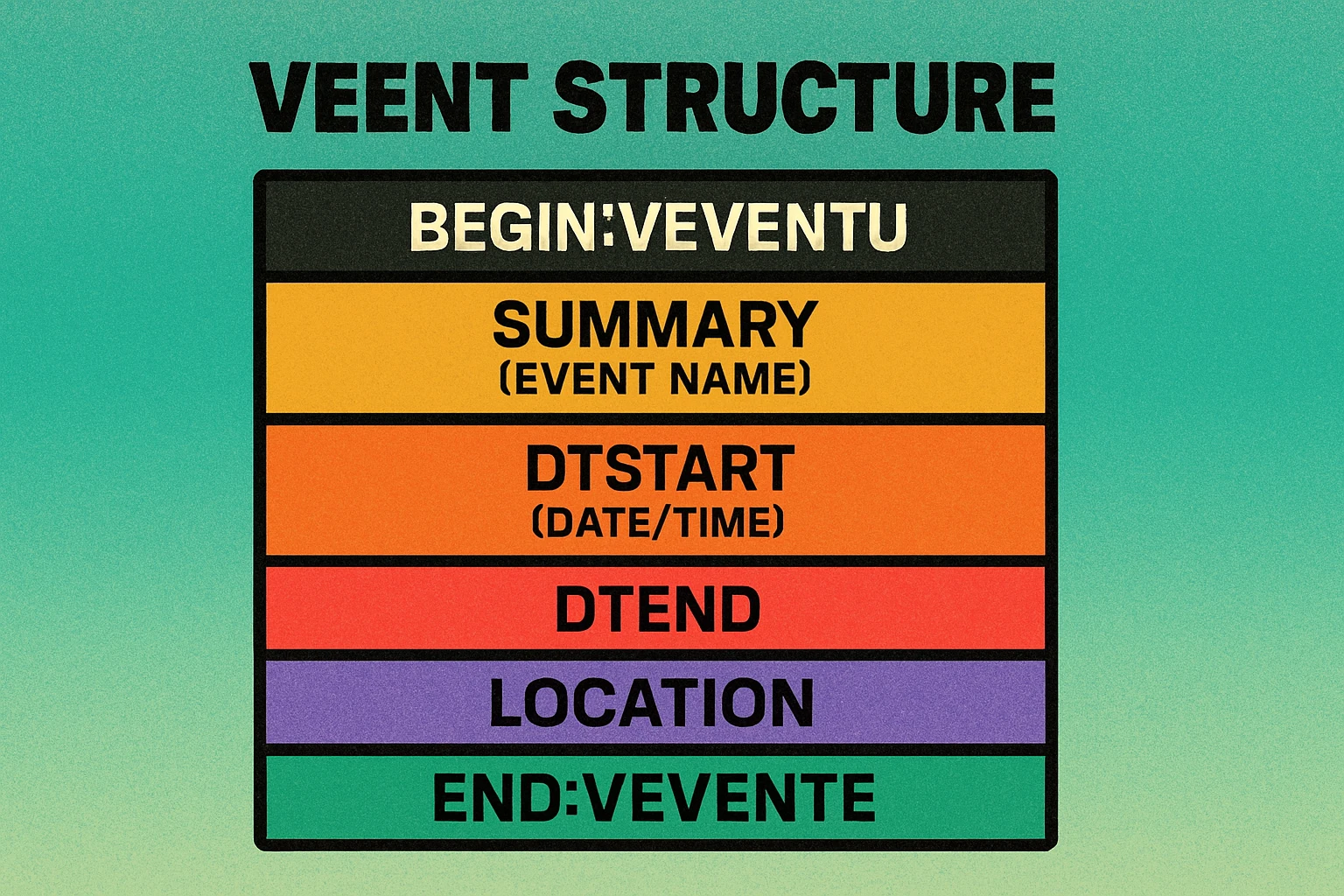
The iCalendar vEvent format is the standard that calendar applications use to exchange event data. When you encode this text inside a QR code, phones recognize it as a calendar event and offer to save it. Here is the structure of a properly formatted vEvent:
Let's break down each field so you understand exactly what to include:
Required Fields
- BEGIN:VCALENDAR / END:VCALENDAR — Wraps the entire calendar object. Always required.
- VERSION:2.0 — Specifies the iCalendar version. Always use 2.0.
- BEGIN:VEVENT / END:VEVENT — Wraps the individual event data. One calendar object can contain multiple events, but for QR codes you typically include just one.
- SUMMARY — The event title. This is what appears as the event name in the calendar. Keep it concise and descriptive.
- DTSTART — The start date and time. Format:
YYYYMMDDTHHMMSSZfor UTC, or useDTSTART;TZID=America/New_York:20260615T100000for a specific timezone. For all-day events, useDTSTART;VALUE=DATE:20260615. - DTEND — The end date and time, using the same format as DTSTART. If omitted, some calendar apps will default to a one-hour event.
Optional but Recommended Fields
- LOCATION — The venue name and address. Commas must be escaped with a backslash (
\,). Some calendar apps will make this a clickable link to maps. - DESCRIPTION — Additional details about the event. Keep this brief for QR codes — longer text creates denser codes that are harder to scan. Commas and semicolons must be escaped.
- URL — A link to the event page or registration form. Format:
URL:https://example.com/event. - STATUS — The event status: CONFIRMED, TENTATIVE, or CANCELLED.
- ORGANIZER — The event organizer's name or email address.
Keep your vEvent data as concise as possible. Every extra character adds modules to the QR code, making it denser and harder to scan — especially at small print sizes. A typical calendar event QR code with title, dates, location, and a short description uses around 200–400 characters, well within the QR code's capacity.
For a broader look at the different data types QR codes can encode, including calendar events, URLs, Wi-Fi, and email, see our guide to types of QR codes.
Create Your Calendar Event QR Code Now
Paste your vEvent data and generate a scannable QR code in seconds. Free, no signup required.
Use Cases for Calendar Event QR Codes
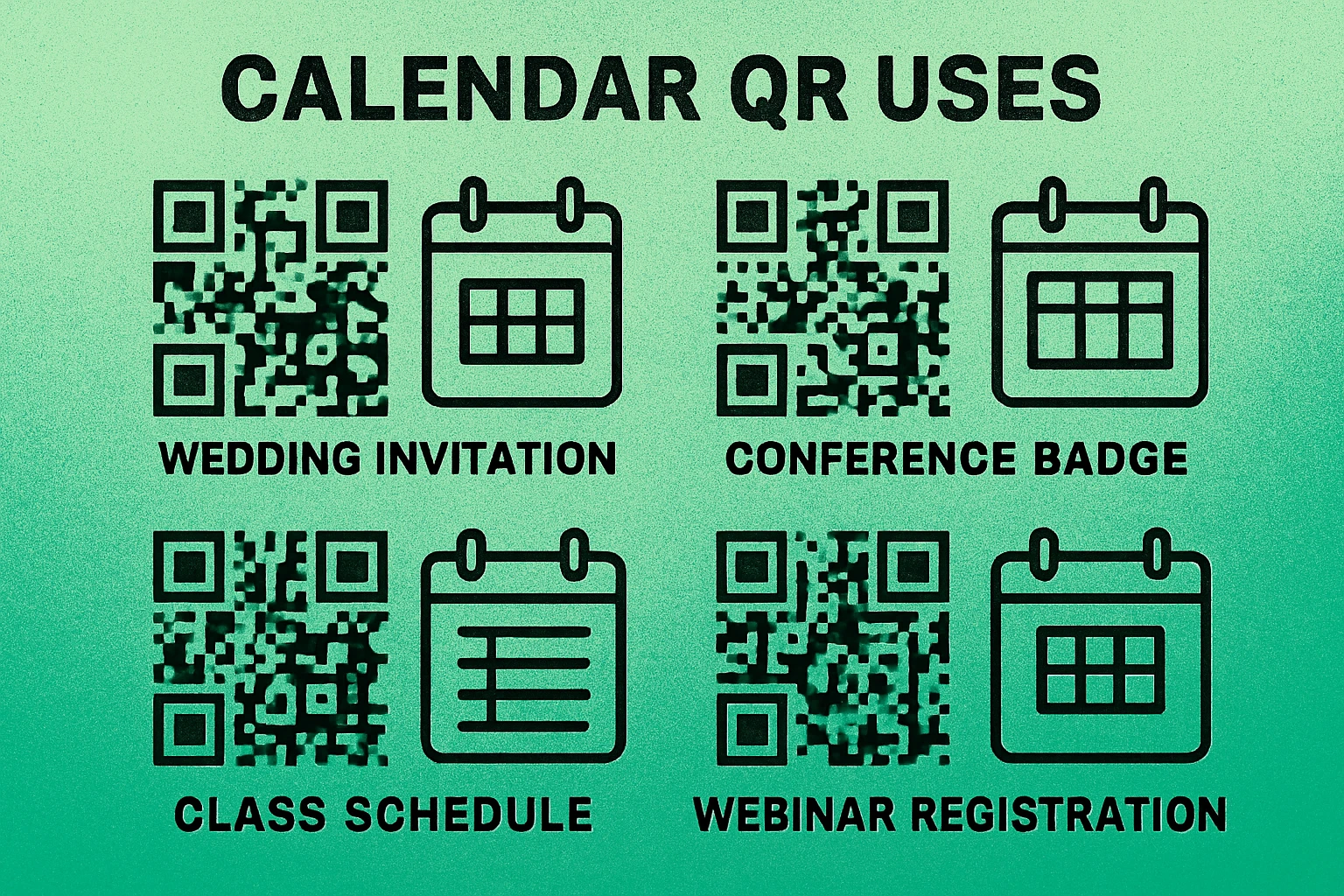
Calendar event QR codes shine in any situation where you need groups of people to save the same event accurately. Here are the most common and effective use cases:
Conference and Event Schedules
Print a QR code next to each session in a conference program. Attendees scan the code for the talk they want to attend, and it lands in their calendar with the room number, speaker name, and session description. This is far more reliable than expecting people to manually enter sessions from a printed schedule. For conferences with multiple venues, combine this with a geolocation QR code to help attendees find the right building.
Wedding Invitations and Save-the-Dates
Include a QR code on your wedding invitation that adds the ceremony date, time, venue address, and any notes (dress code, parking details) directly to guests' calendars. This reduces the number of "What time does it start again?" texts you receive. You can also add a URL field linking to your wedding website for RSVP and registry details.
Meetups and Community Events
Local organizers can place calendar event QR codes on flyers, social media posts, and community bulletin boards. Interested people scan the code and the event is saved — no need to remember the date or navigate to a website to find the details. This works especially well for recurring events like monthly book clubs or weekly running groups.
Webinar and Online Event Reminders
Include a calendar event QR code in your webinar confirmation email, registration page, or social media promotion. The saved calendar event serves as a built-in reminder, which significantly reduces no-show rates. Add the meeting link in the LOCATION or URL field so attendees can join directly from their calendar notification.
Class Schedules and Academic Events
Universities and training programs can generate QR codes for exam dates, guest lectures, office hours, and enrollment deadlines. Students scan the code and the event appears in their calendar with the room number and any preparation notes. This is particularly useful at the start of a semester when students are setting up their schedules.
Calendar event QR codes can also be combined with other QR code types. For instance, you might include an email QR code alongside the calendar code so people can easily RSVP or ask questions about the event.
QR Code Apps for Mac & Safari
Prefer generating codes without opening a browser tab? These two native Apple apps cover both habits — a full generator on the desktop, and a one-click share button inside Safari.


Google Calendar vs Apple Calendar vs Outlook
One of the strengths of the iCalendar vEvent format is its universal compatibility. However, there are minor differences in how each major calendar app handles scanned event data:
| Feature | Google Calendar | Apple Calendar | Outlook |
|---|---|---|---|
| vEvent Support | Full | Full | Full |
| QR Scan to Add | Native | Native | Via camera app |
| Timezone Handling | Auto-converts | Auto-converts | Auto-converts |
| LOCATION as Map Link | Yes | Yes | Sometimes |
| VALARM (Reminders) | Partial | Yes | Partial |
| URL Field | Clickable | Clickable | Clickable |
| All-Day Events | Yes | Yes | Yes |
The key takeaway is that all three platforms fully support the core vEvent fields (SUMMARY, DTSTART, DTEND, LOCATION, DESCRIPTION). The differences are mostly in how they handle optional features like reminders and map integration. For maximum compatibility, stick to the core fields and use UTC timestamps (the Z suffix) so every calendar app interprets the time correctly regardless of the user's timezone settings.
Both iOS and Android can scan QR codes natively through their built-in camera apps, so no third-party scanning app is required. On Android, the Google Camera or Google Lens recognizes vEvent data and offers to add it to Google Calendar. On iOS, the native Camera app detects the calendar data and opens it directly in Apple Calendar. For a comprehensive look at all the data formats QR codes support, check our complete QR code guide.
Best Practices for Calendar Event QR Codes
Follow these guidelines to ensure your calendar event QR codes work reliably across devices and printing conditions:
- Always use UTC timestamps — Append
Zto your DTSTART and DTEND values (e.g.,20260615T140000Z) to avoid timezone confusion. UTC is universally interpreted correctly by all calendar apps, which then convert to the user's local time automatically. - Keep descriptions short — Every character adds density to the QR code. Aim for descriptions under 100 characters. If you need to share more details, add a URL field that links to a full event page instead.
- Escape special characters — Commas must be written as
\,and semicolons as\;in LOCATION and DESCRIPTION fields. Failing to escape these will break the vEvent parser on some devices. - Test on multiple devices — Before distributing your QR code, scan it on at least one iOS device and one Android device. Verify that the event title, times, location, and description all appear correctly on both platforms.
- Print at adequate size — Calendar event QR codes are typically denser than simple URL codes because they contain more data. Print at a minimum of 3cm x 3cm (about 1.2 inches) to ensure reliable scanning. For posters viewed from a distance, go larger.
- Include a text label — Always print a brief label next to your QR code, such as "Scan to add to your calendar" or "Save the date." Not everyone knows what a QR code does by looking at it.
- Add error correction — Use at least Medium (Level M) error correction when generating your code. This allows the code to remain scannable even if part of it is obscured or the print quality is less than perfect.
- Double-check the date format — The most common mistake is getting the date format wrong. It must be
YYYYMMDDTHHMMSSwith no dashes or colons.2026-06-15will not work — it must be20260615.
If your event has a registration page or virtual meeting link, include it in the URL field rather than the DESCRIPTION. Most calendar apps make the URL field clickable, giving attendees one-tap access to join or register.
Frequently Asked Questions
Calendar event QR codes use the iCalendar (iCal) format, specifically the vEvent standard defined in RFC 5545. The QR code contains structured text starting with BEGIN:VCALENDAR and includes fields like SUMMARY (event title), DTSTART (start date/time), DTEND (end date/time), LOCATION, and DESCRIPTION.
Yes, the iCalendar vEvent format is universally supported. When scanned, the event can be added to Google Calendar on Android, Apple Calendar on iOS, Microsoft Outlook, and virtually any other calendar application. The format is an open standard, so compatibility is excellent across platforms.
Yes. You can specify the timezone using the TZID parameter in your DTSTART and DTEND fields, for example DTSTART;TZID=America/New_York:20260615T140000. Alternatively, you can use UTC time by appending a Z to the timestamp, like DTSTART:20260615T180000Z. UTC is recommended for maximum compatibility.
QR codes can hold up to 2,953 bytes of data, which is more than enough for a typical calendar event. However, keeping the data concise (short descriptions, no unnecessary fields) produces a simpler QR code that scans faster and prints well at smaller sizes. Aim to stay under 500 characters for best results.
Yes, the iCalendar format supports VALARM components that trigger reminders before the event. You can add a VALARM block inside your VEVENT to set a reminder, for example 15 minutes before the event starts. However, not all calendar apps honor the alarm data from QR codes, so test on your target devices before distributing.