What Is a Geolocation QR Code?
A geolocation QR code is a QR code that encodes GPS coordinates — a latitude and longitude pair — so that when someone scans it, their phone immediately opens a maps application with a pin dropped at the exact location. No typing an address, no searching for a place name, no copy-pasting coordinates. One scan and the user sees exactly where to go.
There are two primary ways to encode a location into a QR code. The first is the geo: URI scheme, an open standard defined by RFC 5870 that looks like geo:40.748817,-73.985428. When a phone reads this string, it recognizes the geo: prefix and hands the coordinates to whatever maps app the user has set as their default — Apple Maps on iPhone, Google Maps on most Android devices, or any other installed navigation app.
The second approach uses a Google Maps URL such as https://maps.google.com/?q=40.748817,-73.985428. This opens directly in Google Maps (or in a browser if the app is not installed) and provides a richer experience with place names, reviews, directions, and Street View. However, it is inherently tied to Google's platform.
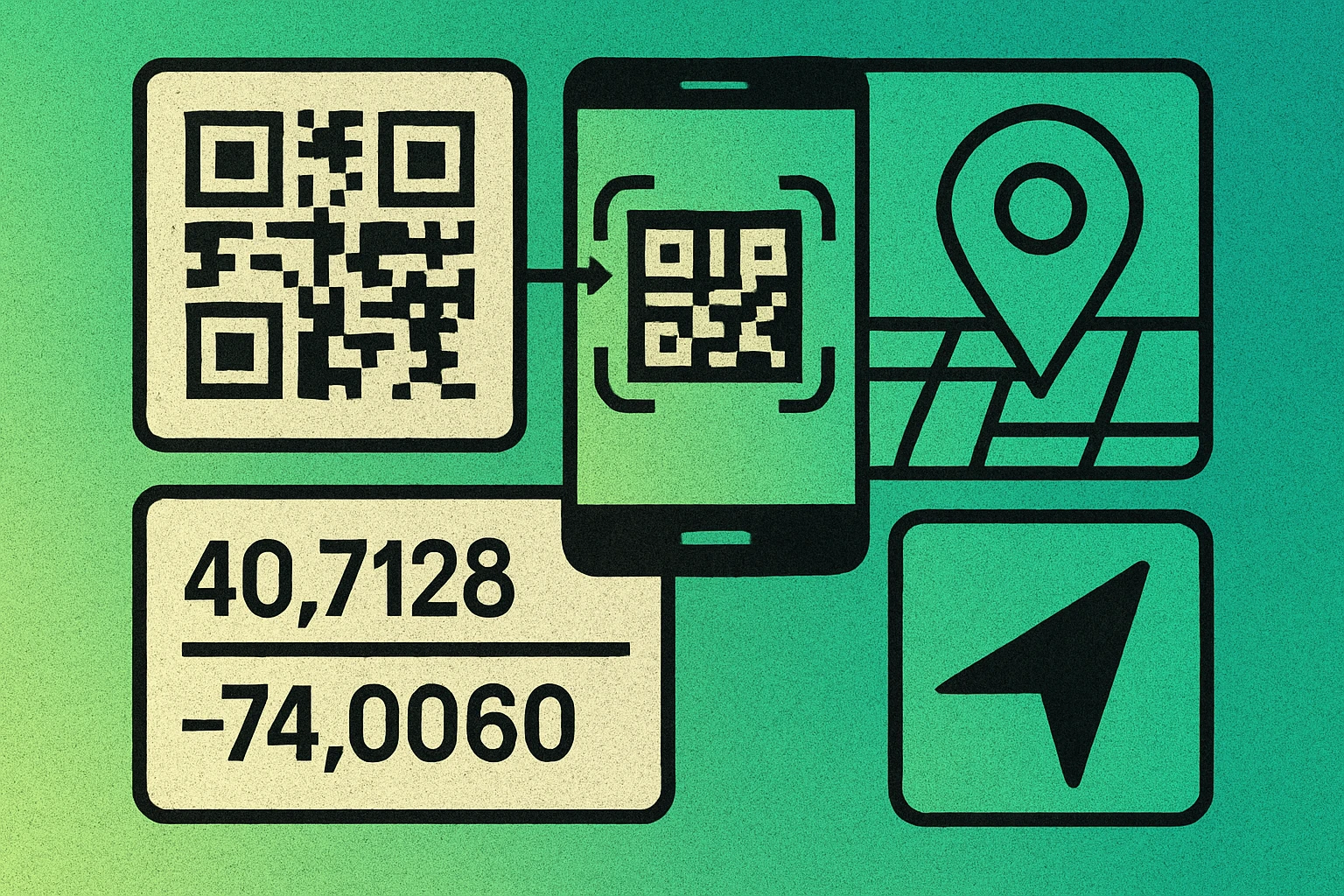
Both methods work with any standard QR code type. The QR code itself does not "know" it contains a location — it simply stores a text string. The magic happens when the phone's operating system recognizes the string format and routes it to the appropriate app. This is the same mechanism that powers URL QR codes, vCard QR codes, and calendar event QR codes.
A geolocation QR code stores GPS coordinates as a text string. When scanned, the phone recognizes the format and opens a maps app with a pin at the specified location. You can use either a geo: URI or a Google Maps URL.
How to Create a Geolocation QR Code (Step by Step)
Creating a geolocation QR code takes just a few minutes. The hardest part is getting accurate coordinates — generating the QR code itself is instant. Here is the full process:
Create Your Location QR Code
Find the GPS coordinates. Open Google Maps on your computer or phone. Navigate to the exact location you want to share. On desktop, right-click the spot and the coordinates appear at the top of the context menu — click to copy them. On mobile, long-press on the map to drop a pin, then tap the coordinate readout at the top of the info card. You need both latitude and longitude values, typically written as two decimal numbers like 40.748817, -73.985428.
Choose your URL format. Decide whether to use a geo: URI or a Google Maps URL. For universal compatibility across all devices and maps apps, use geo:40.748817,-73.985428. For a richer Google Maps experience with place info and directions, use https://maps.google.com/?q=40.748817,-73.985428. If you want a labeled pin, append the place name: https://maps.google.com/?q=40.748817,-73.985428(Empire+State+Building).
Open the QR code generator. Go to the free QR code generator and select the URL or plain text input mode. Either format works as a plain text string.
Paste your location string. Enter the full geo: URI or Google Maps URL into the text field. Double-check that the coordinates are correct — even a small error in the decimal places can move the pin by hundreds of meters.
Generate and download. Click generate and download your QR code as PNG or SVG. The SVG format is ideal for print materials like flyers, signage, and invitations because it scales to any size without losing quality.
Test on both platforms. Before distributing, scan the QR code with at least one iPhone and one Android device. Verify that the pin lands on the correct building, entrance, or parking area. A geo: URI should open the default maps app on both platforms. A Google Maps URL should open Google Maps or fall back to a browser.
The entire process takes under two minutes. The resulting QR code is static — the coordinates are baked into the pattern and never change. This is fine for permanent locations like storefronts, venues, and landmarks. If you need to update the destination later without reprinting, consider wrapping the location link inside a redirect URL that you can edit.
geo: URI vs Google Maps URL
Both formats get the job done, but they have meaningfully different trade-offs. Choosing the right one depends on your audience, your platform requirements, and how much context you want the scanner to see.
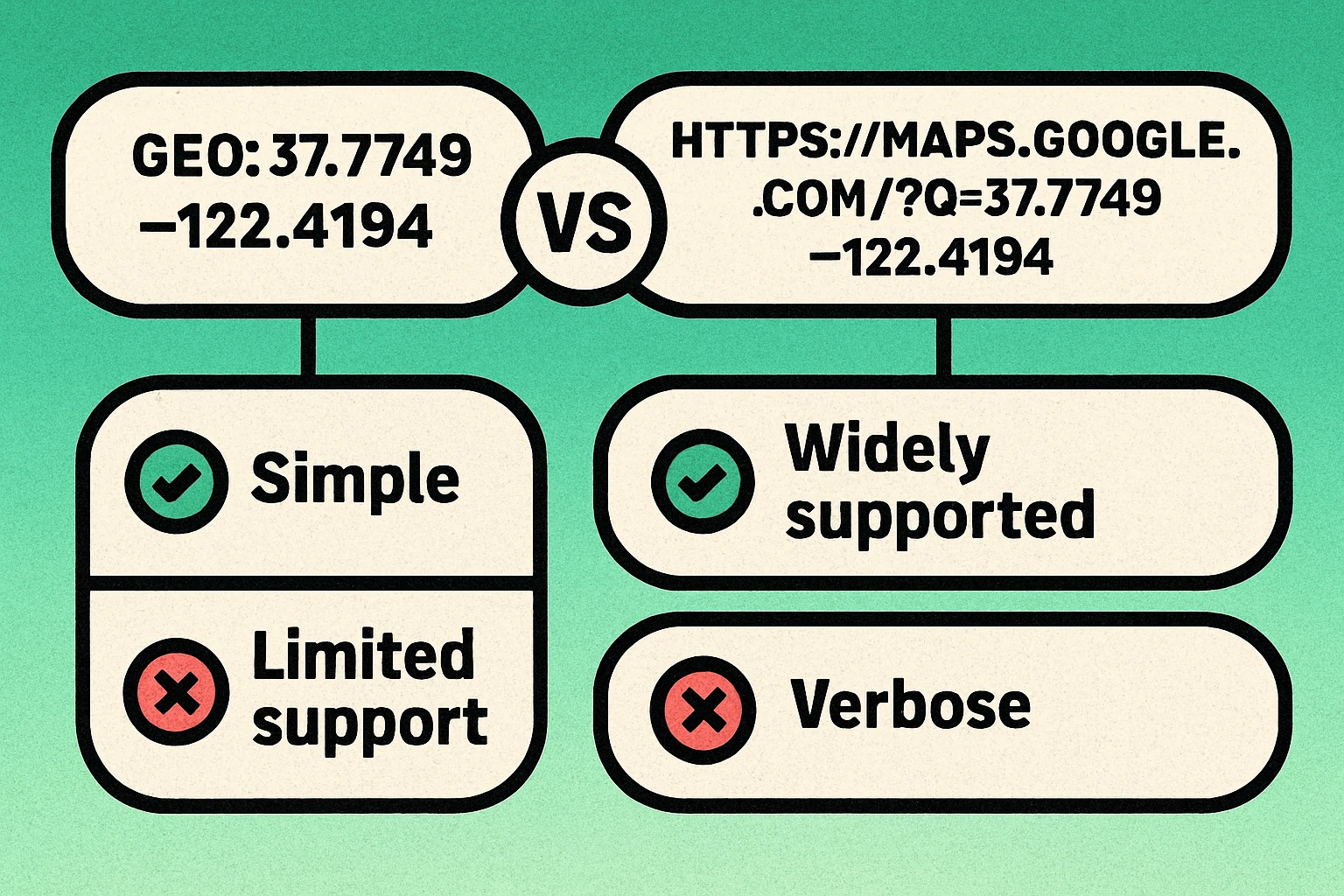
| Feature | geo: URI | Google Maps URL |
|---|---|---|
| Format | geo:lat,lng |
https://maps.google.com/?q=lat,lng |
| iOS support | Apple Maps (default) | Google Maps or Safari |
| Android support | Default maps app | Google Maps |
| Place name / label | Limited support | Full place info |
| Directions button | No | Built-in |
| Works offline | Opens app offline | Needs internet |
| QR code size | Compact | Larger (longer string) |
| Platform lock-in | None (open standard) | Google ecosystem |
Use a geo: URI when you want maximum compatibility, a smaller QR code, and no dependency on any specific platform. This is the better choice for printed materials that will be used by a broad audience with different devices and preferences.
Use a Google Maps URL when you want the scanner to see the place name, photos, reviews, hours, and a one-tap directions button. This is the better choice for marketing materials where the richer experience adds value — restaurant promotions, tourist brochures, or real estate listings.
A third option is Apple Maps links (https://maps.apple.com/?ll=lat,lng), but these are primarily useful only for iOS audiences. For mixed audiences, stick with geo: URI or Google Maps.
Create a Geolocation QR Code Now
Paste your geo: URI or Google Maps link and generate a free QR code in seconds. No signup required.
QR Code Apps for Mac & Safari
Prefer generating codes without opening a browser tab? These two native Apple apps cover both habits — a full generator on the desktop, and a one-click share button inside Safari.


Use Cases for Geolocation QR Codes
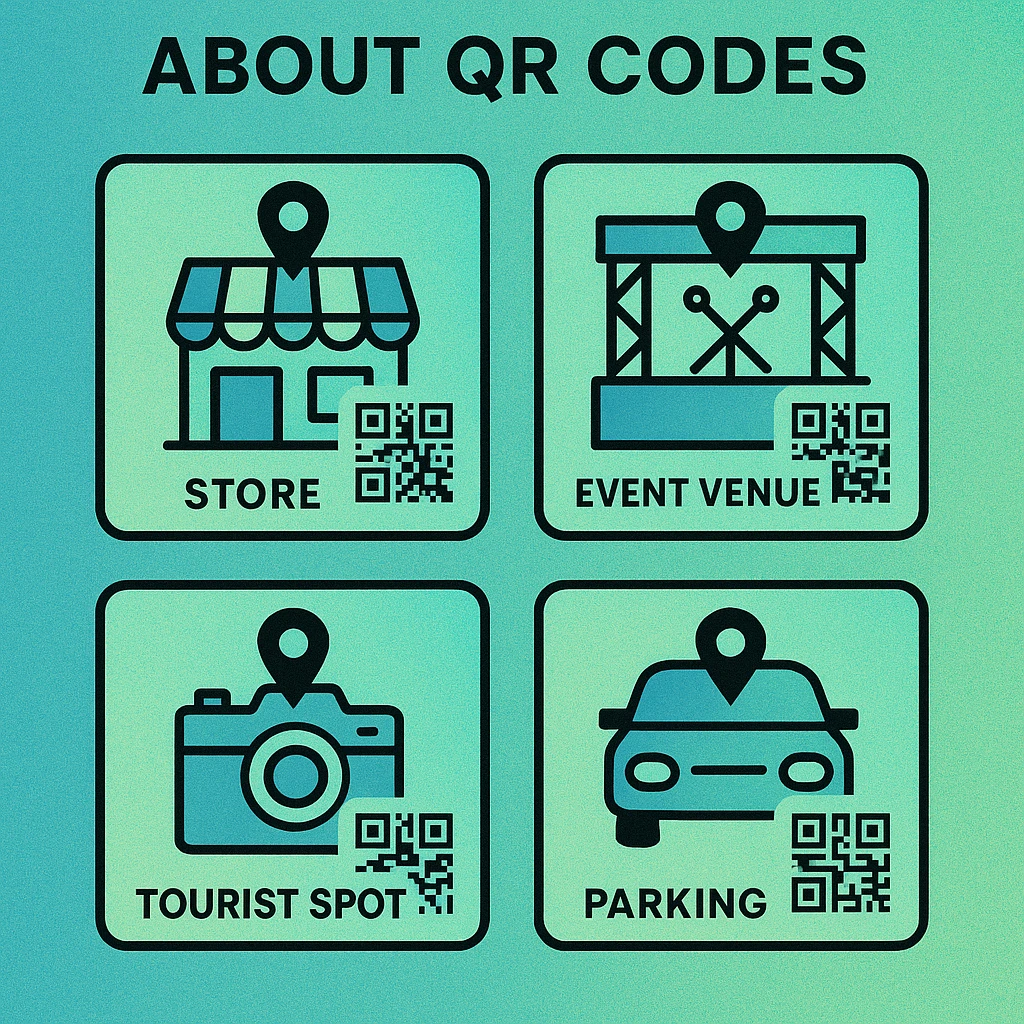
Location QR codes solve a simple but frustrating problem: getting people to the right place without confusion. Here are the most common and effective applications:
Event Venues and Conferences
Print a geolocation QR code on event invitations, email confirmations, and conference badges. Guests scan the code and get turn-by-turn directions to the venue entrance — not just the general area, but the specific door. This is especially valuable for large complexes, convention centers, and outdoor venues where the street address alone does not tell the full story. Pair it with a calendar event QR code on the same invitation to share both the time and the place.
Retail Stores and Restaurants
If your business is in a hard-to-find location — a second-floor shop, a unit inside a mall, or a restaurant down an alley — a location QR code on your website, social media, and print ads lets customers navigate directly to your door. This is far more reliable than a written address, especially in dense urban areas where GPS accuracy varies between mapping services.
Tourist Attractions and Walking Tours
City guides, museum brochures, and tourist maps can include QR codes for each point of interest. Visitors scan the code and get directions from their current location, estimated walking time, and transit options. Self-guided walking tours can place QR codes at each stop that point to the next destination along the route.
Parking Lots and Transportation Hubs
Help people find the correct parking garage entrance, ride-share pickup point, or shuttle stop. Airports, hospitals, and university campuses are notorious for confusing wayfinding. A QR code on a confirmation email or printed pass that says "Scan for parking directions" saves visitors significant frustration and reduces calls to your front desk.
Real Estate Listings
Property listings can include a geolocation QR code that takes prospective buyers directly to the property on a map. This is more useful than just an address because buyers can immediately see the neighborhood, nearby amenities, transit options, and how the property relates to their commute. Open house flyers and yard signs become more interactive when they include a scannable location code.
For the best user experience, always point your geolocation QR code to the most useful arrival point — the entrance, the parking lot, or the reception desk — not just the center of the building. Drop the pin where you would want a taxi to stop.
Best Practices for Geolocation QR Codes
Getting the QR code to work is easy. Getting it to work well for every user requires attention to a few details:
Prioritize Coordinate Accuracy
Six decimal places in your latitude and longitude give you accuracy down to about 11 centimeters. Five decimal places get you to about 1.1 meters. Four decimal places are accurate to roughly 11 meters — which might put the pin on the wrong side of a street or in the wrong building. Always use at least five decimal places, and verify the pin is in the exact right spot before generating your code.
Test on Both iOS and Android
A geo: URI opens Apple Maps on iPhone and the default maps app on Android. A Google Maps URL opens Google Maps on both (or falls back to a browser on iOS if the app is not installed). Test your QR code on at least one device from each platform. What works perfectly on your phone might behave unexpectedly on a different operating system or maps app version.
Include a Text Address Too
Never rely solely on a QR code for location information. Always print the street address alongside the code. Some users cannot scan QR codes (low phone battery, broken camera, older device), and a text address is also important for accessibility. The QR code is a convenience shortcut, not a replacement for a written address.
Use Appropriate Error Correction
If your QR code will be printed on materials that might get wet, folded, or partially obscured — outdoor signage, event wristbands, or product packaging — use a higher error correction level (Q or H). This increases the code density slightly but ensures it remains scannable even when partially damaged.
Maintain the Quiet Zone
Leave at least four modules of white space around the QR code border. Cropping the code too tightly or placing it against a busy background is one of the most common reasons location QR codes fail to scan. If space is tight, a smaller QR code with a proper quiet zone will always outperform a larger code without one.
Consider a Short URL Wrapper
If you anticipate needing to change the location later — for example, a pop-up shop that moves venues — encode a short redirect URL instead of the raw coordinates. This way you can update the destination without reprinting the QR code. This turns your static code into a functionally dynamic one.
Frequently Asked Questions
A geolocation QR code is a QR code that encodes GPS coordinates (latitude and longitude). When scanned, it opens the default maps application on the user's phone and drops a pin at the specified location. You can encode the coordinates using a geo: URI or a Google Maps URL.
A geo: URI is a universal standard recognized by both iOS and Android, and it opens the user's default maps app. A Google Maps URL provides a richer experience with place names, reviews, and directions but depends on Google Maps. For maximum compatibility, use a geo: URI. For richer context, use a Google Maps link.
The QR code itself is decoded offline, and a geo: URI can open a maps app without internet. However, loading the actual map tiles and satellite imagery requires an internet connection. If the user has offline maps downloaded for that area, the pin will display correctly without mobile data.
GPS coordinates with six decimal places are accurate to about 11 centimeters, which is more than sufficient for any real-world use case. Five decimal places get you to about 1.1 meters. Always use at least five decimal places to ensure the pin lands on the correct building or entrance.
Yes. With a Google Maps URL, you can append the place name in parentheses after the coordinates, such as https://maps.google.com/?q=40.748817,-73.985428(Empire+State+Building). The geo: URI also supports an optional label parameter in some implementations, though support varies by device and maps app.