What Is a vCard QR Code?
A vCard QR code is a QR code that encodes your contact information using the vCard (also called VCF) format — an open standard for electronic business cards. When someone scans the code with their smartphone, their device reads the embedded contact data and offers to save it directly to the phone's address book. No typing, no spelling errors, no lost business cards.
The vCard format was originally developed in the 1990s as a way to share contact details electronically. It became an internet standard (RFC 6350) and is universally supported by iOS, Android, macOS, Windows, and virtually every email client and contacts application. When you encode vCard data into a QR code, you're combining two widely supported technologies into one seamless experience.
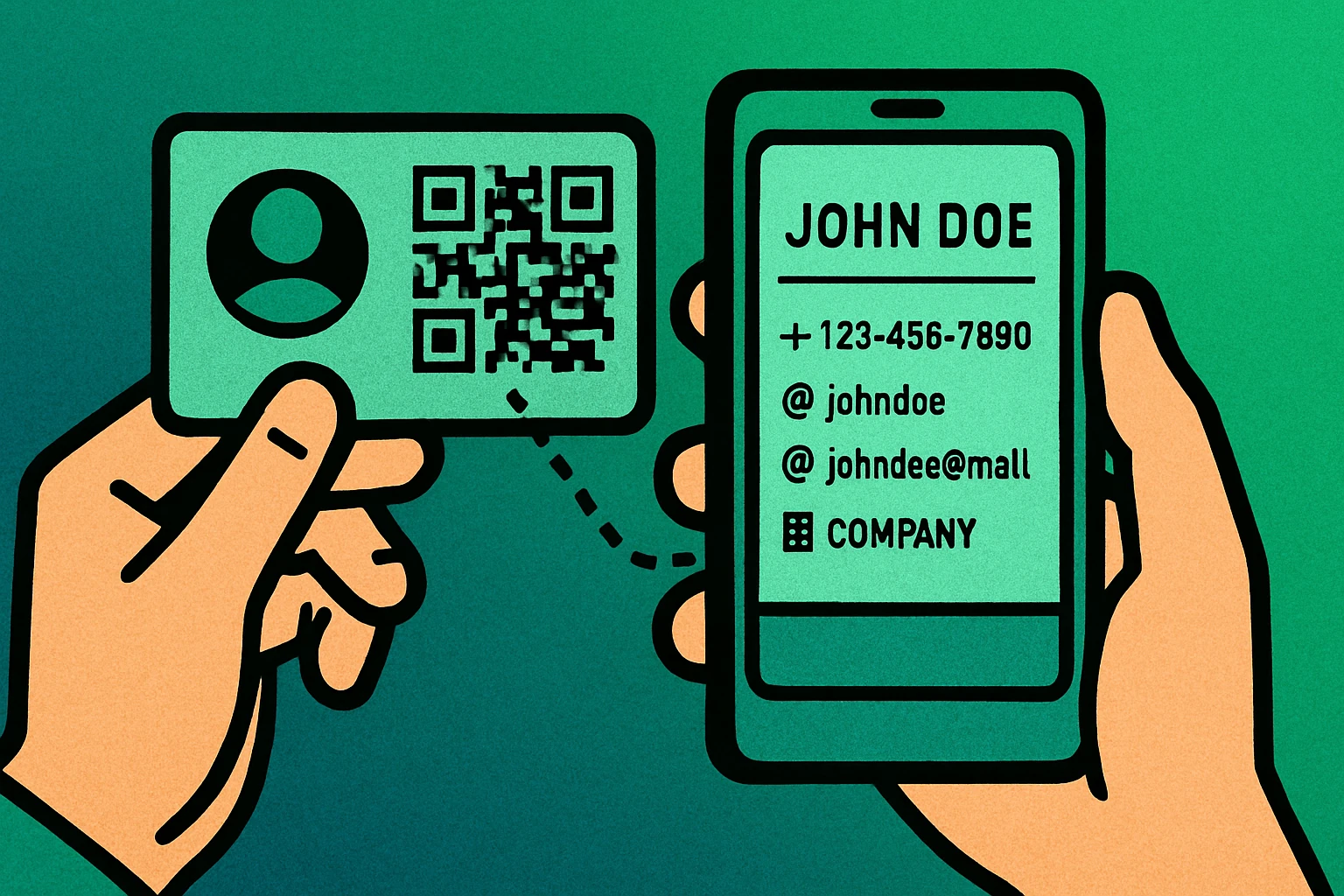
A vCard QR code can include a wide range of contact fields: your full name, phone number (work, mobile, home), email address, company name, job title, website URL, physical address, and even a brief note. The more fields you include, the denser and more complex the QR code becomes, but a typical contact card with the essential fields produces a code that scans reliably at standard sizes.
Think of a contact QR code as the bridge between the physical and digital worlds. You print it once on a business card, name badge, or poster, and it works forever — no app downloads, no account creation, no friction. For a broader look at QR code types including vCard, URL, Wi-Fi, and more, see our complete guide to every type of QR code.
A vCard QR code encodes your contact details in a universally supported format. When scanned, it saves your information directly to the user's phone — no manual typing required.
How to Create a vCard QR Code (Step by Step)
Creating a vCard QR code is straightforward. Whether you use a dedicated vCard QR code generator or a general-purpose tool, the process follows the same steps. Here is how to do it:
Create Your vCard QR Code in 5 Steps
Open a vCard QR code generator. Navigate to a QR code generator that supports the vCard format. Look for one that provides dedicated fields for name, phone, email, organization, title, and address rather than a generic text box. Our free generator supports vCard creation with all standard fields.
Enter your contact details. Fill in the information you want to share. At minimum, include your full name, primary phone number, and email address. Add your company name, job title, and website if relevant. Only include details you are comfortable making public — anyone who scans the code will see them.
Preview and customize the QR code. Check the generated QR code's density. If it looks overly complex, consider removing non-essential fields like your full mailing address. Optionally, customize colors or add a small logo in the center if your generator supports it — but keep contrast high for reliable scanning.
Test the QR code by scanning it. Before printing, scan the code with at least two different phones (one iPhone, one Android if possible). Verify that every field appears correctly and the "Add to Contacts" prompt displays the right information. This step catches encoding errors before they reach your audience.
Download and deploy. Export your QR code as a high-resolution PNG or SVG file. Add it to your business card design, email signature, presentation slide, name badge, or website. For print materials, ensure the code is at least 2 cm × 2 cm (0.8 in × 0.8 in) to guarantee scannability. See our QR code size guide for detailed print recommendations.
The entire process takes less than two minutes. Once generated, your digital business card QR code is ready to use anywhere — on screen or in print.
vCard Format Explained
Understanding the vCard format helps you see exactly what data your QR code encodes. A vCard is a plain-text file that follows a specific structure. Here is what a typical vCard 3.0 entry looks like:
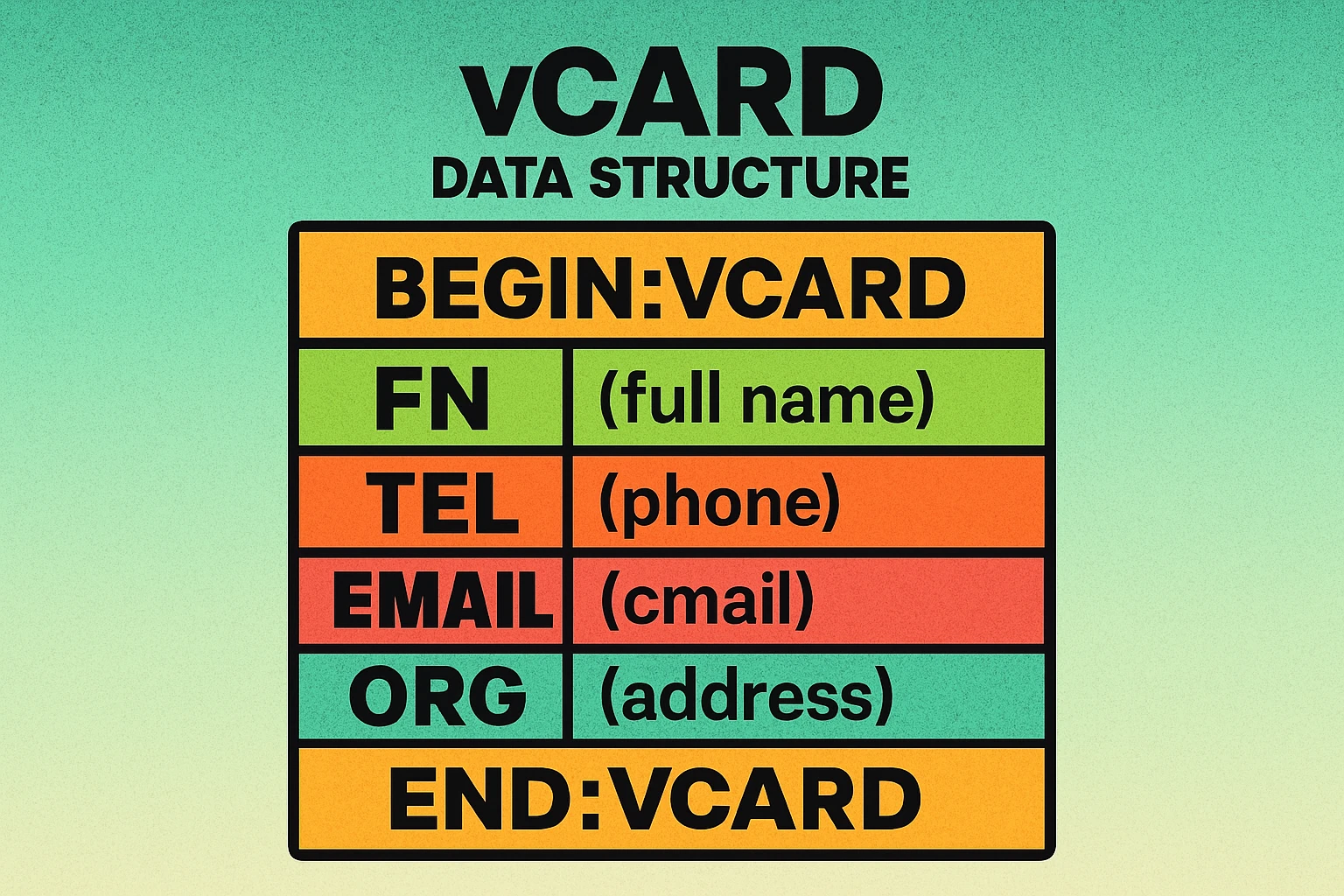
Here is what each property means:
- BEGIN:VCARD / END:VCARD — Required delimiters that mark the start and end of the contact entry.
- VERSION — The vCard specification version. Use 3.0 for the widest device compatibility.
- FN (Formatted Name) — The full display name as it should appear in the contacts app.
- N (Name) — The structured name: Last;First;Middle;Prefix;Suffix.
- ORG — The company or organization name.
- TITLE — The job title or role.
- TEL — Phone number. Use TYPE= to specify CELL, WORK, HOME, or FAX.
- EMAIL — Email address. You can include multiple EMAIL lines for different addresses.
- URL — A website link, typically a company page or personal portfolio.
- ADR — A physical address, separated by semicolons: PO Box;Extended;Street;City;State;ZIP;Country.
This entire text block is what gets encoded into the QR code's data modules. When the scanner reads it, the phone recognizes the BEGIN:VCARD marker and triggers the "Add to Contacts" dialog. For a deeper understanding of how QR codes handle data encoding and capacity limits, see our article on QR code data capacity.
Stick with vCard 3.0 for QR codes. While version 4.0 exists with additional features, version 3.0 has near-universal compatibility across all smartphones and operating systems.
QR Code Apps for Mac & Safari
Prefer generating codes without opening a browser tab? These two native Apple apps cover both habits — a full generator on the desktop, and a one-click share button inside Safari.


vCard QR Code vs Traditional Business Cards
Paper business cards have been a networking staple for centuries. A digital business card QR code does not necessarily replace them — the two work best together. Here is how they compare:
| Feature | Traditional Business Card | vCard QR Code |
|---|---|---|
| Data entry | Manual typing required | Instant save |
| Typo risk | High | None |
| Fields included | Limited by card size | Name, phone, email, org, title, URL, address |
| Physical form | Tangible object | Digital (can be printed on any surface) |
| Cost per contact | Card stock + printing | Free to generate |
| Runs out | Yes (limited supply) | Never |
| Searchable | Not digitally | Saved in contacts |
| Updatable | Must reprint | Dynamic QR only |
The best approach for most professionals is to combine both: print a vCard QR code directly on your traditional business card. The recipient gets a physical card they can keep, plus the option to instantly save your details digitally. No contact information gets lost in the shuffle of a busy networking event.
Create Your vCard QR Code — Free
Enter your contact details and download a scannable QR code in seconds. No signup required.
Best Practices for vCard QR Codes
A vCard QR code is only useful if it scans reliably and contains the right information. Follow these guidelines to get the best results:
Keep Data Concise
Every character you add increases the density of the QR code. Include only the contact fields that matter: name, primary phone, email, company, and title. Skip the full mailing address unless it is genuinely needed. A simpler code scans faster and at smaller sizes. For details on how data volume affects QR codes, read our QR code data capacity guide.
Include the Essentials
At a bare minimum, your vCard QR code should contain your full name, phone number, and email address. These are the three fields people need most. Everything else is supplementary. If you include a URL, make it your most important link — your company website, LinkedIn profile, or portfolio.
Always Test Before Printing
Scan the QR code on multiple devices before committing to print. Check that special characters in your name or address display correctly, that phone numbers include the proper country code, and that the "Add to Contacts" prompt shows all fields as intended. Testing takes 30 seconds and prevents costly reprints.
Mind the Print Size
A vCard QR code typically encodes more data than a simple URL QR code, so it needs a bit more space to remain scannable. Aim for a minimum of 2.5 cm × 2.5 cm (1 in × 1 in) on printed materials. If the code includes many fields, increase the size accordingly. Refer to our QR code size guide for specific sizing tables.
Maintain High Contrast
Print the QR code with dark modules on a light background. Black on white delivers the best scan rates. Avoid placing the code on busy backgrounds, glossy surfaces that create glare, or over photographs. If you customize colors, always ensure a minimum contrast ratio so scanners can read the pattern reliably.
Use vCard 3.0
While vCard 4.0 is the newer specification, version 3.0 has the widest compatibility across all smartphones and operating systems. Unless you have a specific reason to use 4.0, stick with 3.0 to ensure every recipient can save your contact without issues.
Creative Uses for vCard QR Codes
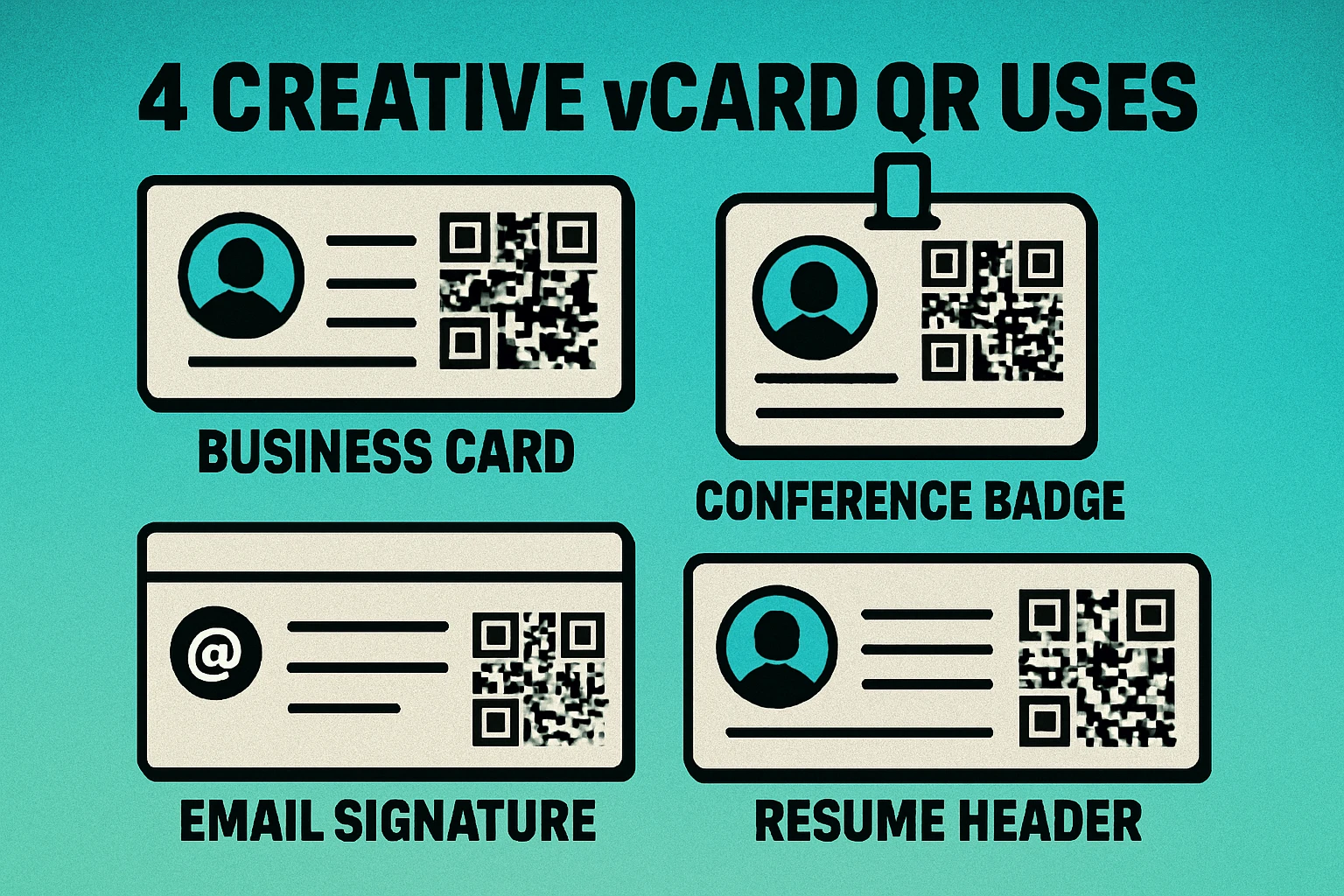
Once you have created your contact QR code, the number of places you can use it is only limited by your imagination. Here are some of the most effective applications:
Networking Events and Conferences
Print your vCard QR code on your business card or wear it on a lanyard badge. When you meet someone, they scan the code and your full contact details are saved instantly. This is far more reliable than exchanging cards that end up in a drawer, and it works even when you run out of physical cards. It pairs perfectly with other types of QR codes used at events.
Email Signatures
Add a small vCard QR code image to your email signature. Recipients can scan it directly from their screen to save your contact details. This is particularly useful for first-time contacts who want to add you to their phone quickly. Consider pairing it with an email QR code that lets people compose a message to you with one scan.
Name Badges and Lanyards
For conferences, trade shows, or corporate events, print vCard QR codes on attendee name badges. Every interaction becomes a potential contact exchange without any friction. Event organizers can generate unique codes for each attendee and print them as part of the badge layout.
Resumes and Portfolios
Add a vCard QR code to your printed resume or portfolio. When a hiring manager scans it, your full contact information is saved to their phone immediately — including your name, email, phone number, and personal website. This small detail shows tech-savviness and makes it easy for recruiters to reach you.
Office and Store Signage
Place a vCard QR code at your reception desk, on a poster in your office lobby, or on your storefront window. Visitors can scan it to save your business contact details for later. This works especially well for service businesses where clients need to call or email to schedule appointments.
Social Media and Digital Profiles
Share your vCard QR code as an image on LinkedIn, your personal website, or even a Wi-Fi sharing page at your office. Anyone viewing your profile can scan the code from their phone to save your details. For broader social media integration, check out our guide to everything you need to know about QR codes.
The best vCard QR codes are concise, well-tested, and placed where they are most likely to be scanned. Combine them with a traditional business card for maximum impact at networking events.
Frequently Asked Questions
A vCard QR code is a QR code that encodes contact information in the vCard (VCF) format. When scanned, it prompts the user's phone to save the contact details — including name, phone number, email, company, and address — directly to their address book without any manual typing.
A QR code can hold up to 2,953 bytes in byte mode. A typical vCard with name, phone, email, company, and title uses roughly 150–300 bytes, leaving plenty of room. However, adding a photo or very long address can push the data close to the limit and make the code harder to scan.
Yes. Both iOS and Android natively recognize the vCard format. When a user scans a vCard QR code with their phone's built-in camera or QR scanner, it will prompt them to add the contact to their address book regardless of the device.
Not with a static QR code — the contact data is encoded directly in the image. If your details change, you would need to generate a new QR code. If you need the ability to update information later without reprinting, consider using a dynamic QR code that links to a hosted contact page.
vCard 3.0 is the most widely supported version and works reliably across all smartphones. vCard 4.0 adds features like support for multiple languages and richer data types, but compatibility is less consistent. For QR codes, vCard 3.0 is recommended because it ensures the broadest device support.