What Is an Email QR Code?
An email QR code is a QR code that encodes a mailto: link. When someone scans it with their phone, their default email app opens automatically with the recipient address, subject line, and body text already filled in. The user simply reviews the pre-composed message and taps send.
The technology behind this is straightforward. The mailto: protocol is a universal standard defined in internet specifications (RFC 6068) that tells any device to open an email client. When you encode a mailto string into a QR code, you are essentially embedding a clickable email link inside a scannable image. Every major email client on iOS, Android, Windows, and macOS recognizes the mailto protocol natively — no special apps or configurations are needed.
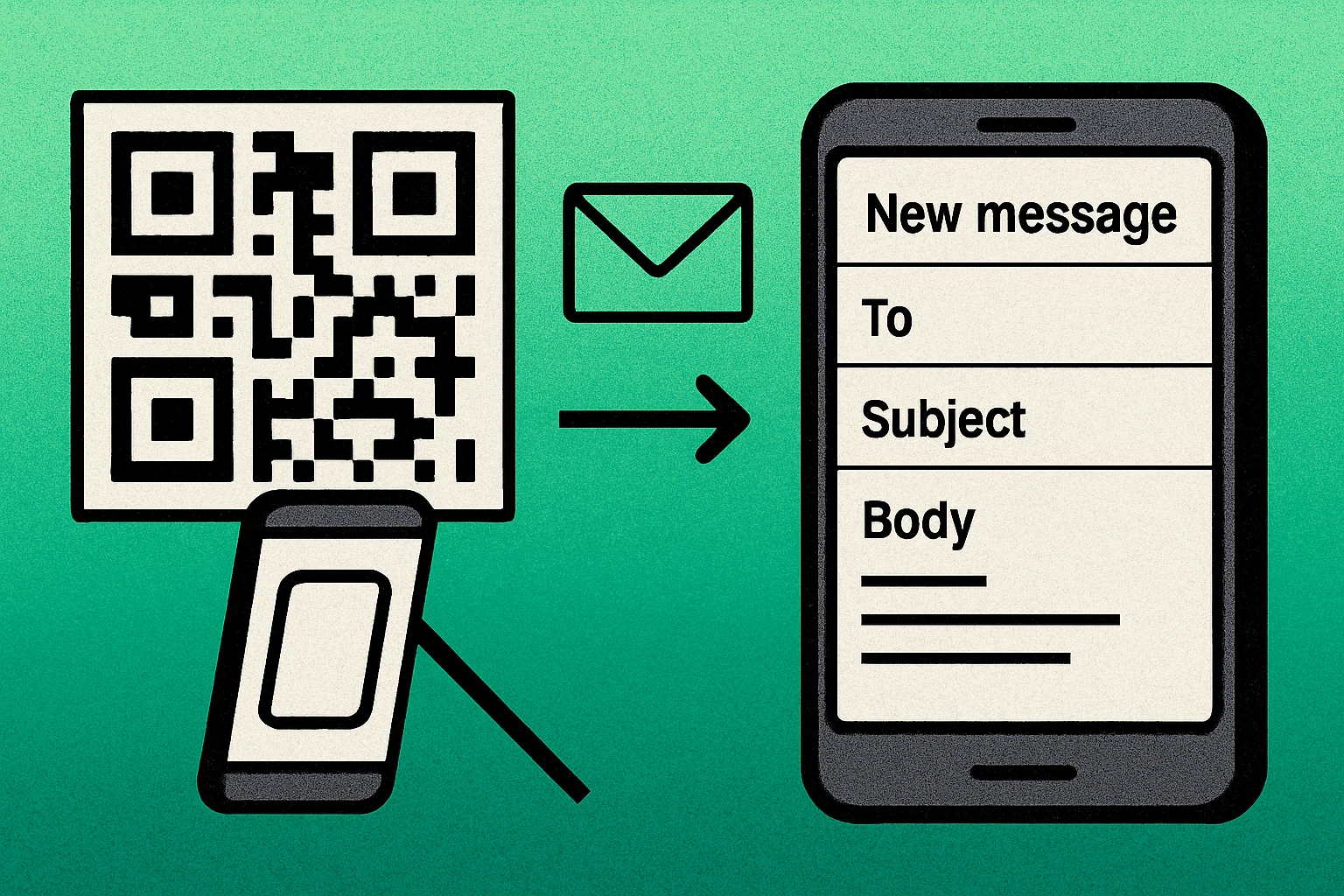
Unlike a URL QR code that directs users to a webpage, an email QR code triggers a specific action: composing an email. This makes it a powerful tool for businesses that want to reduce friction in customer communication. Instead of asking someone to remember an email address, look it up on a website, and manually type a subject line, you hand them a single scan that does everything at once.
Email QR codes are part of the broader family of QR code types that encode action-based protocols rather than simple URLs. Other examples include SMS QR codes (which open a text message) and vCard QR codes (which save a contact). The key difference is that email QR codes initiate a conversation rather than just sharing information.
An email QR code encodes a mailto: link that opens the user's email app with the recipient, subject, and body pre-filled. It works on every major platform without requiring any special apps or configuration.
How to Create an Email QR Code (Step by Step)
Creating an email QR code is a simple process that takes less than two minutes. The key step is building your mailto string correctly before generating the code. Here is exactly how to do it:
Create Your Email QR Code
Build your mailto string. Construct the mailto link with the recipient's email address, a subject line, and optional body text. Use the format: mailto:support@example.com?subject=Hello&body=Your+message+here. Replace spaces with + or %20 in both the subject and body fields.
Open a QR code generator. Navigate to a free QR code generator that supports text or URL input. You do not need a dedicated "email QR code" tool — any generator that encodes plain text will work, because the mailto string is just text.
Paste the mailto string. Enter your complete mailto string into the generator's input field. Make sure the entire string is pasted as a single line with no line breaks. The generator will encode the full string, including all parameters, into the QR code.
Customize and download. Adjust the QR code size and error correction level if needed. For print materials, use at least Medium (M) error correction. Download the QR code as a PNG for digital use or SVG for print. Keep the quiet zone (white border) intact.
Test on multiple devices. Scan the QR code with at least two different phones (one iOS, one Android if possible). Verify that the correct email app opens with the right recipient, subject line, and body text. Check that special characters display properly.
That is the entire process. The most common mistake people make is formatting the mailto string incorrectly — a misplaced & or a missing ? will break the entire link. The next section breaks down the exact syntax so you can get it right every time.
The mailto: Format Explained
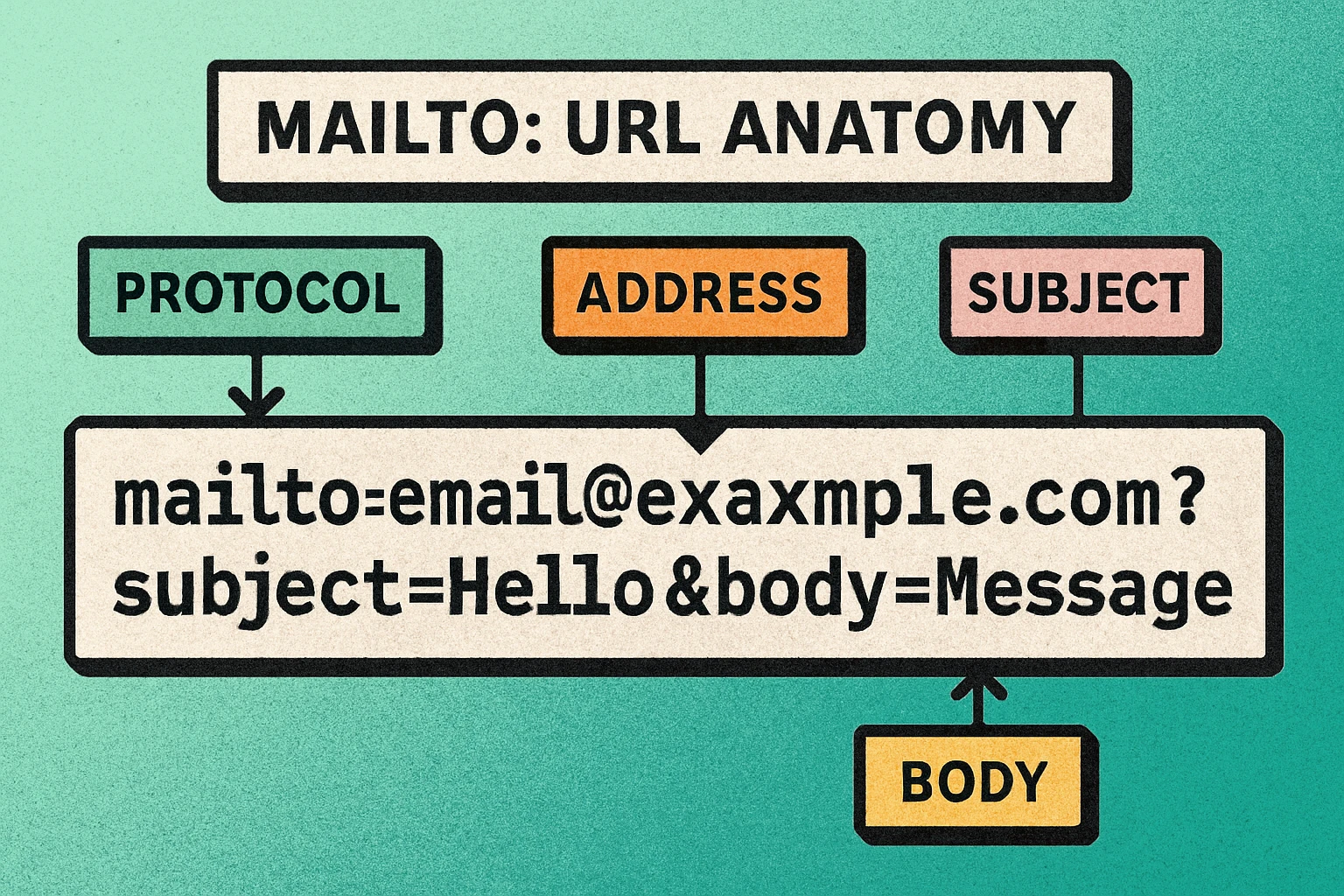
The mailto protocol follows a specific syntax. Understanding this format is the difference between an email QR code that works perfectly and one that opens a blank compose window (or fails entirely). Here is the complete structure:
Let's break down every component:
Recipient Address
The email address immediately follows mailto: with no space. This is the only required field — everything else is optional. You can also specify multiple recipients by separating addresses with commas: mailto:first@example.com,second@example.com.
Subject Line
The subject parameter sets the email's subject line. It comes after a ? (question mark), which marks the start of the query string. Spaces must be encoded as + or %20. For example: ?subject=Feedback+Request will display as "Feedback Request" in the email subject field.
Body Text
The body parameter fills in the email's body content. It is separated from the subject by an & (ampersand). Like the subject, spaces are encoded as + or %20. Line breaks can be added with %0A (newline) or %0D%0A (carriage return + newline). For example: &body=Hi+there%0A%0APlease+send+me+info.
CC and BCC
You can add carbon copy and blind carbon copy recipients with the cc and bcc parameters: mailto:main@example.com?cc=copy@example.com&bcc=hidden@example.com&subject=Hello. These are appended as additional query parameters, each separated by &.
Complete Example
Here is a fully formed mailto string that you could paste directly into a QR code generator:
When scanned, this opens the user's email app addressed to support@yourcompany.com with the subject "Product Feedback" and a body template that includes placeholder fields for an order number and comments. The user fills in the blanks and hits send.
Special characters need URL encoding in mailto strings. Common replacements: %20 or + for space, %0A for newline, %2C for comma, %3A for colon, %26 for ampersand within text. Using a URL encoder tool can help you avoid mistakes.
Use Cases for Email QR Codes
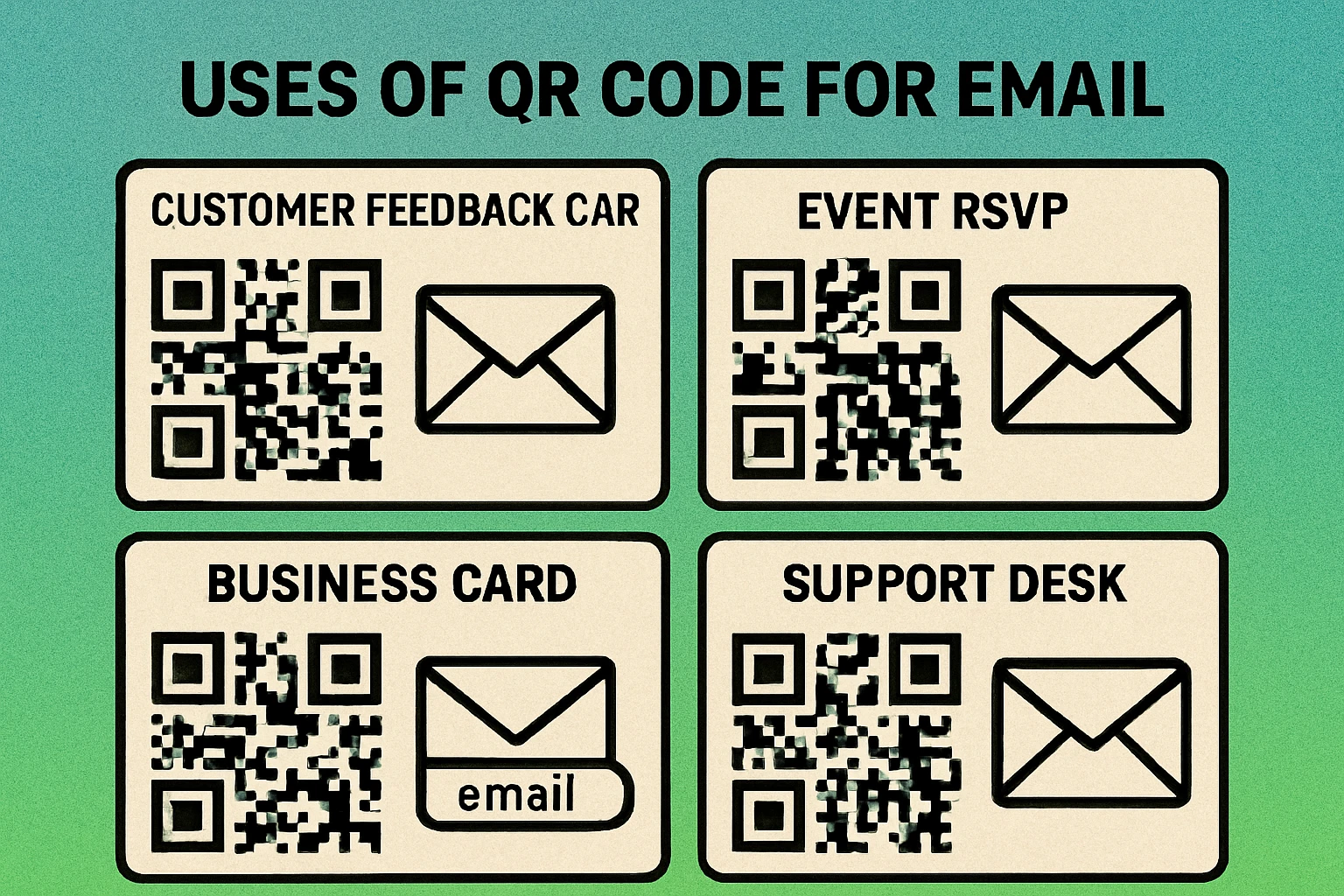
Email QR codes shine in situations where you want to make it effortless for someone to reach you. Here are the most effective real-world applications:
Customer Support
Print an email QR code on product packaging, user manuals, or warranty cards. The mailto string can pre-fill the subject with "Support Request" and the body with fields for the product name, serial number, and issue description. This ensures support emails arrive with structured information, reducing back-and-forth between the customer and your team.
Feedback Collection
Place email QR codes on receipts, table tents in restaurants, or post-service handouts. Pre-fill the subject with "Customer Feedback" and the body with a simple prompt like "How was your experience today?" This approach works especially well for small businesses that do not want to pay for a dedicated survey platform. For more advanced feedback needs, you might also consider a QR code for Google Forms.
Event RSVPs
Include an email QR code on event invitations, flyers, or posters. Pre-fill the subject with "RSVP — [Event Name]" and the body with "I would like to attend. Number of guests: ___". Guests scan, fill in their details, and send. It is low-tech, universally accessible, and requires zero infrastructure beyond an email inbox.
Business Cards
Add an email QR code to your business card alongside (or instead of) a vCard QR code. Pre-fill the subject with "Following up from [event/meeting]" and leave the body empty. When a new contact scans it, they get a ready-to-send email that lands directly in your inbox — far more reliable than hoping they will type your address correctly.
Internal Operations
Use email QR codes on equipment labels, maintenance checklists, or warehouse shelves. A technician scans the code on a broken machine, and an email pre-filled with the machine ID, location, and a "Maintenance Request" subject line opens instantly. No mobile app needed, no login required — just scan and send.
Create Your Email QR Code for Free
Paste your mailto string, generate a QR code, and download it instantly. No signup required.
QR Code Apps for Mac & Safari
Prefer generating codes without opening a browser tab? These two native Apple apps cover both habits — a full generator on the desktop, and a one-click share button inside Safari.


Email QR Code vs Contact Form QR Code
Both email QR codes and contact form QR codes help people get in touch with you, but they work in fundamentally different ways. Choosing the right one depends on what kind of data you need and how structured the interaction should be.
| Feature | Email QR Code | Contact Form QR Code |
|---|---|---|
| Action | Opens email app with pre-filled draft | Opens a web-based form in the browser |
| Internet Required | No (to compose) | Yes (to load form) |
| Data Structure | Free-form text | Structured fields (name, email, dropdown, etc.) |
| User Effort | Scan, review, send | Scan, fill out multiple fields, submit |
| Response Tracking | Basic (email inbox) | Advanced (spreadsheet, CRM) |
| Setup Cost | Free (no tools needed) | Free to paid (form builder) |
| Best For | Quick messages, support requests, RSVPs | Surveys, registrations, lead collection |
Use an email QR code when you want to minimize friction and the interaction is simple: a support request, a quick RSVP, or a follow-up message. Use a contact form QR code (which is really just a URL QR code pointing to a form) when you need structured data, validation, or integration with a CRM or spreadsheet.
For many small businesses and personal use cases, an email QR code is the simpler and more effective choice because it requires no additional tools, no hosting, and no form builder — just an email address.
Best Practices for Email QR Codes
Getting the mailto format right is only half the job. Follow these best practices to ensure your email QR codes deliver the best possible experience:
- Keep the mailto string short. The longer the encoded string, the denser the QR code becomes and the harder it is to scan — especially at small print sizes. Aim for under 300 characters total. Write a concise subject and a brief body prompt rather than a full paragraph.
- Always test before printing. Generate the QR code, then scan it with at least two devices (iOS and Android). Verify the recipient address, subject line, and body text all appear correctly. Check for encoding issues with special characters like ampersands, commas, and line breaks.
- Use Medium or High error correction. If the QR code will be printed on physical materials, set the error correction level to at least M (Medium, 15% recovery). This ensures the code remains scannable even if it gets slightly scuffed, folded, or partially covered. For more on this topic, consult our complete QR code guide.
- Maintain the quiet zone. The white border around the QR code must be at least four modules wide. Do not crop the code to the edge of the pattern or place it directly against a busy background. Without adequate quiet zone, scanners cannot detect the code boundaries.
- Print at a scannable size. The minimum recommended print size is 2 cm x 2 cm (about 0.8 x 0.8 inches) for close-range scanning. For posters or signage scanned from a distance, increase the size proportionally — a rough guideline is that the QR code width should be at least one-tenth of the expected scan distance.
- Add a clear call to action. Never print a QR code without context. Add text like "Scan to Email Us," "Scan for Support," or "Scan to RSVP" near the code. People are far more likely to scan a QR code when they understand what it will do before they scan it.
- Pre-fill strategically, not excessively. Fill in the recipient and subject line at minimum. For the body, provide a brief template or prompt rather than a wall of text. Leave room for the user to add their own message — nobody wants to send an email they did not write.
- Consider a fallback. Not everyone will scan a QR code. Display the email address as plain text alongside the QR code so people who prefer to type it manually still have that option.
If you need to update the email address or subject line after printing, you cannot change a static email QR code. For situations where the destination might change, consider using a URL QR code that points to a redirect, giving you the flexibility to update the target later.
Frequently Asked Questions
An email QR code is a QR code that encodes a mailto link. When scanned, it opens the user's default email app with the recipient address, subject line, and body text already filled in, making it easy to send a pre-composed email with a single scan.
Yes. The mailto protocol is a universal standard supported by all major email clients on both iOS and Android. When a phone scans the QR code and reads the mailto string, it opens whatever email app is set as the default on that device — Apple Mail, Gmail, Outlook, or any other client.
Yes. The mailto protocol supports cc and bcc parameters. For example: mailto:main@example.com?cc=copy@example.com&bcc=hidden@example.com&subject=Hello. Just add them as additional query parameters separated by ampersands in the mailto string.
QR codes can store up to about 4,296 alphanumeric characters, but longer strings produce denser codes that are harder to scan. For email QR codes, keep your total mailto string — including subject and body — under 300 characters for reliable scanning at small print sizes.
An email QR code opens the user's email app with a pre-filled message ready to send. A contact QR code (vCard) saves your contact information — name, phone, email, address — directly to the user's address book. They serve different purposes: one initiates a conversation, the other stores contact details for future reference.