Why Your QR Code File Format Matters
A QR code is a precisely structured pattern of black and white modules. Every module must be sharp, clearly defined, and exactly the right size for a scanner to read it reliably. The file format you choose directly affects whether those modules stay crisp or turn into a smudgy mess when you scale, print, or embed the code.
Choosing the wrong format is one of the most common reasons QR codes fail in the real world. A low-resolution PNG stretched across a poster will produce blurry edges that confuse scanners. A vector SVG printed on a tiny label will look perfect. The difference is not about the data inside the code — it is about how the visual pattern is stored and rendered. If your code is not scanning and you suspect a quality issue, our QR code not scanning troubleshooting guide can help you diagnose the problem.
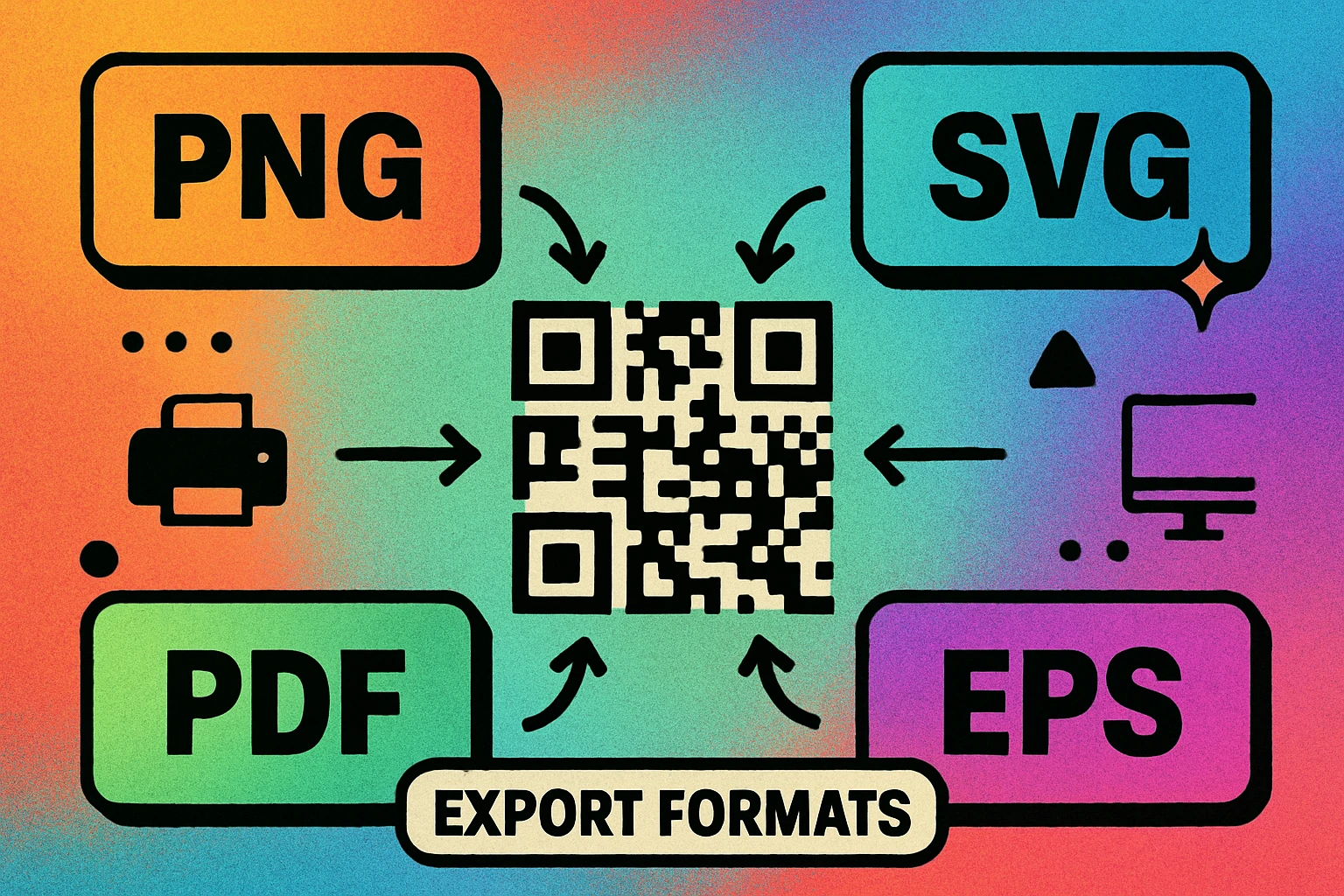
QR code file formats fall into two fundamental categories: raster (pixel-based) and vector (path-based). Understanding this distinction is the key to making the right choice every time. Our complete QR code guide covers the full anatomy of how QR codes work, but here we focus specifically on the output format and what it means for your project.
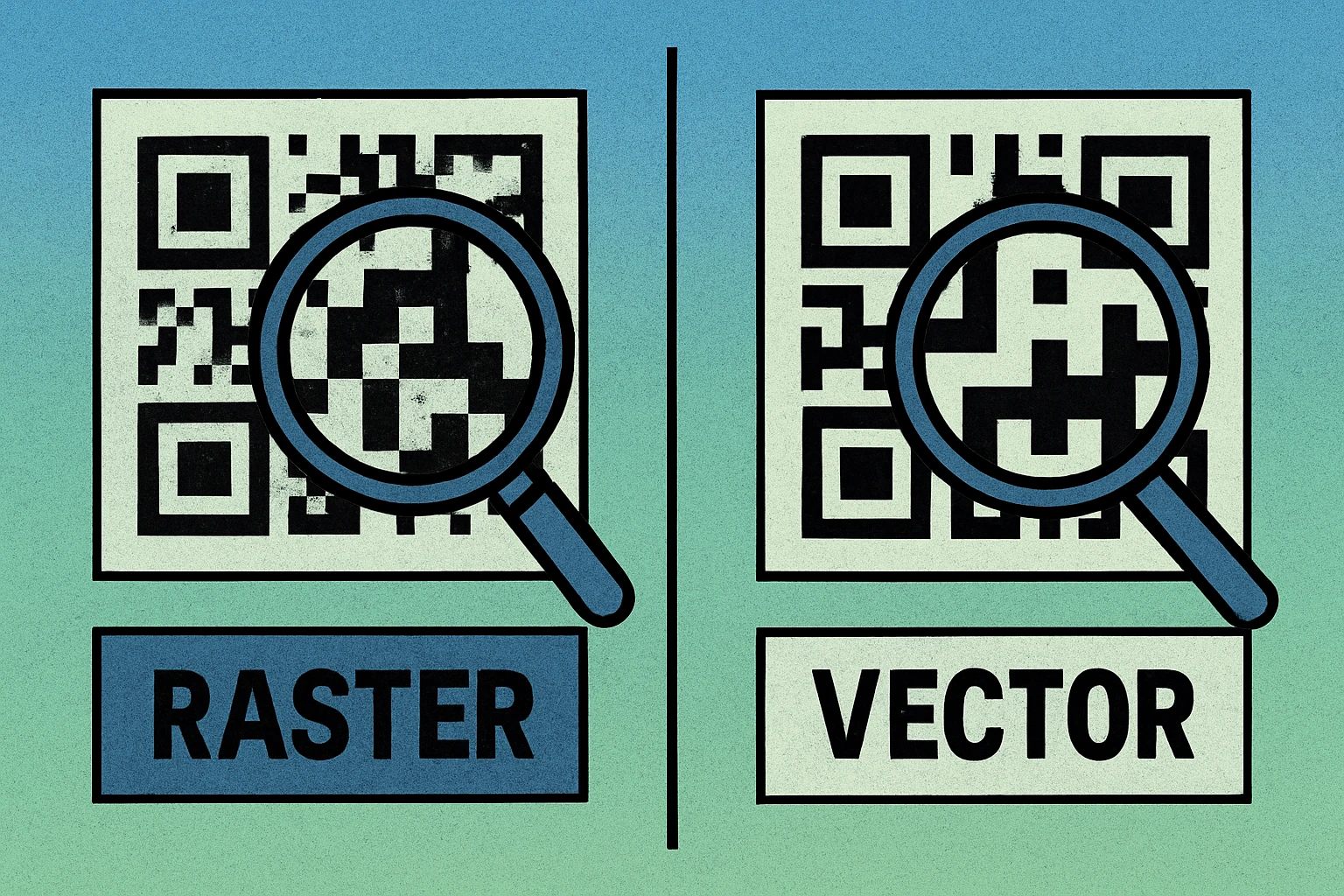
Raster formats (PNG) store your QR code as a fixed grid of pixels. Vector formats (SVG, PDF, EPS) store it as mathematical shapes. Vectors scale infinitely without quality loss; rasters do not.
PNG: The Raster Standard for Screen Use
PNG (Portable Network Graphics) is the most common QR code file format. It is a raster image format, meaning the QR code is stored as a grid of pixels. Every time you download a QR code from a generator, there is a good chance it defaults to PNG.
How PNG Works for QR Codes
A PNG file has a fixed resolution defined at the time of export. A 500×500 pixel PNG contains exactly 250,000 pixels arranged in a square grid. Each module of the QR code occupies a certain number of those pixels. When you display the image at its native size, everything looks perfectly sharp. The problems start when you scale up.
If you take that 500×500 PNG and stretch it to fill a poster, the software has to invent new pixels to fill the gaps. This process — called interpolation — produces soft, blurry edges where the modules should have crisp, hard boundaries. A scanner relies on those sharp transitions between black and white to read the code. Blurry edges mean slower scans, more errors, and at some point, complete failure.
When to Use PNG
- Websites and apps — PNG is universally supported by every browser and device. A QR code at 400–800 pixels is more than enough for on-screen display.
- Social media sharing — most platforms handle PNG well, preserving the image quality without heavy compression.
- Email attachments — PNG files are easy to attach and recipients can view them without special software.
- Small-format print — if you export at 300 DPI or higher at the intended print size, PNG can work for business cards, stickers, and small labels.
PNG Limitations
- Fixed resolution — cannot be scaled up without quality loss.
- For print, you must know the final physical size before exporting so you can calculate the correct pixel dimensions.
- File sizes grow quickly at very high resolutions (e.g., a 3000×3000 PNG for large-format print).
SVG: The Vector Powerhouse (Recommended for Print)
SVG (Scalable Vector Graphics) is a vector format that stores the QR code as mathematical shapes — rectangles, paths, and coordinates — rather than pixels. This means an SVG QR code can be scaled to any size, from a thumbnail on a phone screen to a six-foot banner, without any loss of quality.
Why SVG Is the Best All-Around Format
Because SVG is resolution-independent, you never have to worry about DPI, pixel dimensions, or blurry edges. The code will render at the highest quality the output device can produce, whether that is a smartphone screen at 460 PPI or a large-format printer at 1200 DPI. This makes SVG the single most versatile QR code file format available.
SVG files are also remarkably small. A QR code that might be 50 KB as a high-resolution PNG could be just 3–5 KB as an SVG. This is because the file only stores the geometric instructions, not individual pixel values. SVG files are plain-text XML, which means they can be opened in any text editor, embedded directly in HTML, and styled with CSS.
When to Use SVG
- Print at any size — from business cards to billboards, SVG scales perfectly. This is the recommended format for any print project where you want to guarantee sharp results. See our QR code size guide for minimum dimensions.
- Web and email — modern browsers render SVG natively, and the small file size improves page load speed.
- Design workflows — SVG files open directly in Adobe Illustrator, Figma, Sketch, Inkscape, and other design tools for further customization. Check our custom QR code design guide for styling tips.
- Responsive design — SVG adapts to any container size, making it ideal for responsive websites where the QR code needs to resize dynamically.
If you can only download one format, make it SVG. It works everywhere, scales to any size, produces the smallest file, and can always be converted to PNG, PDF, or EPS later. You cannot go the other direction — you cannot turn a raster PNG into a true vector.
PDF: Universal and Print-Ready
PDF (Portable Document Format) is a container format that can hold both vector and raster content. When a QR code is exported as a vector PDF, it retains all the scalability advantages of SVG. The code is stored as vector paths inside the PDF, meaning it will print at perfect quality regardless of size.
Why PDF Is Popular for Print
PDF is the universal language of the print industry. Every commercial printer, every print shop, and every desktop printer understands PDF. When you send a PDF to a printer, what you see on screen is what you get on paper — fonts, colors, and vector paths are all preserved exactly as created.
For QR codes specifically, PDF offers two key advantages. First, it embeds the vector data in a format that non-technical users can open and preview without any design software — just a web browser or the free Adobe Acrobat Reader. Second, it can include color profiles, bleed marks, and other print-production metadata that SVG does not natively support.
When to Use PDF
- Sending files to a commercial printer — PDF is the expected format for most print shops and prepress workflows.
- Embedding in documents — placing a QR code in a Word document, PowerPoint presentation, or InDesign layout is easiest with PDF.
- Client handoffs — when sharing a QR code with someone who may not have design software, PDF is the safest choice because it opens on any device.
- Archival — PDF/A is an ISO standard for long-term document preservation.
EPS: Professional Print and Legacy Workflows
EPS (Encapsulated PostScript) is a legacy vector format that was once the gold standard for professional print production. It stores QR code modules as PostScript vector paths, which means it shares the same scalability benefits as SVG and vector PDF.
The Role of EPS Today
EPS was developed in the 1980s and dominated the prepress world for decades. While it has been largely superseded by PDF and SVG in modern workflows, many established print shops, signage companies, and packaging manufacturers still request or prefer EPS files. If you are working with a large-format printer, a screen printing company, or a packaging supplier, there is a reasonable chance they will ask for EPS.
EPS files are fully supported by Adobe Illustrator, CorelDRAW, and other professional design applications. However, they cannot be previewed natively in web browsers, and many non-design applications cannot open them. This makes EPS a specialist format rather than a general-purpose one.
When to Use EPS
- Your print vendor specifically requests it — this is the most common reason to use EPS today.
- Legacy design workflows — if your team or organization has an established pipeline built around EPS and PostScript, there is no reason to disrupt it.
- Screen printing and engraving — some specialized output processes have toolchains optimized for EPS.
EPS still works perfectly well as a vector format. But unless your print partner explicitly asks for it, SVG or PDF will serve you better in modern workflows because of wider software compatibility and easier sharing.
QR Code Apps for Mac & Safari
Prefer generating codes without opening a browser tab? These two native Apple apps cover both habits — a full generator on the desktop, and a one-click share button inside Safari.


QR Code File Format Comparison
Here is a side-by-side comparison of all four QR code file formats to help you make the right choice at a glance:
| Format | Type | Best For | Scalable? | Print Quality | File Size |
|---|---|---|---|---|---|
| PNG | Raster | Web, social media, email | No | DPI-dependent | Medium–Large |
| SVG | Vector | Web, print, design tools | Yes | Perfect at any size | Very small |
| Vector* | Print shops, documents | Yes | Perfect at any size | Small | |
| EPS | Vector | Prepress, legacy workflows | Yes | Perfect at any size | Small–Medium |
* PDF can contain either vector or raster content. QR code generators that export vector PDF produce scalable output. Always confirm your PDF contains vector paths, not an embedded raster image.
Which Format Should You Use?
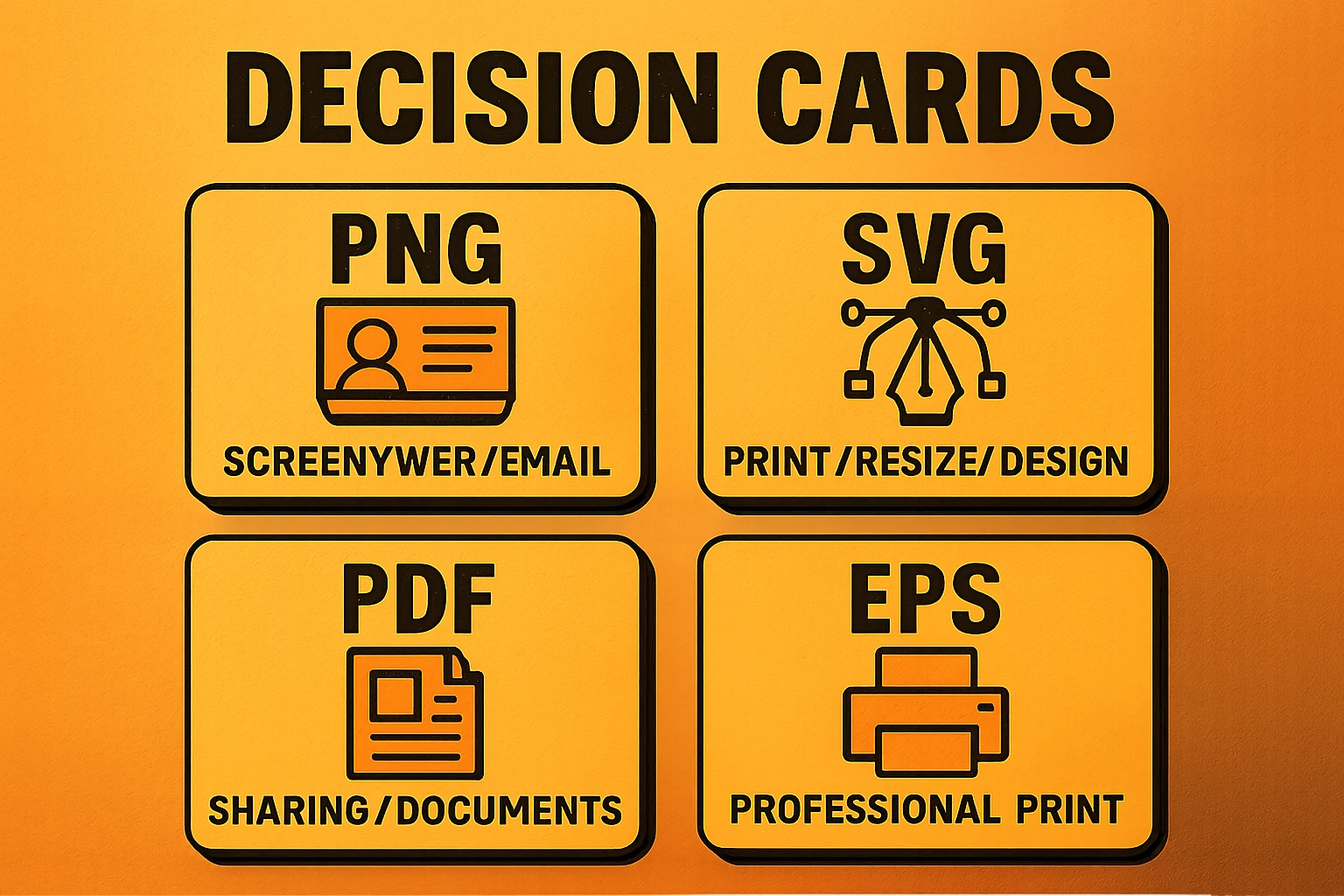
The best QR code file format depends on your specific use case. Here is a practical decision guide organized by scenario:
Displaying on a Website or App
Use SVG as your first choice. It renders crisply on all screen densities (including Retina and 4K displays), scales responsively, and keeps page load times fast thanks to tiny file sizes. If your platform does not support SVG, fall back to a PNG at 2x resolution (e.g., 800×800 pixels for a display area of 400×400 CSS pixels).
Printing on Business Cards or Flyers
Use SVG or vector PDF. Both will produce razor-sharp output at any print size. If your printer wants a specific format, ask them — most accept PDF. If you must use PNG, export at a minimum of 300 DPI at the final print size (for a 1-inch QR code, that means at least 300×300 pixels).
Large-Format Signage and Banners
Use SVG, PDF, or EPS — vector formats are non-negotiable for large-format print. A QR code on a banner or billboard might be printed at 3 feet wide or larger. No raster PNG, no matter how high the resolution, is practical at that scale. Vector files ensure every module edge stays perfectly sharp regardless of the final output size.
Sending to a Professional Printer
Use PDF as your default. If the print shop requests EPS, provide that. Always ask your vendor for their preferred format before sending files. Include bleed and trim marks if they require them — your designer or design tool can add these to a PDF export.
Sharing with a Non-Technical Colleague
Use PNG for quick sharing, or PDF if they need to print it. Both formats open on any device without special software. Avoid sending SVG or EPS to people who do not use design tools, as they may not know how to open or use these files.
Resolution and DPI: Getting Print Right
If you are using PNG (or any raster format) for print, understanding resolution and DPI is critical. DPI stands for dots per inch and describes how many pixels (or printed dots) fit into one linear inch of the final output.
The DPI Rules for QR Codes
- 72 DPI — standard screen resolution. Fine for websites and apps, but far too low for print. A 72 DPI QR code printed at 2 inches will look visibly pixelated.
- 150 DPI — acceptable for large-format print viewed from a distance (e.g., a banner you view from 6+ feet away). Not recommended for close-range materials.
- 300 DPI — the industry standard for commercial print. At 300 DPI, individual pixels are invisible to the naked eye at normal viewing distance. This is the minimum you should use for business cards, brochures, packaging, and any material that will be held in hand.
- 600+ DPI — used for very high-quality or very small print. If your QR code is printed smaller than 0.5 inches, stepping up to 600 DPI adds extra clarity.
Calculating Pixel Dimensions for Print
The formula is straightforward: Pixels = DPI × Size in inches. For example, if you need a QR code printed at 2 inches wide at 300 DPI, you need a PNG that is at least 600×600 pixels. For a 4-inch code on a poster at 300 DPI, you need 1200×1200 pixels.
This calculation is the single biggest reason vector formats are preferred for print. With SVG, PDF, or EPS, you never need to do this math — the code scales to the exact size the printer needs, automatically, at the highest quality the device can produce.
For print projects, always use a vector format (SVG or PDF) unless you have a specific reason to use PNG. If you must use PNG, export at 300 DPI minimum at the final printed size. When in doubt, export larger — you can always scale a raster image down without losing quality, but scaling up always degrades it.
Generate Your QR Code in Any Format
Download as PNG, SVG, or PDF — optimized for screen or print. Free and instant.
Frequently Asked Questions
The best file format depends on your use case. SVG is the best all-around choice because it is a vector format that scales to any size without losing quality, works for both screen and print, and produces small file sizes. Use PNG for quick digital sharing, PDF for print-ready documents, and EPS for professional prepress workflows.
Yes, but only if the PNG was exported at a high enough resolution. For print, you need at least 300 DPI at the final printed size. A 300×300 pixel PNG will look fine on screen but will appear blurry when printed at more than about 1 inch (2.5 cm). If you plan to print, export your PNG at 1200 pixels or larger, or better yet, use a vector format like SVG or PDF.
Raster QR codes (PNG, JPEG) are made of a fixed grid of pixels. They have a set resolution and become blurry when scaled up beyond their original size. Vector QR codes (SVG, PDF, EPS) are made of mathematical paths and shapes. They can be scaled to any size — from a thumbnail to a billboard — without any loss of quality. For this reason, vector formats are always preferred when the final print size is large or unknown.
Both SVG and PDF are vector formats that scale perfectly. Choose SVG if you plan to use the QR code on the web, in email templates, or need to edit it in a design tool like Figma or Illustrator. Choose PDF if you need to send a print-ready file to a commercial printer or want to embed the QR code in a document. Many designers keep both: SVG for digital workflows and PDF for print handoffs.