Quick Diagnostic: Is the Code or the Content Broken?
Before diving into the 12 fixes, answer one question: does your phone's camera recognize the code at all?
If the camera doesn't even show a link or notification when you point at the code, the problem is with the code itself — size, contrast, damage, or a generation error. Skip to fixes #1–#8.
If the camera recognizes the code and shows a URL, but tapping it leads to an error page or a blank screen, the problem is with the destination content. Skip to fixes #9–#12.
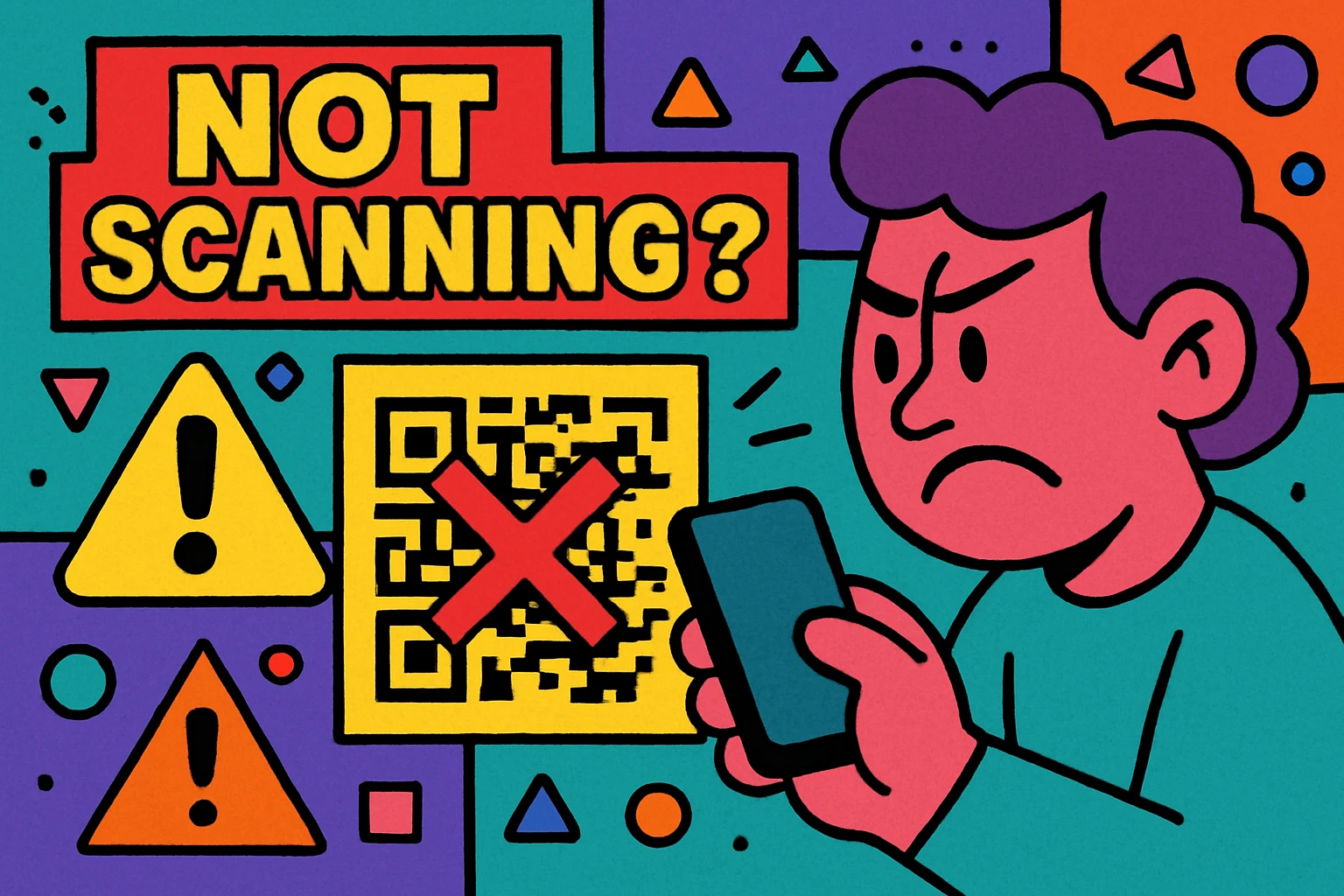
There are two fundamentally different failures: the scanner can't read the pattern (physical/visual issue), or the scanner reads the pattern fine but the content behind it is broken (URL/server issue). Diagnosing which one you're dealing with saves a lot of time.
Fixes #1–#3: Size and Distance Issues
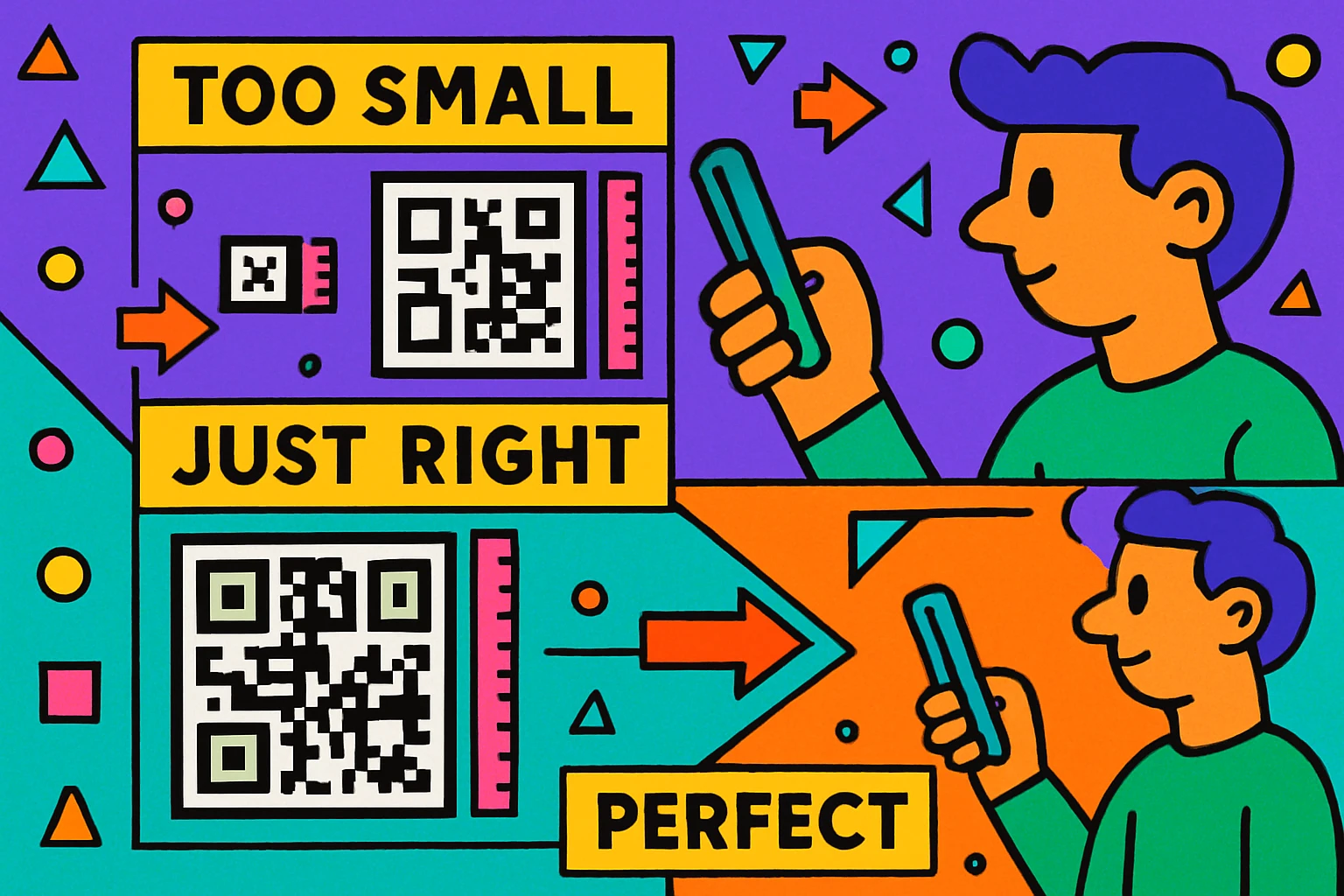
The code is too small
This is the single most common reason QR codes fail to scan. The minimum recommended size for close-range scanning (15–25 cm) is 2 cm × 2 cm (0.8 in × 0.8 in). For posters viewed from a meter away, you need at least 10 cm × 10 cm. For billboards, think 30 cm+ depending on viewing distance. Our QR code size guide has exact formulas for every scenario.
You're scanning from too far away
Even a properly sized code won't scan if you're holding your phone too far from it. The general rule: scanning distance should be no more than 10× the code's width. A 3 cm code should be scanned from no more than 30 cm away. Move closer and try again.
The quiet zone is missing
Every QR code needs a blank margin (called the "quiet zone") around it — at least 4 modules wide. If your design, border, or background graphic bleeds right up to the edge of the code, scanners can't find where the code starts. Add padding around the code equal to at least 4 of the smallest squares in the pattern.
Fixes #4–#6: Color and Contrast Problems
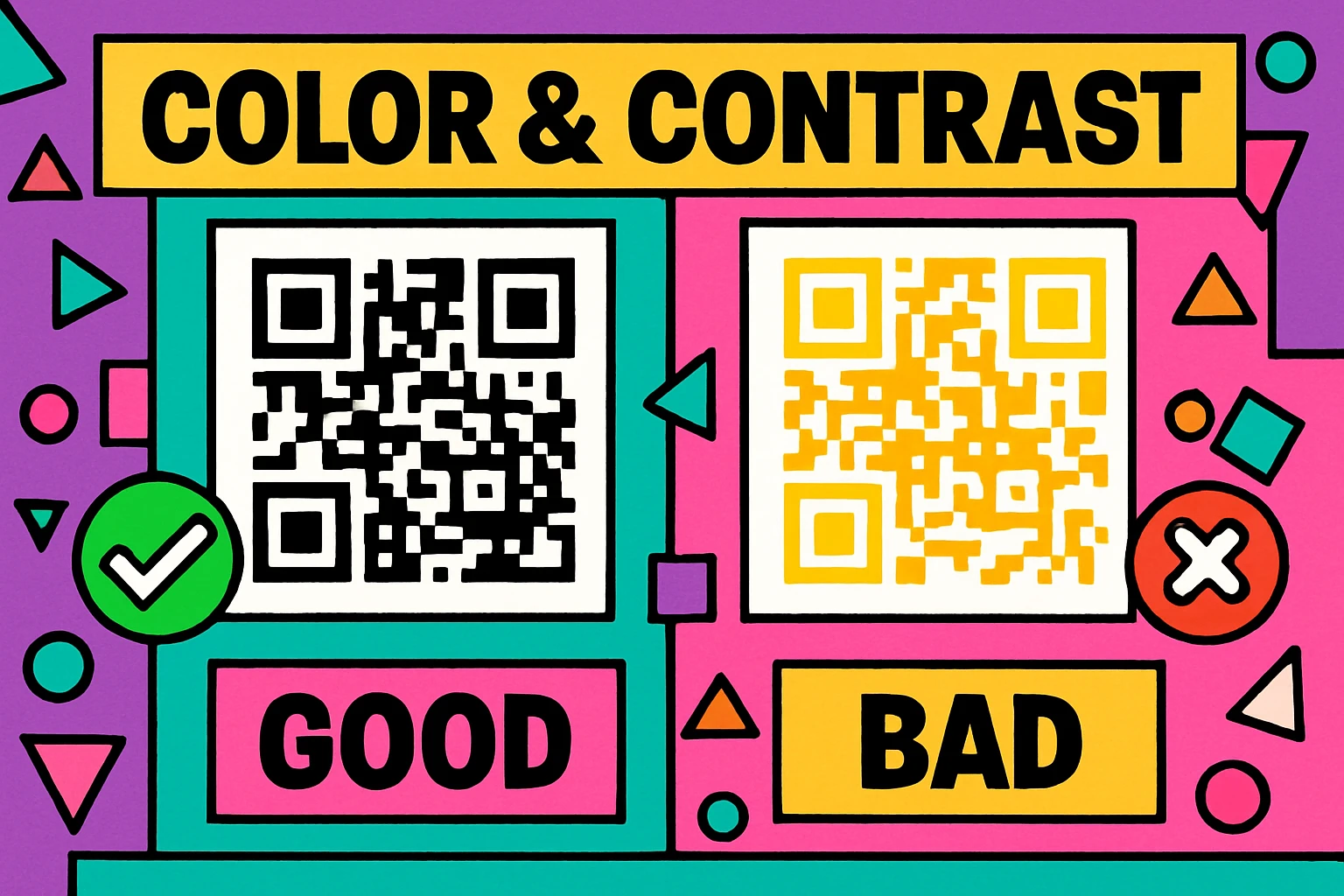
Not enough contrast between code and background
QR scanners detect codes by finding the contrast difference between dark modules and the light background. If the foreground color is too light (yellow, light gray, pastel tones) or the background is too dark, the scanner can't distinguish the pattern. Always use a dark foreground on a light background. Black on white is the most reliable, but dark blue on cream or dark green on white also work well. Check our QR code color guide for tested combinations.
The code colors are inverted
A white QR code on a dark background is an inverted code. While some modern scanners handle inverted codes, many older devices and camera apps cannot. If you need a code on a dark surface, use a white rectangular background behind the code rather than inverting the colors.
Gradient or patterned background interferes
If the QR code is placed over a photograph, gradient, or busy pattern, the visual noise can confuse scanners. The background directly behind and around the code must be a solid, uniform, light color. Use a solid white or light rectangle as a "landing pad" for your code if the surrounding design is complex.
Fixes #7–#8: Physical Damage and Print Quality
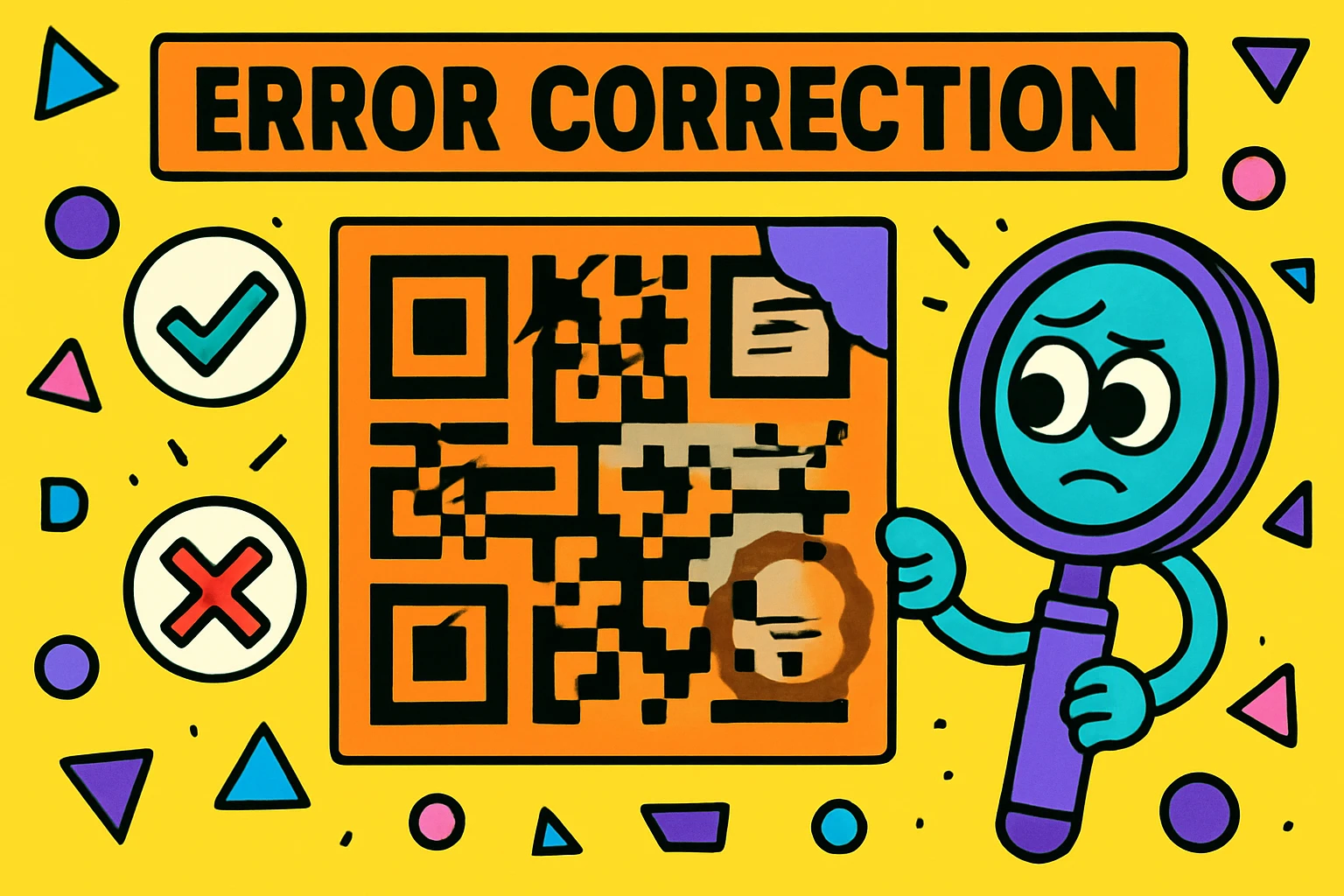
The code is physically damaged
Scratches, tears, fading from UV exposure, water damage, or even a coffee stain can make a QR code unscannable. QR codes have built-in error correction that can handle some damage — up to 30% at the highest level (H). But if the damage hits one of the three large position markers (the squares in three corners), even a small amount can be fatal. If the code is damaged beyond repair, you'll need to reprint it.
Print resolution is too low
A QR code exported as a small PNG and then scaled up for print will look blurry — the crisp edges between modules get lost, and scanners struggle to read the pattern. Always export QR codes as SVG (vector format) for print, or export PNG at a minimum of 300 DPI at the final print size. Our guide on QR code print resolution covers this in detail.
When generating codes for print, always use SVG export. SVGs scale to any size without losing sharpness. GenerateOnlineQR.com offers free SVG export on every code.
Generate a QR Code That Actually Works
High-resolution PNG and SVG. Correct error correction. No surprises.
QR Code Apps for Mac & Safari
Prefer generating codes without opening a browser tab? These two native Apple apps cover both habits — a full generator on the desktop, and a one-click share button inside Safari.


Fixes #9–#10: URL and Content Problems
If your phone recognizes the QR code and shows a URL, but the page doesn't load, the code is working fine — the destination is the problem.
The destination URL is dead
The most common content-side failure. The webpage was deleted, the URL changed during a site redesign, the file was removed from Google Drive, or the Dropbox link expired. Test the URL in a browser first. If it returns a 404, you've found your problem. For dynamic codes, update the redirect. For static codes, you'll need to create and reprint a new code. To avoid this in the future, always point QR codes at URLs you own and control.
The domain expired
If the entire domain the QR code points to has expired (not just a page), every QR code linking to that domain is dead. This is especially risky with free URL shorteners — if the shortening service shuts down, every shortened link dies. Renew your domain or, if it's gone, create new codes pointing to a URL on a domain you currently control. Read more about QR code longevity in our article on whether QR codes expire.
Fixes #11–#12: Device and Scanner Problems
Your camera lens is dirty or obstructed
It sounds trivial, but a smudged, oily, or scratched camera lens significantly reduces the camera's ability to focus on the fine detail in a QR code. Clean the lens with a microfiber cloth and try again. If the lens has a crack or deep scratch, the camera may not be able to resolve the code's modules clearly.
The scanner app or camera doesn't support QR codes
Most modern smartphones (iPhone running iOS 11+ and Android 9+) support QR scanning natively through the camera app. But older devices or some third-party camera apps may not. If the built-in camera app doesn't work, try downloading a dedicated QR scanner app. If testing your own codes, try scanning on at least two different devices before concluding the code is broken. For a full walkthrough, see our guide on how to scan QR codes on every device.
Bonus: Generation Errors That Cause Failures
Sometimes the code itself was flawed from the moment it was created. These are less common but worth checking if the fixes above don't help:
- The URL was mistyped. A single wrong character in the URL means the code works perfectly but leads to a dead page. Always copy-paste URLs rather than typing them manually.
- The data exceeds capacity. QR codes have a maximum data capacity (about 4,296 alphanumeric characters at the lowest error correction). Encoding a very long URL or large block of text can push the code to its limit, creating an extremely dense pattern that's hard to scan. Use a URL shortener or switch to a dynamic QR code to keep the encoded data short.
- A logo was placed over critical areas. Adding a logo to the center of a QR code uses up error correction capacity. If the logo is too large (more than ~15% of the code area), the code may not scan reliably. Our guide on adding logos to QR codes covers the safe limits.
- Error correction was set too low. If you generated the code at Level L (7% recovery) and then added any visual customization, the code has almost no tolerance for imperfections. For print and any code that might face wear, use Level M (15%) or higher.
Prevention Checklist: Before You Print
Run through this checklist before sending any QR code to print. It takes two minutes and can save you from reprinting thousands of copies:
1. Scan the code on at least 2 different phones (iPhone + Android).
2. Verify the destination URL loads correctly in a browser.
3. Check the printed size meets the minimum for your scanning distance.
4. Confirm there's a quiet zone (white margin) around the code.
5. Verify dark-on-light color contrast (no inverted codes).
6. Export as SVG or high-resolution PNG (300+ DPI).
7. If using a dynamic code, confirm your platform subscription is active.
8. If the code has a logo, test that it scans with the logo at the intended print size.
Frequently Asked Questions
The most common reasons are: the code is too small, there isn't enough contrast between the code and background, the code is physically damaged, your camera lens is dirty, or the destination URL is broken. Try cleaning your lens, ensuring good lighting, and holding your phone 15–25 cm from the code.
For close-range scanning (15–25 cm), the minimum is 2 cm × 2 cm (0.8 in × 0.8 in). For scanning from 1 meter away, aim for at least 10 cm × 10 cm. The rule: scanning distance ÷ 10 = minimum code width.
Yes, thanks to error correction. At the highest level (H), up to 30% of the code can be damaged and it will still scan. At the lowest level (L), only about 7% can be lost. Codes with logos in the center rely heavily on error correction and have less tolerance for additional damage.
This means the code itself works, but the destination URL is broken. The page may have been deleted, the domain may have expired, or a dynamic QR code's redirect subscription may have lapsed. Check that the URL loads correctly in a regular browser first.
Yes. Scanners rely on contrast between dark modules and light background. The foreground must always be darker. Avoid light-on-light combos (yellow on white), inverted codes (white on black is less reliable), and low-contrast pairings. Black on white is the gold standard.
Scan it on at least two different phones (one iPhone, one Android). Verify the URL loads in a browser. Print a test sheet at the intended size and scan the printout — screen scanning and print scanning can behave differently due to screen glare and print resolution.