How to Scan a QR Code on Your Phone
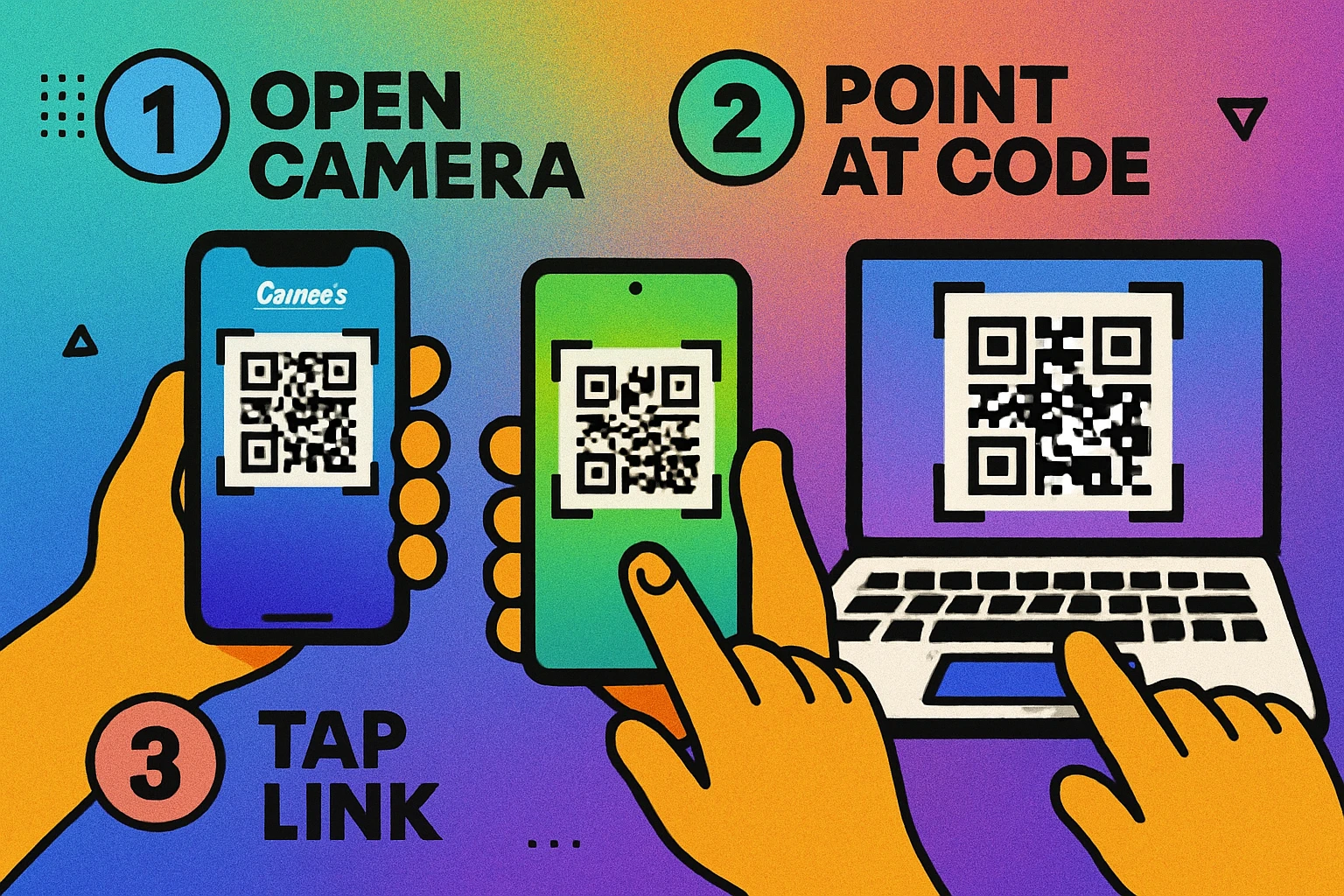
Scanning feels like it ought to need a setup step. It doesn't. On any reasonably recent handset the whole job is three moves: open the camera, hold it still over the code, tap the link that appears. Everything below is the detail behind those three moves — the iPhone route, the Android route, and what to do on the occasions when the link stubbornly refuses to show up.
The Fastest Route on Any Phone
Open your normal camera app. Not a scanner app — the camera you take photos with. Stay in the standard photo mode; video and portrait modes usually don't look for codes.
Fill about a third of the screen with the code. Roughly 15–30 cm away for a code the size of a beer mat. Include the plain white border around the pattern, hold still, and give the camera a second to focus.
Tap the link that appears. iPhones show a yellow banner across the top; Android phones show a small chip or pop-up over the code. Read the domain name before you tap it — that preview is your only chance to check where you're going.
If your iPhone runs iOS 11 or later (that's the iPhone 6s and everything after it) or your Android phone runs Android 9 or later, scanning is already built in and switched on. That covers the overwhelming majority of phones in use. Older handsets still have a route — there's a fallback at the end of each section below.
What You Actually Need
A working rear camera, enough light that you could read the code with your own eyes, and — for anything that opens a web page — an internet connection. That last one catches people out. The decoding itself happens entirely on your phone with no data connection at all; it's only the following of the link that needs signal. The neat exception is a Wi-Fi QR code, which hands your phone the network name and password directly, so it works before you're online.
How to Scan a QR Code on an iPhone
Apple built QR detection straight into the iPhone Camera app with iOS 11 in 2017, so there's no App Store trip involved. There are three routes to a decoded code, and the first is the one you'll use almost every time.
Method 1: The Camera App
Three Taps, Start to Finish
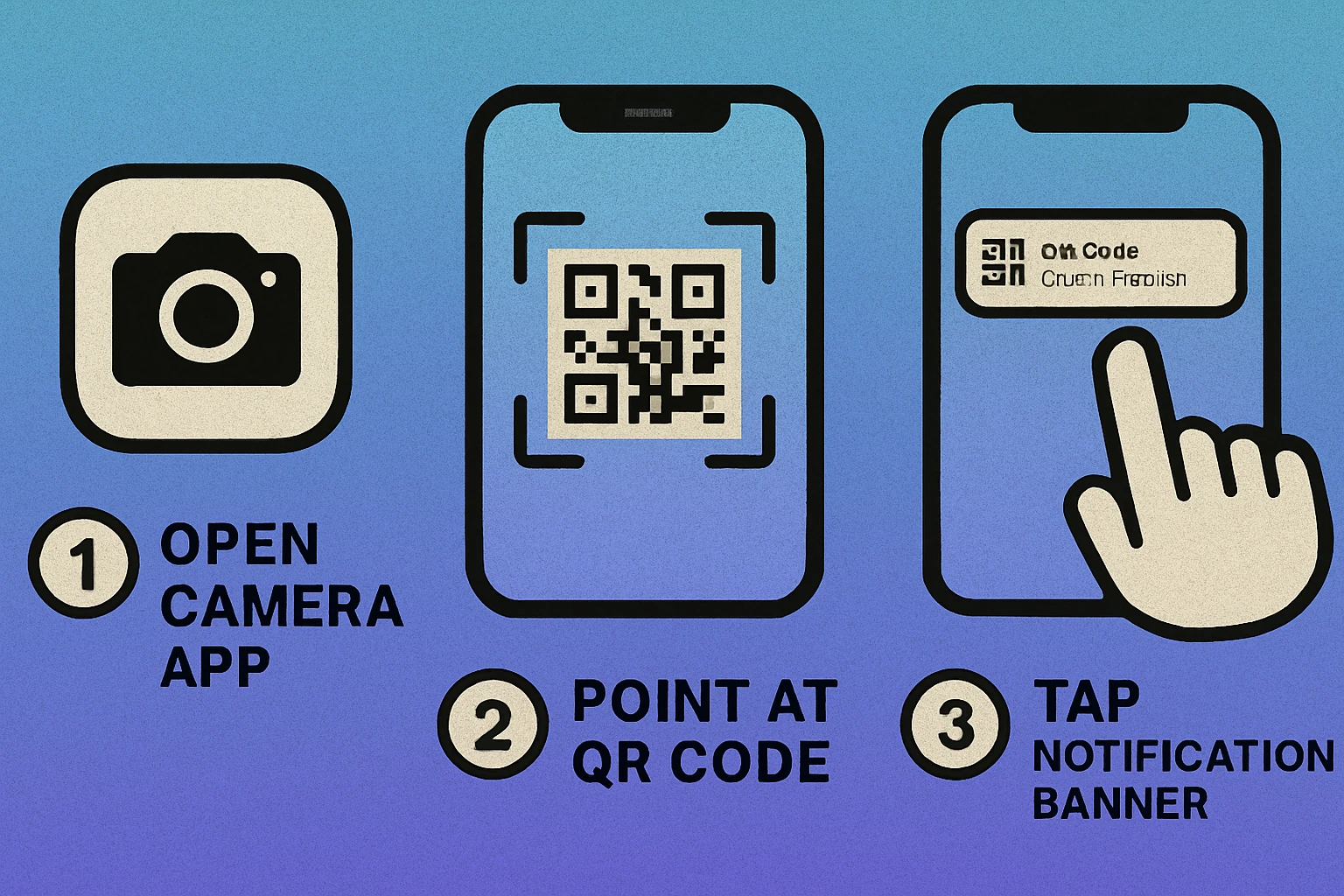
Open the Camera app. Swipe left on the lock screen, or tap the Camera icon on your home screen. Check you're on Photo mode — the default. Either the rear or the front camera will work, though the rear one focuses better.
Point it at the code and hold steady. Get the whole pattern in the viewfinder, including its quiet white margin. Don't tap the shutter and don't try to focus manually — detection runs continuously in the background while the viewfinder is live.
Tap the yellow banner. It slides down from the top of the screen with the destination on it. Tapping opens the link in Safari, or fires whatever the code encodes — joining a Wi-Fi network, starting a contact card, drafting a message, opening a map pin.
If the camera never reacts, go to Settings → Camera and check that "Scan QR Codes" is toggled on. It ships enabled, but it's easy to knock off, and a lot of "my iPhone won't scan" cases are nothing more than this switch.
Method 2: The Code Scanner in Control Center
iOS also has a dedicated scanner that never takes a photo. Add it once via Settings → Control Center, scroll to Code Scanner and tap the green plus. After that, swipe down from the top-right corner of the screen (swipe up from the bottom on iPhones with a home button) and tap the scanner icon.
It opens straight into a full-screen scanning view with a flashlight button in the corner, which makes it the better choice in a dim restaurant or a badly lit car park. It also skips the banner entirely — the link opens as soon as the code is read.
Method 3: A Code That's Already in Your Photos
If someone has sent you a code rather than shown you one, you don't need to print it. Open the picture in Photos and touch and hold the code itself; iOS 15 and later will offer to open the link. There's more on this, including the trick for a code displayed on the very phone you're scanning with, in the screenshot section below.
If You're Still on iOS 10 or Earlier
The Camera app won't detect codes at all on iOS 10 and below, so you'll need a QR reader from the App Store. Before you install one, check what it says about the data it collects — a scanner has your camera and every link you open, which is a lot of trust for a utility. Where possible, updating iOS is the better fix, since it removes the need for a third-party app entirely.
How to Scan a QR Code on an Android Phone
Android is less uniform than iOS because manufacturers ship their own camera apps, but every mainstream phone on Android 9 or later can scan without an extra download. Samsung, Pixel, OnePlus, Xiaomi, Motorola and Nothing all handle it out of the box; they just put the feature in slightly different places.
Method 1: Your Phone's Own Camera App
Android Camera: Step by Step
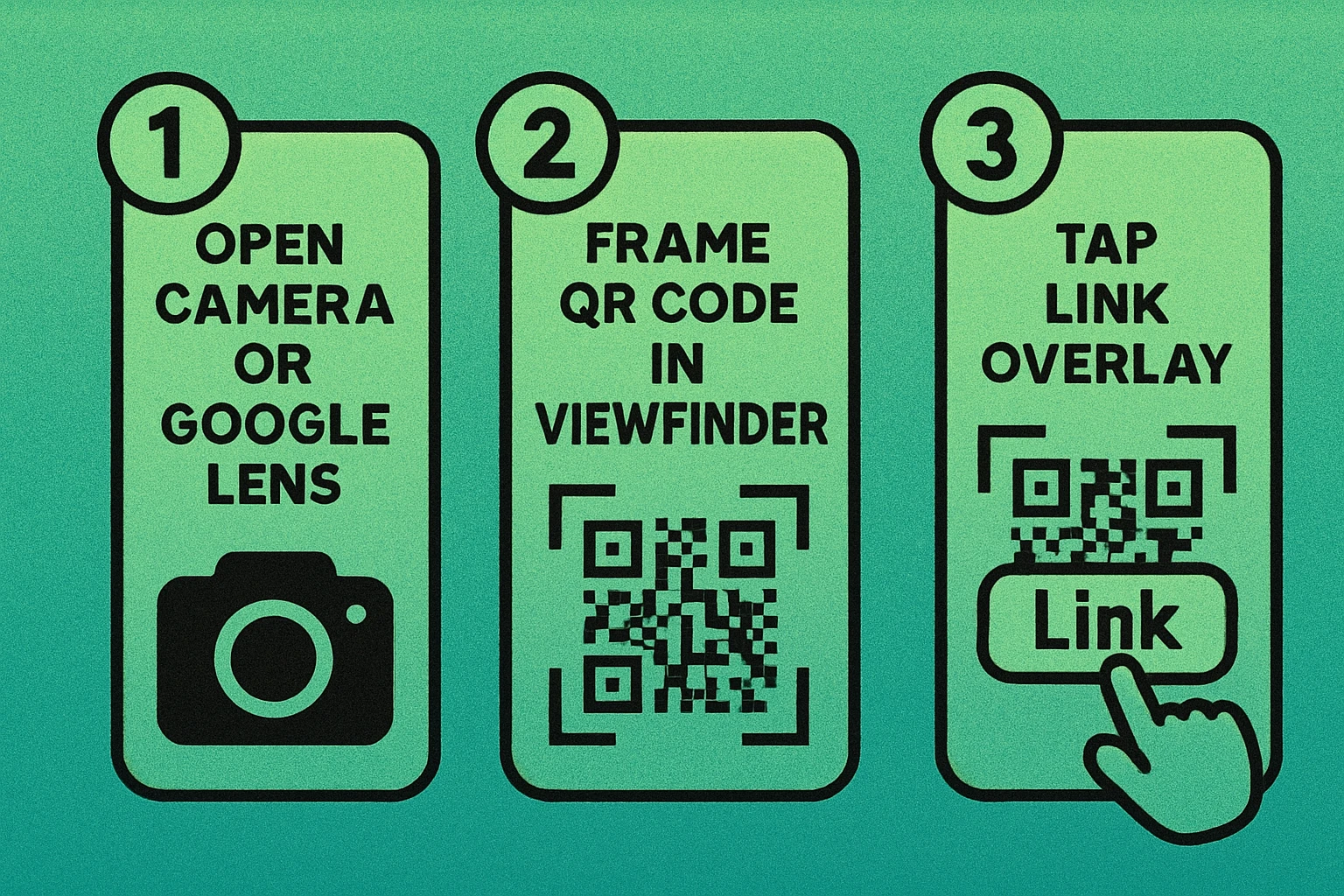
Open the camera and stay in Photo mode. On a Pixel, detection is automatic. On a Samsung Galaxy it's automatic too, provided Settings → Useful features → Scan QR codes is on in the camera app.
Frame the code. Hold the phone steady until the camera locks focus. Some camera apps draw a box or a dot over the code once they've found it.
Tap the chip that appears. A small link preview pops up near the bottom of the screen or over the code itself. Tap it to open the page in Chrome, or long-press it to copy the address instead of visiting it.
Method 2: Google Lens
Lens is the universal fallback — it works the same way on every Android phone regardless of who made it, and it reads codes that a fussy camera app gives up on.
Google Lens: Step by Step
Open Google Lens. Tap the Lens icon in the Google search widget on your home screen, or open the Google app and tap the camera icon inside the search bar. Chrome's address bar has a Lens icon too.
Point at the QR code. Lens finds and highlights the code automatically with a white overlay. If it hesitates, tap directly on the code to force a read.
Tap the result. The decoded URL or action appears at the bottom of the screen, usually with the full address visible so you can check it first.
Method 3: Quick Settings and the Lock Screen
On Samsung Galaxy phones there's a Scan QR code tile in the notification shade — swipe down twice, and if you don't see it, tap the pencil or plus icon to add it. On stock Android there's a similar QR code scanner tile. Either one is faster than opening the camera and hunting for the right mode.
On Android 13 and later you can put a QR scanner shortcut on the lock screen. Go to Settings → Display → Lock screen → Shortcuts and pick the QR code scanner. You can then scan a menu or a payment code without unlocking the phone at all.
Older or Cut-Down Android Phones
Below Android 9, or on budget models with a stripped-back camera app, the camera may not look for codes. Installing the Google app and using Lens is almost always enough — it reaches back to much older versions of Android and doesn't depend on the manufacturer's camera software. Chrome on Android can also scan: long-press the Chrome icon and choose Search with Google Lens.
Nothing Popped Up? Why a Phone Won't Scan
When a phone refuses to read a code, the cause is nearly always physical rather than technical. Work down this list in order — the first two solve most cases.
6 Reasons the Link Doesn't Appear
You're too close, or too far. The code needs to fill roughly a third of the viewfinder. Too close and the camera can't focus; too far and the individual squares blur together. Slide the phone back and forth slowly rather than holding one fixed distance.
Bad light or glare. Codes are read by contrast. Turn on the torch (the Control Center scanner on iPhone and Lens on Android both have one built in), or tilt the code a few degrees to kill the reflection off laminated menus and glossy print.
The lens is smudged. A pocket-dwelling phone picks up a film of grease that photos hide but scanning doesn't. Wipe the rear lens on a soft cloth and try again.
Scanning is switched off. iPhone: Settings → Camera → Scan QR Codes. Android: your camera app's settings, looking for a QR, barcode or "Google Lens suggestions" toggle.
The code itself is damaged or too small. Creases, fading, a sticker peeling at the corner, or a code printed smaller than about 2 cm across can all defeat the built-in error correction. Our QR code size guide covers the minimum sizes that reliably scan at a given distance.
The banner appeared, then vanished. iPhone banners time out after a few seconds. Move the camera off the code and back onto it to bring it back, or use the Control Center scanner, which opens the link immediately instead of waiting for a tap.
If you've been through all six and the code still won't read, the problem is probably the code rather than your phone. Our dedicated QR code not scanning guide covers twelve causes on the design side, including inverted colours, low-contrast palettes, missing quiet zones and over-customised patterns.
Read the domain in the preview before you tap. Codes can encode a malicious link as easily as a legitimate one, and stickers placed over genuine codes on parking meters and posters are a real and growing scam. If a code lands you somewhere unexpected, or immediately asks for a password or card details, back out. Our QR code security guide goes into the warning signs.
How to Scan a QR Code That's Already on Your Phone
Plenty of codes never get printed. Someone texts you a ticket, an email contains a login code, a code sits in an Instagram story. You don't need a second device or a printer for any of them.
On an iPhone
Save or screenshot the image, then open it in Photos. On iOS 15 and later, touch and hold the QR code inside the picture; a menu appears with the destination and an Open in Safari option. If nothing happens on the long-press, tap the Live Text icon in the bottom-right corner of the photo first to wake up on-image detection.
On an Android Phone
Open Google Lens and tap the gallery icon in the corner instead of using the live camera, then pick the screenshot. Lens decodes it as soon as it loads. On Pixel phones there's an even shorter path: take the screenshot, and the preview that appears at the bottom of the screen has a Lens button built into it.
When the Code Is on the Screen You're Holding
This is the one that trips everybody up — you can't point a phone's camera at its own display. The fix is the same on both platforms: screenshot the code, then decode the screenshot using the methods above. It takes about five seconds and saves borrowing someone else's phone.
Every current phone can read a code from a saved image, not just from the live camera. If you're new to all this, our beginner's guide to QR codes explains what the pattern actually is, and the different types of QR codes covers what each one can do once you scan it.
Need to Create a QR Code?
Generate free, permanent QR codes for URLs, Wi-Fi, text, and more. No signup needed.
QR Code Apps for Mac & Safari
Prefer generating codes without opening a browser tab? These two native Apple apps cover both habits — a full generator on the desktop, and a one-click share button inside Safari.


Scanning QR Codes on a Mac or Windows PC
Phones are the natural home for scanning, but codes do turn up in emails and documents on a laptop. Neither desktop platform has a one-tap scanner the way a phone does, so the approach is different: instead of pointing a camera, you usually hand the computer the image.
On a Mac
Mac: Three Ways to Scan
Visual Look Up in Preview. Open a screenshot or image containing a QR code in Preview, then right-click (or Control-click) the code inside the image. If macOS recognises it you'll get an option to open the detected URL. Works on macOS Ventura (13) and later.
Live Text in Quick Look. Select an image file in Finder and press the space bar. If the picture contains a code, Live Text may detect it — hover over the code and click the link that appears.
A web-based scanner. Open any browser, go to a QR reader site, and either upload the image or grant webcam access to read a physical code held up to the Mac's camera. Nothing to install.
On Windows
Windows: Three Ways to Scan
The Windows Camera app. Open Camera from the Start menu and switch to Barcode mode where your version offers it. Point the webcam at the code and the app shows the decoded URL for you to click.
A browser extension. A QR reader extension for Chrome or Edge lets you right-click any code on a web page and decode it in place, without saving the image first.
A web-based scanner. As on Mac, upload the image or screenshot to a browser-based reader and it returns the decoded contents. You can also drop a code image onto Google Lens on the web at lens.google.com.
What Actually Happens When You Scan a QR Code
Knowing what goes on behind the scenes makes the failure modes much easier to diagnose. The process is identical whichever device you're holding, and it runs in well under a second.
The Scanning Process: 4 Steps
Image capture. The camera captures the pattern, and the software locates the three finder patterns — the large squares in three corners — to work out the code's orientation, size and boundaries. This is why a torn corner hurts so much more than a scuff in the middle.
Decode. The grid of black and white modules is read off and error correction is applied. A QR code can survive up to about 30% damage at the highest correction level, which is why a slightly creased code usually still works.
Interpret the data type. The decoded payload starts with a header telling the phone what it's holding: a URL, plain text, Wi-Fi credentials, a vCard contact, a calendar event, an email address or a phone number.
Execute the action. URLs open in the browser, Wi-Fi credentials prompt you to join a network, a vCard offers to save a contact. Your phone always asks before doing anything consequential — nothing runs silently just because you looked at a code.
For static QR codes the data is read straight out of the image, so the decode itself needs no internet connection. A dynamic code decodes to a redirect URL instead, which means your phone has to be online to follow it through to the real destination.
If you want the technical structure in more detail, our what is a QR code article breaks down the anatomy of the pattern — finder patterns, timing patterns, alignment markers and error correction levels.
Frequently Asked Questions
Open your phone's camera app, hold the phone steady so the whole code sits in the frame, and wait about a second. A link banner drops down from the top on an iPhone, or a small chip appears over the code on Android. Tap it to open the link. That's the standard Camera app on iOS 11 and later, and the camera app or Google Lens on most Android 9 and later phones.
You almost certainly don't need one. iPhones scan through the Camera app and through the Code Scanner control in Control Center. Android phones scan through the camera app, through Google Lens inside the Google app, and on many models through a Scan QR code tile in Quick Settings. All of those ship with the phone.
Usually it's low light, a distance problem, or a smudged lens rather than a fault. Move to about 15–30 cm away so the code fills roughly a third of the screen, turn on the torch, and wipe the camera. If it still won't read, check Settings → Camera → Scan QR Codes on iPhone, or the QR toggle in your Android camera settings. Our troubleshooting guide covers the design-side causes.
Yes. On an iPhone, open the image in Photos and touch and hold the code until the link menu appears (iOS 15 and later). On Android, open Google Lens, tap the gallery icon and choose the image. This is also the way to handle a code shown on the same phone you're scanning with: screenshot it first, then decode the screenshot.
On an older Android phone, install the Google app and use Google Lens — it works well below Android 9 and doesn't depend on the manufacturer's camera app. On an iPhone running iOS 10 or earlier the Camera app won't detect codes at all, so you'd need a reader from the App Store; check what it says about the data it collects before installing.
The scan itself is harmless — it only reads data from an image. The link inside is the risk. Read the domain in the preview before tapping, be suspicious of stickers stuck over existing codes on parking meters and posters, and never enter a password or card details on a page you reached only through an unexpected code. See our QR code security guide.