Why Offline Generation Matters
Most QR code tools are web applications: you type a URL or paste some text, click a button, and a server somewhere encodes your data and sends back an image. For a public website URL that relationship is perfectly fine. But the moment your input contains anything private — a Wi-Fi password, an internal company link, a personal contact card, or a file path — sending it to a third-party server becomes a significant privacy concern.
A QR code generator that works offline on Mac eliminates that risk entirely. Because encoding logic runs locally on your device, your data never leaves your machine. There is no network request, no server log, and no third-party privacy policy to worry about. The output image is written directly to your Mac’s disk.
For a full overview of Mac-native QR tools and their feature sets, see our pillar guide on QR code generators for Mac. This article goes deeper on the offline-specific use cases and the technical mechanics behind on-device generation.
Offline generation means encoding runs on your CPU and the output is stored locally. It is different from a cached web app, which may still send data to a server when connectivity is restored. A true native Mac app never contacts a server at any point in the generation workflow.
Use Cases: Travel, Poor Wi-Fi, and Sensitive Data
Three situations make offline QR generation not just convenient but genuinely important.
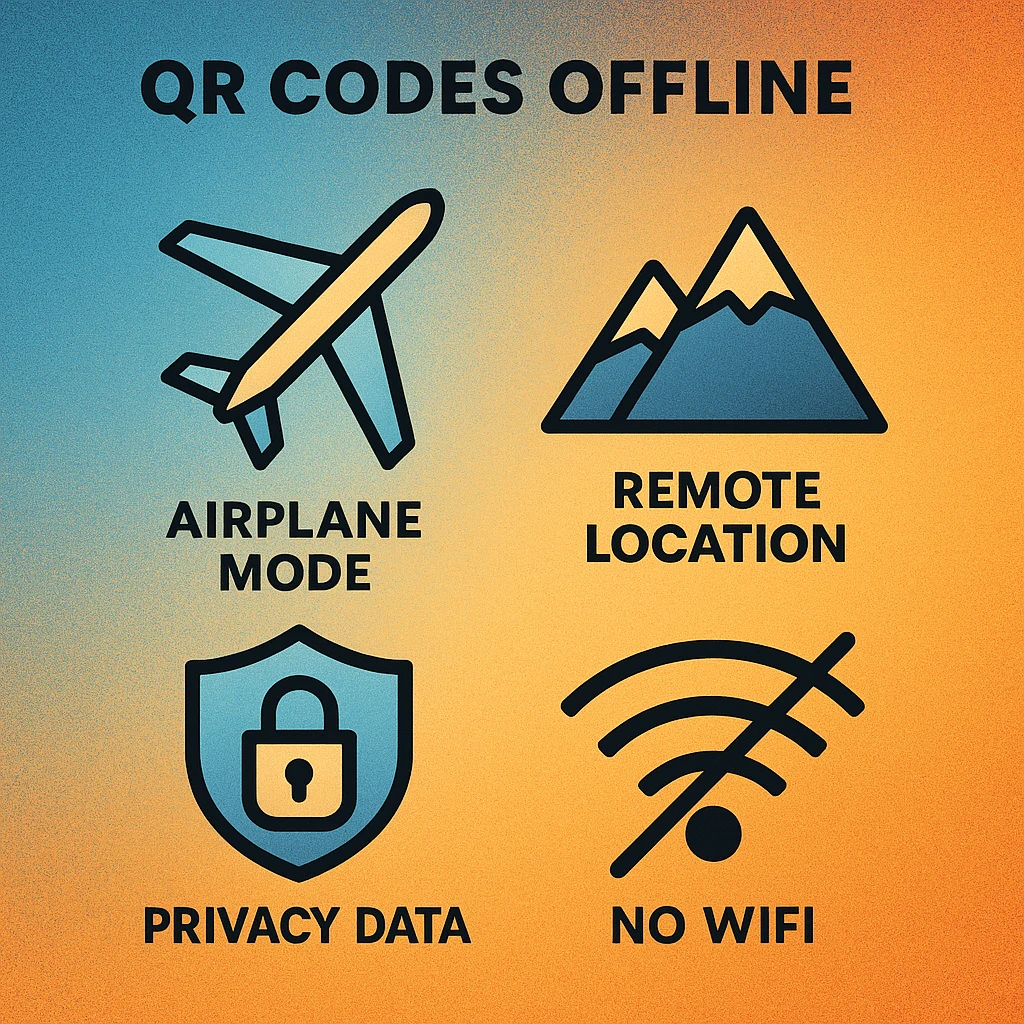
Travelling Without Reliable Internet
Airports, trains, hotels, and conference venues all offer Wi-Fi — but it is rarely fast or reliable. If you need to create a QR code for a presentation, a printed handout, or a venue map while you’re in transit, a native offline app means you never hit a loading spinner or a “connection timed out” error. Your Mac has everything it needs already installed. Open the app, type your content, export your PNG or SVG, and move on.
International travel adds another dimension: roaming data costs money, and connecting to unfamiliar public networks carries security risks. With an offline Mac app, you sidestep both problems entirely. No data connection is required at any point.
Poor or Unstable Wi-Fi
Rural offices, basement meeting rooms, construction sites, and trade show floors are notorious for poor wireless coverage. Web tools become unusable exactly when you need them most. An offline app is immune to connection quality — it generates a QR code in milliseconds regardless of signal strength, because it makes no network calls at all.
Sensitive and Private Data
This is the most compelling argument for offline generation. Consider the types of data people regularly encode into QR codes:
- Wi-Fi credentials — your home or office network password
- vCard contact details — personal phone numbers, home addresses
- Internal corporate URLs — intranet links, staging environment addresses
- Authentication tokens and deep links — one-time codes, app handoffs
- Personal documents and file paths — local folder links for printed labels
Entering any of these into a web-based generator sends them to a remote server. Even a trustworthy service logs IP addresses and may retain inputs for debugging or analytics. A native offline app processes none of this data over the network. For a deeper exploration of this topic, see our article on QR code privacy and on-device processing.
If you would not type the data into a search engine, do not type it into a web-based QR generator. Use a native offline app instead. Your Wi-Fi password, personal contact details, and internal URLs all fall into this category.
How Offline QR Generation Works Technically
Understanding what happens under the hood helps explain why a native app can generate QR codes instantly without any server involvement.
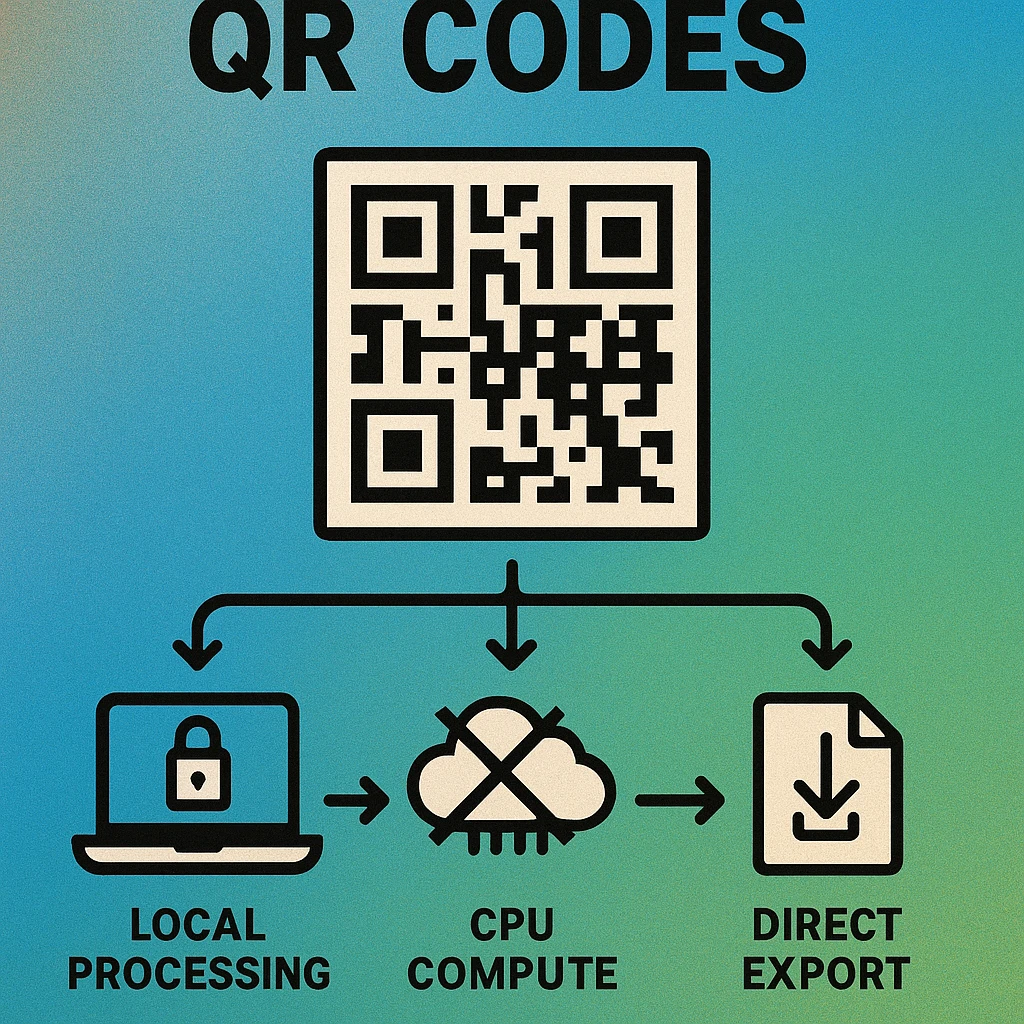
The QR Encoding Pipeline
QR code generation is a deterministic algorithm defined by ISO/IEC 18004. Given identical input, every conforming encoder — whether running on a server in a data centre or on your MacBook’s CPU — produces an identical output matrix. The algorithm involves four steps, all of which are pure computation with no network dependency:
How a QR Code Is Generated Locally
Data analysis and encoding mode selection. The encoder examines your input and chooses the most efficient encoding mode: numeric, alphanumeric, byte, or kanji. This is a string classification operation that takes microseconds.
Data encoding and error correction. Your input is converted to a binary data stream and then processed through a Reed-Solomon error correction algorithm. The error correction level (L, M, Q, or H) determines how much redundancy is added. All of this is pure maths running in CPU memory.
Module placement and masking. The binary stream is arranged into a 2D matrix according to fixed rules. Eight masking patterns are evaluated and the best-scoring one is selected to minimise visual patterns that could confuse a scanner. This is the most CPU-intensive step — but on a modern Mac it completes in under a millisecond.
Image rendering. The bit matrix is drawn to a graphics context at your chosen resolution. On macOS, native apps typically use Core Image (CIQRCodeGenerator) or Core Graphics for this step, producing a pixel-perfect PNG or a resolution-independent PDF/SVG. The result is written to disk or copied to the clipboard — no upload required.
Apple’s Core Image Filter
macOS ships with a built-in QR encoder via Core Image’s CIQRCodeGenerator filter. This means a well-built Mac app can generate QR codes without bundling any third-party library. The filter accepts a data payload and a correction level and returns a CIImage bitmap ready for display or export. Because it’s part of the OS, it is always available — even on a freshly installed Mac with no third-party software installed. This is the foundation that makes true offline generation straightforward to implement on macOS.
For more on native Mac QR tools and their technical implementations, see our article on native Mac QR code generators.
QR Code Apps for Mac & Safari
Prefer generating codes without opening a browser tab? These two native Apple apps cover both habits — a full generator on the desktop, and a one-click share button inside Safari.


Offline vs Online: Side-by-Side Comparison
Not every situation demands offline generation — but it’s worth understanding exactly where the two approaches differ before choosing a tool.
| Criterion | Offline Native Mac App | Web-Based Generator |
|---|---|---|
| Internet required | No | Yes |
| Data sent to server | Never | Always |
| Safe for sensitive data | Yes | No |
| Works on airplane mode | Yes | No |
| Generation speed | Instant | Variable |
| No account required | Yes | Usually |
| QR output quality | Identical | Identical |
The key takeaway from this table: offline and online generators produce identical QR codes from identical inputs. The difference is entirely about privacy, reliability, and convenience — not about output quality.
Getting Started with Offline QR Generation on Mac
Generate QR Codes Offline on Your Mac
Download Gen QR Code Maker from the Mac App Store. Works on airplane mode, no account required, no data ever leaves your Mac.
The simplest path to offline QR generation on Mac is downloading a native app from the Mac App Store. Mac App Store apps are sandboxed by Apple: they have defined entitlements and cannot make arbitrary network requests unless explicitly granted permission to do so. A well-designed QR app requests no network entitlement — you can verify this yourself by opening Activity Monitor and checking network connections while generating a code.
What to Look For in a Mac QR App
- No network entitlement required — the app’s App Store listing should not list “Uses data from the internet” as a requirement for core generation features
- Export to PNG, SVG, or PDF — resolution-independent formats are essential for print use
- Error correction level control — choose between L, M, Q, and H depending on your use case
- Batch generation support — useful if you need to create multiple codes from a spreadsheet
- macOS integration — drag-and-drop export, clipboard support, and Quick Look previews
If you travel frequently, work with sensitive data, or simply want QR generation that never depends on a connection, a native Mac app is the right tool. Download once, use forever — offline, in the air, or on the most remote Wi-Fi network you’ve ever sat on. For privacy-specific guidance, see our full article on on-device QR code privacy.
Frequently Asked Questions
Yes. A native Mac app that uses on-device QR generation libraries — such as Apple’s Core Image CIQRCodeGenerator filter — encodes data and renders the QR image entirely in local memory. No network request is made at any stage. The app will generate QR codes on an airplane, in a remote location, or with Wi-Fi completely disabled.
Yes, significantly. Web-based QR generators send your input — URLs, passwords, contact details, or internal links — to a remote server in order to generate the image. A native offline Mac app never transmits that data; encoding happens in RAM on your machine and the output is written locally. Your content stays entirely on your device.
Any data you would not want a third-party server to see should be encoded offline: Wi-Fi passwords, internal corporate URLs, personal contact cards (vCards), authentication tokens, private document links, and sensitive file paths. For public-facing URLs with no sensitive content, a web tool is fine — but when in doubt, use a native offline app.
Not at all. The QR code standard (ISO/IEC 18004) is a deterministic specification: the same input data always produces the same QR matrix. Whether encoding runs on a remote server or on your local Mac CPU, the result is an identical bit-pattern. Quality depends on output resolution and error correction level, not on where encoding happened.
Download a native Mac app from the Mac App Store — such as Gen QR Code Maker. Native apps are sandboxed by Apple, bundle all generation logic locally, and do not require a server connection. Once installed, you can generate, customise, and export QR codes indefinitely without Wi-Fi or an internet connection.