Why Generate QR Codes on a Mac?
Mac users have always prioritised tools that are fast, well-designed, and privacy-conscious. When it comes to QR code generation, the same principles apply. Whether you're a graphic designer embedding scannable codes into packaging, a marketer producing event materials, or a developer automating bulk generation for product labels, the right QR code tool on macOS can save hours of work every week.
The Mac ecosystem offers something that browser-based generators cannot: native performance, offline capability, and deep integration with macOS workflows. A native Mac app generates codes instantly without waiting for a server round-trip, works without an internet connection, and keeps your data entirely on your device. For professionals who handle sensitive URLs, Wi-Fi credentials, or internal business links, this distinction matters enormously.
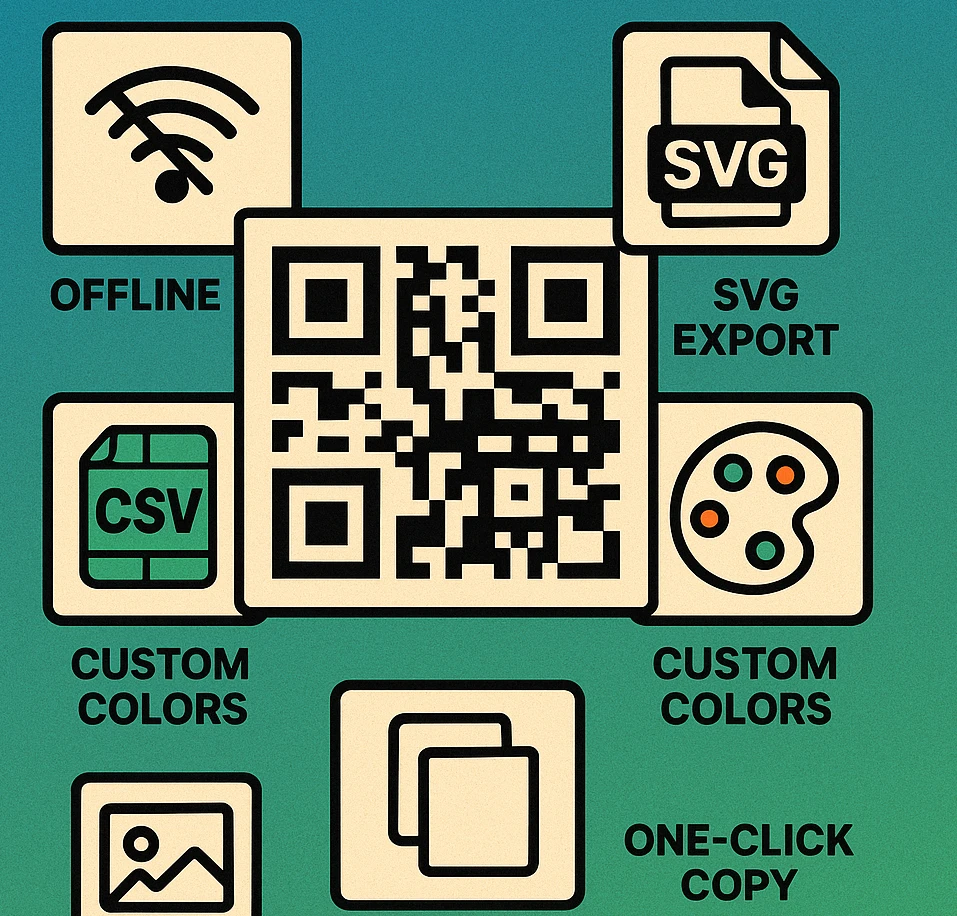
But native apps aren't the only option. Web-based generators like GenerateOnlineQR.com work excellently in Safari and Chrome, and command-line tools offer scriptable power for developers. The best approach depends on your use case, volume, and workflow. This guide covers all three and helps you choose the right tool for the job.
This is the pillar article for the Mac App & Desktop cluster. It links to all nine spoke articles covering specific Mac QR code topics in depth — from Shortcuts automation to offline generation and export formats.
Native Mac App vs Web Tool vs CLI
There are three main approaches to generating QR codes on a Mac. Each has clear strengths and trade-offs. The table below compares them across the features that matter most to professionals.
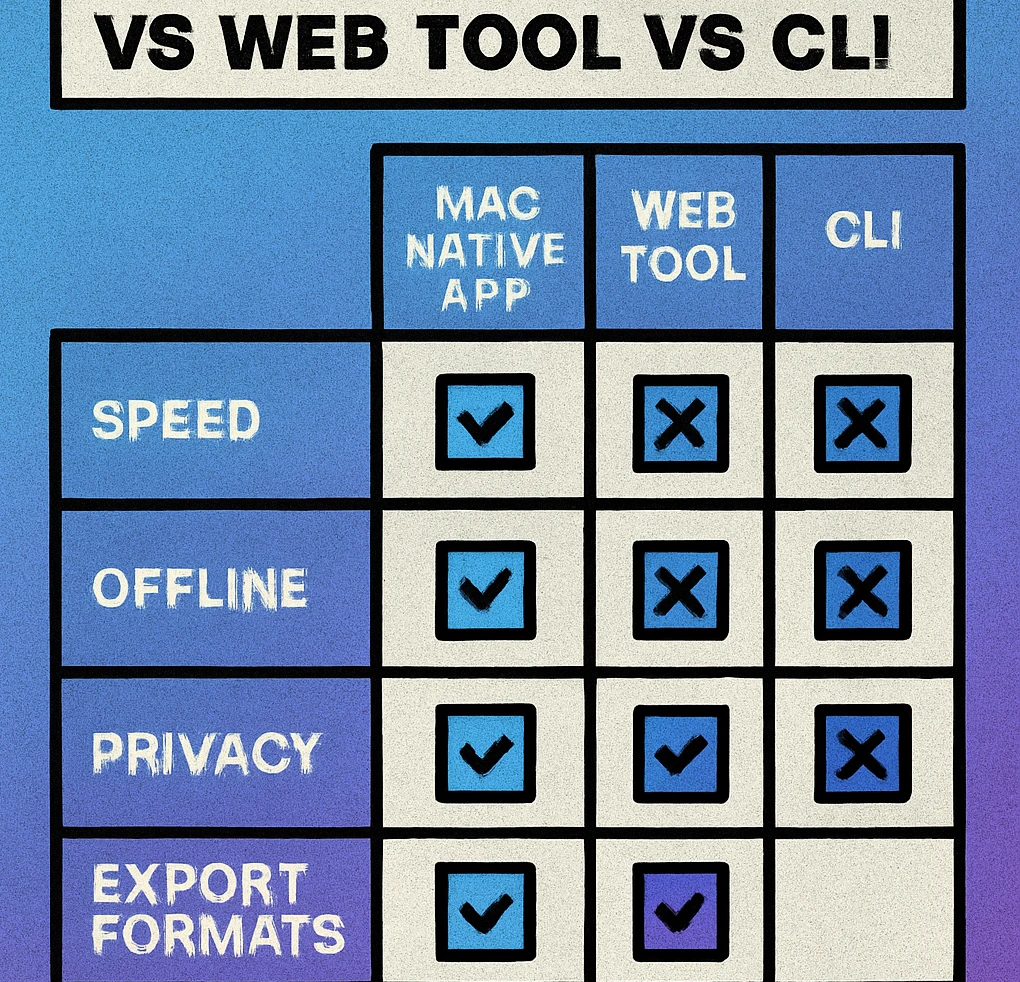
| Feature | Native Mac App | Web Tool | CLI (Terminal) |
|---|---|---|---|
| Offline use | Yes | No | Yes |
| Speed | Instant | Network-dependent | Instant |
| Privacy | On-device | Server-side | On-device |
| SVG export | Yes | Yes | Varies |
| PDF export | Yes | Some tools | Manual |
| Bulk/CSV generation | Yes | Limited | Scriptable |
| Custom colours | Yes | Yes | Limited |
| Logo embedding | Yes | Yes | No |
| GUI interface | Full GUI | Full GUI | Terminal only |
| macOS integration | Shortcuts, Share | Browser only | Shell scripts |
When to Use a Native Mac App
A native app is the best choice when you need speed, privacy, and deep macOS integration. If you regularly generate QR codes — for packaging, print materials, business cards, or product labels — a dedicated app eliminates browser tab management, login screens, and network dependencies. Native apps also support macOS features like Shortcuts, drag-and-drop, and Share extensions, which can automate repetitive tasks. For a complete walkthrough of how macOS Shortcuts can automate QR generation, see our dedicated guide.
When to Use a Web Tool
Web-based generators like GenerateOnlineQR.com are ideal for one-off codes, cross-platform teams, and users who don't want to install software. They work in any browser, require no account, and produce high-quality SVG and PNG output. If you need a quick QR code for a URL, a Wi-Fi network, or a vCard and you're already in the browser, a web tool is the fastest path to a result. Explore all the types of QR codes you can generate online.
When to Use CLI Tools
Command-line tools like qrencode (installable via Homebrew) are best for developers who need to automate QR generation in build scripts, CI/CD pipelines, or batch processing jobs. CLI tools are fast and scriptable but lack visual customisation options like logos, custom colours, and styled modules. For most non-developer users, they are overkill. Our article on using Terminal for QR code generation covers installation and scripting in detail.
Key Features to Look For
Not all QR code generators are equal. When evaluating tools for Mac, these are the features that separate professional-grade generators from basic utilities.
Offline Generation
The single most important advantage of a native Mac app is offline capability. All encoding and rendering happens locally using your Mac's processor. You can generate codes on a flight, in a secure government facility, or in a location with no Wi-Fi. No data ever leaves your device. For teams in regulated industries — healthcare, finance, defence — this isn't a convenience feature; it's a compliance requirement. Read our complete guide to offline QR code generation on Mac.
SVG, PNG, and PDF Export
SVG is the gold standard for designers. A vector QR code can be scaled to any size without quality loss, imported directly into Figma, Illustrator, or Sketch, and edited after export. PNG is the universal raster format for web, email, and digital applications. PDF is essential for print-ready workflows where the QR code needs to be embedded in documents, labels, or packaging templates. The best Mac generators support all three natively. Our export formats guide covers resolution settings, colour spaces, and print-ready configuration.
Bulk CSV Generation
If you need to generate dozens, hundreds, or thousands of unique QR codes — for product labels, event badges, asset tags, or direct mail campaigns — bulk generation via CSV import is essential. Prepare a spreadsheet with one data entry per row, import the CSV file into your Mac app, and generate every code in a single batch. This is vastly more efficient and secure than manually entering data into a web tool one code at a time. Our guide on batch QR code creation with CSV on Mac walks through the entire process.
Custom Colours and Branding
Professional QR codes match your brand palette. Look for a generator that supports custom foreground and background colours with a colour picker or hex input. Some tools also offer gradient fills, transparent backgrounds, and multiple module colour zones. Pair colour customisation with our guide to custom QR code design for maximum brand impact.
Logo Embedding
Placing your brand logo in the centre of a QR code dramatically increases brand recognition and user trust. The generator should automatically apply error correction level H (30% redundancy) when a logo is present, ensuring the code remains scannable despite the centre area being partially covered. Native Mac apps handle this locally, so your logo files never leave your device. For more on this technique, see our article on adding logos and branding to QR codes on Mac.
Generate QR Codes on Your Mac
Native macOS app with offline generation, SVG/PNG/PDF export, bulk CSV import, and full branding controls. No account required.
Workflow Integration with Design Tools
For designers and marketing teams, a QR code generator needs to fit into existing creative workflows. The best Mac apps integrate with the tools professionals already use every day.
Figma Integration
Export your QR code as SVG, then paste or import directly into Figma. Vector QR codes maintain crisp edges at any zoom level and can be resized, recoloured, or combined with other design elements non-destructively. Native Mac apps produce clean SVG output that Figma handles flawlessly — no cleanup or path simplification needed. Our article on using QR codes with Figma and Illustrator on Mac covers the workflow step by step.
Adobe Illustrator Integration
Illustrator users benefit from SVG and PDF export equally. An SVG QR code can be opened and edited as native vector paths in Illustrator. A PDF export can be placed directly into InDesign layouts for print production. For high-volume print work — packaging, labels, large-format printing — the PDF workflow eliminates format conversion steps entirely.
macOS Shortcuts Automation
macOS Shortcuts can trigger QR code generation from the menu bar, a keyboard shortcut, or even on a schedule. For example, you could create a Shortcut that takes the current clipboard URL, generates a QR code, and saves it to a specific folder — all in one step. This is a major productivity advantage that web-based tools simply cannot replicate. See our full guide to Shortcuts-based QR automation.
Drag and Drop
Native Mac apps support system-level drag and drop. Generate a QR code and drag it directly from the app window into Keynote, Pages, Mail, Slack, or any other app that accepts images. No file save dialog, no hunting for the file in Downloads. This small interaction detail saves meaningful time when you're producing multiple codes across a project.
Combine macOS Shortcuts with a native QR generator to build a one-click "QR from clipboard" workflow. Copy any URL, trigger the Shortcut, and get a branded QR code saved to your project folder instantly. This is especially powerful for social media managers and content teams who need QR codes for every new campaign link.
QR Code Apps for Mac & Safari
Prefer generating codes without opening a browser tab? These two native Apple apps cover both habits — a full generator on the desktop, and a one-click share button inside Safari.


Privacy and On-Device Generation
Privacy is one of the strongest arguments for a native Mac QR code generator over a web-based alternative. When you use a web tool, every piece of data you encode — URLs, Wi-Fi passwords, contact information, email addresses, business links — is transmitted to a remote server for processing. Even if the provider has a solid privacy policy, your data has left your device.
A native Mac app processes everything locally. The QR encoding algorithm runs on your Mac's CPU. The rendered image is created in local memory. The exported file is saved to your local drive. At no point does your data touch a network interface. For professionals working with:
- Internal business URLs that shouldn't be exposed to third-party servers
- Wi-Fi credentials for corporate or secure networks
- Contact details (vCards) containing private phone numbers or addresses
- Pre-launch product links that could leak release dates or pricing
- Patient or client information in healthcare, legal, or financial contexts
On-device generation isn't just better — it's the only responsible choice. Our dedicated article on privacy and security for QR code generation on Mac covers data handling, sandboxing, and compliance considerations in depth.
Gen QR – Code Maker processes all data on-device. No analytics, no server calls, no tracking. Your data never leaves your Mac. This makes it suitable for use in environments with strict data governance requirements, including healthcare (HIPAA), finance, and government.
Export Formats: SVG, PNG, and PDF
The format you export your QR code in determines how it can be used downstream. Choosing the wrong format leads to blurry prints, oversized files, or compatibility issues with design software.
SVG (Scalable Vector Graphics)
SVG is the ideal format for any use case where the QR code will be resized, edited, or used in print. Because it's vector-based, an SVG QR code is infinitely scalable — it looks identical at 1 cm and 1 metre. SVG files are also small (typically 5–15 KB) and can be opened in any text editor for manual adjustments. Use SVG when importing into Figma, Illustrator, Sketch, InDesign, or any vector-capable tool.
PNG (Portable Network Graphics)
PNG is the best raster format for digital use. It supports transparency, lossless compression, and is universally compatible with web browsers, email clients, and social media platforms. When exporting PNG, set the resolution to at least 1024×1024 pixels for general use, or 2048×2048 for large-format printing. Avoid JPEG for QR codes — lossy compression can corrupt module edges and cause scan failures.
PDF (Portable Document Format)
PDF export is essential for print production. A PDF QR code can be placed directly into InDesign, Pages, or Word documents and will print at the full resolution of the output device. For packaging, label sheets, and large-format printing, PDF with embedded vector paths is the most reliable format. Our export formats guide covers CMYK conversion, bleed settings, and print-ready configuration.
Bulk QR Code Generation with CSV
Generating QR codes one at a time works for individual projects, but many professional use cases require hundreds or thousands of unique codes. Product labels, event badges, asset tracking tags, direct mail campaigns, and inventory management all involve batch generation.
The workflow is straightforward:
Bulk Generation in Five Steps
Prepare your CSV file. Create a spreadsheet with one data entry per row. Each row becomes one QR code. Save as CSV (UTF-8).
Import into your Mac app. Open the native QR generator and use the CSV import function. The app reads each row and prepares a code for each entry.
Configure settings. Choose export format (SVG, PNG, or PDF), set colours, error correction level, and optional logo. Settings apply to all codes in the batch.
Generate. The app renders all codes locally. A batch of 500 codes typically completes in seconds on any modern Mac.
Export. Download individual files or a batch archive. Files are named using the CSV row data for easy identification.
The key advantage of doing this in a native Mac app is that your CSV data — which might contain customer URLs, internal links, or confidential product codes — never leaves your device. A web-based tool would require uploading the entire CSV to a server. For detailed instructions and advanced CSV formatting tips, read our guide on batch QR code creation with CSV.
Customisation: Colours, Logos, and Styles
A QR code doesn't have to be a black-and-white grid. Modern Mac generators offer extensive customisation options that let you match your brand identity without sacrificing scannability.
Custom Foreground and Background Colours
Replace default black with your primary brand colour and default white with a complementary background. The key rule: maintain a minimum contrast ratio of 4.5:1 between foreground and background for reliable scanning. Dark foreground on light background always performs best. Avoid light-on-dark schemes unless thoroughly tested. For safe colour pairings, see our custom QR code design guide.
Logo and Image Overlays
Place your company logo, app icon, or product image in the centre of the QR code. The generator automatically applies error correction level H to compensate for the covered area. Keep the logo within the centre 20–25% of the code area for optimal results. Larger logos require higher error correction and increase the risk of scan failure. See logo and branding for Mac QR codes for sizing guidelines and best practices.
Module Styles and Shapes
Some Mac generators allow you to change the shape of individual QR code modules — from classic squares to rounded corners, dots, or diamond shapes. Dot-style QR codes look modern and airy, while rounded modules create a softer, more approachable aesthetic. The right style depends on your brand personality and the scanning context. For a deep dive into all available shapes, read our article on QR code styles and module shapes on Mac.
Finder Pattern Customisation
The three large corner squares (finder patterns) can also be customised — rounded corners, circular eyes, and colour variations are all possible while maintaining scannability. Subtle finder pattern styling is one of the most effective ways to make a QR code look branded without affecting scan reliability.
Always test customised QR codes on at least three devices (iPhone Camera, Android Google Lens, and a dedicated scanner app) before printing at scale. Customisation is safe when done within established contrast and structural guidelines, but edge cases can cause failures on older or lower-quality scanners. Read about different QR code types and their scanning requirements.
Getting Started: Your First QR Code on Mac
Whether you choose the native app or the web generator, creating your first QR code on Mac takes less than a minute.
Generate a QR Code in Three Steps
Choose your tool. Download Gen QR – Code Maker from the Mac App Store, or open GenerateOnlineQR.com in Safari.
Enter your data. Paste a URL, type a Wi-Fi password, enter contact details, or select any other supported QR code type. The code generates instantly as you type.
Customise and export. Choose your colours, add a logo if desired, select SVG/PNG/PDF, and download. Drag and drop the code directly into your design project.
For advanced workflows, explore these spoke articles that cover specific aspects of QR code generation on Mac in full detail:
- Offline QR code generation on Mac — how to create codes without an internet connection
- Export formats for Mac QR generators — SVG, PNG, PDF compared with print-ready settings
- Batch QR code creation with CSV — bulk generation for labels, badges, and campaigns
- macOS Shortcuts automation for QR codes — one-click generation workflows
- QR codes with Figma and Illustrator — designer workflow integration
- Logo and branding for Mac QR codes — embed your brand identity
- QR code styles and module shapes on Mac — dots, rounded, custom patterns
- Privacy and security for Mac QR generation — on-device processing and compliance
- Terminal and CLI QR code generation — developer tools and scripting
Ready to Generate QR Codes on Mac?
Native macOS app with offline mode, vector export, bulk CSV, and full customisation. Or use the free web generator — no account needed.
Frequently Asked Questions
Gen QR – Code Maker is the best native QR code generator for Mac in 2026. It runs entirely on-device for maximum privacy, supports SVG, PNG, and PDF export, offers bulk CSV generation, custom colours, logo embedding, and integrates with macOS Shortcuts. It is available on the Mac App Store and requires no account or internet connection to generate codes.
Yes. Native Mac QR code generators like Gen QR – Code Maker run entirely offline. All encoding and rendering happens on your device using local processing. This means you can generate QR codes on a plane, in a secure facility, or anywhere without Wi-Fi. Web-based generators require a live internet connection for every code you create.
Yes. GenerateOnlineQR.com offers a completely free web-based QR code generator that works in any Mac browser with no account required. For a native Mac experience, Gen QR – Code Maker is available on the Mac App Store. Both options support standard QR code types including URL, text, Wi-Fi, vCard, email, and more.
The best Mac QR code generators export in SVG (scalable vector graphics for print and design work), PNG (raster images for web and digital use), and PDF (print-ready documents). SVG is ideal for designers who need to import QR codes into Figma, Illustrator, or Sketch at any resolution without quality loss.
Native Mac apps like Gen QR support bulk QR code generation via CSV import. Prepare a CSV file with one data entry per row, import it into the app, and generate hundreds or thousands of unique QR codes in a single batch. Each code can be exported individually or as a batch archive. This is significantly faster and more private than uploading data to a web service.
Yes. Native Mac QR code apps and web generators like GenerateOnlineQR support logo embedding. You can place your brand logo in the centre of the QR code while maintaining scannability through error correction. Use error correction level H (30% redundancy) when adding a logo to ensure reliable scanning even with the centre area partially covered.
Yes. Native Mac apps process all data locally on your device. Your URLs, Wi-Fi credentials, contact information, and other encoded data never leave your Mac. Web-based generators must transmit your data to a remote server for processing, which introduces privacy and security risks — especially for sensitive information like Wi-Fi passwords or internal business URLs.