Why Use Mac Shortcuts for QR Code Generation?
The Mac Shortcuts app — introduced to macOS in Monterey and refined through Ventura and Sonoma — lets you chain actions from different apps into repeatable, triggerable workflows. For QR code generation, this unlocks a fundamentally different way of working: instead of opening an app, pasting a URL, adjusting settings, and exporting every single time, you run a single shortcut that handles every step in one keystroke, menu bar click, or scheduled trigger.
This is especially valuable when you generate QR codes regularly: event organisers producing codes for each venue, developers testing mobile deep-links, product teams adding QR codes to packaging iterations, or marketers rotating campaign URLs weekly. For a complete overview of working with QR codes natively on macOS, see the QR Code Generator for Mac pillar guide.
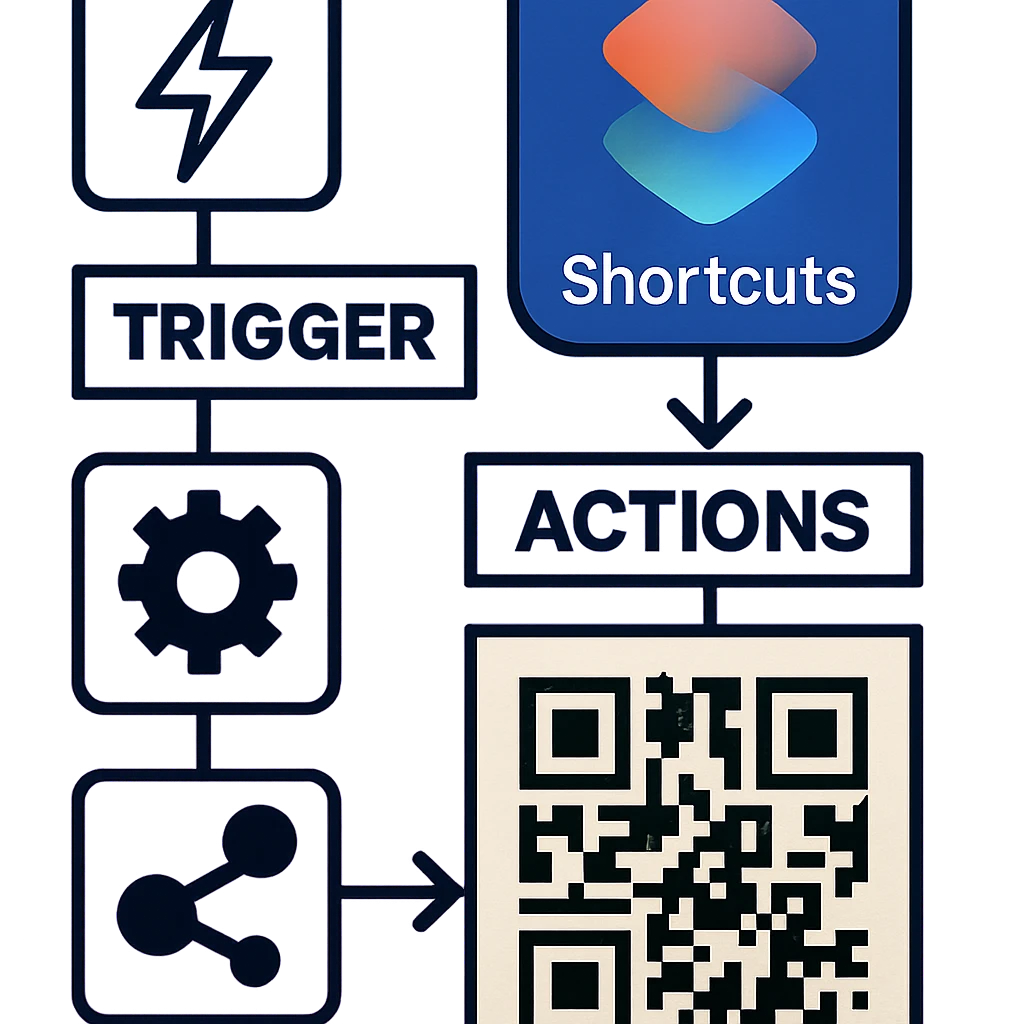
A well-built Shortcuts workflow can reduce a 45-second manual QR code creation process to under 3 seconds — and it can run unattended in the background while you work on something else.
To use QR code actions in Shortcuts you need a Mac app that exposes Shortcuts integration. Gen QR Code Maker is a native macOS app that adds QR generation actions to the Shortcuts library, making the workflows below possible without any scripting or command-line knowledge.
Clipboard-to-QR Workflow
The most common automation request is simple: copy a URL, press a keyboard shortcut, and have a QR code appear instantly. Here is how to build this workflow from scratch.
Build the Clipboard-to-QR Shortcut
Open Shortcuts (Applications → Shortcuts, or press Cmd+Space and type Shortcuts). Click the + button to create a new shortcut.
Add a Get Clipboard action. In the search bar, type "Clipboard" and drag Get Clipboard into the shortcut canvas. This captures whatever text or URL you last copied.
Add the Generate QR Code action from Gen QR Code Maker. Search for "QR" in the action library, find the Gen QR Code Maker action, and add it. Set the input to Clipboard from the previous step.
Add Quick Look or Save to Downloads. To preview the result instantly, add a Quick Look action. To save automatically, add Save File pointing to your Downloads folder (or any location).
Assign a keyboard shortcut. In the shortcut details pane, add a keyboard shortcut trigger (e.g., Ctrl+Opt+Q). Now any copied text becomes a QR code with that key combination.
Once configured, your daily QR code generation workflow becomes: copy the URL, press your key combo, done. The QR code PNG lands in Downloads ready to attach to an email or drop into a design file.
Batch Automation: Generate QR Codes from a List
When you need to produce many QR codes at once — for a product catalogue, event schedule, or URL list — a batch workflow saves hours. For dedicated bulk tools on Mac, also see Bulk QR Code Generator for Mac. The Shortcuts approach is ideal when you already have a text file and want to stay entirely within macOS automation.
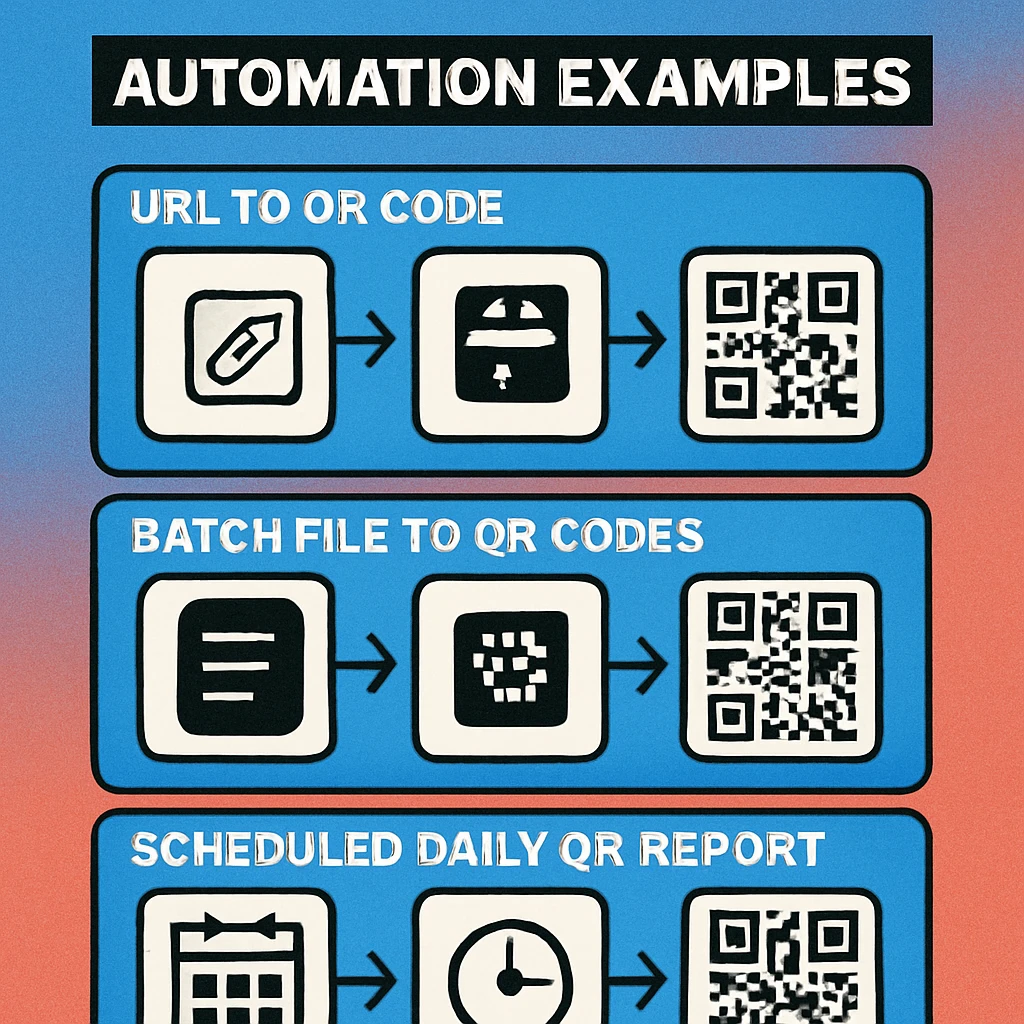
Get Lines from Text // Split file into list of URLs
Repeat with Each Item in Lines
Generate QR Code // Input: Current Item
Set Name QR-[Repeat Index].png
Save File // Destination: ~/Desktop/QR-Output/
End Repeat
The shortcut above reads every line of a plain-text file, generates one QR code per line, names each file sequentially (QR-1.png, QR-2.png, etc.), and drops all results into an output folder. For CSV files with named values, swap Get Lines from Text for a Split Text by Comma action and use the second column as a custom filename.
Use a Text action to build dynamic filenames from the URL or a row value. For example: "QR-" + Current Item + ".png" creates instantly recognisable file names that match the encoded content.
QR Code Apps for Mac & Safari
Prefer generating codes without opening a browser tab? These two native Apple apps cover both habits — a full generator on the desktop, and a one-click share button inside Safari.


Scheduled QR Code Generation
Scheduled automation takes Shortcuts a step further: instead of triggering a shortcut manually, macOS runs it on a calendar, on login, or whenever a specific condition is met. This is useful for teams that rotate campaign URLs weekly, generate QR codes for recurring events, or want to keep a local QR code library in sync with a URL spreadsheet.
To schedule a shortcut, open the Automation tab in the Shortcuts sidebar and choose New Automation. Select a time trigger (Time of Day, Day of Week, or a custom date/time). Point the automation at your QR generation shortcut and set it to run without asking. macOS will execute the shortcut in the background at the scheduled time, even if the Shortcuts app is closed.
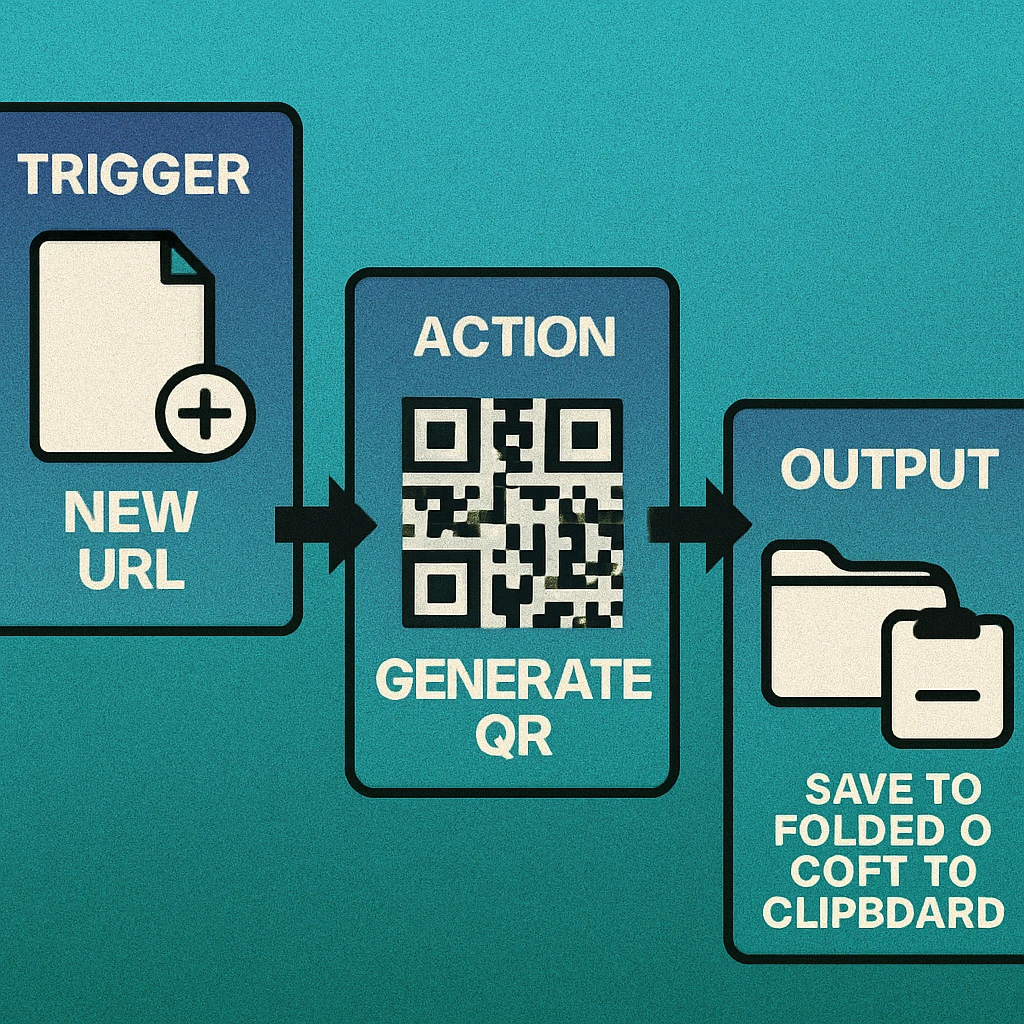
Combine scheduling with a file-reading batch shortcut and you have a fully autonomous QR pipeline: update the URL list, and a new set of QR codes is waiting in the output folder every Monday morning without any manual intervention. For more on native Mac QR code capabilities, see Native Mac QR Code Generator.
Example Shortcut Recipes
Below are four ready-to-adapt Shortcuts recipes for common QR code automation scenarios on Mac.
Recipe 1: Selected Text to QR (Services Menu)
Create a shortcut that accepts Selected Text as input (via Shortcut Input → Receive Text). Add it to the Services Menu so you can right-click any selected text in any app and generate a QR code instantly. The output drops into Quick Look for immediate use.
Recipe 2: Safari URL to QR
Use the Get Current URL from Safari action, pipe it directly into the QR generation action, and save the result to your Desktop. Assign a keyboard shortcut and you can QR-code any webpage you are viewing with a single key press.
Recipe 3: Contacts vCard QR Code
Use Find Contacts to select a contact, format their details as a vCard string with a Text action, and generate a QR code from that string. This creates a scannable contact card anyone can add to their phone by pointing a camera at the code.
Recipe 4: Nightly Campaign URL Refresh
Read a list of campaign URLs from a text file synced via iCloud Drive, batch-generate QR codes, name them with today's date prefix, and save them to a shared folder. Schedule this to run nightly so your marketing team always has fresh QR codes without anyone lifting a finger.
Ready to Automate Your QR Codes on Mac?
Gen QR Code Maker brings native Shortcuts integration to macOS — no browser, no sign-up, no limits on the number of codes you generate.
Tips & Best Practices
- Test before scheduling. Run any automation shortcut manually several times before setting a scheduled trigger. Verify that file paths exist and output names do not collide.
- Use error-handling steps. Add an If action to check whether the clipboard or file input is empty before passing it to the QR generation action. This prevents failed shortcut runs from creating blank or broken QR files.
- Organise output folders by date. Use a Format Date action to create date-stamped subfolders (e.g.,
QR-Output/2026-03-31/). This keeps large batch runs tidy and makes it easy to roll back to a previous set of codes. - Keep URLs short. The shorter the encoded string, the less dense and more reliable the QR code. Use a URL shortener for long UTM-tagged URLs before encoding.
- Verify scannability after batch runs. Spot-check a random sample of batch-generated codes with multiple devices — especially if you are encoding long strings or using custom styling options.
- Combine with Focus Modes. Shortcuts can be triggered when a Focus Mode activates. If you have a Work Focus, you can automatically generate your daily QR codes when you start work without any manual step at all.
Frequently Asked Questions
macOS does not include a native action for generating QR codes in Shortcuts. You need a QR code app that exposes Shortcuts actions, such as Gen QR Code Maker. Once installed, the app's actions appear in the Shortcuts action library and can be combined with any other macOS automation step.
Open the Shortcuts app, create a new shortcut, and add a Get Clipboard action followed by a Generate QR Code action from Gen QR Code Maker. Pass the clipboard text as the input URL or text value. Add a Quick Look action at the end to preview the result, or a Save to Downloads action to export the PNG automatically.
Yes. Use a Shortcut that reads a plain-text or CSV file, splits the content by line or delimiter, then loops over each value with a Repeat with Each block. Inside the loop, call the Generate QR Code action and save the output image to a named folder. This produces one QR code PNG per row without any manual steps.
In the Shortcuts app, open the Automation tab and click New Automation. Choose a time trigger (daily, weekly, or a specific date/time). The shortcut can pull data from a file, URL, or clipboard and generate updated QR codes on a recurring basis, saving them to a set destination folder.
The Gen QR Code Maker app provides a visual interface ideal for one-off QR codes with custom colours, logos, and styles. Shortcuts integration is best for repetitive, automated, or triggered workflows — generating QR codes in bulk, on a schedule, or reacting to clipboard changes — without opening the app UI each time.