Why Batch Generation Matters
Most online QR code tools are built around a single-code workflow: type a URL, tweak the colours, download one PNG. That works well for a landing page or a contact card. It breaks down the moment your requirement scales — imagine manually generating 300 QR codes for a trade show badge run, or 1,000 SKU labels for a new product line.
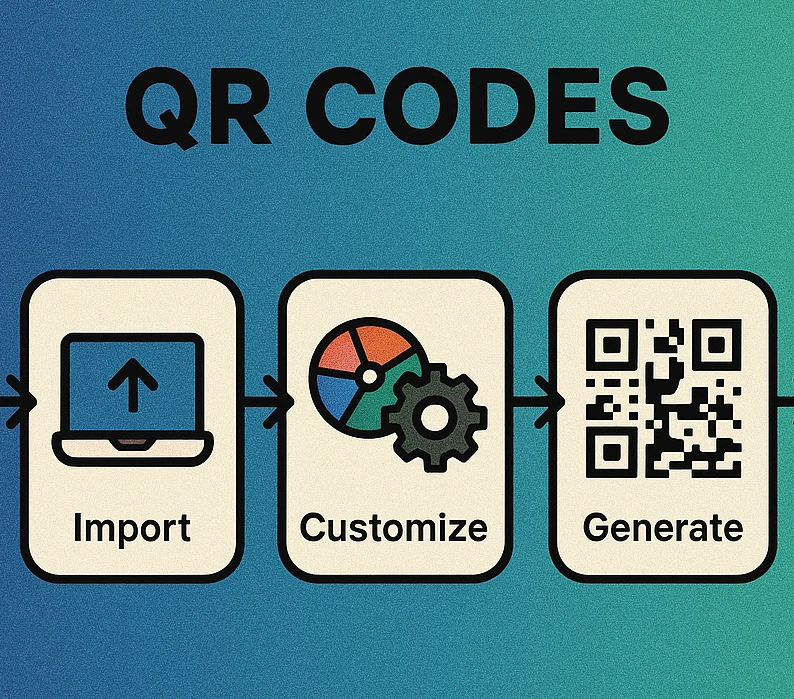
A native bulk QR code generator for Mac solves this by accepting a CSV file as input and producing a full folder of individually named PNG files as output. The whole job runs in seconds on your Mac, entirely offline. No upload limits, no subscription paywalls, no waiting for a server to process your file.
For a complete overview of everything the Mac app can do beyond batch generation, see the QR code generator for Mac pillar guide. This article goes deep on the CSV-to-zip batch workflow specifically.
Gen QR Code Maker from the Mac App Store, a spreadsheet application (Numbers, Excel, or Google Sheets), and a CSV export of the data you want to encode. That’s it — no additional tools or accounts required.
Preparing Your CSV File
The quality of your batch output depends entirely on the quality of your CSV input. A well-structured file produces a clean, correctly labelled zip with no errors. A sloppy file produces missing files, garbled filenames, or failed rows.
Required Columns
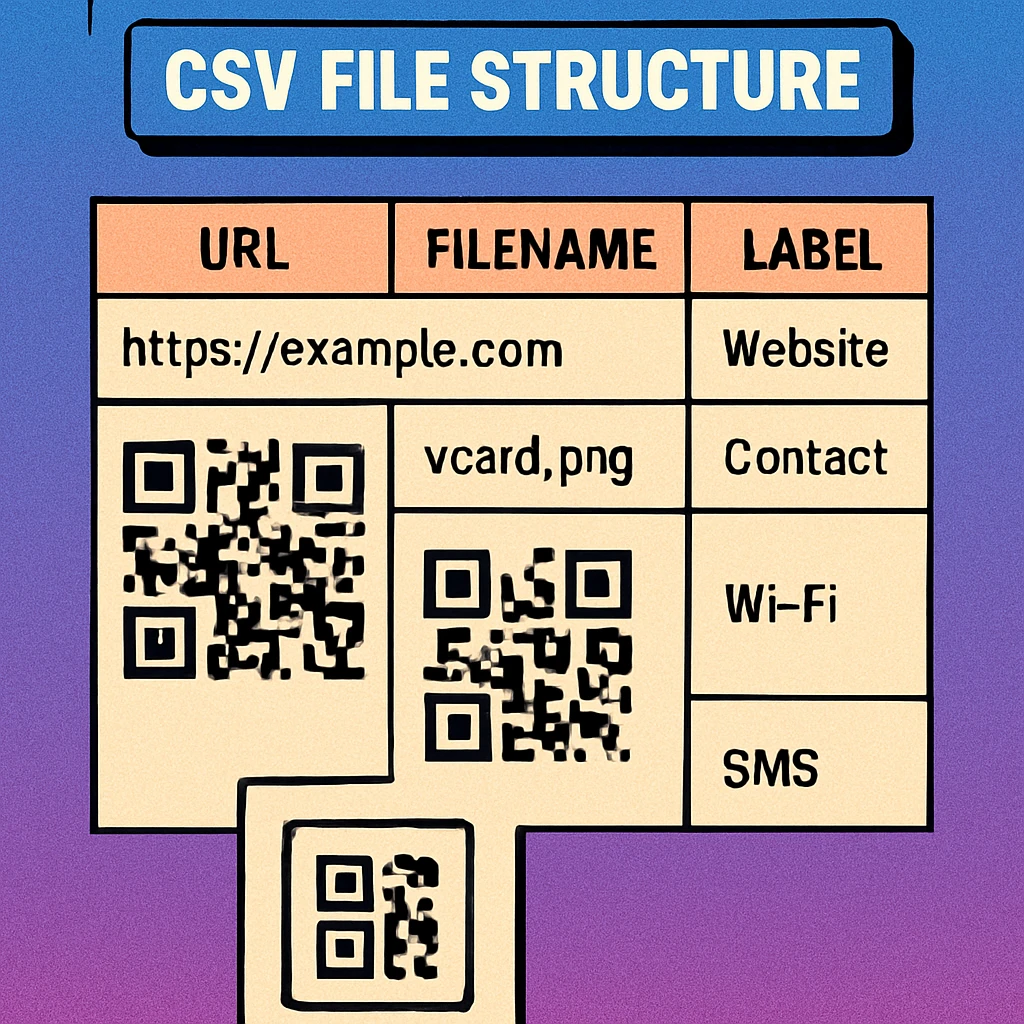
Your CSV must include at minimum these two columns, with the exact header names shown:
- label — The output filename for this QR code (without the .png extension). Use the SKU, item ID, badge name, or any unique identifier. Avoid special characters: stick to letters, numbers, hyphens, and underscores.
- data — The content to encode. This can be a URL (
https://example.com/product/sku-123), a plain text string, a phone number (tel:+15551234567), or any other valid QR payload.
Optional Columns
These columns let you override the global batch settings on a per-row basis:
- error_correction — Accepts
L,M,Q, orH. If omitted, the app uses the level set in the batch settings panel (default:M). - size — Output image size in pixels (e.g.
512,1024). If omitted, the global size setting applies.
label,data,error_correction,size
badge-001,https://www.generateonlineqr.com/event/attendee/001,H,512
badge-002,https://www.generateonlineqr.com/event/attendee/002,H,512
sku-A100,https://www.generateonlineqr.com/products/A100,M,1024
sku-A101,https://www.generateonlineqr.com/products/A101,M,1024
shelf-bin-42,BIN-42 | ZONE-C | ROW-7,,
The three most frequent CSV errors are: (1) a BOM character at the start of the file (save as UTF-8 without BOM), (2) duplicate values in the label column (each filename must be unique), and (3) commas inside data values that aren’t quoted (wrap any value containing a comma in double quotes).
Exporting from Numbers, Excel, or Google Sheets
In Numbers: File → Export To → CSV. In Excel: File → Save As → CSV UTF-8. In Google Sheets: File → Download → Comma-separated values (.csv). All three produce valid UTF-8 CSV files that the Mac app accepts without modification.
Importing & Running the Batch
Batch Generation: Step by Step
Open Batch Mode. Launch Gen QR Code Maker and click the Batch tab in the toolbar. This switches the app from single-code mode to the CSV import panel.
Import your CSV. Click Import CSV and select your file, or drag the .csv file directly onto the drop zone. The app parses the file and displays a preview table showing all rows and their detected columns. Check the row count and scan for any error indicators (shown in red).
Configure batch settings. Set the global defaults for any rows that don’t specify their own error_correction or size values. Choose your preferred output resolution (512px is sufficient for screen; 1024px or higher for print). Select the QR code style (square modules are recommended for batch jobs that will be scanned by industrial readers).
Generate. Click Generate All. The app processes each row sequentially, showing a real-time progress bar. On an M-series Mac, 500 rows typically complete in under 10 seconds. Any rows with errors are flagged with a warning icon and skipped — they don’t abort the rest of the batch.
Review results. Once generation is complete, the app shows a summary: total rows processed, successful codes, and any skipped rows with the reason for each skip. Click any row to preview its QR code before exporting.
QR Code Apps for Mac & Safari
Prefer generating codes without opening a browser tab? These two native Apple apps cover both habits — a full generator on the desktop, and a one-click share button inside Safari.


ZIP Export & File Naming
When the batch completes, click Export ZIP. The app bundles all successfully generated PNG files into a single zip archive and prompts you to choose a save location. The zip structure is flat (all files in the root, no sub-folders) to make it easy to drag the contents directly into label design software.
Each file is named exactly as specified in the label column of your CSV, with .png appended. For example, a row with label = badge-042 produces badge-042.png. This predictable naming is intentional: it lets you use VLOOKUP or INDEX/MATCH in your spreadsheet to cross-reference the exported files back to the original data without manual renaming.
Batch Generate QR Codes on Your Mac
Import a CSV, configure once, export hundreds of labelled PNG files in seconds — all offline, no account needed.
Use Cases
Inventory Labels
Export your inventory list from your ERP, warehouse management system, or even a Numbers spreadsheet. Map item IDs to the label column and product detail URLs (or plain item identifiers) to data. The resulting zip drops straight into a label template in Pages or Word, giving you a printable sheet of unique QR codes aligned to your SKU list. For a deeper look at QR codes in warehousing workflows, see our guide to QR code inventory management.
Event Badges
Export your attendee list as a CSV from Eventbrite, Airtable, or your event management platform. Use the attendee name or ID as the label and a unique check-in URL or attendee profile link as the data. Run the batch and feed the exported PNGs into your badge print template. A 200-person event badge run takes under two minutes from CSV export to print-ready files — all on your Mac, no third-party service required.
Product Packaging
Packaging QR codes typically link to product detail pages, instruction manuals, or regulatory compliance documents. With a batch workflow, you can generate one QR code per SKU variant in a single run, with each code sized and formatted consistently at print resolution. Combine with error correction level H to handle any potential damage from packaging creases, moisture, or wear. See our guide to QR codes for product packaging for more on sizing, placement, and compliance considerations.
Tips & Best Practices
- Use H error correction for print jobs. Packaging, labels, and badges can get scratched, folded, or partially obscured. Error correction level H lets scanners reconstruct up to 30% of a damaged code.
- Export at 1024px or higher for print. 512px is fine for screen display, but print at 300 DPI requires at least 1024px for codes printed at 3–4 cm. For larger label sizes, go to 2048px.
- Keep label values filesystem-safe. Avoid slashes, colons, asterisks, question marks, and other characters that macOS will reject as filenames. Hyphens and underscores are safe.
- Test a small batch first. Before running all 500 rows, test with a 5-row sample and scan the exported codes with both iOS and Android. Confirm the URLs resolve correctly.
- Back up your CSV. The CSV is your source of truth for the mapping between filenames and encoded data. Keep it in version control or a shared drive alongside the exported zip.
Prepare a UTF-8 CSV with label and data columns, import it into Gen QR Code Maker’s Batch tab, configure global settings, generate, and export a labelled zip. The entire workflow runs offline on your Mac and scales to 500 codes per batch run.
Frequently Asked Questions
The Gen QR Code Maker Mac app supports batch jobs of up to 500 rows per CSV import. For larger datasets, split your CSV into multiple files of 500 rows each and run sequential batch jobs. Each job exports a single labelled zip file, so merging the results is straightforward.
At minimum your CSV needs two columns: a label column (used as the output filename) and a data column (the URL, text, or value encoded into the QR code). Optional columns include error_correction (L, M, Q, or H) and size (pixels). The first row must be a header row matching these column names exactly.
The Mac app exports a zip archive containing one PNG file per row in your CSV. Each file is named using the value in the label column, making it easy to match files back to your original data. You can choose the output resolution (default 512px) before starting the batch job.
Yes. Export your inventory item list from a spreadsheet or ERP system as a CSV, map the SKU or item ID as the label column and the item URL or identifier as the data column, then run the batch job. The exported zip gives you one QR code PNG per SKU, ready to drop into a label template in Pages, Word, or your label printing software.
Yes. The Gen QR Code Maker app generates QR codes entirely on-device using native macOS frameworks. No internet connection is required for CSV import, batch generation, or zip export. Your data never leaves your Mac.