Why Generate QR Codes in Python?
When you need QR codes at scale — batch-generating unique codes for thousands of products, embedding dynamic QR output in a web backend, or automating a document pipeline — a visual QR generator is the wrong tool. Python gives you programmatic control: loop over a dataset, generate a unique code per row, apply consistent branding, and save to your preferred format, all in a single script.
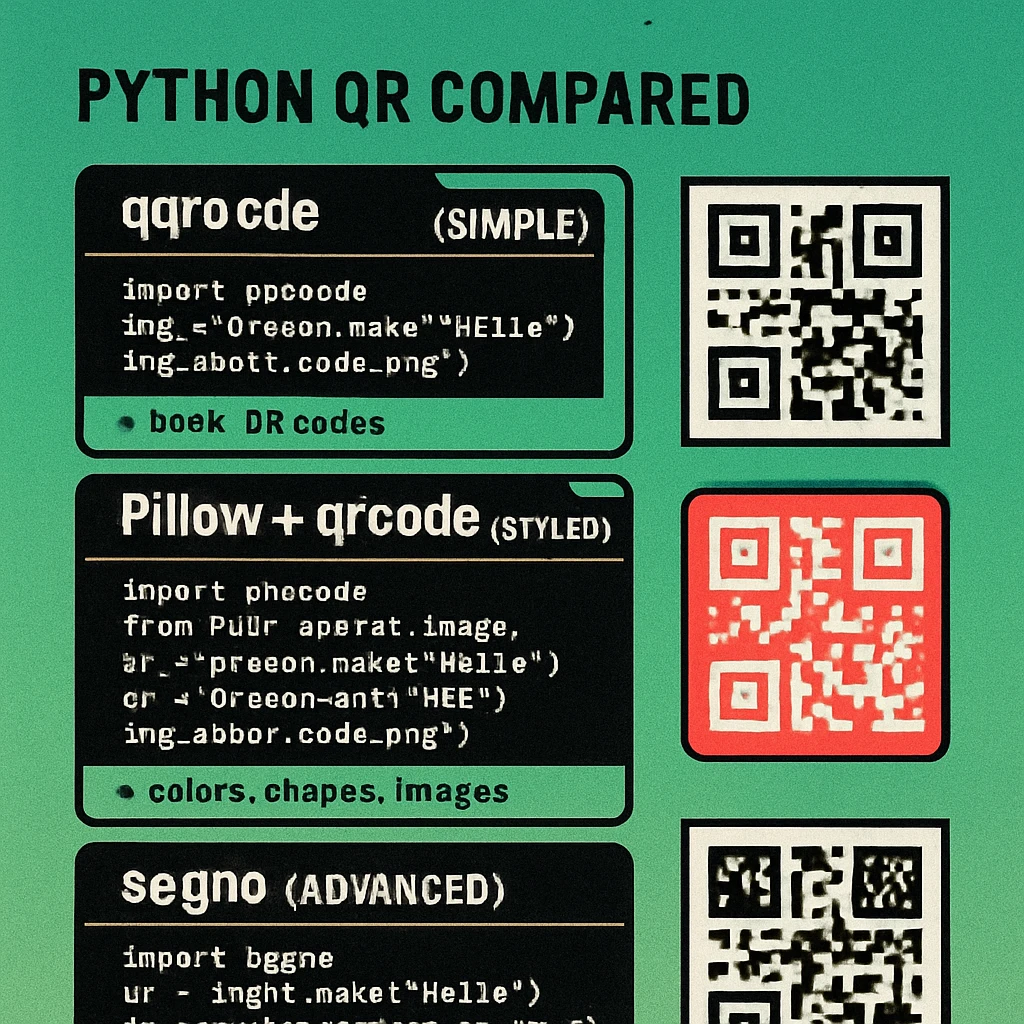
Python's ecosystem has three mature QR libraries: qrcode (the most widely used), Pillow (an imaging library that qrcode uses for raster output), and segno (a newer, dependency-light library with broader format support). Understanding when to use each is the core of this guide.
For a deeper look at the underlying data structure your Python code is producing, read our pillar on QR code technical specifications, which covers error correction levels, version sizing, and encoding modes in detail. If you are building a server-side integration rather than a local script, the QR code generator API guide compares REST endpoints you can call without any local library.
All examples in this article require Python 3.8+. Commands use the standard pip installer. If you use a virtual environment (recommended), activate it before running any pip install commands.
The qrcode Library: Installation and Basic Usage
The qrcode package is the de-facto standard for Python QR generation. It wraps the QR encoding logic cleanly and delegates image rendering to Pillow, which means you get full raster image control with a minimal API.
Installation
# Install qrcode with the Pillow imaging backend
pip install qrcode[pil]

# Verify installation
python -c "import qrcode; print(qrcode.__version__)"
The [pil] extra installs Pillow automatically. Without it, qrcode can only produce ASCII art output and cannot save image files.
Minimal Example: Generate and Save a PNG
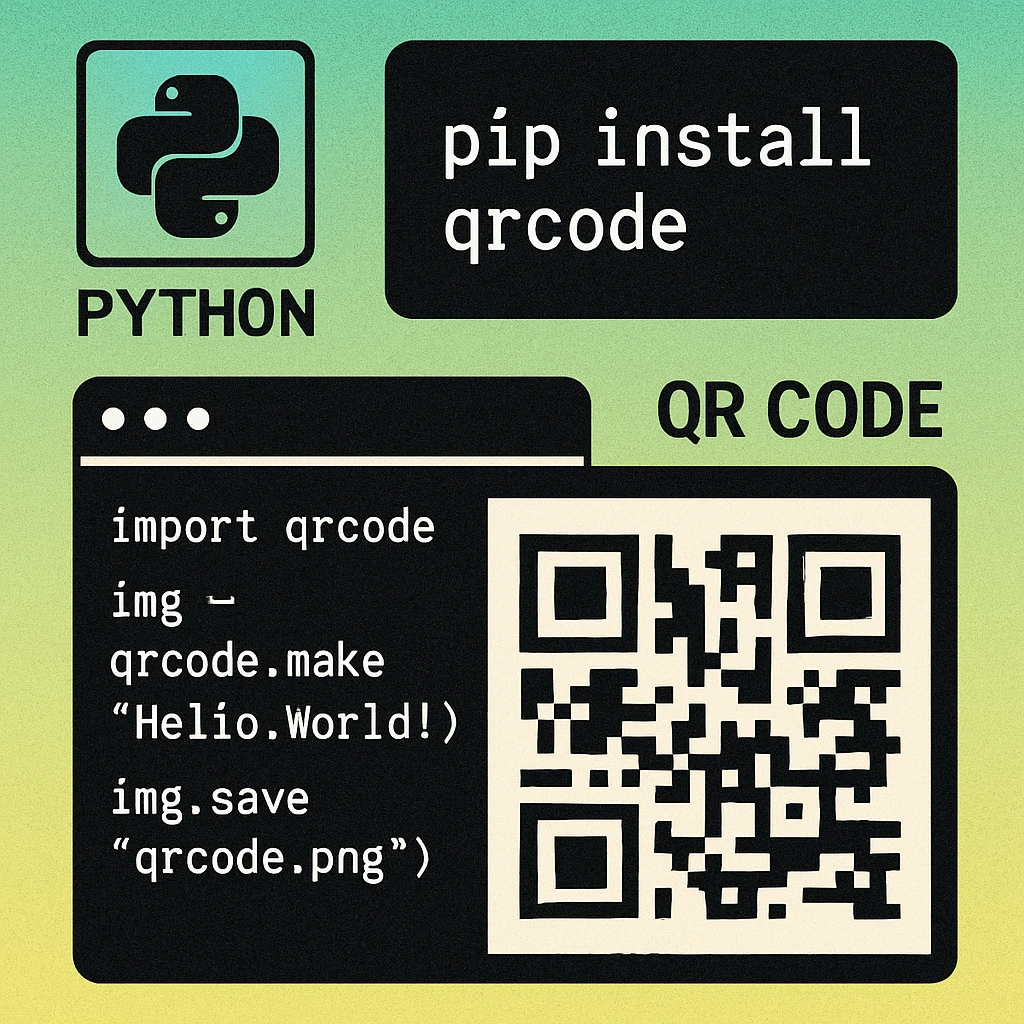
import qrcode

# One-liner: encode a URL and save as PNG
img = qrcode.make("https://www.generateonlineqr.com/")
img.save("my_qr.png")
That is the entire script for a basic QR code. qrcode.make() picks sensible defaults: version auto-sizing, error correction level M, a box size of 10 pixels per module, and a 4-module border. For anything beyond the default appearance you use the QRCode class directly.
QRCode Class: Full Control
import qrcode
from qrcode.constants import ERROR_CORRECT_H

qr = qrcode.QRCode(
    version=None,            # auto-select smallest version
    error_correction=ERROR_CORRECT_H,  # 30% recovery capacity
    box_size=12,             # pixels per module
    border=4,               # quiet zone in modules
)

qr.add_data("https://www.generateonlineqr.com/")
qr.make(fit=True)          # fit=True triggers auto-version

img = qr.make_image(
    fill_color="#1a1a1a",   # module colour (any CSS colour or tuple)
    back_color="#fefefe"   # background colour
)
img.save("branded_qr.png")qrcode exposes four levels via qrcode.constants: ERROR_CORRECT_L (7%), ERROR_CORRECT_M (15%), ERROR_CORRECT_Q (25%), and ERROR_CORRECT_H (30%). Use H whenever you plan to add a logo overlay. See the technical specifications guide for a full breakdown of how error correction interacts with version and data capacity.
Generating SVG with qrcode
import qrcode
import qrcode.image.svg

# SvgPathImage produces a compact single-path SVG
factory = qrcode.image.svg.SvgPathImage

qr = qrcode.QRCode(image_factory=factory)
qr.add_data("https://www.generateonlineqr.com/")
qr.make(fit=True)

img = qr.make_image()
with open("qr.svg", "wb") as f:
    img.save(f)
The SVG factories included in qrcode require no extra dependencies beyond the base package. SvgImage produces rect-element SVG, SvgPathImage compresses the output into a single path element, and SvgFillImage adds a white background rect.
Custom Styling with Pillow
Once qrcode produces a PIL.Image object, the full Pillow toolkit is available. The most common use case is compositing a logo onto the centre of the QR code.
Adding a Logo Overlay
import qrcode
from qrcode.constants import ERROR_CORRECT_H
from PIL import Image

# 1. Generate the QR code at high error correction
qr = qrcode.QRCode(error_correction=ERROR_CORRECT_H, box_size=14, border=4)
qr.add_data("https://www.generateonlineqr.com/")
qr.make(fit=True)
qr_img = qr.make_image(fill_color="#1a1a1a", back_color="white").convert("RGB")

# 2. Open and resize logo to ~25% of QR width
logo = Image.open("logo.png").convert("RGBA")
qr_w, qr_h = qr_img.size
logo_max = qr_w // 4
logo.thumbnail((logo_max, logo_max), Image.LANCZOS)

# 3. Paste logo centred on QR code
logo_w, logo_h = logo.size
offset = ((qr_w - logo_w) // 2, (qr_h - logo_h) // 2)
qr_img.paste(logo, offset, mask=logo)  # mask preserves alpha

qr_img.save("qr_with_logo.png", dpi=(300, 300))
The dpi=(300, 300) argument embeds print resolution metadata, which matters if the output will go to a printer rather than a screen. Always use ERROR_CORRECT_H with logo overlays — the logo physically obscures data modules, and only the H level provides enough redundancy to compensate.
QR Code Apps for Mac & Safari
Prefer generating codes without opening a browser tab? These two native Apple apps cover both habits — a full generator on the desktop, and a one-click share button inside Safari.


Advanced QR Generation with segno
segno takes a different design philosophy: it is a pure-Python QR encoder that handles both the encoding and the rendering without requiring Pillow as a dependency. Its API is function-oriented and covers more output formats in fewer lines of code.
Installation
pip install segno

# Optional: install Pillow for PNG/JPEG output
pip install pillow
Basic Usage and Multiple Formats
import segno

qr = segno.make_qr(
    "https://www.generateonlineqr.com/",
    error="h",         # error correction: l / m / q / h
    version=None       # auto-select
)

# Save as PNG (requires Pillow)
qr.save("qr.png", scale=10)

# Save as SVG — no extra dependencies
qr.save("qr.svg", scale=10)

# Save as EPS for print workflows
qr.save("qr.eps", scale=10)

# Print coloured output to terminal
qr.terminal(compact=True)
segno infers the output format from the file extension, so switching between PNG, SVG, and EPS is a single character change. The scale parameter sets the number of pixels (or SVG units) per module.
Terminal Output
Printing a QR code directly to the terminal is useful for CLI tools, deployment scripts, and SSH sessions where you cannot open a file. segno's .terminal() method uses ANSI escape codes to render the code using half-block characters. The compact=True flag halves the output height.
import segno

# Generate and print to stdout — no file saved
segno.make_qr("https://www.generateonlineqr.com/").terminal(compact=True)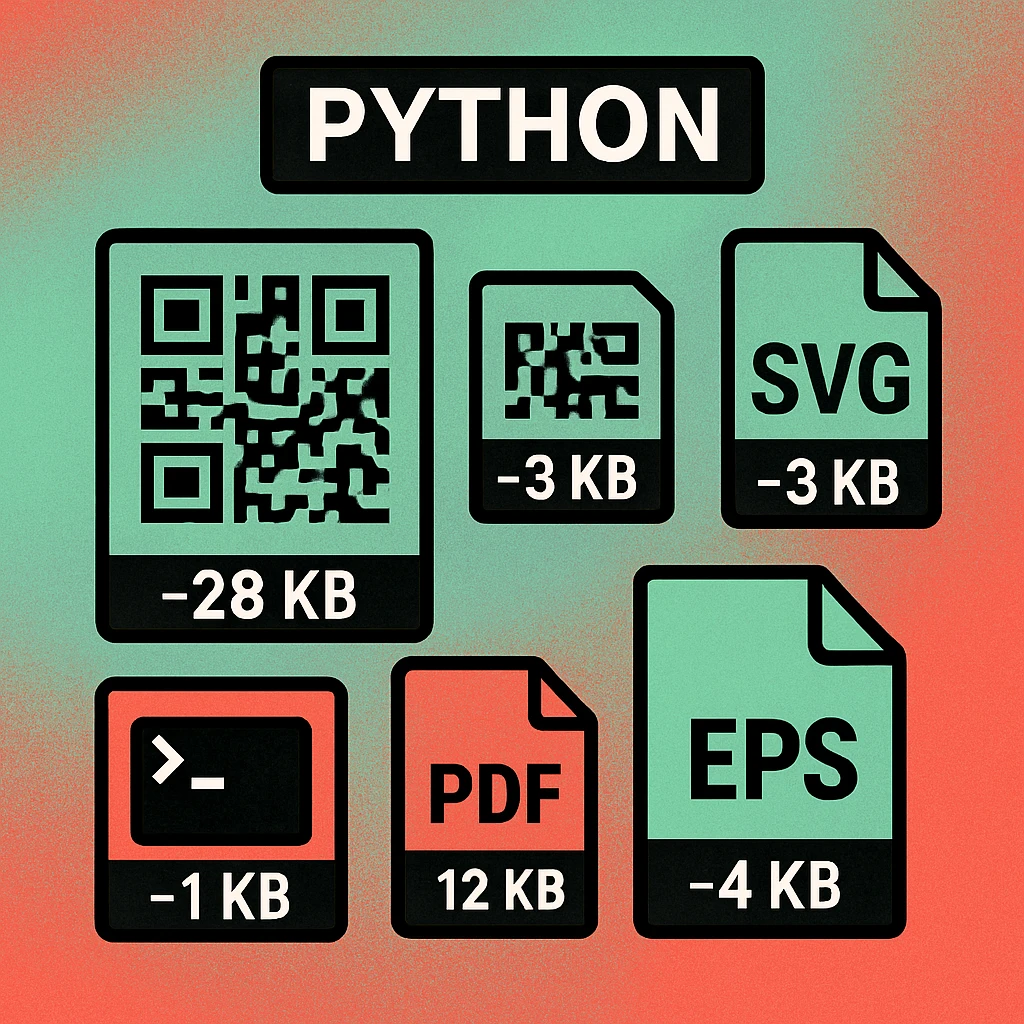
Styled SVG with segno
segno's SVG output accepts colour parameters directly, making styled SVGs straightforward without a separate Pillow step.
import segno

qr = segno.make_qr("https://www.generateonlineqr.com/", error="h")

qr.save(
    "styled_qr.svg",
    scale=8,
    dark="#1a1a1a",      # module colour
    light="#A8E6CF",    # background colour
    finder_dark="#1a1a1a",
    finder_light="#ffffff",
)
No Python? No Problem.
Generate, style, and download QR codes visually — PNG, SVG, or print-ready. Free, no account needed.
Output Formats at a Glance
Both libraries support multiple output formats, though their coverage differs. The table below summarises which formats each library supports natively and what additional dependencies are required.
| Format | qrcode | segno | Extra Dependency | Best Use |
|---|---|---|---|---|
| PNG | Yes | Yes | Pillow | Web, apps, documents |
| SVG | Yes | Yes | None | Scalable graphics, web |
| JPEG | Yes | Yes | Pillow | Email, legacy systems |
| EPS | No | Yes | None | Print production |
| No | Yes | None | Document embedding | |
| Terminal | ASCII | ANSI colour | None | CLI tools, SSH |
| PIL Image object | Yes | Yes | Pillow | In-memory manipulation |
For server-side use cases where you want to avoid local library installation entirely, you can call a hosted REST endpoint instead. Our guide to QR code generator APIs covers the main options and how to integrate them into a Python requests workflow.
If you are working on a JavaScript front-end or Node.js backend alongside your Python services, see the companion article Generate QR Codes in JavaScript for equivalent library coverage and code examples.
Choosing the Right Library
The choice between qrcode and segno depends on what you need to produce and what is already in your dependency tree.
Decision Guide
Use qrcode[pil] if you are already using Pillow in your project (image processing, thumbnails, watermarks) and you need PNG output with logo compositing. The API is slightly more verbose but the Pillow integration is seamless.
Use segno if you need SVG, EPS, or PDF output; if you want terminal rendering for CLI tools; or if you want to minimise dependencies (segno itself has no mandatory dependencies). Its format-agnostic .save() method makes multi-format pipelines very clean.
Use both when you need PNG logo compositing (qrcode + Pillow) and also SVG or EPS exports (segno). Generate the code once with qrcode for the raster workflow and separately with segno for vector output. Keep a single data string and error correction setting consistent between both calls.
Use a REST API (neither library) when you are running in an environment with restricted package installation — such as certain serverless functions, or when you want zero local storage of generated images. See the API guide for options.
For most Python projects, start with pip install qrcode[pil] and use the QRCode class with ERROR_CORRECT_H. Add segno when you need SVG, EPS, PDF, or terminal output. Set error correction to H before adding any logo overlay. Always test the output on a real device — not just a QR scanner app — before deploying at scale.
Frequently Asked Questions
For most use cases, the qrcode library (pip install qrcode[pil]) is the best starting point. It is actively maintained, supports PNG output via Pillow, and offers straightforward customisation of colours, box size, and border. For SVG output, terminal rendering, or more advanced styling, the segno library is the better choice. Both are free and open source.
Run pip install qrcode[pil] in your terminal. The [pil] extra installs Pillow as a dependency, which is required to save QR codes as PNG or JPEG image files. If you only need text or terminal output you can install the base package with pip install qrcode, but Pillow is strongly recommended.
Yes. The qrcode library includes SVG image factory classes (SvgImage, SvgPathImage, SvgFillImage) that produce standards-compliant SVG without any additional dependencies. The segno library also supports SVG export and additionally allows you to control module colours and scale in a single function call.
With the qrcode and Pillow libraries you can open the generated QR image, resize and paste a logo image onto the centre, then save the result. Set error correction to ERROR_CORRECT_H (30% recovery capacity) before generating so the data remains readable with the logo covering part of the centre. The logo should cover no more than 25–30% of the total QR code area.
segno supports PNG, SVG, EPS, PDF, XBM, XPM, PBM, and terminal (ANSI colour) output out of the box. It can also render to a PIL/Pillow Image object for further manipulation. This makes it the most versatile Python QR library for projects that need multiple export formats from a single code generation pipeline.