Why Use a QR Code Generator API
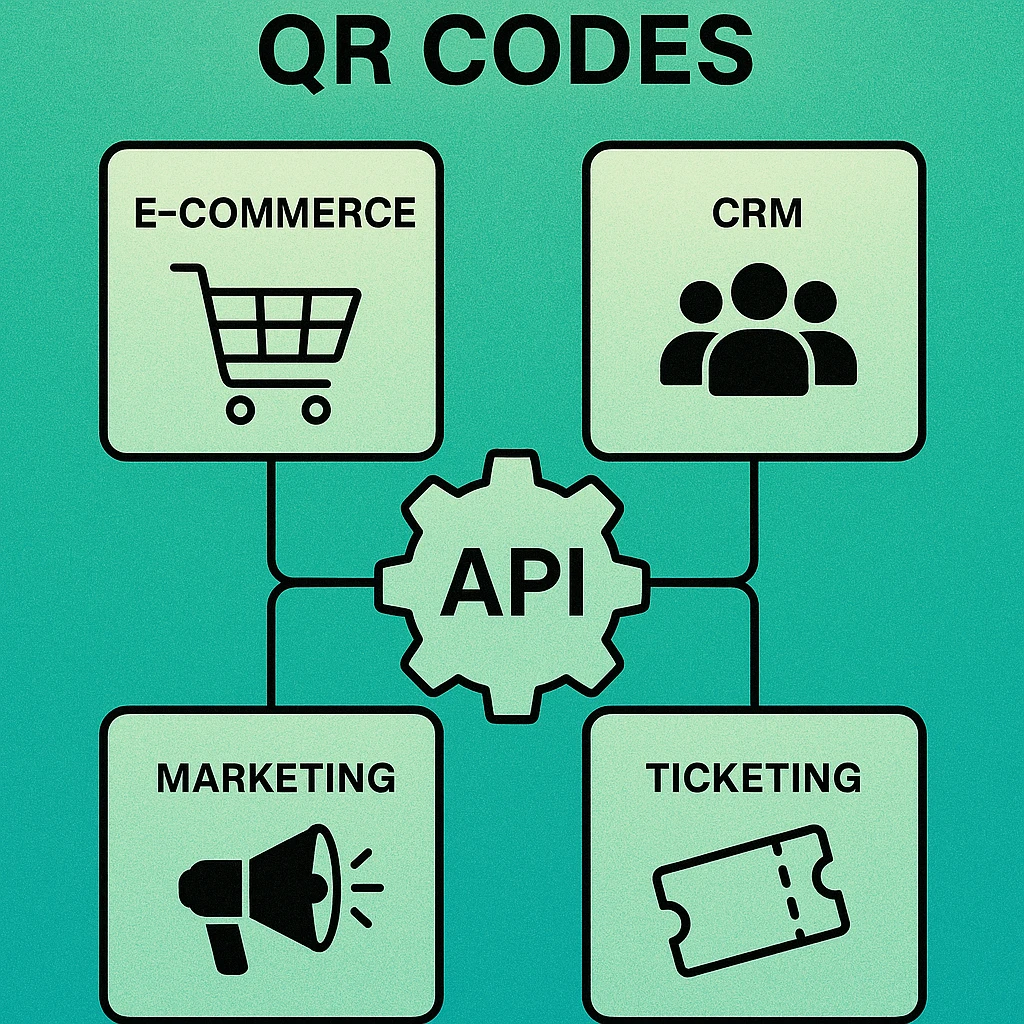
When you need a single QR code, a web-based generator is perfectly adequate. When you need thousands — unique ticket codes for an event, individual product labels in an e-commerce warehouse, or personalised QR cards for CRM contacts — a QR code generator API is the only practical solution.
A REST API lets your application generate QR codes on demand, embed them directly into documents or emails, store them alongside records in a database, and apply consistent styling without any manual steps. You define the parameters once; the API handles the rendering at whatever volume you need.
For a deeper look at how QR data capacity and encoding modes affect what you can pass to an API, read our pillar guide on QR code technical specifications. This article focuses on the API layer itself: endpoints, authentication, rate limits, and working code examples.
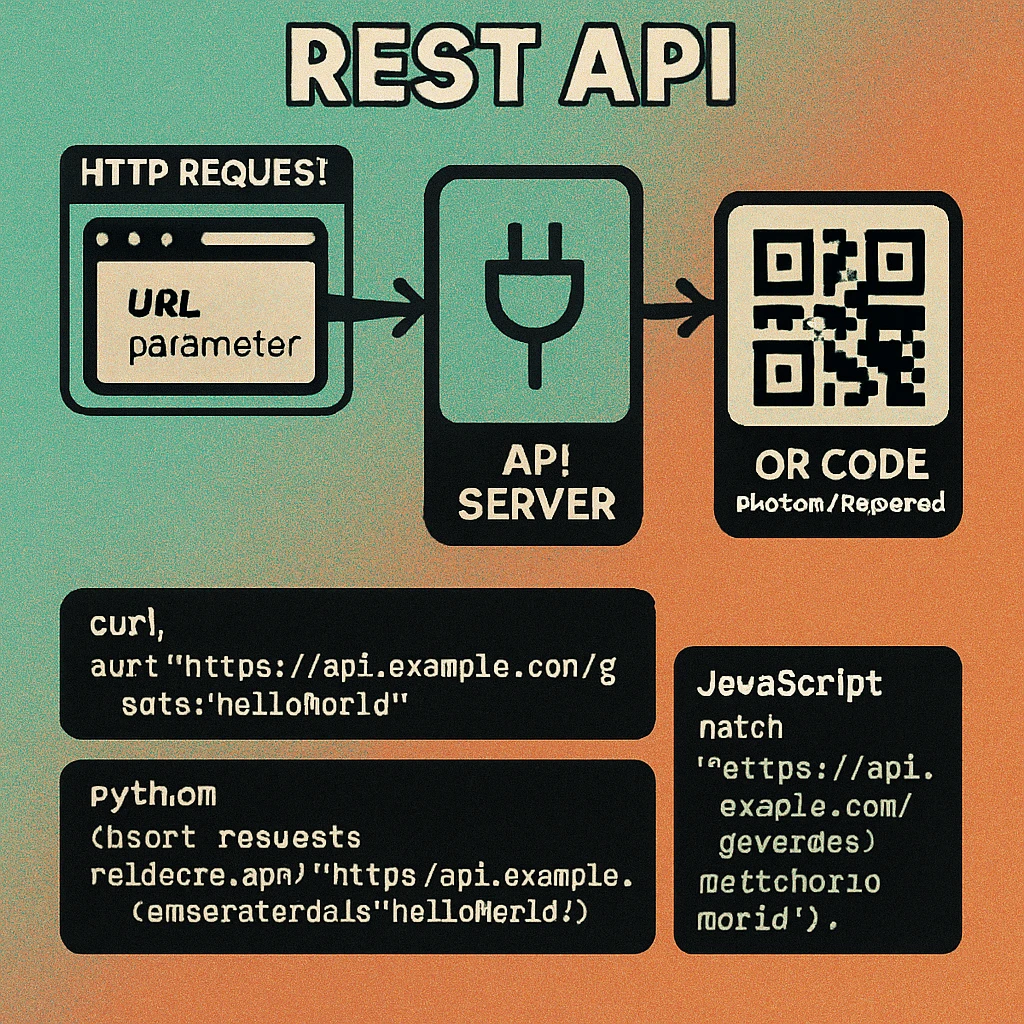
A QR code generator API is a standard REST service. You send an HTTP request containing the data to encode plus optional rendering parameters (size, format, error correction level, colours). The API returns a rendered image — as raw binary, base64, or a URL — which your application stores or embeds directly.
REST Endpoints and Request/Response Formats
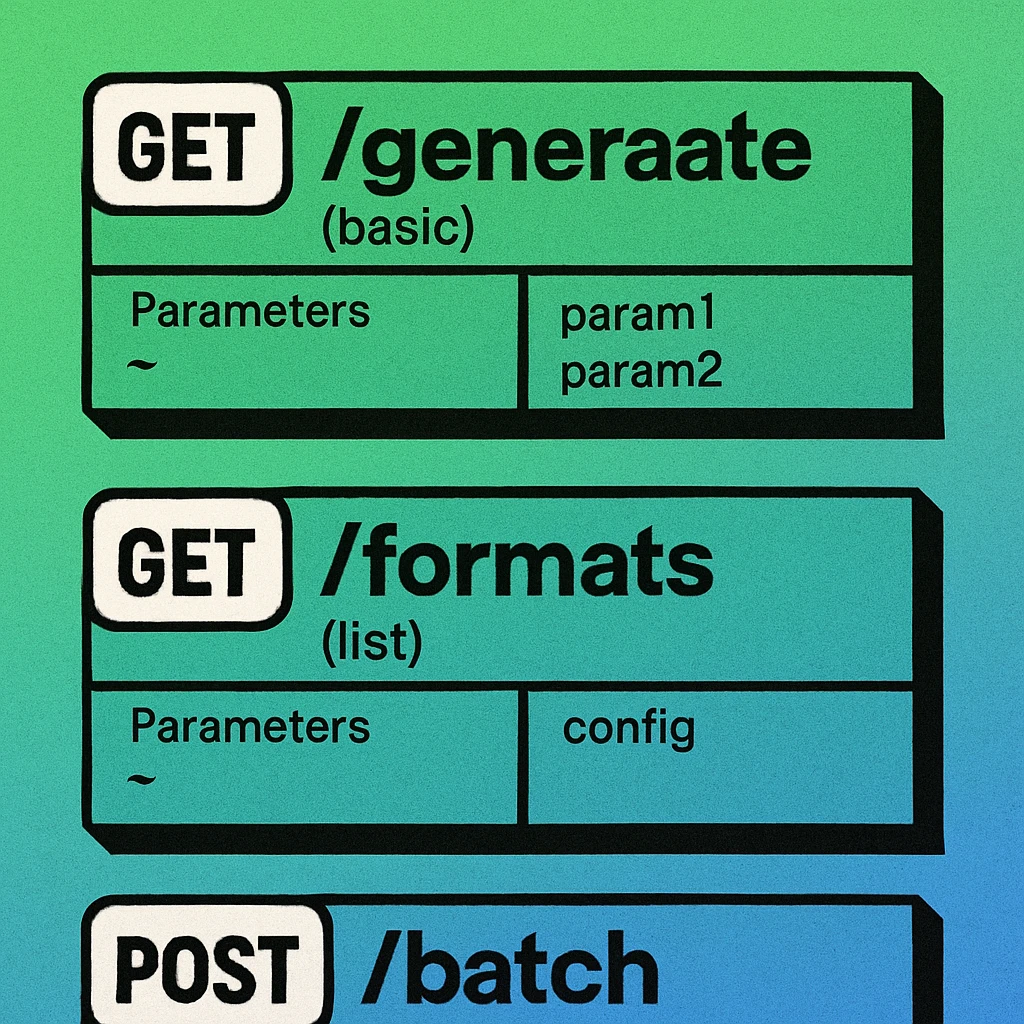
Most QR code APIs expose a small surface area. The core pattern is a single generation endpoint that accepts either a GET request with query parameters or a POST request with a JSON body. More capable APIs also provide batch generation, status/history endpoints, and a lookup endpoint for dynamic QR codes.
| Endpoint | Method | Purpose | Common Response |
|---|---|---|---|
| /v1/qr/generate | POST | Generate a single QR code | PNG binary or base64 JSON |
| /v1/qr/generate | GET | Generate via query string (simple embeds) | PNG binary (direct <img> src) |
| /v1/qr/batch | POST | Generate multiple QR codes in one call | JSON array of base64 or URLs |
| /v1/qr/{id} | GET | Retrieve a previously generated code | Image or metadata JSON |
| /v1/account/usage | GET | Check current usage against rate limits | JSON usage object |
Typical POST Request Body
A POST /v1/qr/generate request body is a JSON object. The data field is required; all other fields are optional and fall back to sensible defaults:
{
  "data": "https://www.example.com/product/12345",
  "format": "png",
  "size": 512,
  "error_correction": "H",
  "foreground": "#1a1a1a",
  "background": "#ffffff",
  "quiet_zone": 4
}
Typical Response Body
The response varies by format preference. When requesting JSON output, you receive a structured object with the image data inline as base64 and metadata about the generated code:
{
  "success": true,
  "id": "qr_8f3d2a1b",
  "format": "png",
  "size": 512,
  "version": 4,
  "error_correction": "H",
  "image_base64": "iVBORw0KGgoAAAANSUhEUgAA...",
  "image_url": "https://cdn.example.com/qr/qr_8f3d2a1b.png"
}
Authentication
QR code APIs use one of two authentication patterns. Understanding them is essential before writing any integration code, because an incorrectly passed key results in a 401 response and no image.
API Key in HTTP Header (Recommended)
The most common and secure approach. Pass the key in a request header, either as a bearer token or a custom header:
# Option A: Bearer token (OAuth-style)
Authorization: Bearer YOUR_API_KEY

# Option B: Custom header (provider-specific)
X-API-Key: YOUR_API_KEY
API Key as Query Parameter (Simple but Less Secure)
Some APIs accept the key as a URL parameter, which is convenient for GET-based embeds but exposes the key in server logs, browser history, and referrer headers. Use only for non-sensitive, low-volume integrations:
https://api.example.com/v1/qr/generate?api_key=YOUR_API_KEY&data=https%3A%2F%2Fexample.comNever hard-code an API key in source code or commit it to a repository. Store it in an environment variable (e.g. QR_API_KEY) and read it at runtime. Use secret manager services for production deployments.
Rate Limits
Every QR code API enforces rate limits to protect infrastructure and ensure fair usage. Most APIs use a sliding window model and communicate limits through response headers on every request:
| Header | Meaning | Example Value |
|---|---|---|
| X-RateLimit-Limit | Requests allowed per window | 500 |
| X-RateLimit-Remaining | Requests remaining in current window | 487 |
| X-RateLimit-Reset | Unix timestamp when window resets | 1743408000 |
| Retry-After | Seconds to wait (on 429 response only) | 42 |
When your code receives a 429 Too Many Requests response, read the Retry-After header and pause before retrying. Implement exponential backoff (wait 1s, then 2s, then 4s) for repeated 429 responses to avoid hammering the API when limits are tight. For high-volume workloads, use the batch endpoint to amortise overhead across many codes per request.
QR Code Apps for Mac & Safari
Prefer generating codes without opening a browser tab? These two native Apple apps cover both habits — a full generator on the desktop, and a one-click share button inside Safari.


Code Examples
curl
The fastest way to test an API before writing any code. This example posts a JSON body, passes the key as a bearer token, and saves the decoded image directly to disk:
# Generate a QR code and save PNG to file
curl -X POST https://api.example.com/v1/qr/generate \
  -H "Authorization: Bearer $QR_API_KEY" \
  -H "Content-Type: application/json" \
  -d '{"data":"https://example.com","format":"png","size":512}' \
  -o qr_output.png

# Check HTTP status without downloading body
curl -o /dev/null -s -w "%{http_code}\n" \
  -X POST https://api.example.com/v1/qr/generate \
  -H "Authorization: Bearer $QR_API_KEY" \
  -H "Content-Type: application/json" \
  -d '{"data":"test"}'
Python
The requests library makes API calls straightforward. This example writes the raw binary response directly to a PNG file. For language-specific deep-dives, see our guide on generating QR codes with Python:
import os
import requests

API_KEY = os.environ["QR_API_KEY"]
BASE_URL = "https://api.example.com/v1/qr/generate"

def generate_qr(data: str, output_path: str, size: int = 512) -> None:
    """Generate a QR code PNG and write it to output_path."""
    headers = {
        "Authorization": f"Bearer {API_KEY}",
        "Content-Type": "application/json",
    }
    payload = {
        "data": data,
        "format": "png",
        "size": size,
        "error_correction": "H",
    }
    response = requests.post(BASE_URL, json=payload, headers=headers, timeout=10)
    response.raise_for_status()  # raises on 4xx / 5xx
    with open(output_path, "wb") as f:
        f.write(response.content)
    print(f"Saved QR code to {output_path}")

# Usage
generate_qr("https://www.example.com/product/42", "product_42.png")
JavaScript (Node.js / fetch)
The native fetch API works in both Node.js 18+ and modern browsers. This example reads the base64 field from a JSON response and converts it to a Buffer for saving to disk. For a comprehensive client-side implementation, see our guide on generating QR codes with JavaScript:
import { writeFileSync } from 'fs';

const API_KEY = process.env.QR_API_KEY;
const BASE_URL = 'https://api.example.com/v1/qr/generate';

async function generateQR(data, outputPath, size = 512) {
  const response = await fetch(BASE_URL, {
    method: 'POST',
    headers: {
      'Authorization': `Bearer ${API_KEY}`,
      'Content-Type': 'application/json',
    },
    body: JSON.stringify({ data, format: 'png', size, error_correction: 'H' }),
  });

  if (!response.ok) {
    const err = await response.json();
    throw new Error(`API error ${response.status}: ${err.message}`);
  }

  const { image_base64 } = await response.json();
  writeFileSync(outputPath, Buffer.from(image_base64, 'base64'));
  console.log(`Saved QR code to ${outputPath}`);
}

// Usage
generateQR('https://www.example.com/product/42', 'product_42.png')
  .catch(console.error);
Try QR Code Generation Without an API Key
Building a proof of concept? Use our free web generator for instant QR codes — no account, no limits for single codes. Available on Mac too.
Integration Scenarios
Understanding the API mechanics is one thing; knowing where to apply them in a real product is another. Here are three common integration patterns that illustrate how a QR code API fits into existing workflows.
E-Commerce: Product and Order QR Codes
Online retailers generate QR codes at two points in the order lifecycle. At product creation time, a QR code is generated for the product URL and stored alongside the product record so it can be embedded in PDF catalogues, printed shelf labels, or marketing emails. At order confirmation time, a unique QR code is generated encoding the order ID or a tracking URL and embedded directly in the confirmation email HTML as a base64 data URI, eliminating the need to host images externally.
E-Commerce Integration Steps
Trigger: New product created or order placed (webhook or post-save hook in your ORM).
Generate: POST to the API with the product URL or order tracking URL as data. Use error correction H for printed labels, M for email embeds (smaller file).
Store: Save the returned image URL or base64 string to the qr_code column in your products or orders table.
Embed: Reference the stored value in your email template or PDF generator. For emails, use <img src="data:image/png;base64,...">. For PDFs, download the PNG and pass the file path to your PDF library.
CRM: Contact and Campaign Codes
Sales and marketing teams use CRM-integrated QR codes to bridge physical and digital touchpoints. A common pattern is generating a unique vCard QR code for each contact record so sales reps can print personalised business cards on demand. Another pattern is generating campaign-specific landing page codes at bulk export time — a CSV export of 500 contacts triggers 500 API calls (or a single batch call), embedding each unique code in a mail-merge template.
For CRM integrations, the batch endpoint is essential. Sending 500 individual requests in a loop will hit rate limits and introduce significant latency. A single batch request returns all 500 codes in one response, typically within two to four seconds.
Ticketing: Event Entry and Seat Validation
Event ticketing systems generate a unique QR code per ticket at purchase time. The code encodes a signed, tamper-evident token — typically a JWT or HMAC-signed string containing the ticket ID, event ID, and seat reference. At the venue gate, a scanner app decodes the QR, verifies the signature server-side, and marks the ticket as used.
For ticketing use cases, always encode a server-verifiable token rather than raw ticket data. Anyone who photographs a ticket QR code can clone it if the payload is not cryptographically signed. Generate the signed token in your own application and pass it as the data parameter; the QR API simply renders it.
For the technical encoding details that determine how much data you can pack into a single QR code — version, capacity, and error correction trade-offs — refer to our in-depth pillar on QR code technical specifications.
Frequently Asked Questions
Most QR code generator APIs use API key authentication, where you pass a key either as a query parameter (?api_key=YOUR_KEY) or in an HTTP header (X-API-Key or Authorization: Bearer). Some enterprise APIs also support OAuth 2.0 client credentials flow for server-to-server integrations. Always store your API key in an environment variable, never hard-coded in source code.
Rate limits vary by provider and plan, but common ranges are 60–500 requests per minute for paid plans and 10–30 requests per minute for free tiers. Most APIs return a 429 Too Many Requests status code when the limit is exceeded and include Retry-After or X-RateLimit-Reset headers to indicate when the window resets. Implement exponential backoff in your client to handle rate limit errors gracefully.
Yes. Many QR code APIs offer a batch endpoint that accepts an array of data payloads in a single request and returns multiple QR codes. This is far more efficient than making individual requests in a loop and helps stay within rate limits. Check whether the API returns a ZIP archive, a JSON array of base64-encoded images, or a list of CDN URLs for the generated files.
PNG is the most universally supported output format and works well for digital and print use at standard sizes. SVG is available on most APIs and is preferable for scalable or large-format output. Some APIs also return JPEG (smaller file size, lossy) and PDF (print-ready). Specify the format in the request body or as a query parameter using a field commonly named format or image_format.
QR code APIs return standard HTTP status codes: 200 for success, 400 for malformed requests (invalid parameters), 401/403 for authentication failures, 422 for validation errors (e.g. data too long for the QR version), and 429 for rate limiting. Always check the response body for an error or message field that describes the specific problem. Log 4xx errors for debugging and implement retry logic only for 429 and 5xx responses.