Why Use CIFilter for QR Codes?
When Apple engineers need to generate a QR code on-device, they reach for CIQRCodeGenerator — a built-in Core Image filter available since iOS 7 and macOS 10.10. It requires zero additional dependencies, works entirely offline, produces standards-compliant QR codes, and runs on the GPU when available. For most iOS and macOS applications, it is the correct default choice.
Third-party libraries such as QRCode (by Dagronrat) or EFQRCode add value when you need advanced module shaping, gradient fills, or SVG output. But if you just need a reliable, scannable QR code rendered as a UIImage or NSImage, the built-in filter handles everything. For a broader look at the technical encoding beneath the surface, see our QR code technical specifications pillar guide.
CIQRCodeGenerator is part of Core Image (import CoreImage). It ships on iOS 7+, macOS 10.10+, tvOS 9+, and Mac Catalyst. No entitlement or capability is required to use it.
Basic QR Code Generation
The minimal workflow has three steps: encode your string as UTF-8 data, pass it to the filter, and convert the output CIImage to a displayable image type. Here is the complete iOS implementation:
import CoreImage
import UIKit

func generateQRCode(from string: String) -> UIImage? {
    // 1. Encode the input string as UTF-8 data
    guard let data = string.data(using: .utf8) else { return nil }

    // 2. Configure the CIQRCodeGenerator filter
    let filter = CIFilter(name: "CIQRCodeGenerator")
    filter?.setValue(data, forKey: "inputMessage")
    filter?.setValue("H", forKey: "inputCorrectionLevel") // L M Q H

    // 3. Scale up to a usable size (avoids blur)
    guard let ciImage = filter?.outputImage else { return nil }
    let scale = CGAffineTransform(scaleX: 10, y: 10)
    let scaledImage = ciImage.transformed(by: scale)

    // 4. Convert to UIImage
    let context = CIContext()
    guard let cgImage = context.createCGImage(scaledImage, from: scaledImage.extent) else { return nil }
    return UIImage(cgImage: cgImage)
}
The inputCorrectionLevel key accepts "L", "M", "Q", or "H". Level H allows up to 30% of the code to be damaged or obscured while remaining scannable — the right choice when you plan to overlay a logo or apply colour transforms. Level M (15%) is a reasonable default for plain codes. Full error correction specifications are documented in our technical specifications guide.
Scaling and Sharpness
The raw output of CIQRCodeGenerator is a tiny image — typically 21×21 pixels for a version-1 code. Displaying it at any meaningful size without explicit scaling causes Core Animation to apply bilinear interpolation, which blurs the module edges into an unreadable grey smear.
The fix is to apply a CGAffineTransform scale before rasterising. A scale factor of 10 produces a 210×210 px image, which is crisp on all device resolutions. For Retina/3x screens targeting large display sizes, use 20 or 30.
If you render the CIImage directly into a UIImageView without scaling, set the view's layer.magnificationFilter to .nearest to force pixel-perfect nearest-neighbour scaling at display time. This avoids a round-trip through CIContext when you only need screen display.
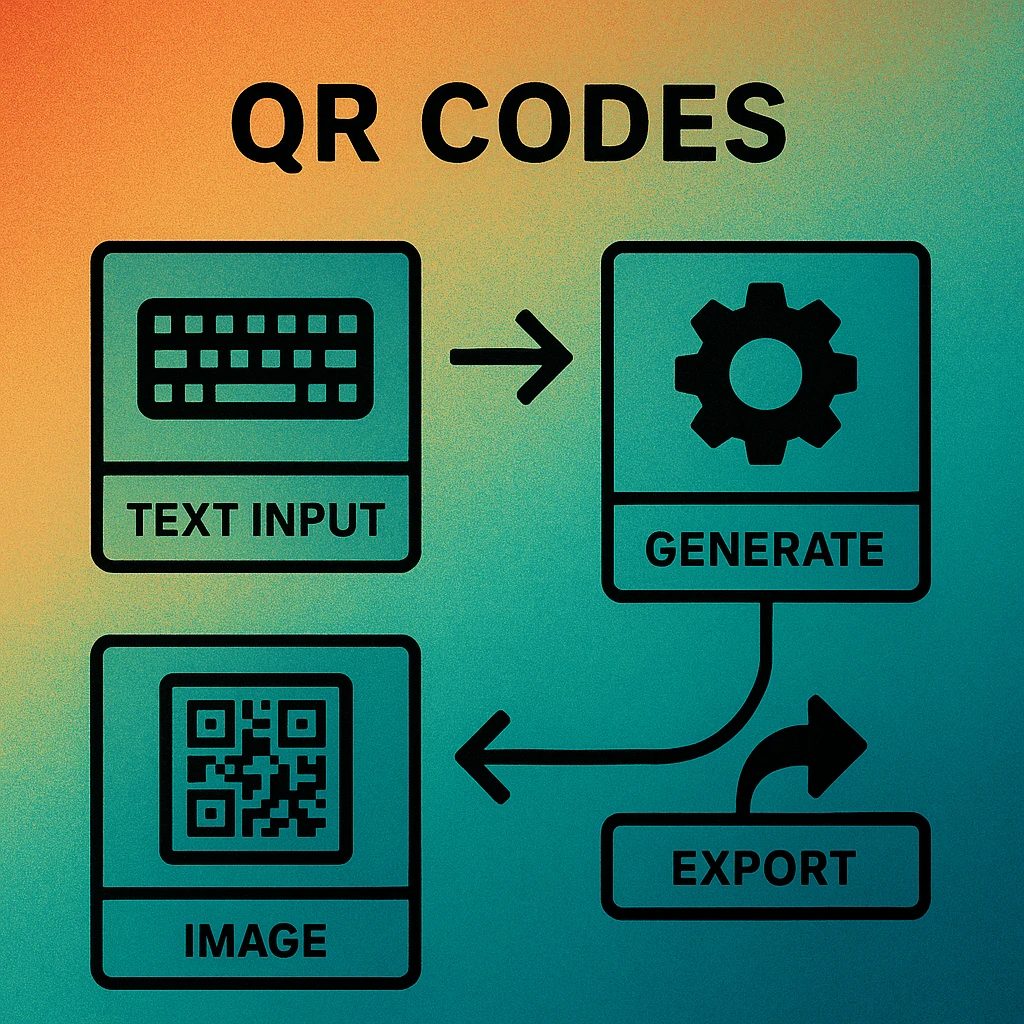
Colour Customisation with CIFalseColor
To change module or background colours, pipe the output of CIQRCodeGenerator through the CIFalseColor filter. This replaces the greyscale intensity values with two colours of your choice: inputColor0 maps to dark pixels (the QR modules) and inputColor1 maps to light pixels (the background).
func generateColoredQRCode(
    from string: String,
    foreground: UIColor = .black,
    background: UIColor = .white
) -> UIImage? {
    guard let data = string.data(using: .utf8) else { return nil }

    let qr = CIFilter(name: "CIQRCodeGenerator")!
    qr.setValue(data, forKey: "inputMessage")
    qr.setValue("H", forKey: "inputCorrectionLevel")

    let color = CIFilter(name: "CIFalseColor")!
    color.setValue(qr.outputImage, forKey: "inputImage")
    color.setValue(CIColor(color: foreground), forKey: "inputColor0")
    color.setValue(CIColor(color: background), forKey: "inputColor1")

    guard let output = color.outputImage else { return nil }
    let scaled = output.transformed(by: CGAffineTransform(scaleX: 10, y: 10))

    let context = CIContext()
    guard let cgImage = context.createCGImage(scaled, from: scaled.extent) else { return nil }
    return UIImage(cgImage: cgImage)
}
Always verify contrast before shipping. The minimum safe contrast ratio between foreground and background is 3:1; 4.5:1 or higher is strongly recommended for consistent scanning across varying lighting conditions and camera qualities. Inverting the colours (light modules on a dark background) works technically, but scanner firmware support varies — test on both iOS and Android before relying on it.
| Correction Level | Key Value | Max Damage Recovery | Best Use Case |
|---|---|---|---|
| L — Low | "L" |
7% | Clean environments, small codes |
| M — Medium | "M" |
15% | General purpose (default) |
| Q — Quartile | "Q" |
25% | Printed materials, slight colour tinting |
| H — High | "H" |
30% | Logo overlays, heavy colour customisation |
QR Code Apps for Mac & Safari
Prefer generating codes without opening a browser tab? These two native Apple apps cover both habits — a full generator on the desktop, and a one-click share button inside Safari.


SwiftUI Integration
Wrapping the generation logic in a SwiftUI View keeps your UI layer clean and makes the code instantly reusable. The example below works on both iOS and macOS using conditional compilation:
import SwiftUI
import CoreImage

struct QRCodeView: View {
    let content: String
    var size: CGFloat = 200

    var body: some View {
        if let img = makeQRImage(content) {
            img
                .interpolation(.none)
                .resizable()
                .scaledToFit()
                .frame(width: size, height: size)
                .accessibilityLabel("QR code for \(content)")
        } else {
            Color.gray.frame(width: size, height: size)
        }
    }

    private func makeQRImage(_ string: String) -> Image? {
        guard let data = string.data(using: .utf8),
              let filter = CIFilter(name: "CIQRCodeGenerator") else { return nil }
        filter.setValue(data, forKey: "inputMessage")
        filter.setValue("H", forKey: "inputCorrectionLevel")
        guard let ci = filter.outputImage else { return nil }
        let scaled = ci.transformed(by: CGAffineTransform(scaleX: 12, y: 12))
        let ctx = CIContext()
        guard let cg = ctx.createCGImage(scaled, from: scaled.extent) else { return nil }
#if os(iOS)
        return Image(uiImage: UIImage(cgImage: cg))
#else
        let size = CGSize(width: cg.width, height: cg.height)
        return Image(nsImage: NSImage(cgImage: cg, size: size))
#endif
    }
}
The critical detail is .interpolation(.none) on the Image view. Without it, SwiftUI applies its own smoothing when the image is resized, blurring the sharp module edges. Setting it to .none forces nearest-neighbour rendering and preserves crisp pixel boundaries at any display size.
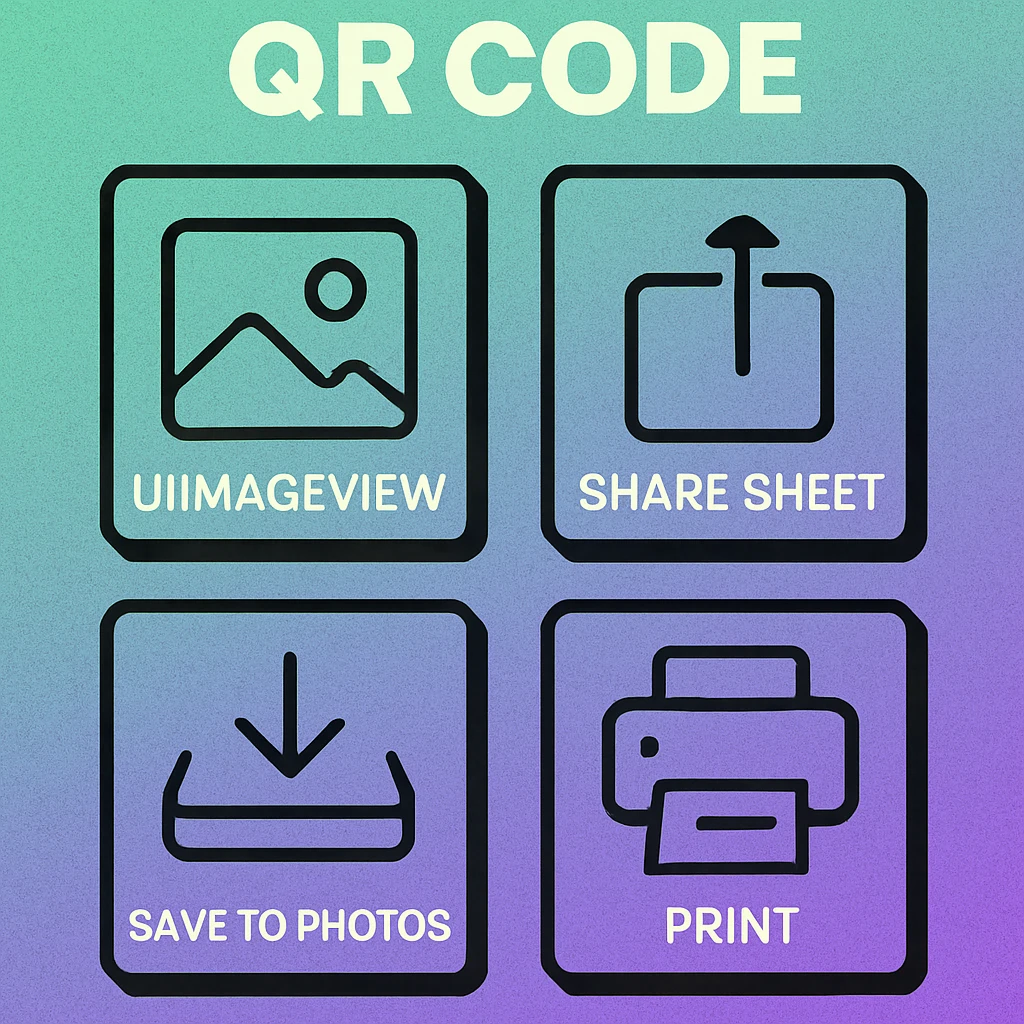
QRCodeView component rendering identically on iOS and macOS using conditional compilation.Want a Native Mac QR Generator?
Skip the code for everyday use. Gen QR Code Maker for macOS generates, colours, and exports QR codes instantly from your menu bar.
Export Options: PNG, JPEG, and Beyond
Once you have a CGImage, exporting to file formats is straightforward. For pixel-based formats, use CIContext directly or go through UIImage/NSImage:
Export Workflows
PNG (lossless, recommended). Call UIImage(cgImage:).pngData() on iOS or NSBitmapImageRep(cgImage:).representation(using: .png, properties: [:]) on macOS. Write the resulting Data to disk or share via UIActivityViewController.
JPEG (avoid for QR codes). JPEG compression introduces artefacts at module edges that can reduce scan reliability, particularly at lower quality levels. Only use JPEG if your pipeline requires it and always test the result before deploying.
PDF / vector output. CIContext does not produce vector output natively. For true vector SVG or PDF, consider the open-source QRCode Swift package, which renders each module as a distinct path. This is useful for print workflows. See our dedicated macOS CIFilter guide for a deeper look at this workflow.
Clipboard copy. On iOS, write a UIImage to UIPasteboard.general.image. On macOS, use NSPasteboard with NSImage. Both approaches allow the user to paste the QR code directly into any document or messaging app.
Share sheet (iOS). Pass the UIImage to UIActivityViewController(activityItems: [image], applicationActivities: nil). This gives users AirDrop, Mail, Messages, and third-party app targets without any additional code.
macOS-Specific Notes
The Core Image pipeline is identical on macOS, but the image types differ. Replace UIImage with NSImage, and use NSBitmapImageRep for file export. The CIContext on macOS defaults to the GPU renderer when a discrete GPU is available, which is typically faster for batch generation tasks.
If you are building a macOS menu bar app or document-based app that generates QR codes, take a look at our QR code generator for Mac overview and the CIFilter QR code macOS deep-dive for platform-specific optimisations including NSImage PDF export and WKWebView SVG rendering patterns.
On macOS, creating a new CIContext() on every call is expensive. Cache a single shared context as a static property or singleton. On iOS the system typically reuses a shared Metal context automatically, but on macOS explicit caching can halve generation time for batch workloads.
Frequently Asked Questions
Yes. CIQRCodeGenerator is part of the Core Image framework, which ships on both iOS (8.0+) and macOS (10.10+). The same Swift code compiles and runs on both platforms with minimal changes — the main difference is the image type you produce at the end (UIImage on iOS, NSImage on macOS).
CIQRCodeGenerator produces a very small CIImage (often around 21×21 pixels for a version-1 code). If you display it without scaling up with nearest-neighbour interpolation, Core Animation applies bilinear smoothing and the result looks blurry. Always apply a CGAffineTransform scale before rendering, and set the interpolation quality to .none in SwiftUI or kCGInterpolationNone when drawing into a CGContext.
Pipe the output of CIQRCodeGenerator through CIFalseColor, setting inputColor0 (dark modules) and inputColor1 (light modules) to CIColor values of your choice. Make sure the contrast ratio between the two colours exceeds 3:1, and ideally 4.5:1, to maintain reliable scannability.
CIQRCodeGenerator supports four levels via the inputCorrectionLevel key: L (7%), M (15%), Q (25%), and H (30%). Use H when you plan to overlay a logo or apply colour transforms, as the extra redundancy compensates for any visual noise introduced by customisation. Use M or L when you want a smaller, denser code and no further customisation.
Yes. Wrap the CIFilter generation logic in a function that returns a SwiftUI Image. On iOS, convert the CIImage to UIImage then wrap it with Image(uiImage:). On macOS, convert to NSImage and use Image(nsImage:). You can use #if os(iOS) conditional compilation to share the logic across both targets in a single codebase.