Why Google Reviews Matter for Local Businesses
Google reviews are one of the most powerful trust signals a local business can accumulate. A business with 200 reviews and a 4.7-star rating consistently outperforms a competitor with 20 reviews and a 4.9-star rating in both click-through rates and conversion. Volume matters almost as much as quality.
The problem is the ask-to-review gap. A customer leaves your restaurant or shop feeling great, fully intending to leave a review "later." But finding your Google listing from scratch — searching, tapping the right result, navigating to the review section — takes enough effort that most people never follow through. The solution is zero-friction access: a QR code that opens the review prompt in one scan.
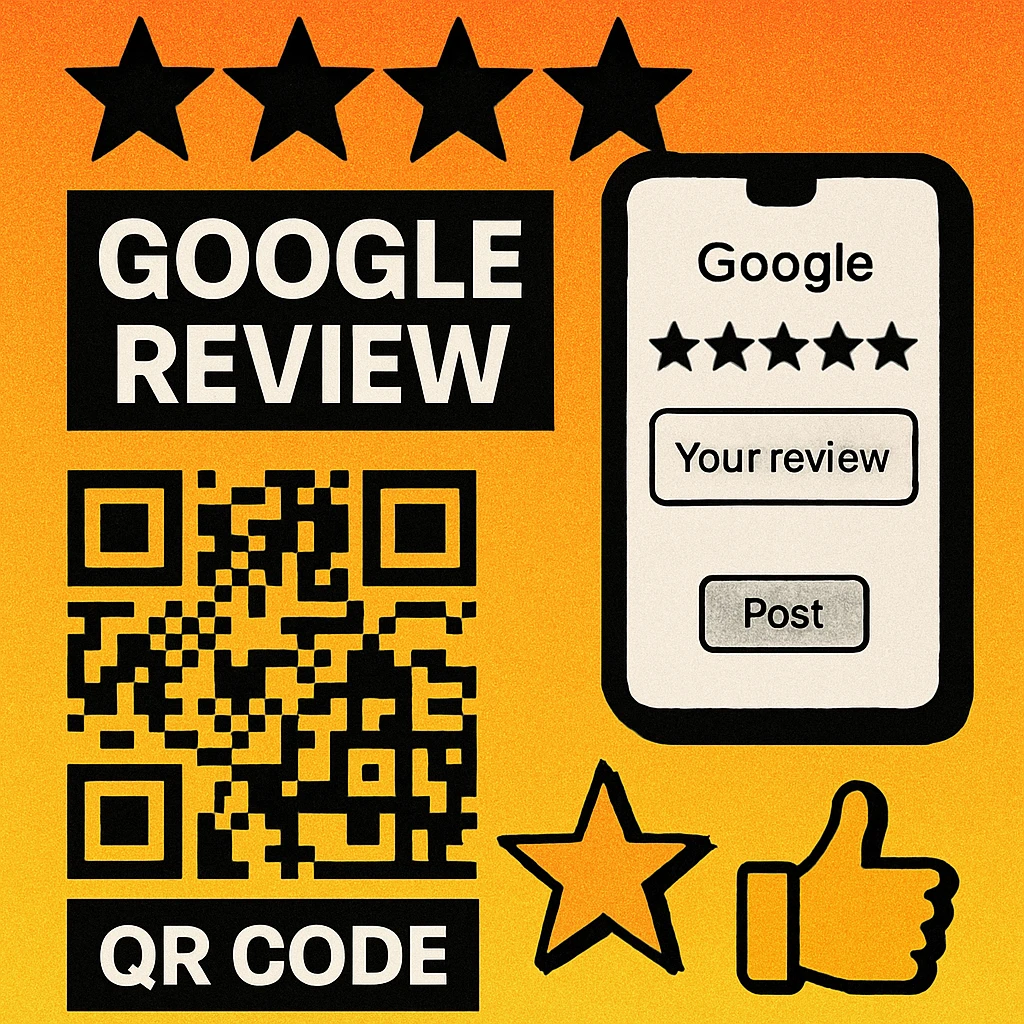
This approach fits naturally into a broader QR code marketing strategy. Reviews are a long-term asset — every scan compounds your local SEO advantage and social proof over time.
Businesses that actively request reviews through physical prompts (cards, signs, receipts) see on average 3–5× more review submissions per month than businesses that rely on customers finding the review form organically.
Getting Your Direct Google Review URL
The first step is obtaining the direct URL that opens your Google Business Profile review form. This is not the same as your business's Google Maps page URL — you want the specific link that drops customers straight into the star-rating screen.
Find Your Review Link in 4 Steps
Open Google Maps on desktop or mobile and search for your business by name. Make sure you are searching while signed in to the Google account that owns or manages your Business Profile.
Click your business listing in the search results to open the full profile panel on the left side of Maps.
Click "Get more reviews" (sometimes labelled "Share profile" or "Ask for reviews"). This button appears in the owner panel when you are logged in as the business manager. Google will display a short shareable URL.
Copy the short URL. It will look like https://g.page/your-business/review or a similar g.page short link. This is the link you will encode into your QR code. Test it first by opening it in a private browser window to confirm it lands on the review prompt.
You can also find your review link inside Google Business Profile Manager at business.google.com. Navigate to your profile, click "Ask for reviews," and copy the link shown. Both methods produce the same direct review URL.
Creating the QR Code
With your review URL in hand, generating the QR code is straightforward. Use a URL QR code generator and paste your Google review link directly into the URL field. No dynamic QR code is required for this use case — the destination URL is stable and will not change, so a static QR code is perfectly reliable and free to use indefinitely.
When configuring your code for print:
- Set error correction to H (30% recovery) so the code remains scannable even if the printed surface gets slightly worn or smudged.
- Download a high-resolution PNG or SVG file. SVG is ideal for signs and table tents as it scales to any size without pixelation.
- Keep the quiet zone (the blank border) intact when placing the code in your design template.
- Ensure minimum printed size is at least 2.5 cm × 2.5 cm (1 inch) for reliable scanning from typical reading distances.
If you want to match your brand colours, use a dark module colour on a light background — never light modules on a dark background for review QR codes, as printing variability can degrade contrast. See our guide on URL QR code generation for detailed options.
Placement Strategies That Drive Scans
A great QR code in the wrong place generates zero reviews. The placement principle is simple: catch the customer at peak satisfaction, with their phone already accessible.
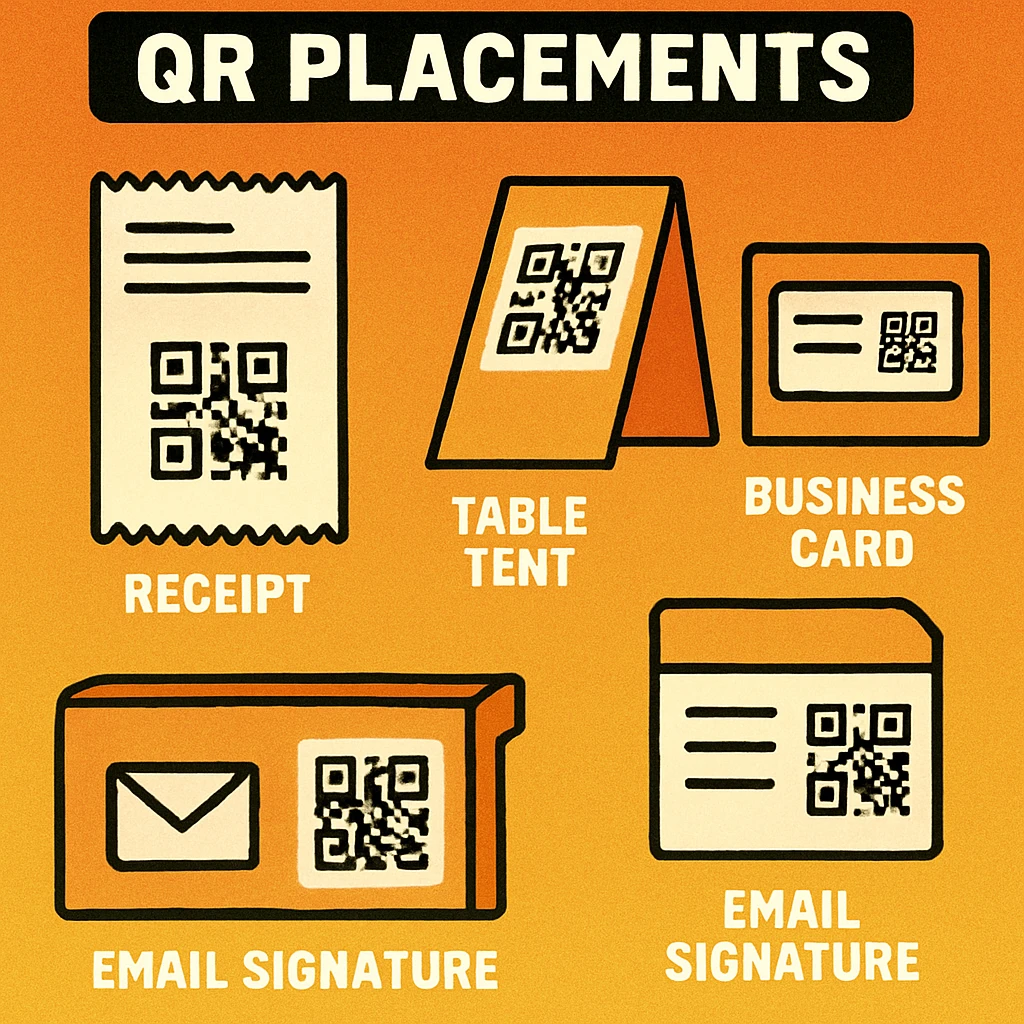
Receipt or Invoice Footer
Printing the QR code in the footer of a receipt or invoice is one of the highest-converting placements. The customer is holding the receipt, their transaction is complete, and satisfaction is at its peak. A short line of copy — "Enjoyed your visit? Scan to leave us a Google review" — is all the context needed. This works equally well for restaurants, retail shops, service providers, and tradespeople. For food businesses also running a digital menu QR code, the receipt is a natural second touchpoint.
Table Tent or Counter Card
A table tent (a folded card that stands upright) placed on dining tables or service counters gives customers something to read while they wait. The QR code sits prominently on one face with a short, friendly message. Table tents are particularly effective in cafes, restaurants, and waiting rooms where customers have idle time and their phones are naturally in hand. Print two or three per table to reduce friction further.
Checkout Counter Sign
A small A6 or A5 sign next to the payment terminal is ideal for retail and service businesses where the handover moment (after payment, during packing) is the natural peak of goodwill. Position the sign so it is visible while the customer is at the counter. A staff member mentioning it verbally — "Feel free to scan this to leave us a review" — dramatically increases uptake.
Packaging and Inserts
For e-commerce or takeaway businesses, a printed insert inside the package or bag extends the review touchpoint to the moment of unboxing or first use. This is especially effective because the customer is alone, relaxed, and engaging with the product at their own pace — prime conditions for a considered, positive review.
Follow-Up Cards and Thank-You Notes
Service businesses (plumbers, cleaners, personal trainers, consultants) can hand a small card to the customer at job completion. The card thanks them for their business and includes the review QR code. This feels personal rather than automated, which tends to produce more genuine, detailed reviews.
QR Code Apps for Mac & Safari
Prefer generating codes without opening a browser tab? These two native Apple apps cover both habits — a full generator on the desktop, and a one-click share button inside Safari.


Understanding the Review Flow
Knowing what happens after a customer scans your QR code helps you optimise the experience and set realistic expectations.
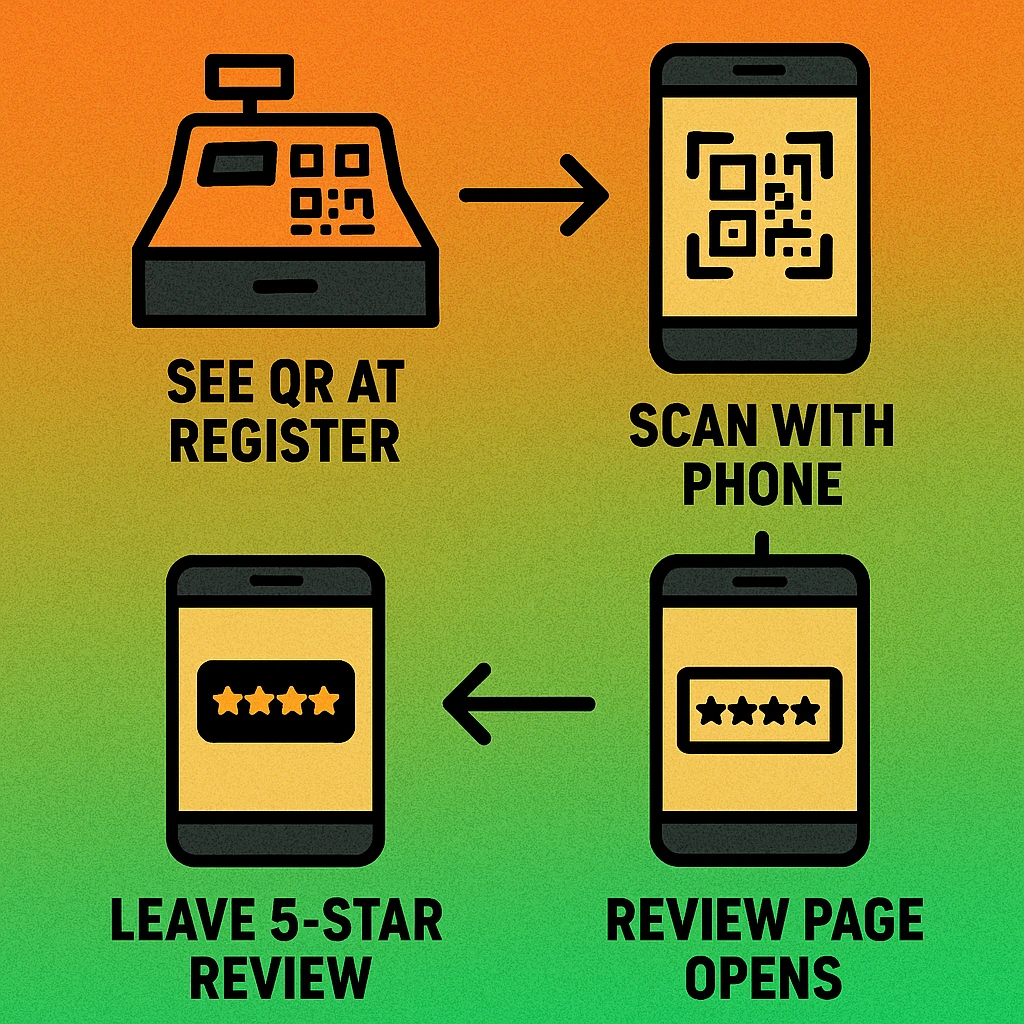
When a customer scans your review QR code, the following happens:
- The camera app recognises the QR code and displays a notification linking to your Google Business Profile review URL.
- Tapping the notification opens Google Maps (or the browser if Maps is not installed) directly on your business's review submission screen.
- The customer sees a five-star rating prompt. Tapping a star optionally expands a text field for written feedback.
- Tapping "Post" submits the review. If the customer is not signed in to a Google account, they will be prompted to sign in first.
Google requires a signed-in Google account to post a review. This is the single biggest drop-off point in the review flow. You cannot remove this requirement, but you can reduce friction by placing your QR code in contexts where customers are relaxed and willing to take a moment — not when they are rushing out the door.
Generate Your Google Review QR Code Now
Free, instant, no account needed. Paste your review link, download your QR code, and start collecting reviews today.
Tips for Higher Review Conversion
A QR code alone won't maximise your review volume. Pair it with these proven tactics to get the best results.
- Add context copy. Don't just print a QR code — add a short human sentence next to it. "Loved your experience? 30 seconds makes a real difference to us." Personalised copy outperforms generic "scan here" instructions every time.
- Mention it verbally. Staff who mention the review card at the point of handover see conversion rates 2–3× higher than passive signage alone. Keep the ask natural and brief.
- Keep the message positive. Ask for a review from happy customers, not as damage control after a complaint. Use phrasing that implies the experience was good rather than asking customers to evaluate it.
- Test your QR code on iOS and Android before printing at scale. Scan with the native camera app (not a third-party scanner) on both platforms to confirm the link opens correctly.
- Refresh your signage seasonally. A new-looking sign attracts more attention than a faded, tired one. Replace table tents and counter cards every few months.
- Monitor and respond to reviews. Customers are more likely to leave a review when they see that the business owner actively responds to existing ones. It signals that the review will be read and valued.
A Google review QR code is one tactic inside a broader marketing system. For the full framework — including QR codes for promotions, loyalty, menus, and campaigns — see our pillar guide on QR code marketing strategy.
Frequently Asked Questions
Open Google Maps, search for your business, click on your listing, then click "Get more reviews" (or "Share profile"). Google will generate a short direct URL such as g.page/your-business/review. Copy this link and paste it into a URL QR code generator to create your review QR code.
Yes. QR codes remove the main friction point in the review process: finding the business on Google. When a customer scans the code, they land directly on the five-star rating prompt with one tap to submit. Businesses that add review QR codes to receipts, table tents, and checkout areas typically see a significant uplift in review volume within the first month.
The highest-converting placement is wherever a customer's satisfaction peaks. For restaurants and cafes, this is the receipt or the table tent after a meal. For retail, it's the checkout counter or the paper bag insert. For service businesses, it's the invoice or follow-up card. A well-placed QR code catches customers at the moment they are most likely to act.
Yes. Google's guidelines allow businesses to ask customers for reviews. You may not offer incentives (discounts, free items, or rewards) in exchange for reviews, but simply asking — verbally or via a QR code sign — is fully permitted. Keep your ask genuine: "If you enjoyed your visit, a quick review helps other customers find us."
Get your direct Google review URL from your Google Business Profile. Then use a URL QR code generator — such as the free tool at www.generateonlineqr.com — paste the link, customise the design if needed, and download a high-resolution PNG or SVG file ready for print.