Why Export Format Matters for QR Codes
A QR code is a precision grid. Every module — each tiny dark square — must be clearly distinguishable from its neighbours and background for a scanner to decode the data reliably. When you export at the wrong resolution, scale the wrong file type, or hand off a raster image to a printer expecting vectors, the result can be a blurry, jagged, or outright unscannable code.
The good news: the Gen QR Code Mac app supports all three major export formats — SVG, PNG, and PDF — from the same workflow. Understanding the differences means you'll always deliver the right file to the right destination on the first try.
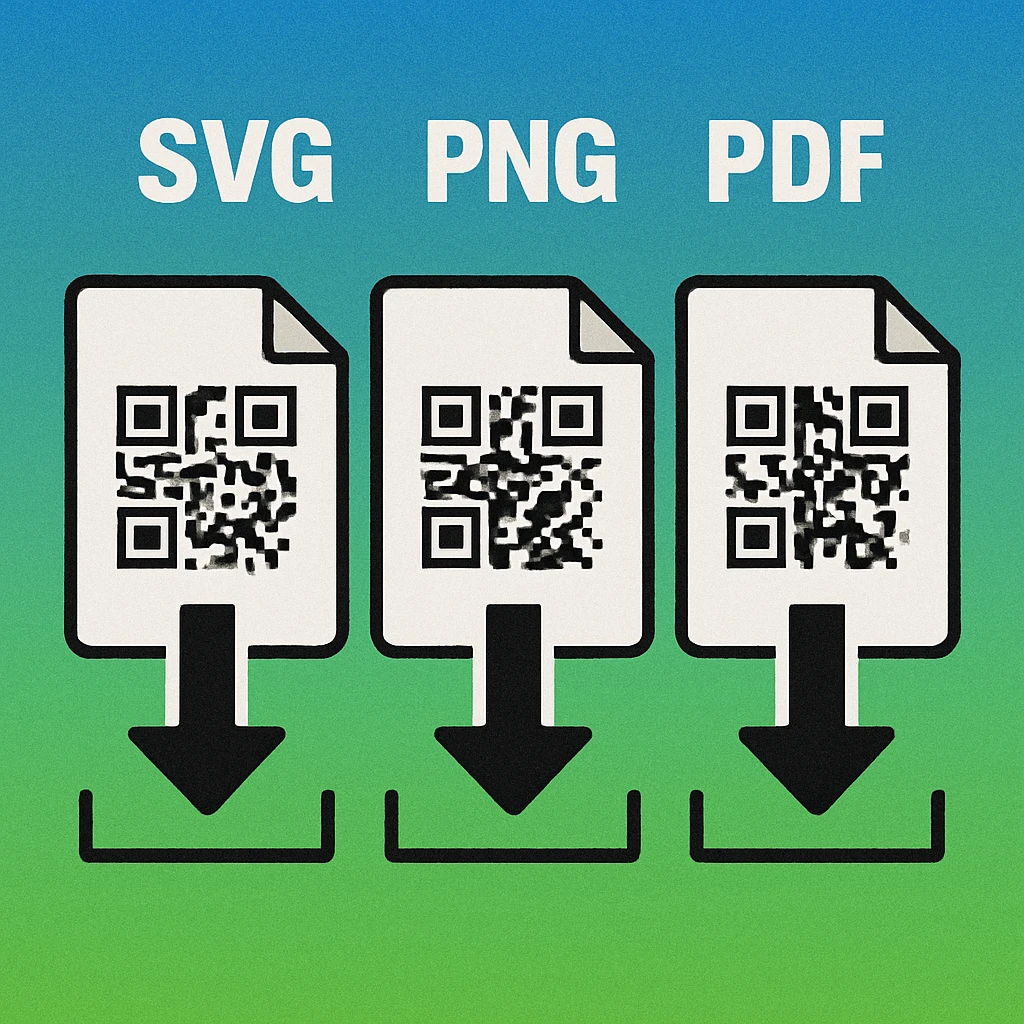
All export workflows in this article refer to the Gen QR Code native Mac app. The same format principles apply to any QR generator, but the Mac app's export panel gives you direct access to SVG, PNG (with custom DPI), and PDF in a single session without switching tools.
SVG: The Vector Master Format
SVG (Scalable Vector Graphics) is the gold-standard format for QR codes going into any design or print workflow. Instead of storing pixels, an SVG describes geometry mathematically — every module in your QR code becomes a rectangle defined by coordinates, not a cluster of coloured pixels. Scale it to a business card or a billboard: the edges remain perfectly crisp at any size.
When to Use SVG
- Placing a QR code into Adobe Illustrator, Affinity Designer, or Affinity Publisher
- Embedding in Figma, Sketch, or any vector UI tool
- Sending to a print bureau or sign shop that works in vector workflows
- Creating responsive web assets that must look sharp at any screen density
- Any situation where you need to recolour individual paths or integrate the QR code into a larger design
SVG Advantages for QR Codes
Because every module is a discrete vector path, an SVG QR code can be ungrouped and colour-treated in Illustrator or Affinity Designer without rasterising. This is invaluable when a client's brand guidelines require a specific Pantone or CMYK colour: you edit the fill directly on the paths rather than approximating it with a raster filter.
When placing an SVG QR code in Illustrator, use File → Place and tick "Link" to keep the asset live-linked. If you later update the QR code in the Mac app and re-export the SVG to the same filename, the linked version in Illustrator updates automatically on the next relink.
PNG: The Universal Raster Format
PNG (Portable Network Graphics) is a lossless raster format. Unlike JPEG, PNG never introduces compression artefacts, which makes it the correct raster choice for QR codes — JPEG's lossy compression can smear the sharp edges of modules and introduce grey fringing that confuses scanners.
When to Use PNG
- Adding a QR code to a website, landing page, or web banner
- Inserting into PowerPoint, Keynote, or Google Slides
- Sharing via email or messaging where vector formats may not render
- Embedding in a Word, Pages, or Google Docs document
- Any destination that does not accept SVG or PDF
Choosing the Right PNG Resolution
PNG is a pixel-based format, so resolution matters. Export at a resolution matched to the intended output. For screen use, 72–96 DPI at the display size is sufficient. For print, see the print production specs section below. The Gen QR Code Mac app lets you set a custom pixel dimension at export, so you always control the output precisely.
PDF: Print-Ready and Press-Safe
PDF (Portable Document Format) is the lingua franca of professional print production. A PDF from the Gen QR Code Mac app embeds vector geometry — like SVG — but wraps it in a format that every printer, RIP (Raster Image Processor), and pre-press workflow understands natively. It also handles page dimensions, bleed, and colour profiles correctly by default.
When to Use PDF
- Sending a standalone QR code to a commercial printer without needing to open a layout application
- Delivering a multi-page document (flyer, brochure, instruction booklet) that includes a QR code as one element
- Submitting files to online print services (MOO, Vistaprint, Moo, local print shops) that require PDF upload
- Creating archival-quality files where long-term fidelity matters more than editability
- Situations where the recipient cannot open SVG files but needs vector quality
For detailed guidance on preparing QR codes for press, including bleed, colour spaces, and file specifications, see our dedicated article on print production for QR codes on Mac.
Export SVG, PNG & PDF from One Mac App
The Gen QR Code Mac app exports all three formats in one session — no web upload, no account, no watermarks.
Format Comparison at a Glance
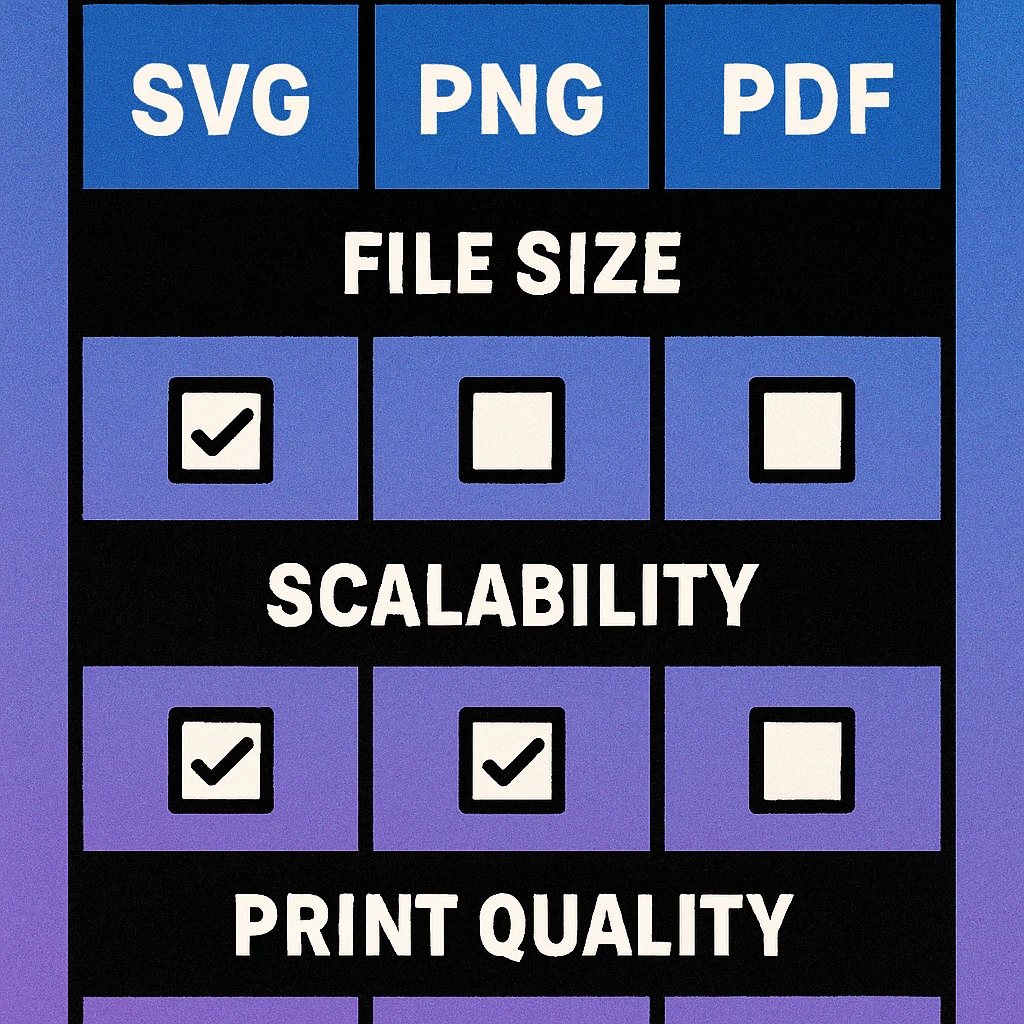
| Format | Type | Resolution-Independent | Best Destination | File Size | Editable in Design Tools |
|---|---|---|---|---|---|
| SVG | Vector | Yes | Design files, web, sign shops | Very small | Yes |
| PNG | Raster | No | Web, slides, email, docs | Medium | Limited |
| Vector (embedded) | Yes | Print bureaus, press workflows | Small–medium | With PDF editor | |
| JPEG | Raster (lossy) | No | Not recommended | Very small | No |
QR Code Apps for Mac & Safari
Prefer generating codes without opening a browser tab? These two native Apple apps cover both habits — a full generator on the desktop, and a one-click share button inside Safari.


Designer Workflow: Which Format, When
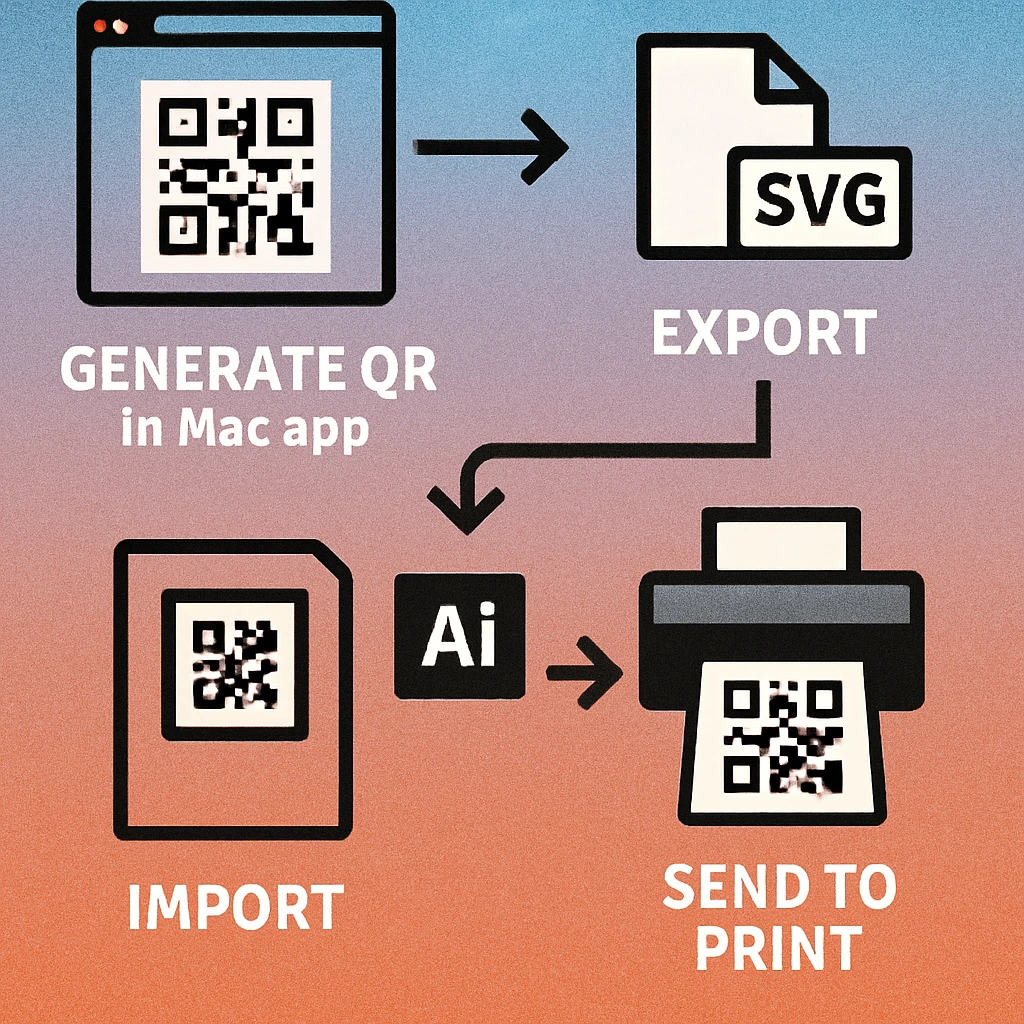
In practice, most designers need more than one format from the same QR code. Here is how a typical multi-destination project flows when using the Gen QR Code Mac app.
Multi-Format Export Workflow
Generate once. Configure your QR code in the Mac app: set the destination URL, choose error correction level H if you are adding a logo, select your colours and module style. This is your single source of truth.
Export SVG as your master file. Save it to a dedicated project folder. This is the file you will place in Illustrator, Affinity, or Figma, and the one you will convert to other formats if needed. Name it clearly: brand-qr-v1.svg.
Export PNG at the largest size you need. If the QR code appears both on a business card (3 cm) and a poster (10 cm), export PNG at the poster size. You can always scale down a high-res PNG; scaling up loses quality. A 10 cm / 300 DPI export gives you a 1181 × 1181 px file.
Export PDF for direct print delivery. If any deliverable goes straight to a printer without passing through Illustrator or InDesign, export a PDF. Use the same QR code session; no need to regenerate.
Test the code before handing off any file. Scan the exported PNG on a physical device. Scan the PDF on-screen if you can render it. Verify the destination URL resolves correctly. Document the test result alongside your deliverables.
Print Production Specs for QR Code Exports
Getting a QR code into a print workflow correctly requires more than choosing the right format. Here are the specifications that matter most at press.
Minimum Print Size
The absolute minimum for a scannable QR code at standard scanning distance (25–30 cm) is 2 cm × 2 cm (approximately 0.8 × 0.8 inches). Below this size, modules become too small for most phone cameras to resolve reliably, especially if the code has many modules (high data density or high error correction). For detailed guidance by use case, see our article on QR code print resolution and DPI.
PNG Resolution Requirements
- Business cards, labels, small print: 300 DPI at the intended print size minimum
- Standard offset or digital press: 300 DPI at print size
- Large format (posters, banners, displays): 150 DPI at print size is generally sufficient — these are viewed from further away
- Screen only (web, slides, email): 150–300 px wide is adequate for most display sizes
Colour Mode
For commercial print, your QR code colours must be in CMYK, not RGB. Most QR generators export RGB by default. When placing an SVG or PDF into Illustrator or InDesign, convert the document colour mode to CMYK before creating the final press-ready PDF. The darkest module colour should be at minimum 90% black (or rich black: C15 M10 Y10 K100) to ensure sufficient density on press. Never use colours lighter than 50% grey for modules — contrast against the background is everything.
Quiet Zone
The QR code specification requires a quiet zone of at least four modules wide on all sides. Do not crop into this blank border in your layout. When placing an SVG or PDF in a design application, add at least 4 mm of additional white space around the code in the layout if the quiet zone in the exported file is minimal.
Before sending any QR code to press: (1) use SVG or PDF for vector quality, (2) confirm minimum size is 2 cm × 2 cm, (3) verify colour mode is CMYK, (4) ensure quiet zone is intact, (5) scan a proof on a physical device after receiving it from the printer.
Frequently Asked Questions
Use SVG when the QR code will be placed in print layouts, design files (Illustrator, Affinity Publisher), or scaled to any size. Use PNG when the destination is a website, email, presentation, or any raster-based workflow. SVG is resolution-independent; PNG is fixed at the pixel dimensions you export. When in doubt and working on a Mac, export both and keep the SVG as your master file.
For standard commercial print (offset or digital press), export at 300 DPI at the intended final print size. For large-format printing such as banners or posters, 150 DPI at final size is generally sufficient. A QR code intended to print at 5 cm × 5 cm at 300 DPI needs at least 591 × 591 pixels. Using SVG instead eliminates the DPI question entirely since the format scales mathematically.
Yes. SVG files exported from the Gen QR Code Mac app are standard vector SVGs that open and embed cleanly in Adobe Illustrator, Affinity Designer, Affinity Publisher, Sketch, and Figma. You can ungroup and recolour individual paths, or place the file as a linked asset to keep it live-linked to any future updates.
PDF is the right choice when you are sending a print-ready file directly to a printer or a service bureau, or when the QR code is part of a standalone document (a flyer, certificate, or instruction sheet). PDF preserves vector geometry, embeds fonts if any are present, and is universally accepted by professional print workflows. For multi-page documents, PDF keeps everything in one portable, press-ready file.
Yes. The Gen QR Code app for Mac exports SVG, PNG, and PDF from the same generated QR code. You can choose your format at export time, set PNG resolution, and export multiple formats in one session. The app is available on the Mac App Store and works entirely offline with no account or subscription required.