Can You Put a Logo in a QR Code?
Yes, you absolutely can — and you should. A QR code with logo is more than a visual upgrade. Studies consistently show that branded QR codes receive significantly more scans than plain black-and-white ones. When people see a recognizable logo in the center of a QR code, they immediately know who the code belongs to and feel more confident scanning it.
The reason this works without destroying the code comes down to one of the smartest features of the QR code specification: error correction. Every QR code contains redundant data that allows it to be read correctly even when part of the image is damaged, dirty, or — in our case — covered by a logo. As long as you follow a few simple rules about size and placement, your logo-enhanced QR code will scan just as reliably as a plain one.
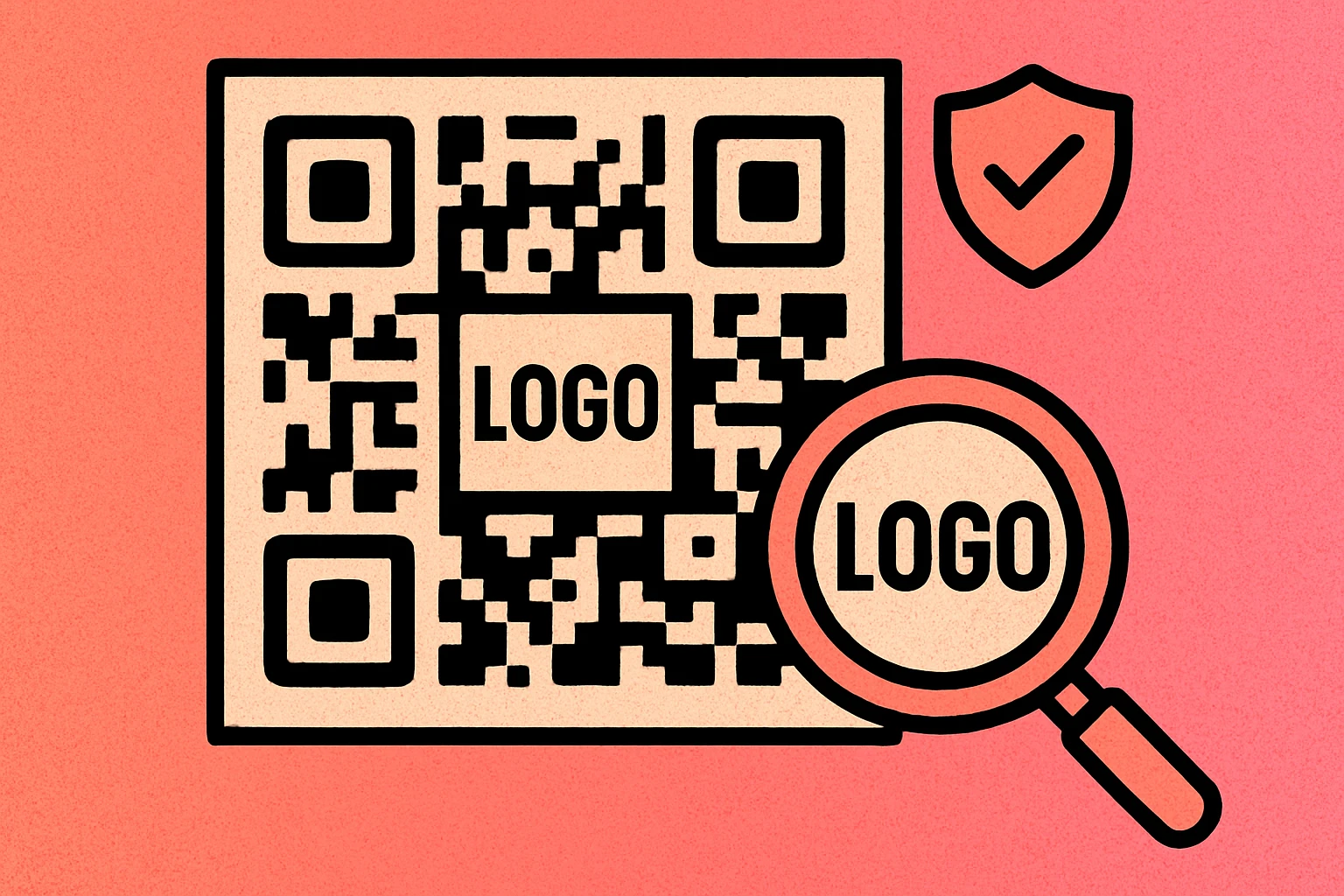
The technique is widely used by major brands, restaurants, event organizers, and marketers. Apple, Spotify, WhatsApp, and countless other companies embed their logos into QR codes on packaging, advertisements, and digital assets. If you want to learn about the broader principles of branded QR codes, our custom QR code design pillar guide covers the full picture.
Adding a logo to a QR code is not only possible — it's recommended for branding. The built-in error correction system makes it work, as long as you follow the size and placement rules covered in this guide.
How Error Correction Makes Logos Possible
QR codes use Reed-Solomon error correction, the same algorithm used by CDs, DVDs, and satellite communications. This system adds redundant data to the code so that the original information can be reconstructed even when part of the pattern is missing or unreadable. For a deep technical explanation, see our dedicated article on QR code error correction levels.
The QR code specification defines four error correction levels, each allowing a different percentage of the code to be damaged while remaining scannable:
| Level | Recovery | Logo Friendly? | Best Use Case |
|---|---|---|---|
| L (Low) | Up to 7% | No | Clean digital screens only |
| M (Medium) | Up to 15% | Risky | General use without logos |
| Q (Quartile) | Up to 25% | Small logos only | Printed materials, mild wear |
| H (High) | Up to 30% | Recommended | QR codes with logos |
Level H is the recommended setting whenever you plan to add a logo. With 30% error recovery, you have enough headroom to place a reasonably sized logo in the center while still leaving a comfortable margin for real-world scanning conditions like poor lighting, slight print damage, or camera angle distortion.
There is a trade-off: higher error correction means the QR code contains more modules (the individual black and white squares), which makes it denser and slightly harder to scan from a distance. In practice, this difference is negligible for most use cases. The scannability benefit of Level H far outweighs the minor increase in code density, especially if you are embedding a logo.
Level Q (25% recovery) can work for very small, simple logos, but it leaves almost no safety margin. Level M and Level L should not be used with logos at all — the logo will likely cover too many data modules and break the code. When in doubt, always choose H.
How to Add a Logo to Your QR Code
Follow these five steps to create a QR code with logo that scans perfectly every time. Whether you are using a free online generator or professional design software, the process is the same.
Step-by-Step: Adding a Logo to a QR Code
Generate your QR code with Level H error correction. Open a QR code generator — like our free generator — and enter your URL, text, or other data. Before generating, set the error correction level to H (High). This ensures the code can tolerate having its center covered by a logo. If your generator does not offer error correction settings, it may not be suitable for logo use.
Prepare your logo file. Use a transparent PNG of your logo. The image should be a simplified version of your brand mark — an icon or symbol works better than a full wordmark. Ensure the logo has strong contrast against both black and white backgrounds, since QR code modules are black and white. Remove any fine details that will disappear at small sizes.
Size the logo to the safe zone. Resize your logo so it covers no more than 15% of the total QR code area. For example, if your QR code is 400×400 pixels, the logo should fit within roughly 155×155 pixels. This 15% rule keeps you well within the 30% error correction limit and leaves margin for scanning reliability.
Place the logo in the exact center. Position the logo at the dead center of the QR code. The center is the safest location because it is farthest from all three finder patterns (the large squares in the corners). Many generators handle this placement automatically. If you are using an image editor, center-align both horizontally and vertically.
Test on multiple devices. Before printing or distributing, scan the finished code with at least three different devices — an iPhone, an Android phone, and a tablet or older device. Test in different lighting conditions, at arm's length, and at an angle. If any device fails to scan, reduce the logo size slightly and test again.
That's the entire process. The most important factors are using Level H error correction and keeping the logo within the center 15% of the code. Get those two things right and your QR code with logo will be rock-solid. For more design ideas beyond logos, check out our guide to QR code color combinations that maintain scannability.
Create a QR Code with Your Logo
Generate a branded QR code in seconds. Free, no signup required, and instant PNG/SVG download.
QR Code Apps for Mac & Safari
Prefer generating codes without opening a browser tab? These two native Apple apps cover both habits — a full generator on the desktop, and a one-click share button inside Safari.


The Logo Safe Zone
Understanding the safe zone is the key to placing a logo without breaking your QR code. The concept is straightforward: certain areas of the QR code are more critical than others, and you must avoid covering them.
The Center 15% Rule
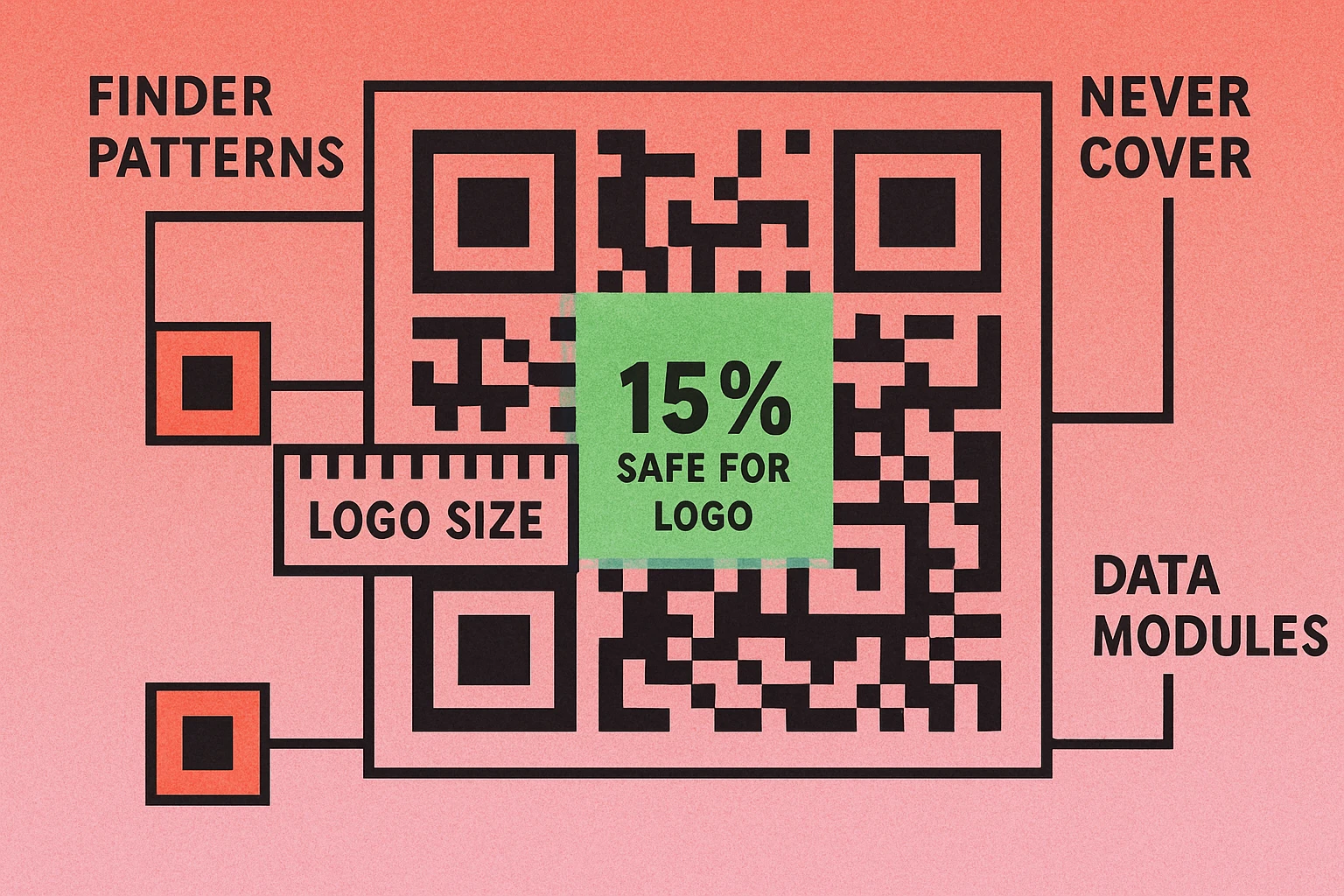
The safest area for a logo is the exact center of the QR code, occupying no more than 15% of the total area. Why 15% and not the full 30% that Level H allows? Because error correction does not only need to compensate for your logo — it also handles real-world issues like print smudges, camera blur, scratches, partial shadows, and scanning at odd angles. The 15% target gives you a generous safety buffer.
To calculate the safe zone size: take the width of your QR code and multiply by approximately 0.39. That gives you the maximum width and height for a square logo. For example:
- 300px QR code: logo safe zone is roughly 117×117 pixels
- 500px QR code: logo safe zone is roughly 195×195 pixels
- 1000px QR code: logo safe zone is roughly 390×390 pixels
Never Cover the Finder Patterns
The three large squares in the top-left, top-right, and bottom-left corners are finder patterns. Scanners use these to locate and orient the QR code — they are non-negotiable. If even one finder pattern is partially obscured, the code will fail to scan on most devices. This is why the center is the only safe location for a logo: it is the point farthest from all three finder patterns.
Timing patterns (the dotted lines between finder patterns) and alignment patterns (smaller squares in larger QR codes) are also important. While error correction can recover some lost timing data, your logo should ideally not overlap these elements either. Keeping the logo in the center 15% automatically avoids all of them in most QR code versions.
Logo Format Tips
The file format and design of your logo matter just as much as its size and placement. A poorly prepared logo can reduce scannability even if it fits within the safe zone. Here are the guidelines that produce the best results:
Use Transparent PNG
A PNG file with a transparent background is the ideal format. Transparency allows the QR code modules around the edges of your logo to remain partially visible, which helps scanners read the code. A logo with a solid white or colored background creates a hard rectangular block that obscures more modules than necessary.
Keep It Simple
Use the simplest version of your logo — an icon, symbol, or monogram rather than a full wordmark with tagline. At the small size required for a QR code, fine text and detailed illustrations become illegible. A clean, bold shape reads well even at 50×50 pixels.
Prioritize High Contrast
Your logo will sit against a mix of black and white QR code modules. To remain visible, the logo needs strong contrast. Dark logos with a subtle white or light padding circle behind them tend to work best. Avoid logos that are mostly light gray or pastel — they'll disappear against the white modules.
Add a Quiet Buffer
Consider adding a small white circle or rounded square behind your logo as a buffer zone. This creates a clean separation between the logo and the surrounding QR modules, making both the logo and the code more readable. Most professional QR code generators add this buffer automatically.
For more on making your QR code visually appealing while maintaining function, see our guides on QR code color combinations and custom QR code design.
Common Mistakes to Avoid
Most broken QR codes with logos fail for one of these predictable reasons. Avoid these pitfalls and your code will scan every time. For a comprehensive list, read our full article on QR code design mistakes.
1. Logo Is Too Big
This is the number one mistake. People want their logo to be prominent, so they make it cover 25–40% of the code. Even with Level H error correction, a logo this large leaves almost no room for real-world error recovery. The code might scan perfectly on your phone in good lighting but fail at a trade show, on a printed flyer in sunlight, or when someone scans from a distance. Stick to 15% or less.
2. Covering Finder Patterns
Placing a logo in a corner or off-center so it overlaps a finder pattern is an instant kill for scannability. The three finder squares are the first thing a scanner looks for — without them, the scanner cannot even locate the QR code in the image, let alone decode it. Always center your logo.
3. Using Low Error Correction
Some generators default to Level L or Level M error correction. At these levels, even a tiny logo can push the code past its recovery threshold. Always verify that your error correction is set to H before adding a logo. If your generator does not show this setting, look for one that does.
4. Complex or Low-Contrast Logos
A detailed, multi-color logo with gradients and thin lines becomes an unreadable blob at QR code sizes. It also interferes with the scanner's ability to distinguish it from the code's data modules. Use a simplified, high-contrast version of your logo specifically prepared for QR code use.
5. Not Testing After Adding the Logo
The most dangerous mistake is assuming the code works without testing. Always scan the final code on multiple devices, in different lighting conditions, and at various distances. A code that scans on your newest iPhone might fail on an older Android device with a lower-quality camera.
Even if your QR code scans on your phone right now, print conditions, distance, and older cameras can reduce reliability. Always leave a safety margin by keeping your logo at 15% of the code area — not the full 30% that error correction technically allows.
For more guidance on creating well-designed, scannable QR codes, see our complete QR code guide which covers everything from generation to printing best practices.
Frequently Asked Questions
No, not if you do it correctly. QR codes have built-in error correction that allows up to 30% of the code to be damaged or covered and still scan successfully. By using High (H) error correction and keeping your logo within the center 15% of the code, your QR code will remain fully scannable.
Use Level H (High) error correction, which recovers up to 30% of the code. This gives you the most room for a logo overlay. Level Q (25% recovery) can also work for very small logos, but H is the safest and most reliable choice for any QR code that includes a logo.
Your logo should cover no more than 15% of the total QR code area. Even though Level H error correction can handle up to 30% obstruction, keeping the logo at 15% provides a safety margin for real-world scanning conditions like poor lighting, print quality variations, or slight damage to the code.
A transparent PNG file is the best format for QR code logos. The transparency allows the QR code pattern to remain visible around the edges of the logo. Use a simple, high-contrast version of your logo — avoid photographs, gradients, or fine details that become illegible at small sizes.
No. The logo must go in the center of the QR code. The three corners contain finder patterns that scanners use to locate and orient the code — covering even one of these will make the code unscannable. The center is the only safe area because it is farthest from all three finder patterns.