
Canva's Built-In QR Code App
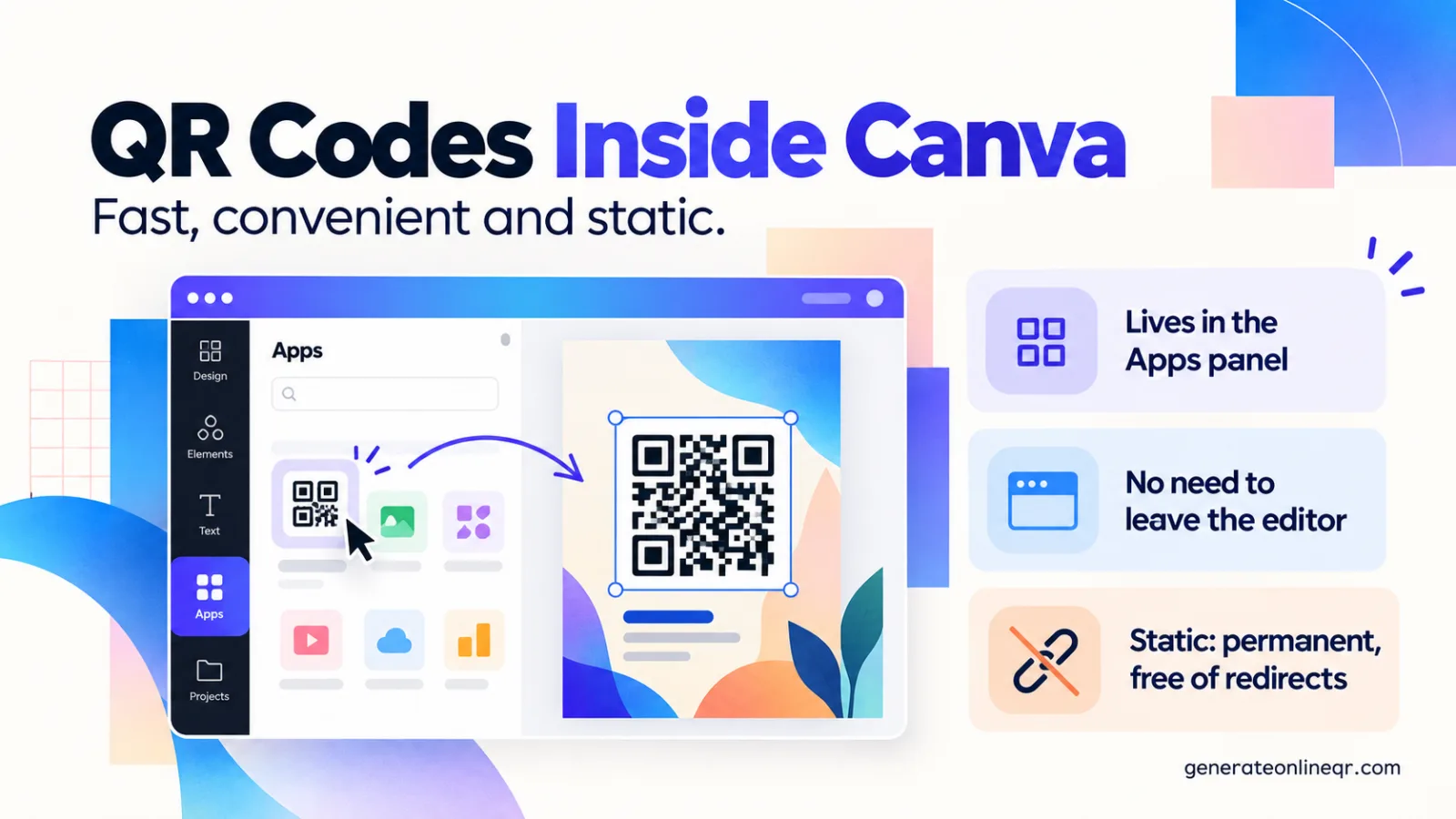
Canva does not make you leave the editor to add a QR code. The generator lives in the Apps section of the left-hand side panel, alongside the other integrations Canva bundles into the editor. Open it, type a destination, and Canva drops a finished code straight onto the page you are working on.
That tight integration is the whole appeal. You are already laying out the flyer, the menu insert, the conference banner or the story graphic — being able to place the code without downloading a file, switching tabs and re-uploading it saves a genuine amount of time. For a large share of everyday design work, that is the end of the story.
It is worth understanding what you are actually getting, though. The code Canva produces is a static QR code: the destination URL is encoded directly into the black-and-white pattern, so the code works forever without any subscription or redirect service behind it — but it also cannot be changed once it has been printed. If that distinction is new to you, our comparison of static vs dynamic QR codes covers the trade-off in full.
Canva's QR Code app is fast and convenient, and the code it makes is static — permanent, free of any subscription, but impossible to re-point after printing.
How to Make a QR Code in Canva (Step by Step)
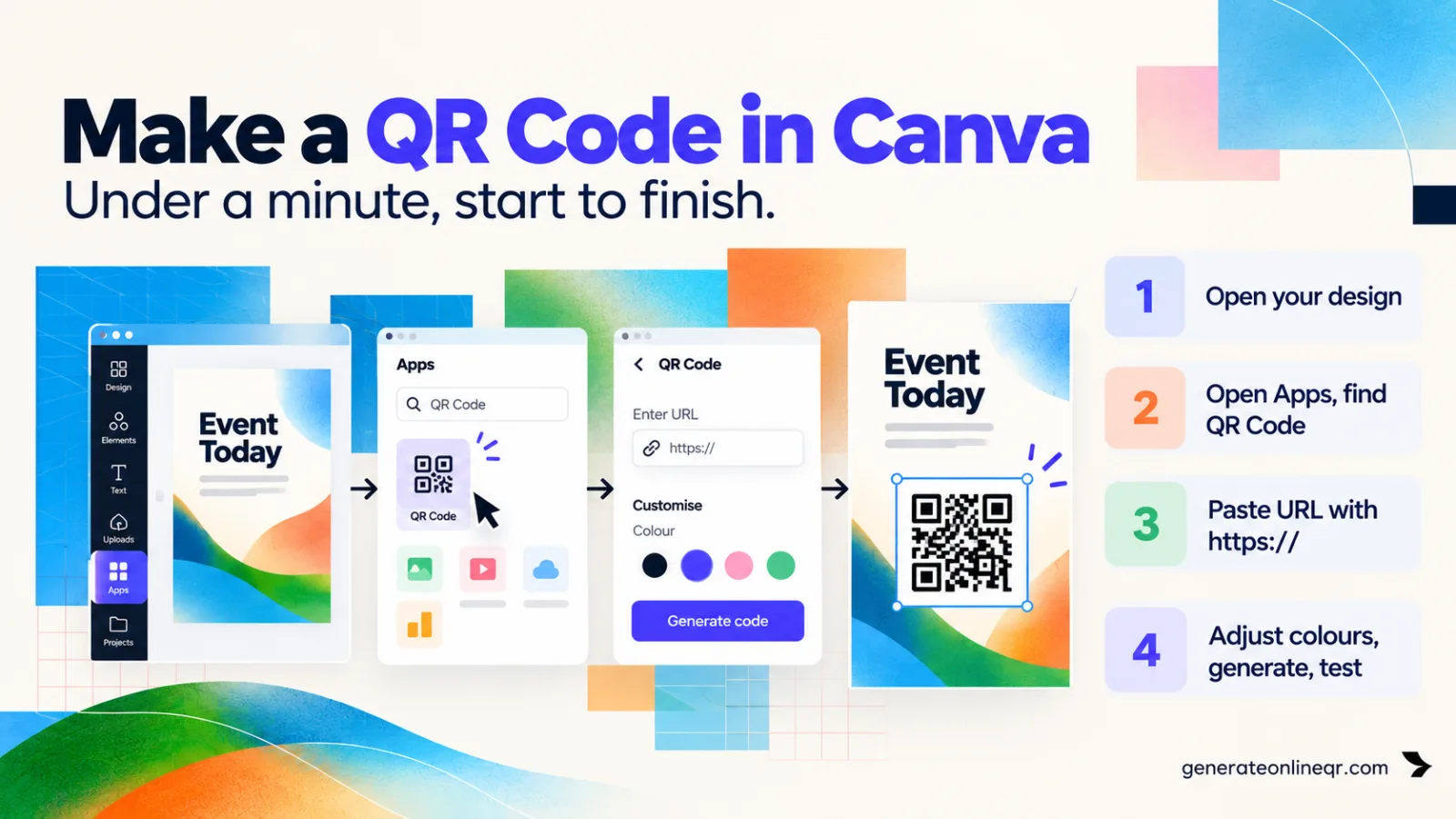
The whole process takes under a minute. Canva occasionally reorganises its editor, so treat the panel names below as landmarks rather than exact pixel positions — the sequence itself has stayed the same for years.
From Blank Canvas to Scannable Code
Open the design you want the code in. The QR code is added to whichever page is currently selected, so start from the actual flyer, poster or social template rather than a scratch document. Everything from here happens inside the editor.
Open the Apps section of the side panel. In the editor's left-hand panel, look for Apps. It sits with the other panel sections such as Elements, Text and Uploads. If you cannot see it directly, use the panel's search field.
Find and open the QR Code app. Search the Apps list for "QR Code" and open Canva's own QR Code app. The panel switches to the app's own small interface with a field for your destination.
Paste the destination URL. Enter the full address, including the https:// prefix. A missing protocol is the single most common reason a freshly made code opens nothing on some phones. Double-check the link in a browser first — the QR code cannot fix a typo for you.
Adjust the colour options the app offers. The app panel exposes basic colour controls for the code and its background. Keep the pattern noticeably darker than the background; inverting that relationship, or using two mid-tone colours, is what breaks most decorative codes. Our guide to QR code colour combinations has the safe pairings.
Generate and place it. Generate the code and Canva adds it to the current page. From that point it is an ordinary element: drag it into position, and resize it by pulling a corner handle so it stays perfectly square. Never stretch a QR code from a side handle.
Test it on the canvas. Before you go any further, point a phone camera at the code on your screen. If it resolves to the right page there, you have a working code; everything after this is about not breaking it during export.
If your destination is a long, parameter-heavy link, shorten it before you paste. Fewer characters means fewer modules, and a code with fewer modules stays readable at smaller print sizes and from further away. The same logic applies to any web address you encode — see our guide to URL QR code generators for the details.
What Canva's QR Code Tool Cannot Do
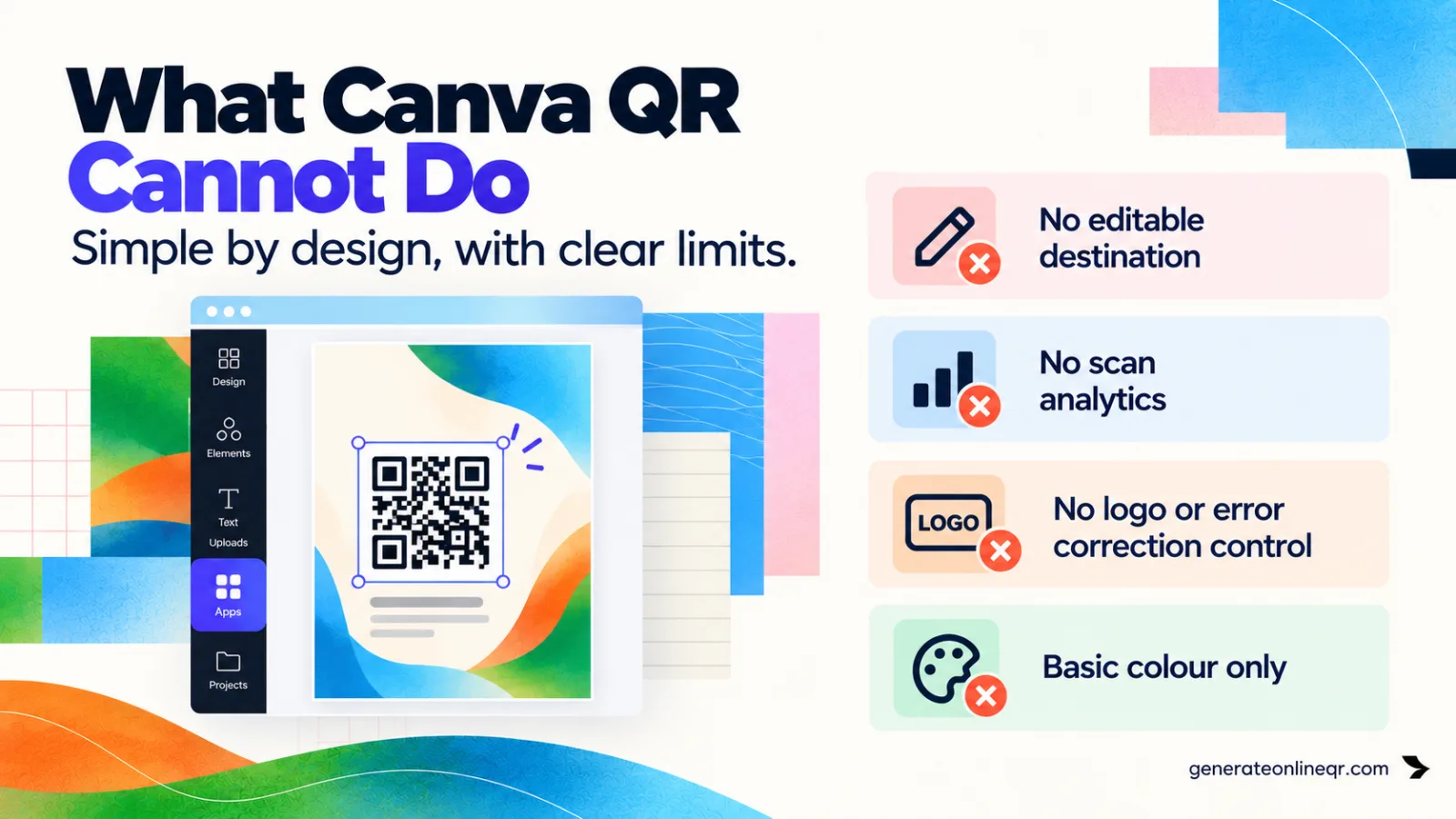
None of these are complaints about a bad tool. Canva's QR generator is deliberately simple, because it exists to serve the ninety percent case quickly. But knowing where the ceiling is stops you discovering it three thousand printed flyers too late.
| Capability | In Canva | What It Means For You |
|---|---|---|
| Static code | Yes | Works forever, no subscription, no third-party redirect in the chain |
| Editable destination | No | Changing the link after printing means a new code and a reprint |
| Scan analytics | No | No scan counts, locations or times; use UTM tags or a dynamic platform |
| Logo in the centre | No | No built-in logo embedding with matched error correction |
| Module & eye styling | Limited | Basic colour only — no rounded dots, custom eyes or gradients |
| Error correction control | No | You cannot raise redundancy for damage-prone or overlaid placements |
| Vector output of the code | Depends | Depends on the export format your Canva plan offers for the whole design |
The two that bite hardest in practice are styling and print output. If a brand guideline calls for rounded modules, coloured finder patterns or a logo knocked into the centre, Canva's app will not get you there — that is the territory covered in our guides to QR code shapes and styles and adding a logo without breaking the code.
Print output is the subtler one. A QR code is a grid of hard-edged squares, which is the worst possible subject for raster resampling: if the code is rasterised at a low resolution and then enlarged, module edges soften into grey mush and scanners start to struggle at exactly the distances you care about. What matters is the resolution the code lands at in the final exported file, not how crisp it looked on your screen. Our breakdown of QR code print resolution and DPI explains the numbers.
Do not drop a logo or graphic on top of a Canva-generated code and hope. Without control over the error correction level you have no idea how much redundancy you are eating into, and the code may scan on your phone but fail on someone else's.
QR Code Apps for Mac & Safari
Prefer generating codes without opening a browser tab? These two native Apple apps cover both habits — a full generator on the desktop, and a one-click share button inside Safari.
When to Generate the Code Elsewhere Instead
The honest answer is that most people should just use Canva's app. It is right there, it works, and a code on a social graphic or an A5 handout has an easy job to do. Reach for a dedicated generator when one of these is true:
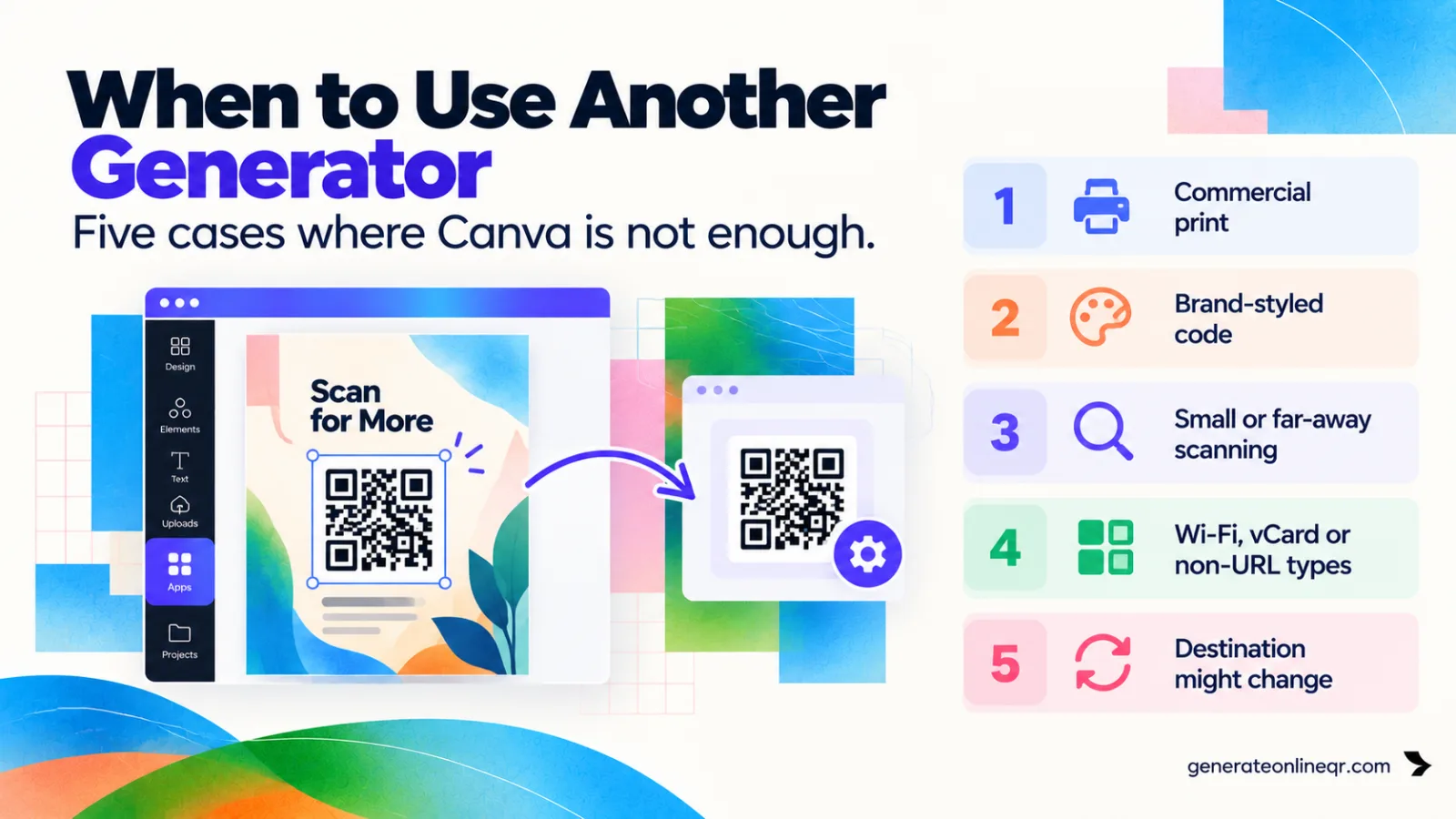
- The design is going to commercial print. Anything a printer handles — packaging, large-format signage, a magazine placement, a full run of business cards — deserves a vector or high-DPI code you have control over rather than whatever resolution falls out of an editor export.
- The code must carry your brand. Custom module shapes, brand-coloured finder patterns or a centred logo all need a generator built for it.
- It is going to be small or read from far away. Both extremes punish an imprecise code. A crisp vector at the exact size you need removes an entire category of failure.
- You need something other than a plain URL. Wi-Fi credentials, a vCard, an email draft, a calendar event and geolocation codes all use their own payload formats.
- The destination might change. Then you want a dynamic code, and neither Canva nor any static generator can offer that.
In those cases the workflow barely changes: generate the code with a tool built for it — our free QR code generator produces black-on-white SVG and PNG output with no signup for URL, Text, Wi-Fi, Email and Phone codes, and Gen QR for Mac adds brand colours, a logo overlay with matched error correction, and vCard contact codes — then bring the file into Canva and lay it out exactly as you would have anyway. You keep Canva for what it is genuinely excellent at, which is design, and you stop asking it to be a print production tool.
Generate a Print-Ready Code, Then Design Around It
SVG and PNG output, no signup and no expiry — ready to upload straight into Canva.
How to Add an External QR Code to a Canva Design
Bringing a code in from outside takes about as long as generating one inside. Canva treats it as an ordinary uploaded asset, so it behaves like every other element on the page.
Uploading a QR Code Into Canva
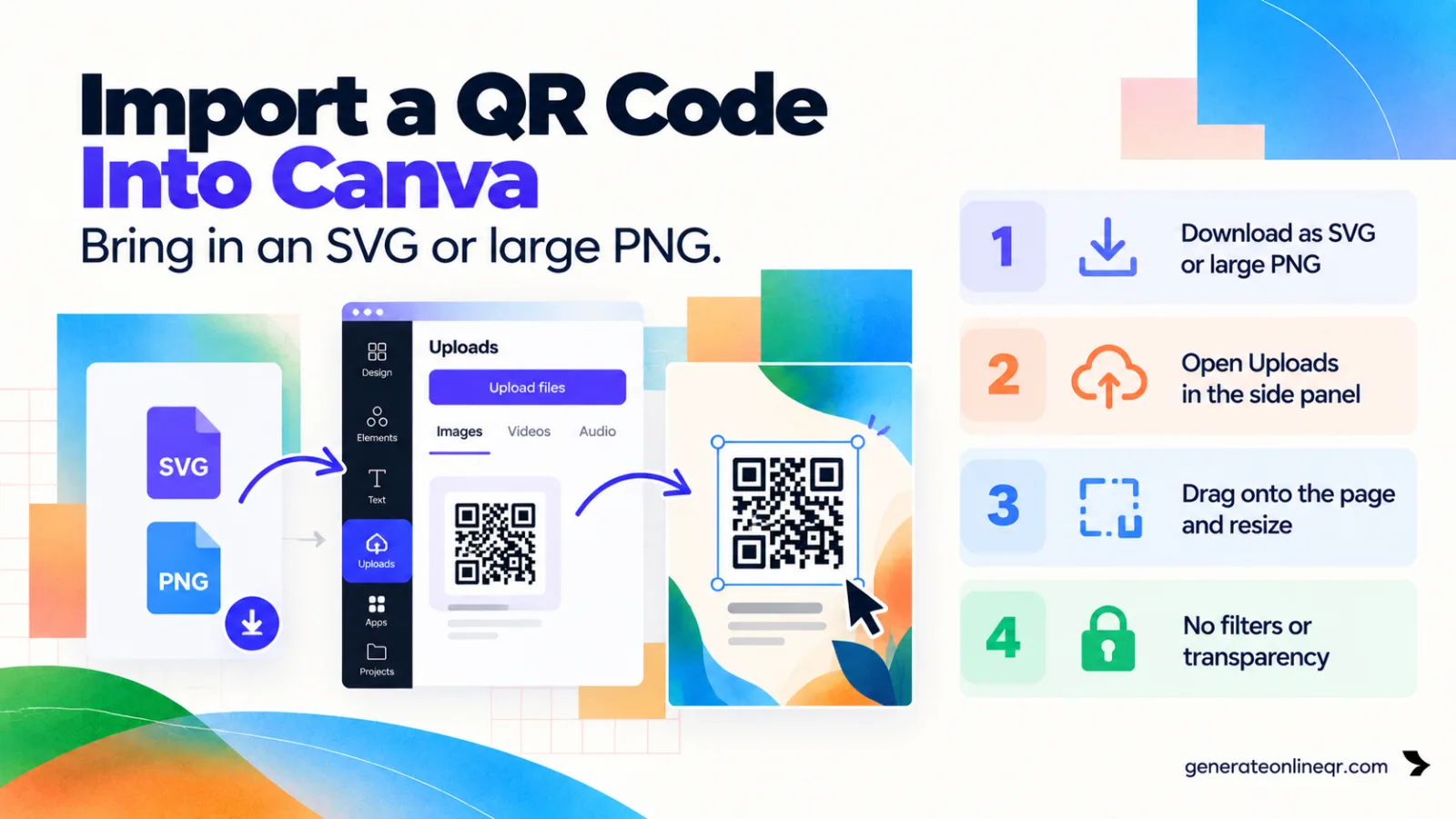
Download the code as SVG, or as a large PNG. SVG is vector: it scales to any size with mathematically perfect edges. If SVG is not an option in your workflow, export a PNG far larger than you think you need — a code destined for print at 3 cm should still be exported at well over a thousand pixels square.
Open Uploads in the Canva side panel. Use the upload button, or simply drag the file from your desktop onto the panel. Canva keeps it in your account, so the same code is available in every future design.
Click or drag it onto the page. Position it, then resize from a corner handle. If the code has a white background and your layout does not, place it on a white or very light panel rather than trying to knock the background out — the quiet zone matters more than the aesthetic.
Leave it alone after that. Do not apply filters, transparency, shadows, duotone effects or any of Canva's image adjustments to a QR code. Every one of them reduces the contrast a scanner depends on.
One caveat on SVG uploads: what Canva accepts and how faithfully it renders a given SVG can vary, and support for uploading certain file types is tied to plan level. If an SVG does not come in cleanly, a very high-resolution PNG is a perfectly good fallback — the failure mode you are avoiding is a small raster file scaled up, not raster files as a category. Our guide to QR code file formats covers when each format is the right call.
Sizing, Quiet Zone and Print Rules
Whether the code came from Canva's app or from an upload, the physics of scanning are the same. Three numbers cover almost every failure.
Size Against Scanning Distance
The workable rule of thumb is that a QR code should be roughly one tenth of the distance it will be scanned from. Read from 30 cm on a table tent or a flyer in the hand, that means about 3 cm square; a poster read from 3 m needs about 30 cm. Around 2 cm is the practical floor for a code held at arm's length, and going smaller is where "it scanned on my phone but not on theirs" starts. Our QR code size guide works through the trickier cases.
Keep the Quiet Zone Clear
A QR code needs an empty margin around it — the quiet zone — so the scanner can find the pattern's boundary. The specification calls for four modules' worth of clear space, which in practice means a white border roughly as wide as four of the small squares in the code. In a busy Canva layout this is the rule that gets broken first: text creeps up to the edge, a background photo runs underneath, a decorative shape overlaps a corner. Give the code room and it will forgive a lot else.
Export at Print Quality
When the design is headed for print, use the highest-quality export your Canva plan offers rather than a standard screen PNG, and if the printer has asked for a specific resolution or colour space, follow their spec. On press, pure black on white is the safest combination there is: light tints, thin ink coverage and dark-on-dark colour schemes all eat into the contrast scanners rely on.
Ask your printer for a physical proof and scan the proof itself. Paper stock, ink spread and matte laminate all change how a code reads, and none of that is visible on screen.
Testing Before You Export
Almost every QR code disaster is a testing failure rather than a design failure. Five minutes here is worth more than any amount of care elsewhere.
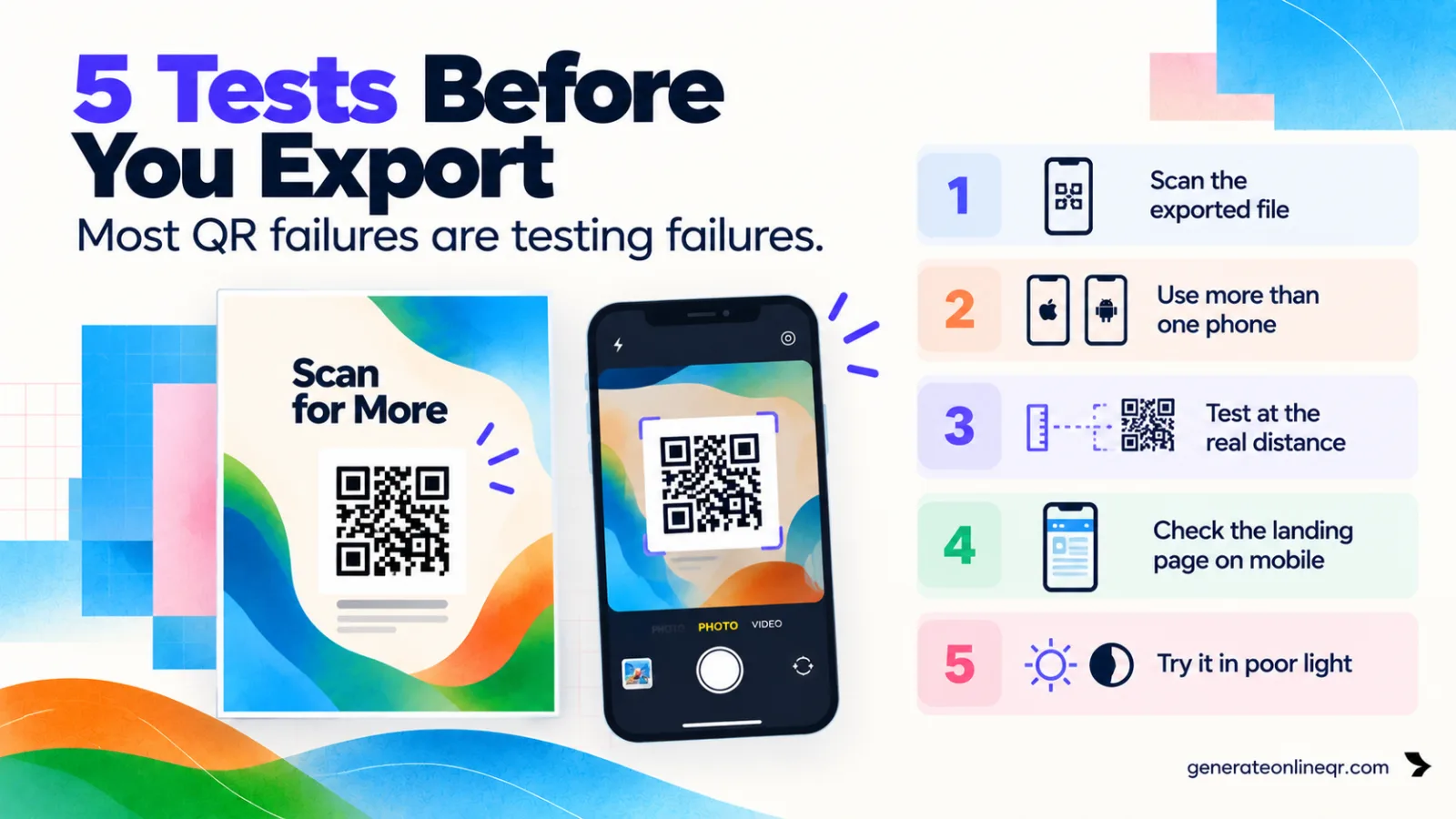
- Scan the exported file, not the canvas. The canvas view is not what your audience receives. Download the design, open the file at its real size, and scan that.
- Use more than one phone. An iPhone camera and an Android camera do not have identical tolerances. If it works on both, it will work almost everywhere.
- Test at the real distance. Print the page at final size and scan it from where a person will actually stand.
- Check the landing page on mobile. A perfect code pointing at a page that renders badly on a phone is still a wasted scan.
- Try it in poor light. Restaurant, event and outdoor evening placements rarely enjoy the lighting your desk does.
If a code refuses to scan, the cause is almost always one of four things: not enough contrast, no quiet zone, too small for the distance, or a low-resolution export. Our troubleshooting guide on why QR codes fail to scan walks through diagnosing each.
One last thing worth planning for: because a Canva code is static, it reports nothing back to you. If you care how the campaign performed, add UTM parameters to the destination URL before you generate the code, so the scans land in your analytics as identifiable traffic. Our guide to tracking QR code scans covers that and the dynamic alternatives.
Frequently Asked Questions
Yes. Canva includes a QR Code app you reach through the Apps section of the editor's side panel. You enter a destination URL, generate the code, and Canva places it into your design as an element you can move and resize.
No. The QR code Canva generates is static, which means the destination URL is encoded into the pattern itself. Changing where it points requires generating a new code and reprinting. If you need to edit the destination later, use a dynamic QR code from a platform that offers redirect hosting.
Canva's QR Code app does not embed a logo for you. You can place a logo on top of the code manually on the canvas, but that is risky: covering modules without raising the error correction level can make the code unreadable. Generating the code with proper logo support elsewhere and importing the finished image is safer.
It can, provided you keep it large enough, leave a clear quiet zone around it, keep strong dark-on-light contrast, and export the design at print quality rather than as a small screen-resolution PNG. Always scan a printed proof before ordering a full run.
Download the code as an SVG or a large PNG, open the Uploads section of the Canva side panel, upload the file, then click or drag it onto your design. It behaves like any other uploaded element and can be positioned and resized freely.
Not through Canva itself. A static code carries no tracking of its own. You can add UTM parameters to the destination URL before generating the code and read the scans as traffic in your analytics tool, or use a dynamic QR platform that counts scans directly.